The Sync step
Synopsis
Synchronizes a target database with the package.
Description
The Sync step involves comparing the database schema and data with the source package, identifying differences, and applying the necessary changes to bring the target database up to date.
Create the Sync step
1. In the navigation menu, select Projects, then under your project, click Build.
2. In the top right corner, use the Settings toggle to switch to editing mode.
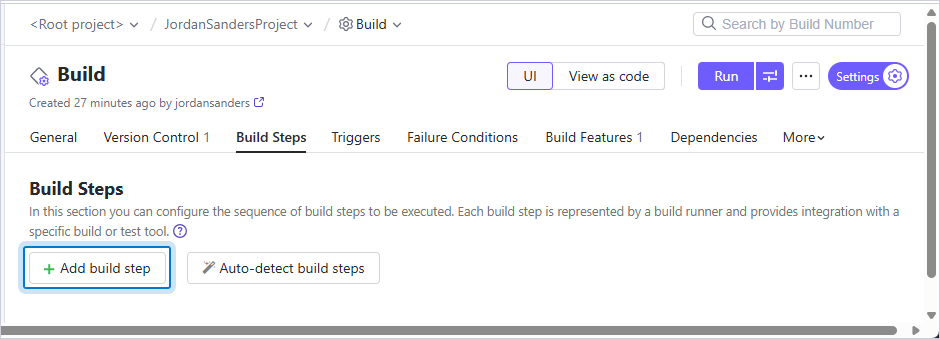
3. Navigate to the Build Steps tab and click Add build step.
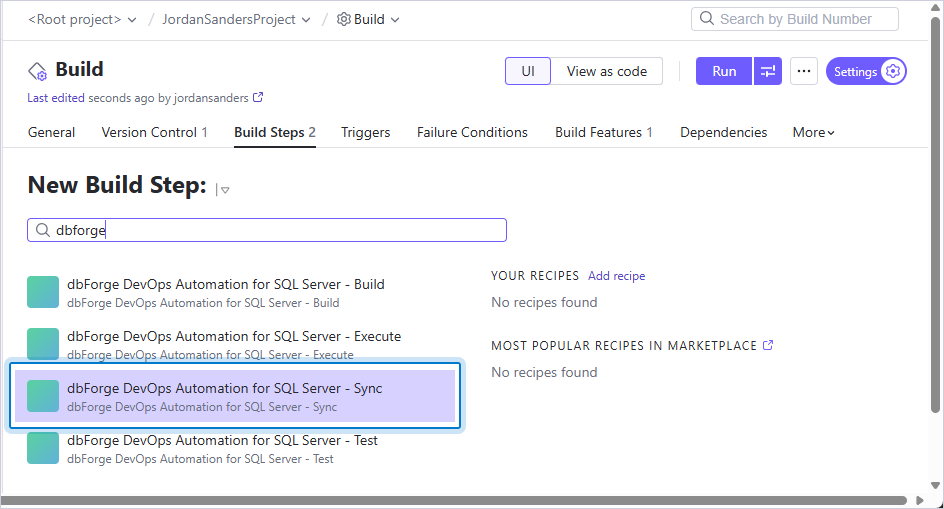
4. In the search box, enter dbforge, then select dbForge DevOps Automation for SQL Server – Sync.
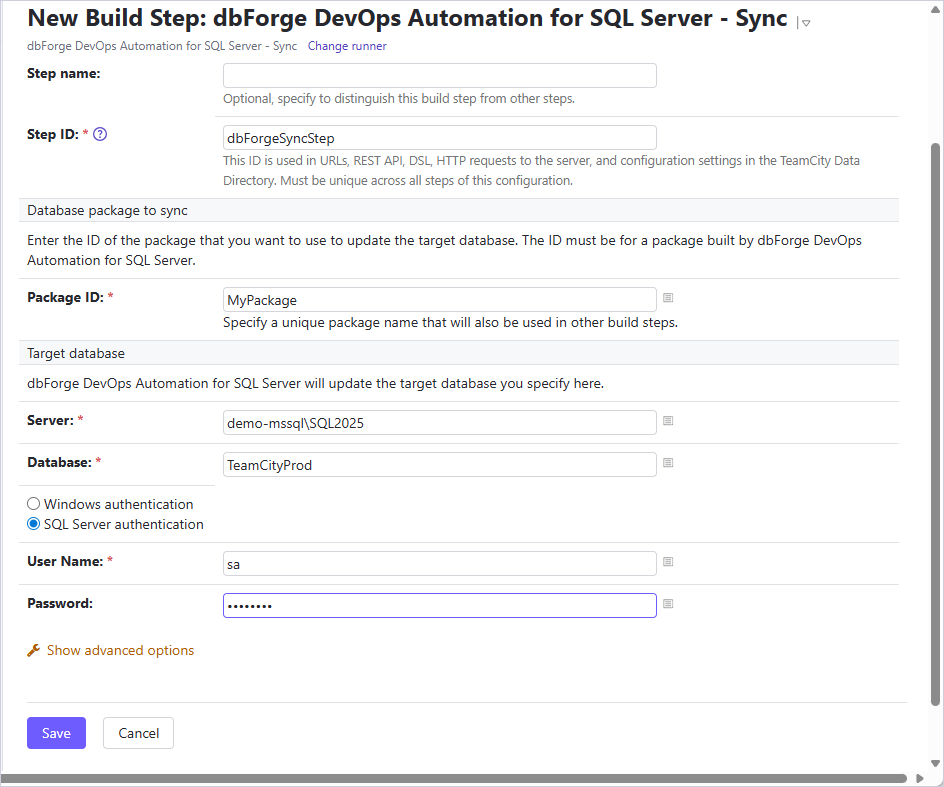
5. Configure the step settings.
The table provides a list of options you can customize for the Sync step.
| Name | Description |
|---|---|
| Step name | Optional: Specify the step name to distinguish it from other steps. |
| Package ID | Specify a unique package name that will also be used in other build steps. |
| SQL Server | Enter the target database server, for example, SERVERNAME\INSTANCENAME. For a local default instance, use (local). |
| Database | Enter the target database name. |
| Authentication method | Select the authentication method. |
| Schema Compare options | Specify additional Schema Compare options. |
| Transaction isolation level | Select a transaction isolation level. |
| Schema Compare filter | Specify a path to an alternative filter file which will be used for validating the schema to override .scflt filter file that is present in the input. Note: You can filter data by using a filter file (.scflt) that defines the filtering rules. After generating the file, add it to your version control system (VCS) so it can be used in the CI process. |
6. Click Save.
Note
The Sync step doesn’t support running a comparison on its own. Whenever you execute it, it automatically initiates synchronization between the source and target databases. To obtain a comparison report without synchronization, use the dbForge Studio for SQL Server Enterprise or Professional edition command line instead without using the
/syncswitch. For example:"C:\Program Files\Devart\dbForge Studio for SQL Server\dbforgesql.com" /schemacompare /source connection:"Data Source=<server_name>;Initial Catalog=A1;Integrated Security=False;User ID=<user_name>" /target connection:"Data Source=<server_name>;Initial Catalog=A2;Integrated Security=False;User ID=<user_name>" /report:D:\report.xml /reportformat:xmlIf you need a customized solution in your DevOps pipeline, the dbForge Studio command-line interface provides a flexible option that can be adapted to your specific requirements. This approach allows you to configure commands for your particular steps and run the tool with the necessary options and parameters.