The Execute step
Synopsis
Runs specified SQL scripts in the pipeline.
Description
The Execute step executes SQL scripts, which can be used for a variety of purposes, such as creating a database from custom scripts, executing migration scripts to update an existing database, or adding unit tests for the deployed database.
Create the Execute step
1. In the navigation menu, select Projects, then under your project, click Build.
2. In the top right corner, use the Settings toggle to switch to editing mode.
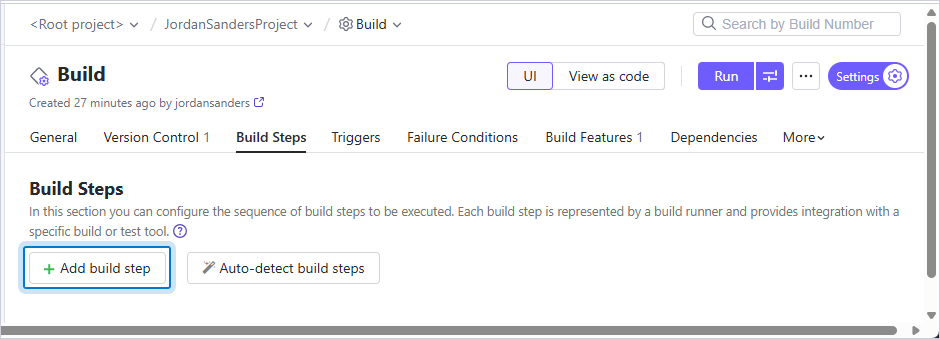
3. Navigate to the Build Steps tab and click Add build step.
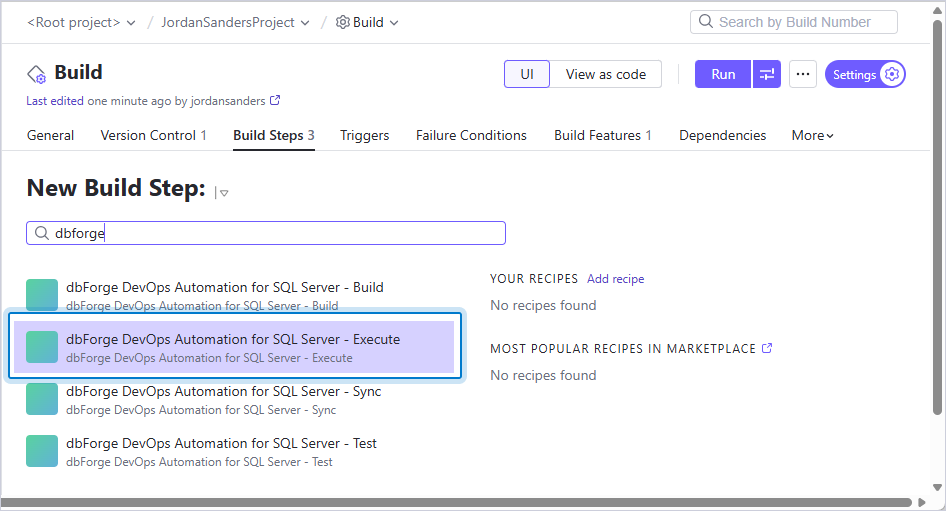
4. In the search box, enter dbforge, then select dbForge DevOps Automation for SQL Server – Execute.
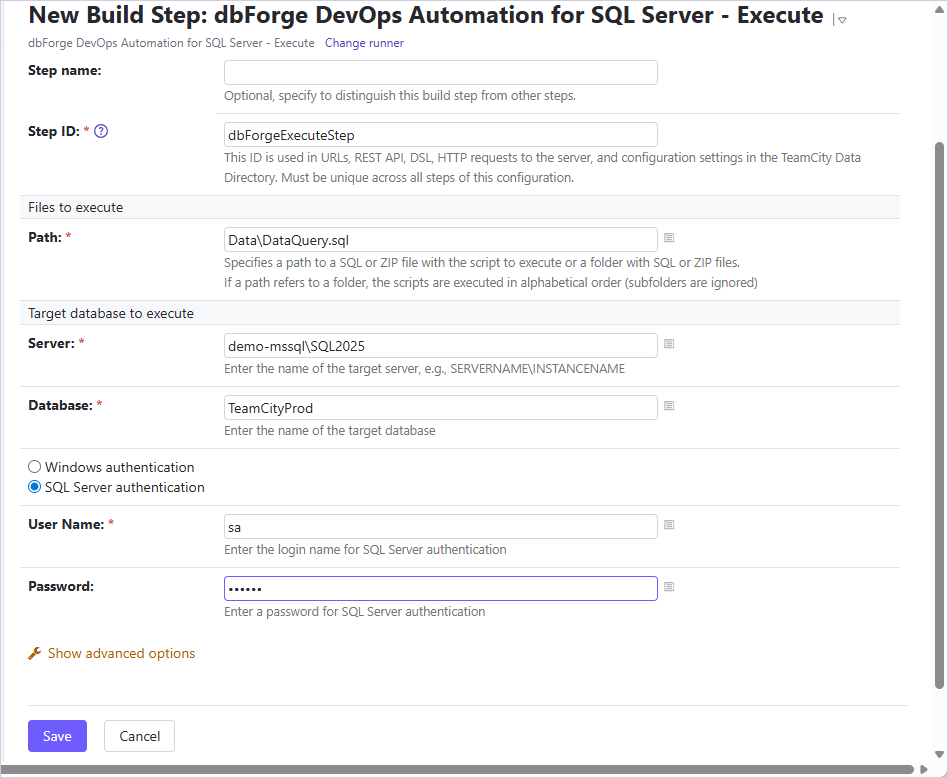
5. Configure the step settings.
The table provides a list of options you can customize for the Execute step.
| Name | Description |
|---|---|
| Step name | Optional: Specify the step name to distinguish it from other steps. |
| Files to execute | Specify the full path to the SQL or ZIP file containing the script to execute or the folder with SQL or ZIP files. The scripts in the folder are executed in alphabetical order (subfolders are ignored). |
| SQL Server | Enter the target database server, for example, SERVERNAME\INSTANCENAME. For a local default instance, use (local). |
| Database | Enter the target database name. |
| Authentication method | Select the authentication method. |
| User Name | Enter the login name you want to use for the SQL Server authentication. |
| Password | Enter the password you want to use for SQL Server authentication. |
| Encoding | Select the encoding you want to use to open and execute the script. |
| Zip Password | Enter a password to the protected archive file. |
| Ignore Error | Select to allow scripts execution to continue despite errors. |
6. Click Save.