The Test step
Synopsis
Runs unit tests on a deployed database.
Description
The Test step ensures the quality and stability of your database by running unit tests on a deployed database. This step validates that the recent changes to the database schema, configurations, and data migration scripts have not introduced any issues or unexpected behavior.
Create the Test step
1. On the Configure page, select Build Steps.
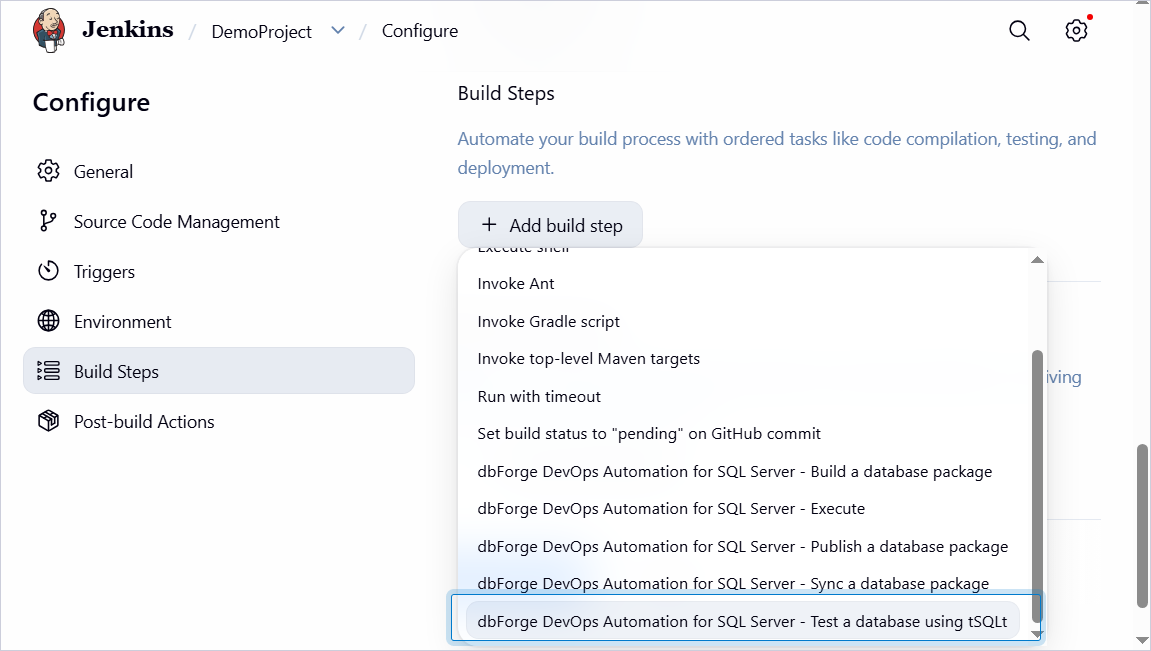
2. Click Add build step, then select dbForge DevOps Automation for SQL Server – Test a database using tSQLt.
3. Under Database package to test, specify the Package ID and, optionally, the server name and the name of the database you want to test.
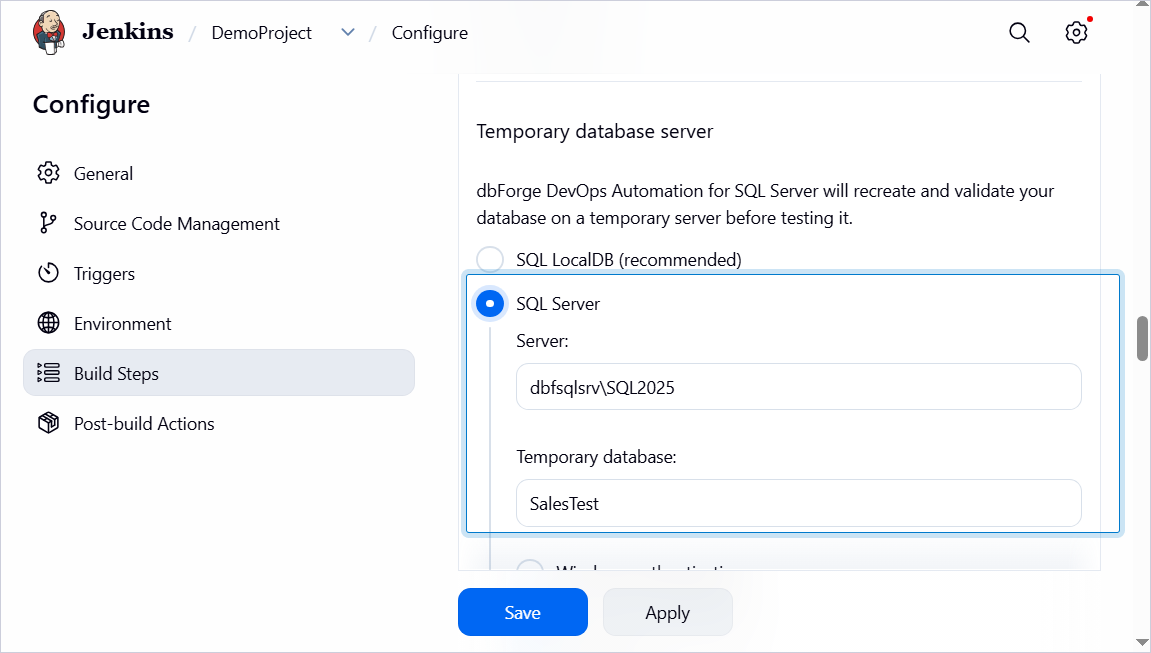
4. Under Temporary database server, select SQL Server and specify the server name and the name of the database that you want to deploy to the server.
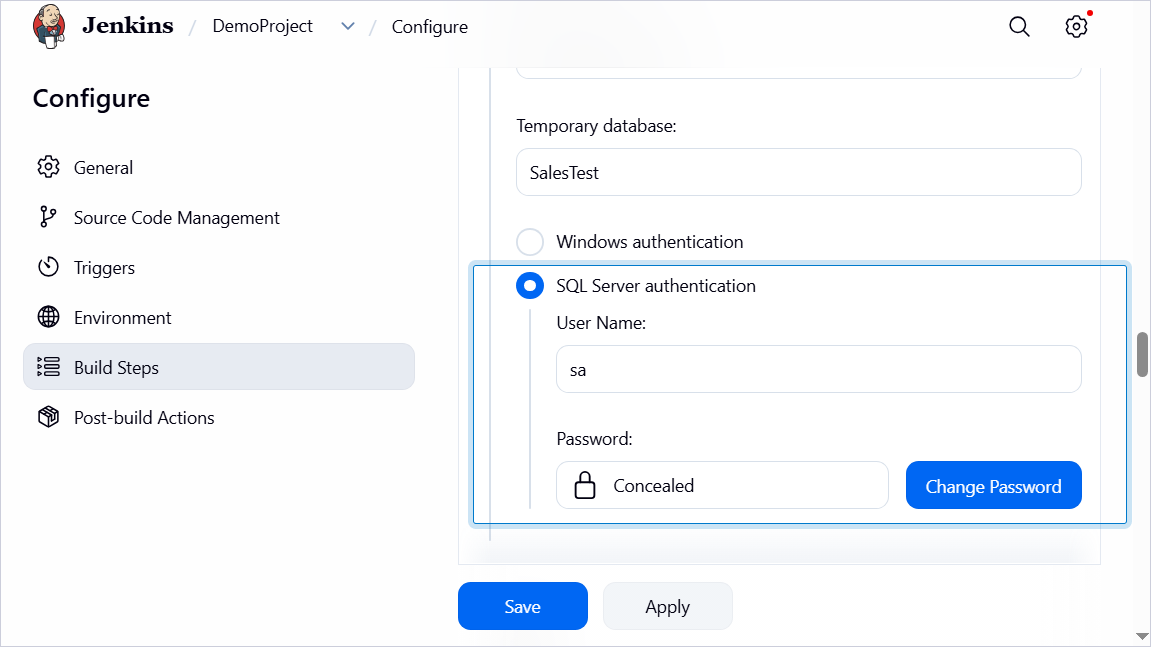
5. Select SQL Server authentication and enter your username and password that you use to connect to the server.
6. Under Run tests, select Run every test.
7. Click Save.
Customization options
The table provides a list of settings you can customize for the Test step.
| Name | Description |
|---|---|
| Package ID | Specify a unique package name that will be used in other build steps. |
| Temporary database server | Specify the temporary server for dbForge DevOps Automation for SQL Server to recreate and validate your database on. The available options are:
If you select SQL Server, specify the server name, database name, authentication method (Windows Authentication or SQL Server Authentication), username and password that you use to connect to the server. |
| Run tests | Select the test run mode:
If you select Run selected tests only, specify the tests separated with a comma. |
| Generate test data | Enable test data generation mode before running tSQLt unit tests. Specify the full path to the data generation project file (.dgen). |
| Schema Compare options | Specify additional schema comparison options. |
| Schema Compare filter | Specify the full path to an alternative filter file which will be used for validating the schema to override .scflt filter file that is present in the input. Note: You can filter data by using a filter file (.scflt) that defines the filtering rules. After generating the file, add it to your version control system (VCS) so it can be used in the CI process. |