The Sync task
Synopsis
Synchronizes a target database with the package.
Description
The Sync task involves comparing the database schema and data with the source package. It also identifies differences and applies the necessary changes to keep the target database up to date.
Create the Sync task
1. Click Add a task to Agent job.
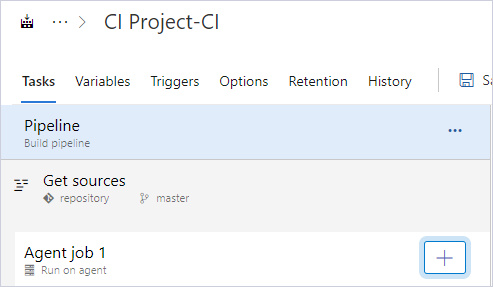
2. In the search box, enter the extension name, for example, dbforge.
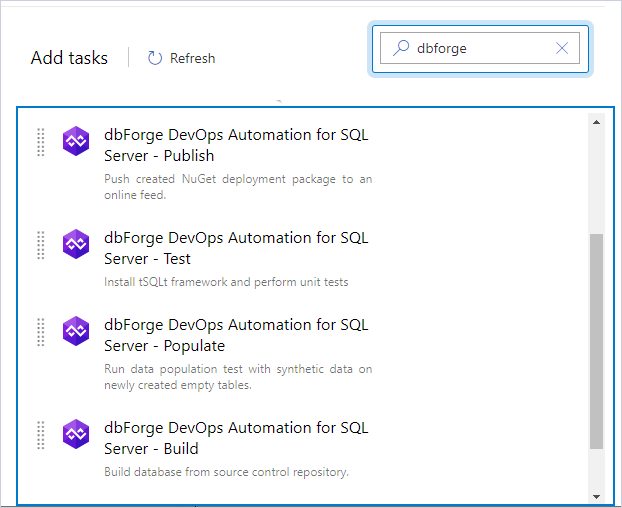
3. Select dbForge DevOps Automation for SQL Server – Sync and click Add.
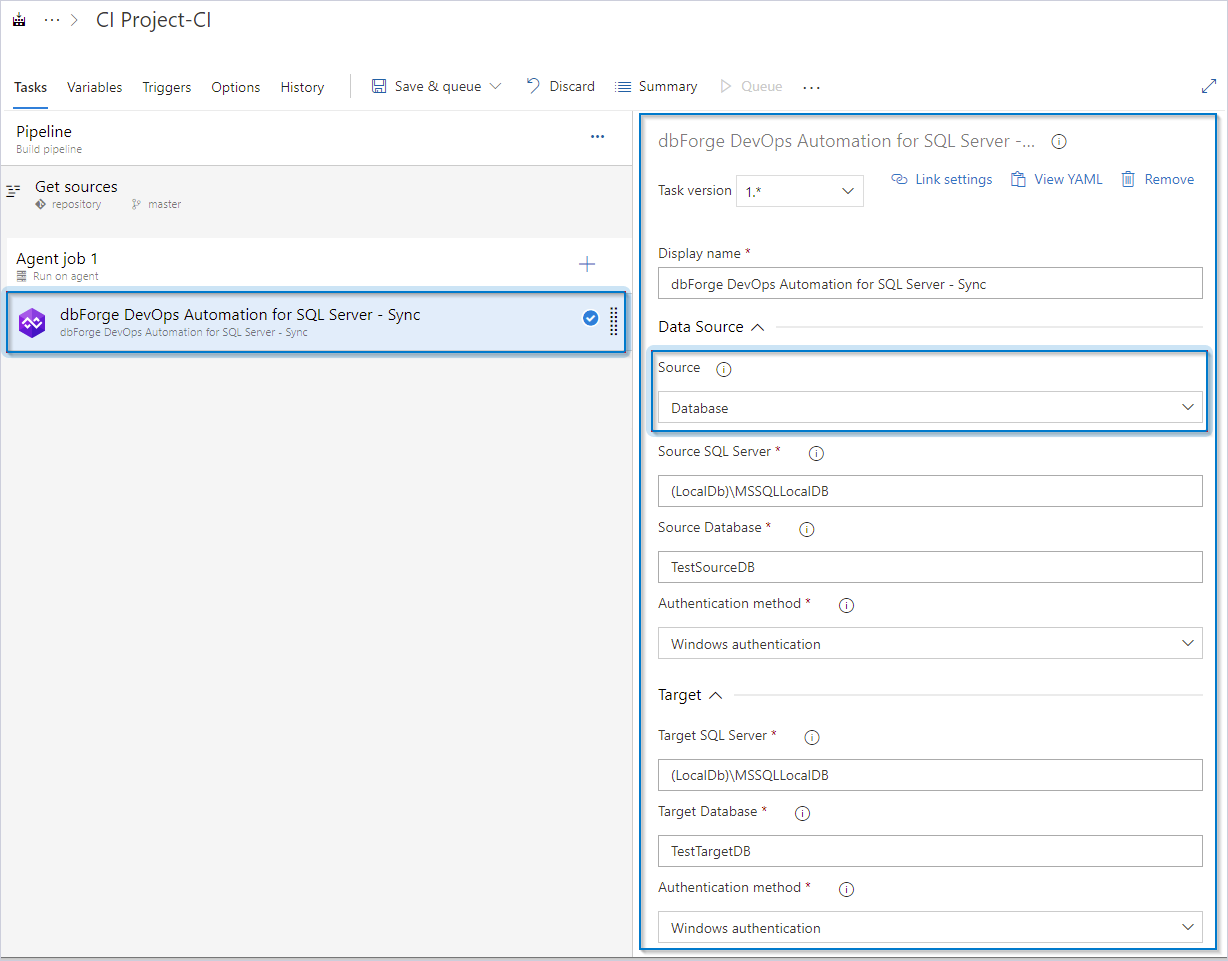
4. Configure a database or a NuGet package as a source. You can configure them both.
- Database as the source
- NuGet package as the source
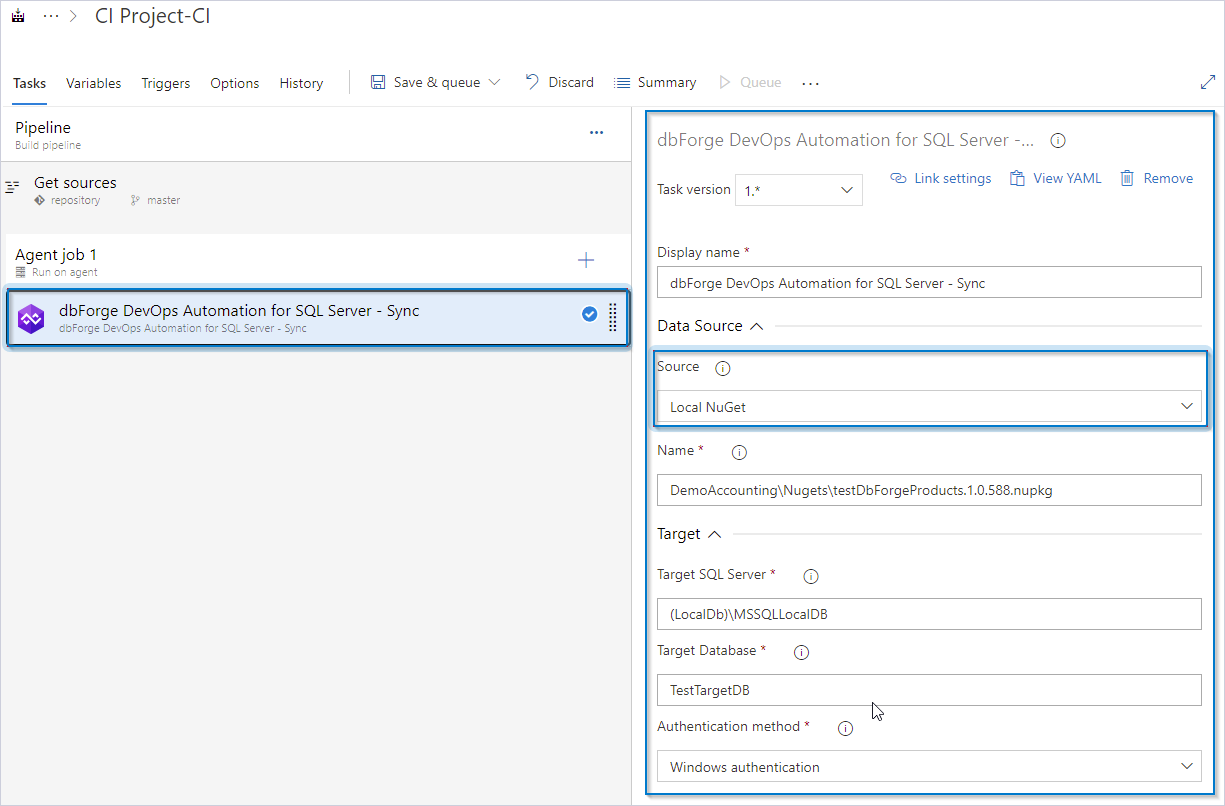
5. Configure all required settings.
Customization options
The table provides a list of customization options available for the Sync task.
| Name | Description |
|---|---|
| ID | Enter the output package file name. The format is as follows: {name}.{major}.{minor}.{build}. You can use the $(Build.BuildNumber) variable to customize it for a build pipeline or the $(Release.ReleaseId) variable to customize it for a release pipeline. |
| Package folder | Specify whether the NuGet package is located in the root directory of the repository or within the specified subfolder path. |
| URL or packages source key | Enter URL or package source key for the target NuGet feed. |
| API key | Enter the NuGet feed API key if your deployment target is the NuGet repository. |
Control options
The table provides a list of control options available for the Sync task.
| Name | Description |
|---|---|
| Enabled | Select to turn on the task in your pipeline. If the task is turned off, it will be skipped during the pipeline execution. |
| Continue on error | Select to continue the pipeline running even if this task fails. |
| Number of retries if task failed | Specify the number of retries for this task that will happen in case of task failure. Note: This requires agent version 2.194.0 or later. Not supported for agentless tasks. |
| Timeout | Specify the maximum time, in minutes, that a task is allowed to execute before being canceled by server. A zero value indicates an infinite timeout. |
| Run this task | Specify when this task should run. Select Custom conditions to specify more complex conditions. The available options are:
|
Output variables
The table provides output variables available for the Sync task.
| Name | Description |
|---|---|
| Reference name | Any changes to the reference name will require updates to downstream tasks that use this reference name, a valid reference name can only contain a-z, A-Z, 0-9 and _. |
6. To verify the settings, click Save & queue.
7. Open the pipeline execution log to verify the configuration.
Note
The Sync task doesn’t support running a comparison on its own. Whenever you execute it, it automatically initiates synchronization between the source and target databases. To obtain a comparison report without synchronization, use the dbForge Studio for SQL Server Enterprise or Professional edition command line instead without using the
/syncswitch. For example:"C:\Program Files\Devart\dbForge Studio for SQL Server\dbforgesql.com" /schemacompare /source connection:"Data Source=<server_name>;Initial Catalog=A1;Integrated Security=False;User ID=<user_name>" /target connection:"Data Source=<server_name>;Initial Catalog=A2;Integrated Security=False;User ID=<user_name>" /report:D:\report.xml /reportformat:xmlIf you need a customized solution in your DevOps pipeline, the dbForge Studio command-line interface provides a flexible option that can be adapted to your specific requirements. This approach allows you to configure commands for your particular tasks and run the tool with the necessary options and parameters.