The Execute task
Synopsis
Runs specified SQL scripts in the pipeline.
Description
The Execute task runs SQL scripts, which can be used for a variety of purposes, such as creating a new database from custom scripts, executing migration scripts to update an existing database, or adding unit tests for the deployed database.
Create the Execute task
1. Click Add a task to Agent job.
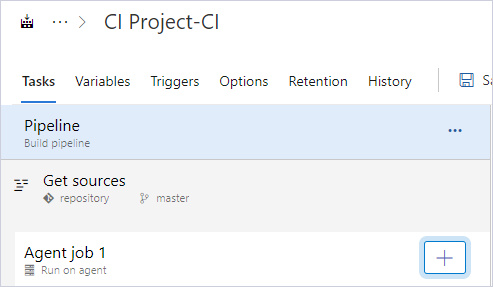
2. In the search box, enter the extension name, for example, dbforge.
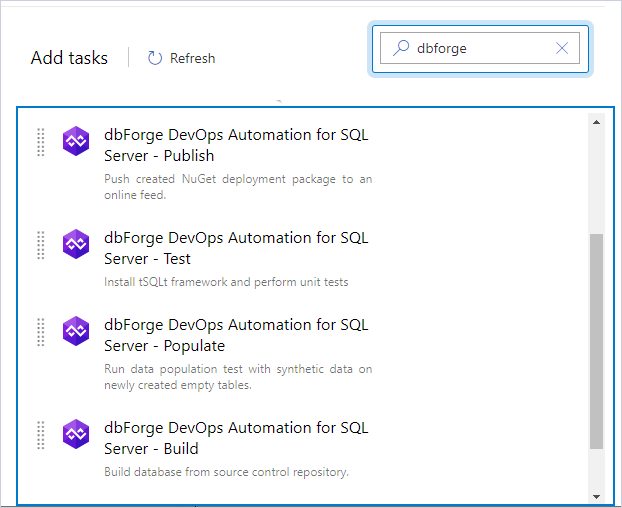
3. Select dbForge DevOps Automation for SQL Server – Execute and click Add.
4. Specify the folder that stores the scripts.
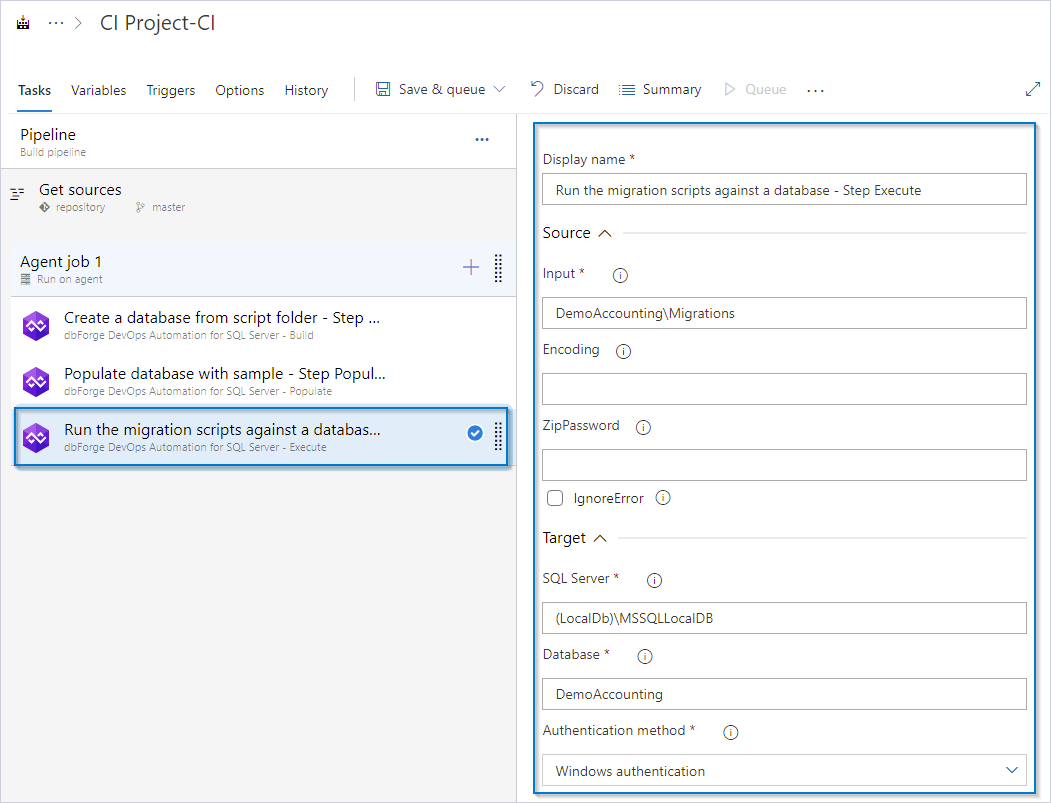
5. To verify the settings, click Save & queue.
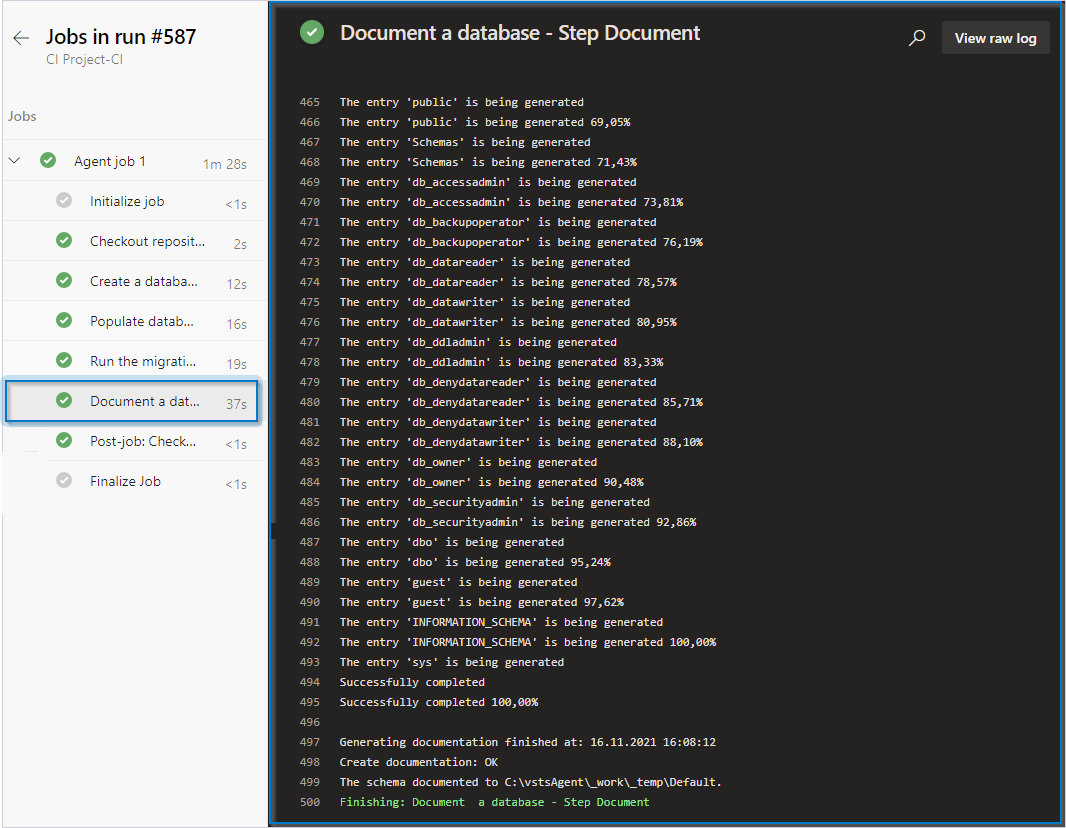
6. Open the pipeline execution log to verify the configuration.
Customization options
The table provides a list of options you can customize for the Execute task.
| Name | Description |
|---|---|
| Input | Enter the full path to a .sql or .zip file containing the script to execute or the folder containing multiple .sql or .zip files. |
| Encoding | Enter the encoding to be applied to open and execute the script. |
| ZipPassword | Enter the password to the protected archive. |
| IgnoreError | Select to continue executing scripts in the folder despite errors. |
| SQL Server | Enter the target database server, for example, SERVERNAME\INSTANCENAME. For a local default instance, use (local). |
| Database | Enter the target database name. |
| Authentication method | Select the authentication method. |
| User Name | Enter the login name you want to use for the SQL Server authentication. |
| Password | Enter the password you want to use for SQL Server authentication. |
Control options
The table provides a list of options you can configure for the Execute task.
| Name | Description |
|---|---|
| Enabled | Select to turn on the task in your pipeline. If the task is turned off, it will be skipped during the pipeline execution. |
| Continue on error | Select to continue the pipeline running even if this task fails. |
| Number of retries if task failed | Specify the number of retries for this task that will happen in case of task failure. Note: This requires agent version 2.194.0 or later. Not supported for agentless tasks. |
| Timeout | Specify the maximum time, in minutes, that a task is allowed to execute before being canceled by server. A zero value indicates an infinite timeout. |
| Run this task | Specify when this task should run. Select Custom conditions to specify more complex conditions. The available options are:
|
Output variables
The table provides output variables you can configure for the Execute task.
| Name | Description |
|---|---|
| Reference name | Any changes to the reference name will require updates to downstream tasks that use this reference name, a valid reference name can only contain a-z, A-Z, 0-9 and _. |