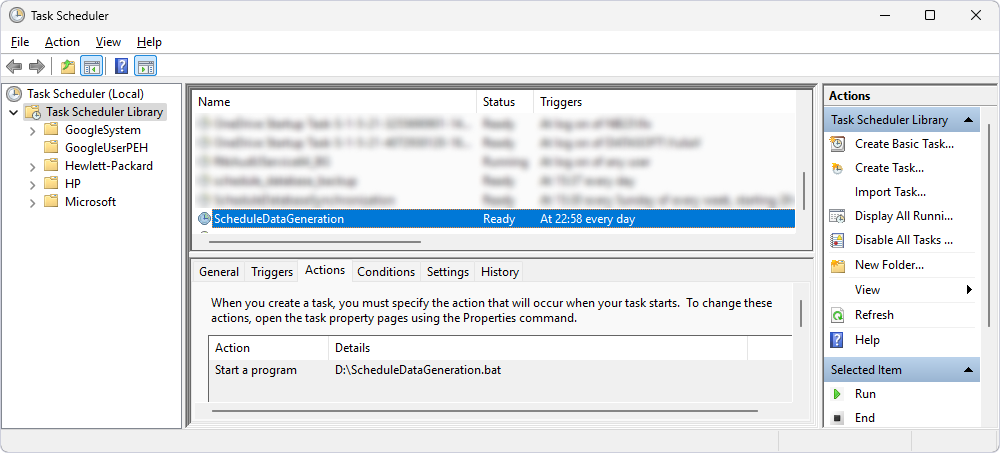
Schedule data generation
You can schedule data generation using Task Scheduler, which lets you create tasks that run automatically at specified times.
Prerequisite
- Create a .bat file with command-line settings that will be used for scheduling data generation.
Create a data generation task using Task Scheduler
1. Open Task Scheduler.
2. Under Actions, click Create Basic Task to open the Create Basic Task Wizard.
3. On the Create a Basic Task page, specify a name and optional description for the task, then click Next.
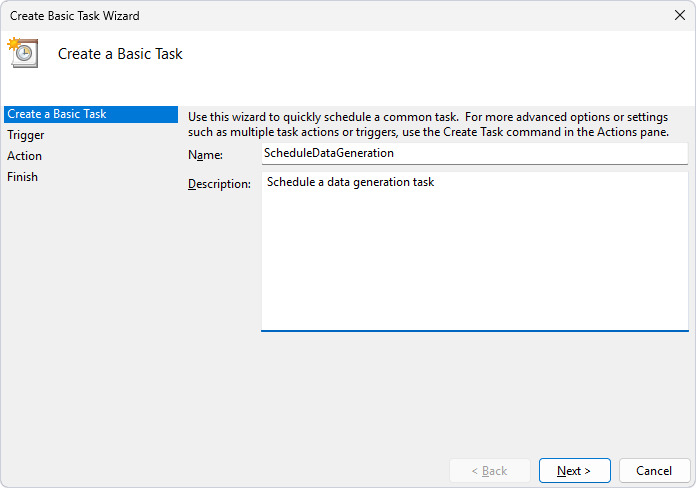
4. On the Trigger page, select a schedule, then click Next.
5. Depending on your selection, specify the start time, date, and the recurrence frequency, then click Next.
6. On the Action page, select Start a Program, then click Next.
7. Under Program/script, click Browse and select the .bat file.
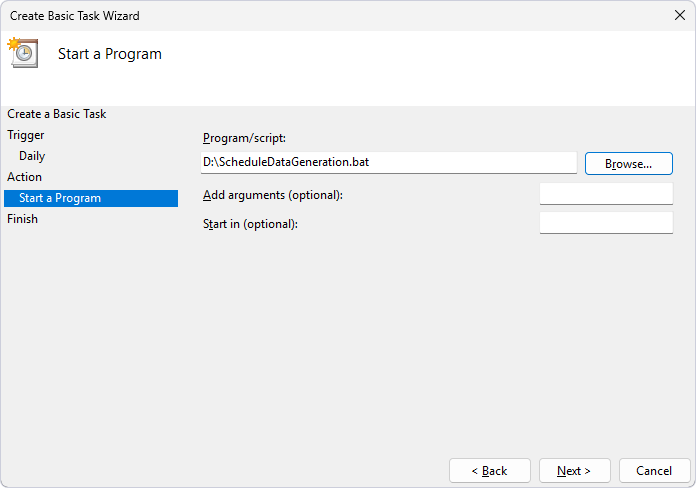
8. Click Next.
9. On the Finish page, verify the settings.
10. Optional: To update the settings, click Back.
11. Click Finish to close the wizard.
The task appears in the Task Scheduler Library.