Command-line wizard
The built-in command-line wizard helps you generate command-line syntax based on the options you select. You can save the generated command to a .bat file and use it to automate and schedule data import tasks.
Open the command-line wizard
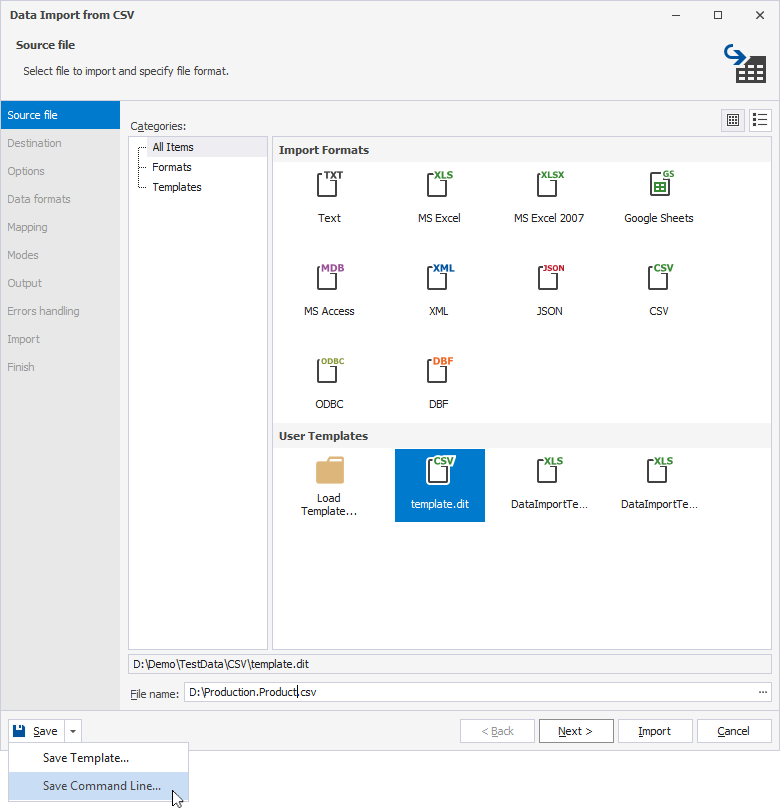
To open the command-line wizard, on any page of the Data Import wizard, click the arrow next to Save, then select Save Command Line.
Command-line wizard options
The table provides the options available in the command-line wizard.
Tip
To include the option, select the checkbox. To exclude the option, clear the checkbox.
| Name | Description |
|---|---|
| Template File | Specifies a data import template file (.dit) to use. Click the ellipsis (…) and select the template file. You can create the template file in the Data Import wizard. Usage: /templatefile:<file_path> |
| Connection | Specifies the connection string. Click the ellipsis (…) and select the existing connection, then click OK. Alternatively, in Connection Manager that opens, click New to create a new connection or Edit to modify the existing one. Usage: /connection:<connection_string> |
| Password | Specifies the server password. The option overrides the value in the /connection parameter. Usage: /password:<pw> |
| Input File | (Unavailable for the ODBC format) Specifies the file with the data you want to import. Click the ellipsis (…) and select the file. Usage: /inputfile:<file_path> |
| Input Table | (Available for MS Access and ODBC formats) Specifies the table or view to import data from. Input Table is available when Input File is selected. Usage: /inputtable:<table_name> |
| Table | Specifies the target table for the imported data. Usage: /table:<table_name> |
| Error Mode | Specifies how the import process should respond to errors. Select one of the following options:
Usage: /errormode:<ignore|abort> |
| Create Table | Creates a new table for the imported data. Usage: /create |
| Echo OFF | Wraps all text in the .bat file within the @Echo OFF ... Echo ON block. |
| Keep opened | Adds the pause command at the end of the .bat file to keep the command window open after execution. |
| PowerShell | Adds the & symbol at the beginning of the .bat file to ensure PowerShell compatibility. |
The text box displays the generated script with the specified options.
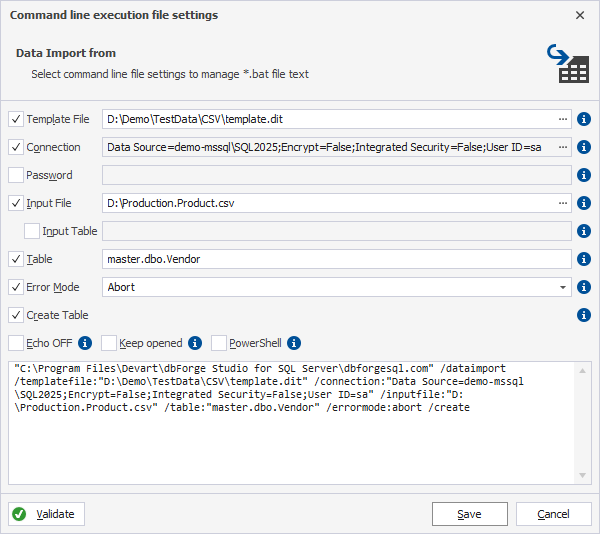
To save the settings in the .bat file, click Save.
To close the dialog, click Cancel.
Command-line validation
To verify the settings, click Validate.
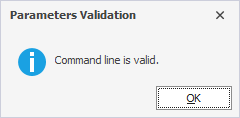
If the parameter validation succeeds, the following message appears:
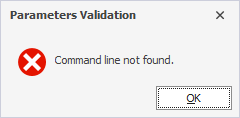
If the parameter validation fails the tool displays the error, for example: