Preview and print a diagram
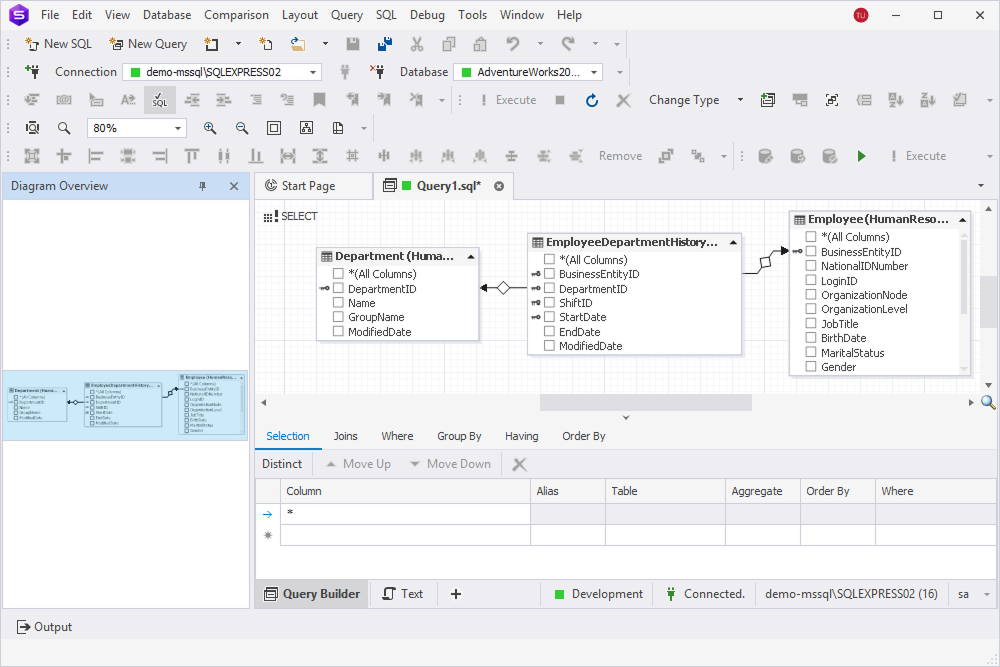
You can preview or print a query diagram in the Diagram Overview pane and configure page setup options before printing.
The Diagram Overview pane helps you:
- Navigate large diagrams by dragging the highlighted frame to move around the main diagram.
- Locate specific tables, joins, and other objects in complex layouts.
- Stay oriented while working with diagrams that contain many elements or span multiple screens.
Preview a diagram
You can preview a scaled-down version of the entire query diagram in the Diagram Overview pane.
Open the Diagram Overview pane
To open the Diagram Overview pane, do one of the following:
-
On the Diagram toolbar, click
 .
. -
Press Ctrl+W, V.
Print a diagram
1. In the top menu, select File > Print.
2. In the Print window, adjust the print settings as needed.
3. Click Print.
To view the diagram with markup, on the Diagram toolbar, click  .
.
Configure page setup settings
1. In the top menu, select File > Page Setup.
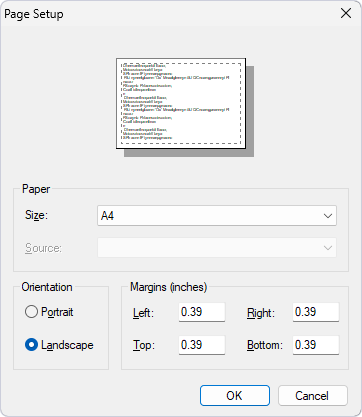
2. In the Page Setup window, configure the page settings:
- Select the paper size.
- Select the paper orientation: Portrait (default) or Landscape.
- Specify the margins (in inches) for Left, Right, Top, and Bottom. The default value is 0.39.
3. To save the changes, click OK.
To discard the changes, click Cancel.