Query Builder keyboard shortcuts
Using keyboard shortcuts can help you perform specific tasks more efficiently by minimizing mouse usage and speeding up common actions.
Navigation and focus (shortcuts)
| Shortcut | Action |
|---|---|
| Tab | Moves focus and selection forward. |
| Shift+Tab | Moves focus and selection backward. |
| Home | Moves focus to the first item (shape or column). |
| End | Moves focus to the last item (shape or column). |
| Up Arrow | Moves focus to the previous column or parameter. |
| Down Arrow | Moves focus to the next column or parameter. |
| Ctrl+Up Arrow | Moves focus to the previous column or parameter without changing selection. |
| Ctrl+Down Arrow | Moves focus to the next column or parameter without changing selection. |
| Shift+Up Arrow | Extends selection upward or removes selection, depending on direction. |
| Shift+Down Arrow | Extends selection downward or removes selection, depending on direction. |
| Ctrl+Shift+Up Arrow | Moves focus to the previous item and adds it to the selection. |
| Ctrl+Shift+Down Arrow | Moves focus to the next item and adds it to the selection. |
| Space | Toggles selection of the focused item. |
| Shift+Period | Moves focus to the lower level. |
| Shift+Comma or Esc | Moves focus to the upper level. |
| Alt+Down Arrow | Moves focus to the table shape name and expands it if collapsed. |
Diagram scrolling and zooming (shortcuts)
| Shortcut | Action |
|---|---|
| Esc or Shift+Comma+Arrow keys | Scrolls left or right. |
| Esc or Shift+Comma+Page Up/Page Down | Scrolls up or down. |
| Up/Down/Left/Right Arrow (diagram focused) | Scrolls the diagram in the respective direction. |
| Page Up / Page Down | Scrolls one page up or down. |
| Ctrl+Plus (+) or Ctrl+Mouse Wheel Forward | Zooms in. |
| Ctrl+Minus (-) or Ctrl+Mouse Wheel Backward | Zooms out. |
Working with shapes (shortcuts)
| Shortcut | Action |
|---|---|
| Arrow keys (when shapes are selected) | Moves shapes by one grid step. |
| Ctrl+Up/Down/Left/Right Arrow | Moves selected shapes by one pixel. |
| Shift+Arrow keys | Resizes selected shapes by one grid step. |
| Ctrl+Shift+Arrow keys | Resizes selected shapes by one pixel. |
Bookmarks and viewports (shortcuts)
| Shortcut | Action |
|---|---|
| Ctrl+Shift+{0-9} | Bookmarks the current viewport. |
| Ctrl+{0-9} | Navigates to the bookmarked viewport. |
Table controls (shortcuts)
| Shortcut | Action |
|---|---|
| Alt+Right Arrow | Collapses a table control. |
| Alt+Left Arrow | Expands a table control. |
Editing and query actions (shortcuts)
| Shortcut | Action |
|---|---|
| Enter | Opens the editor for the selected object. |
| Enter (multiple columns) | Includes selected columns in the query. |
| Delete | Removes selected shapes from the diagram. |
| Delete (table columns, constraints, triggers) | Drops the selected items from the database. |
| F5 | Executes the script in the SQL document. |
| F8 | Executes the current statement. |
| Alt+Pause | Stops script execution. |
| Ctrl+R | Shows or hides additional views. |
| F6 | Activates the tabbed view. |
Assign a keyboard shortcut
You can assign custom keyboard shortcuts for individual commands.
To assign a keyboard shortcut:
1. Select Tools > Options.
2. In the Options dialog, select Environment > Keyboard.
3. In the Show commands containing box, enter the name of the command. The matching command appears in the list. If a keyboard shortcut already exists, it appears in the Shortcuts for selected command box.
4. In the Use new shortcut in box, select Query Builder as the functionality where you want to apply the keyboard shortcut.
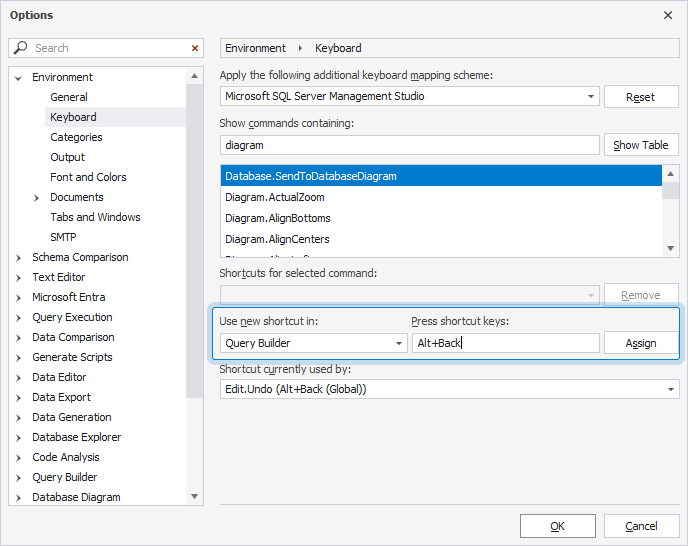
5. In the Press shortcut keys box, press the new keyboard shortcut.
Note
If the keyboard shortcut you enter is already assigned to another command, it appears in the Shortcut currently used by box.
6. Click Assign.
To delete a shortcut, select it in the Shortcut for selected command box, then click Remove.
7. To save the changes, click OK.