dbForge Studio for PostgreSQL v2026.1 release notes
What’s new
dbForge Studio for PostgreSQL v2026.1 introduces new visual tools, including Query Builder, Database Editor, Schema Editor, and Table Editor, to simplify query building and database object management. The release also expands schema comparison and deployment capabilities with schema and table mapping, new comparison and synchronization options, and more flexible filter management.
Additional updates include improvements to AI Assistant, Text Editor, Code Completion, Document Tabs, Quick Info, and Data Generator.
AI Assistant
Database indexes for LLM
AI Assistant now uses database index metadata, including unique, composite, and partial indexes, to generate more accurate answers.
Text Editor
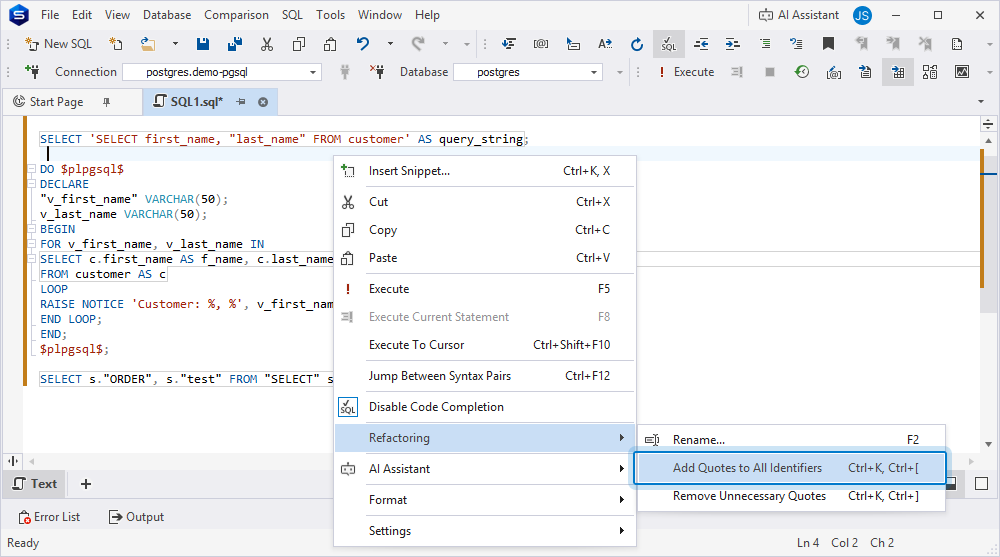
Add or remove quotes for identifiers
You can now automatically add or remove quotes for identifiers in the SQL Editor. This helps save time and keep identifier formatting consistent. Use the main menu (Edit > Advanced > Add Quotes to All Identifiers or Remove Unnecessary Quotes) or the SQL Editor shortcut menu (Refactoring > Add Quotes to All Identifiers or Remove Unnecessary Quotes).
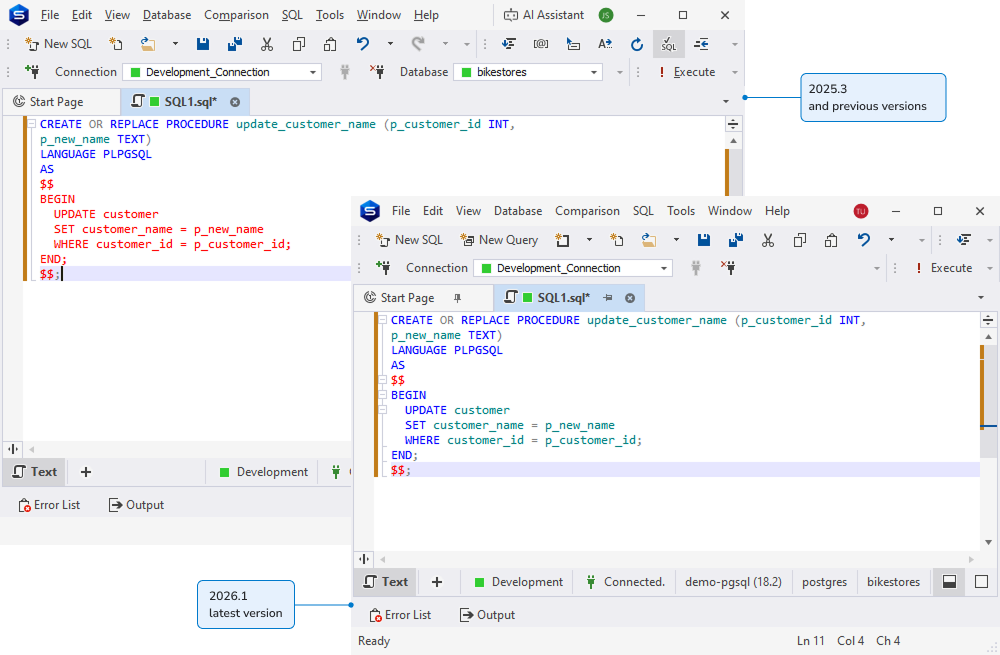
Syntax highlighting for dollar-quoted blocks
dbForge Studio for PostgreSQL now supports syntax highlighting for PostgreSQL dollar-quoted code blocks ($$ ... $$) instead of displaying them in plain red text.
Code Completion
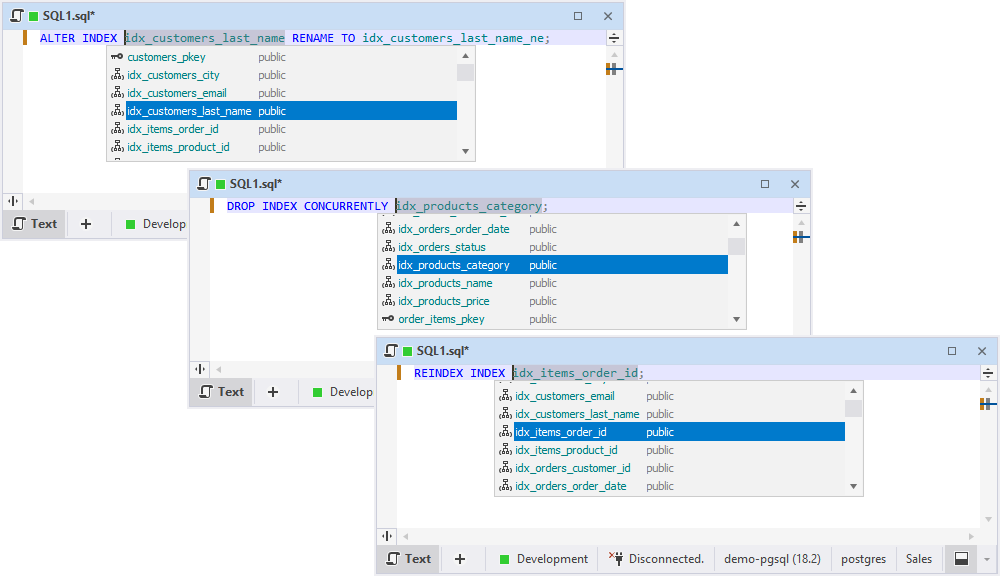
PostgreSQL index name suggestions
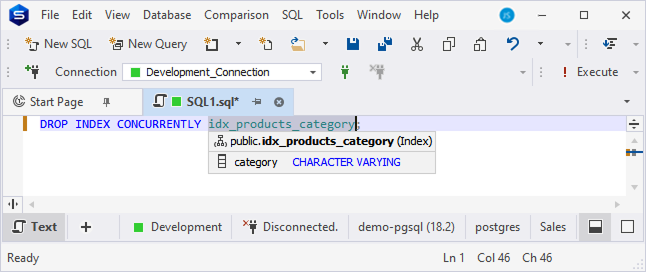
dbForge Studio for PostgreSQL now suggests index names in ALTER INDEX, DROP INDEX CONCURRENTLY, CLUSTER ... USING, and REINDEX INDEX commands.
Document Tab
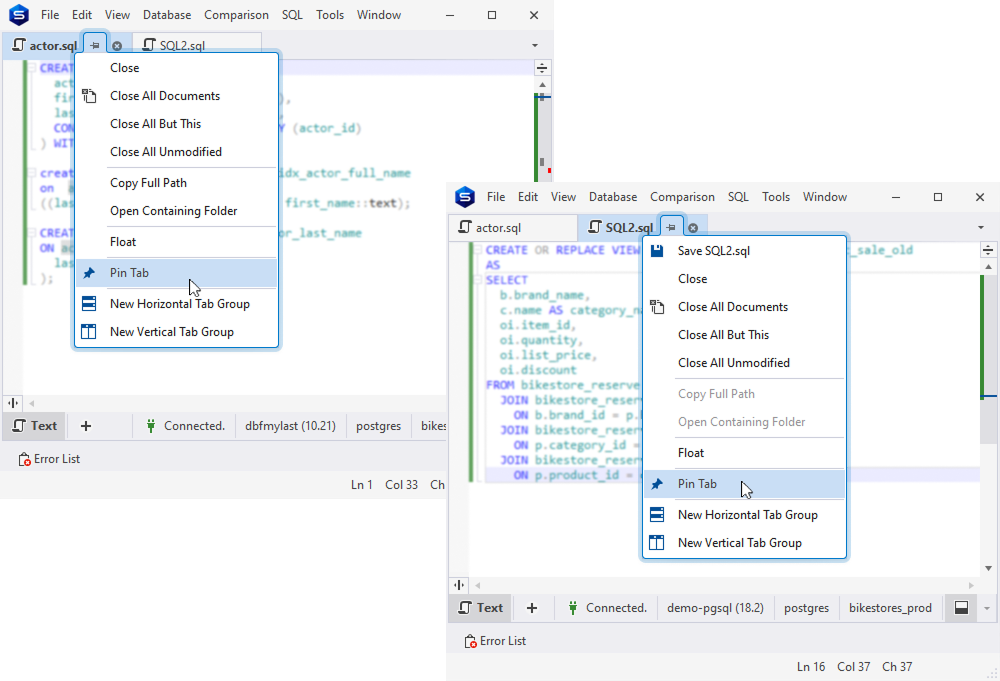
Pin document tabs
dbForge Studio for PostgreSQL now lets you pin document tabs. Pinned tabs stay visible, so you can keep frequently used tabs at hand and separate important tabs from temporary ones.
Restore tab order
When you reopen dbForge Studio after accidentally closing it, your document tabs are restored in the same order and layout as when you last closed the application. You can configure tab restore settings in Tools > Options > Environment > Documents > Restore.
Quick Info
Indexed column icons
The Quick Info tooltip now displays an icon next to indexed columns, so you can identify them at a glance without opening table properties.
Schema Compare
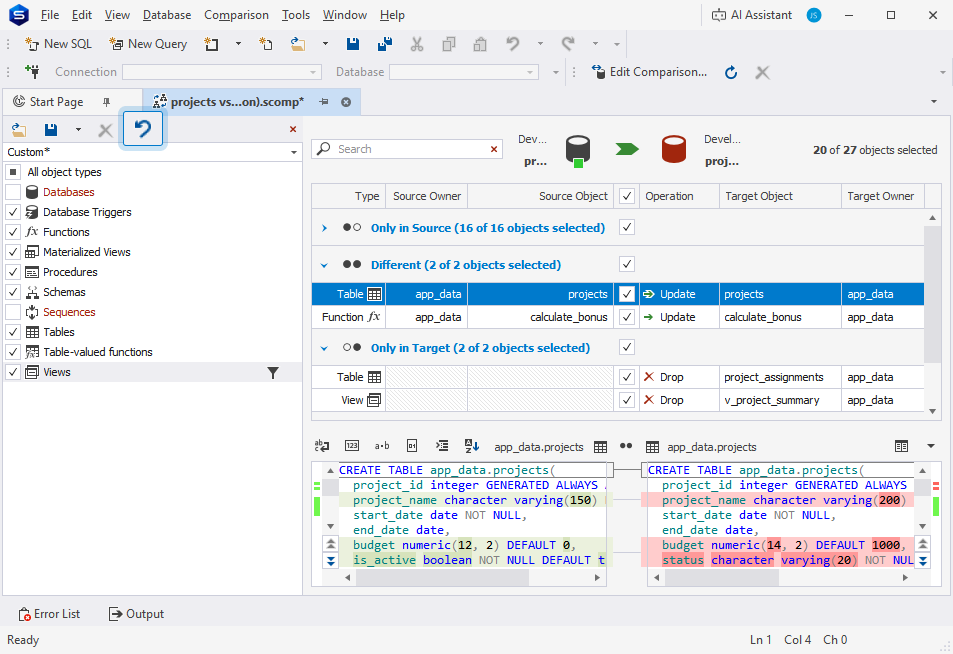
Discard Changes in Objects Filter
The Discard Changes option is now available on the Objects Filter toolbar. It lets you revert changes to the last saved, loaded, or default state.
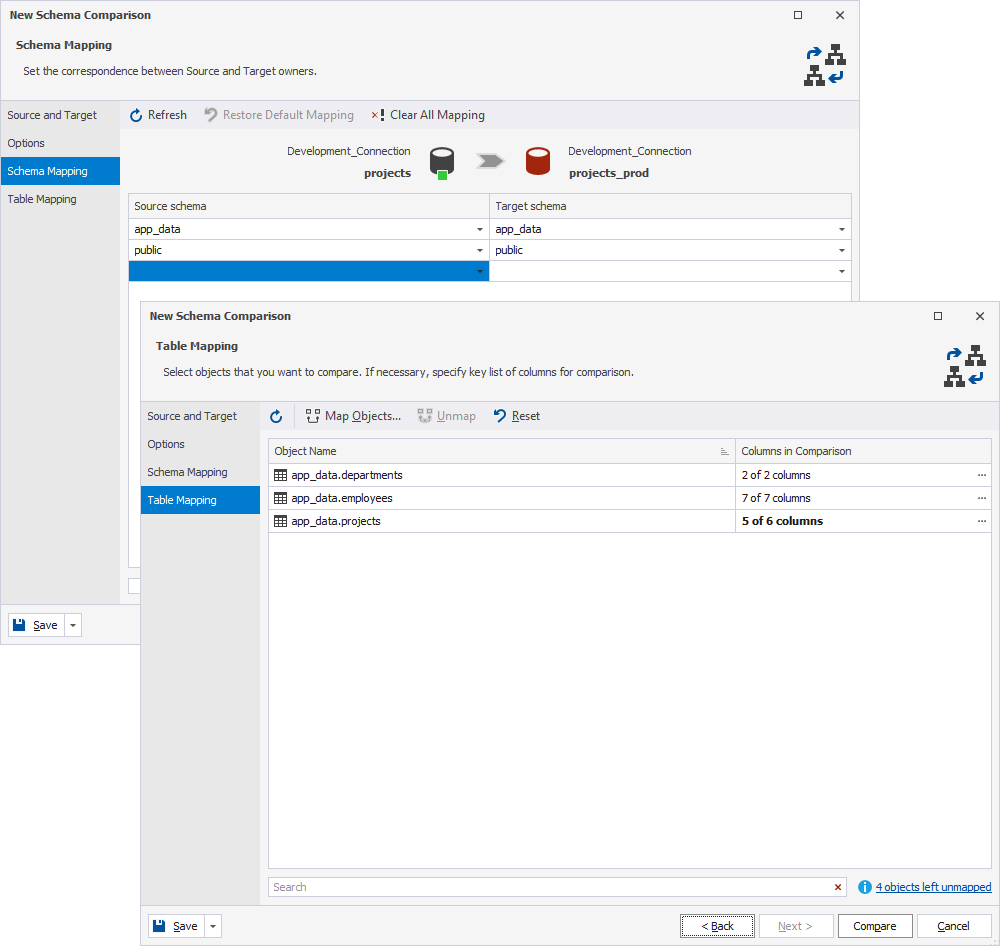
Schema and Table Mapping pages
The New Schema Comparison wizard now contains the Schema Mapping and Table Mapping pages that automatically map schemas and tables with the same name. You can also map objects with different names manually on these pages.
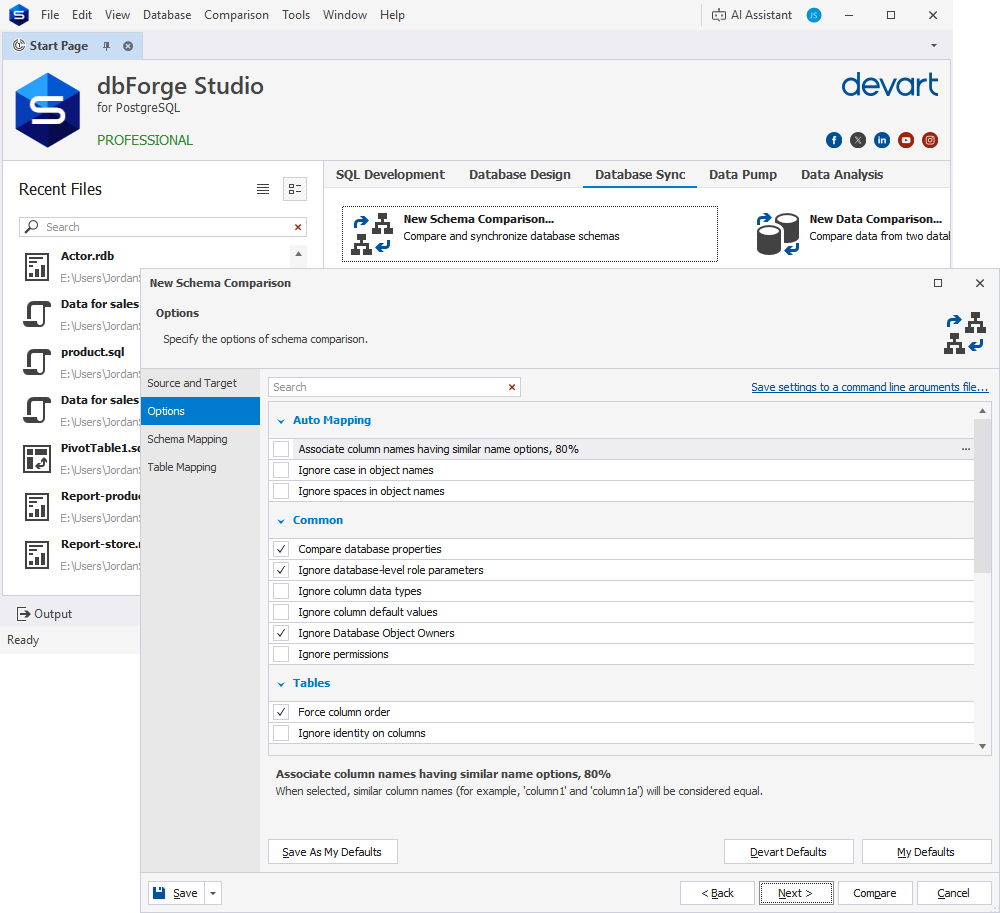
Schema Comparison Options page
The New Schema Comparison wizard now includes the Options page, where you can manage key comparison settings for objects, columns, permissions, and sequences.
Synchronization Options page
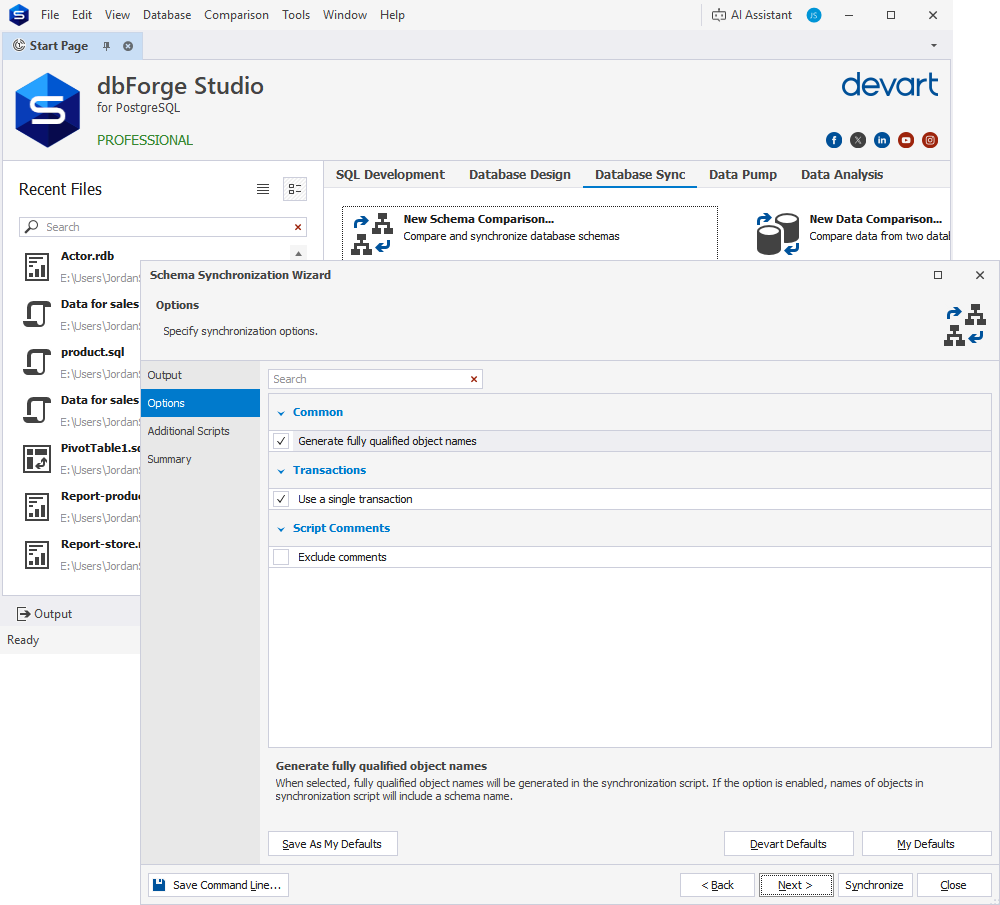
The Schema Synchronization Wizard now contains the Options page, where you configure and manage key synchronization options, including reseeding identity columns, excluding comments, generating fully qualified object names, and using a single transaction.
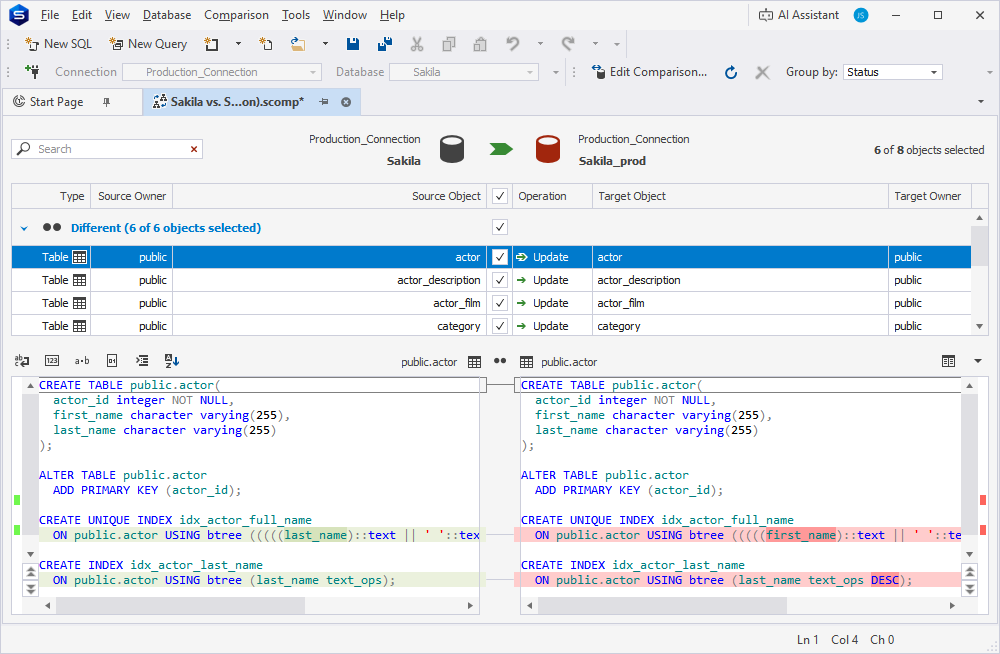
Index comparison and synchronization
Supported index properties and options include:
- Unique and nonunique
- Method
- Columns and expression
opclassandopclass_parameters- Sorting parameters
[ ASC | DESC ] [ NULLS { FIRST | LAST } ] [, ...] - Include columns
[ NULLS [ NOT ] DISTINCT ]- Storage parameters
WHEREpredicatesCOMMENT
Data Generator
Generation for unsupported data types
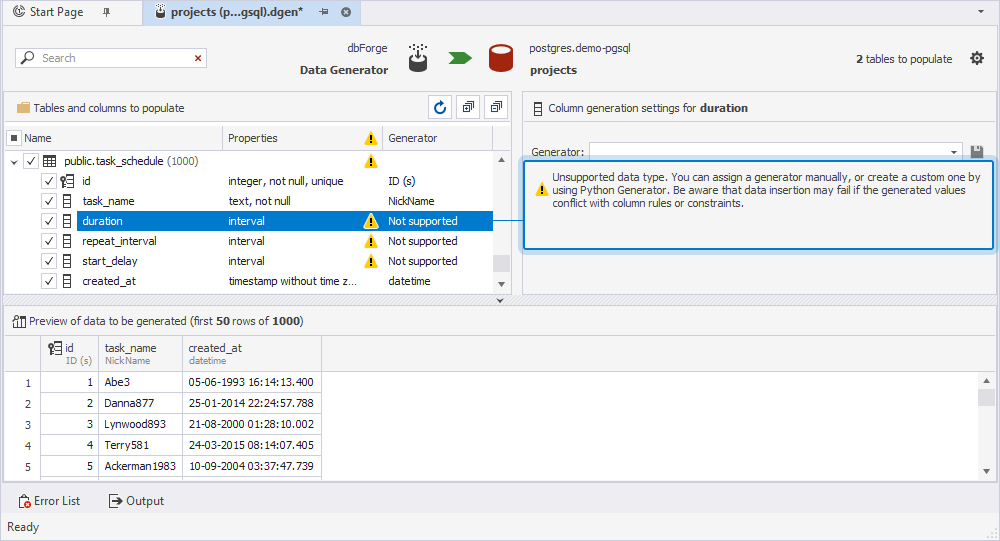
Data Generator now supports generating data for columns with unsupported data types. These columns are not selected by default, but you can include them manually when needed.
Query Builder
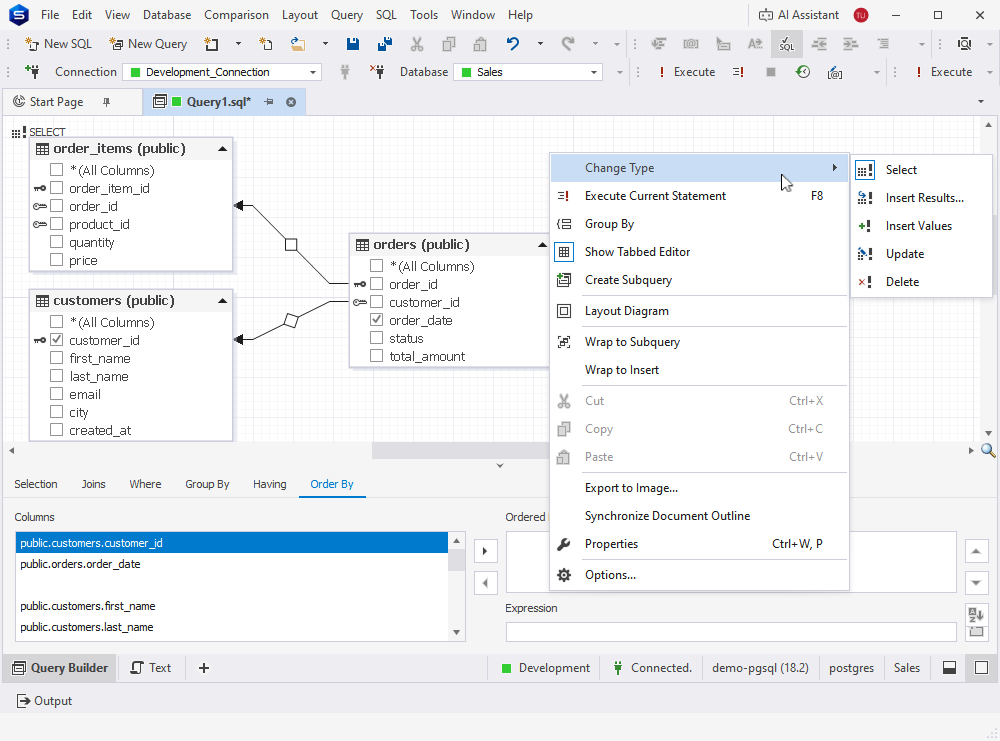
dbForge Studio for PostgreSQL now includes Query Builder, a visual interface for designing SQL queries without writing code. It lets you use drag and drop to build queries with multiple tables, joins, conditions, and subqueries.
Database Editor
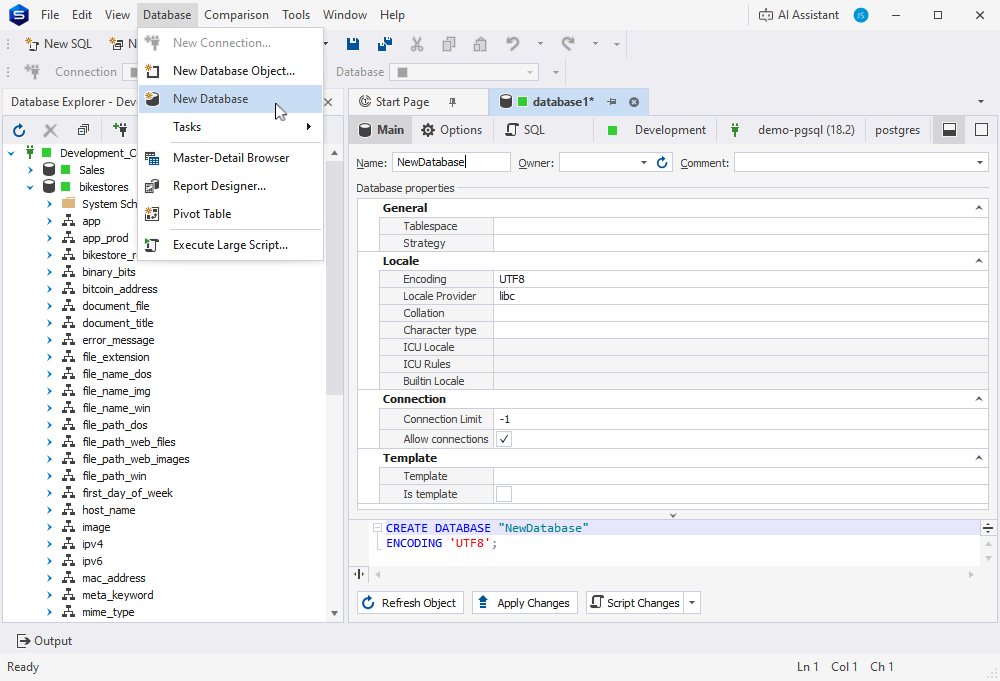
dbForge Studio for PostgreSQL now includes Database Editor, which lets you view, create, and modify database objects in a visual interface. You can use it to configure database settings and generate SQL scripts to create or alter a database.
Schema Editor
dbForge Studio for PostgreSQL now includes Schema Editor, a visual tool for creating and managing database objects and schemas. It simplifies schema design, helps reduce manual work, and lowers the risk of errors.
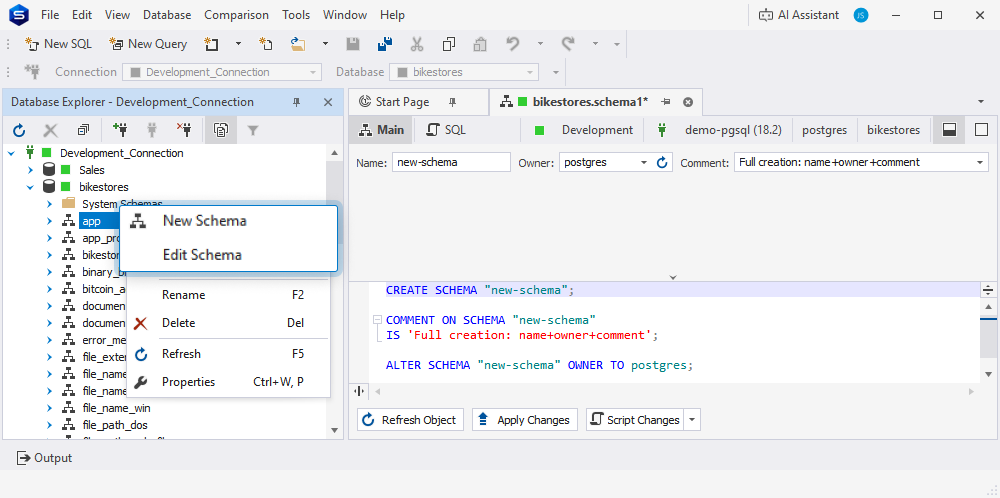
Table Editor
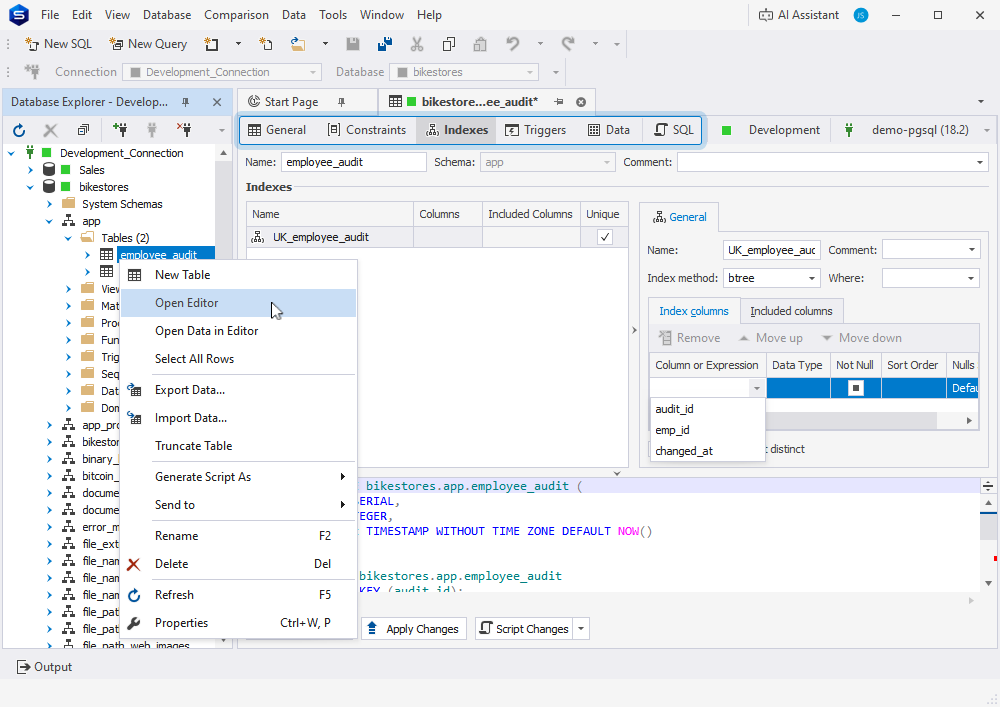
dbForge Studio for PostgreSQL provides Table Editor to create, modify, and manage database table structures visually. You can create columns, constraints, and indexes, configure table properties without writing SQL code, and preview the generated SQL script.
Generated identity columns
Support for columns defined with GENERATED { BY DEFAULT | ALWAYS } AS IDENTITY has been improved across Data Compare, Data Generator, Schema Compare, and Syntax Check to ensure that all tools identify and process identity columns consistently.