Configure synchronization options
You can configure synchronization options on the Options page of the Schema Synchronization Wizard.
Open the Options page
In the Schema Synchronization Wizard, navigate to the Options page.
The options are grouped in collapsible categories. Selecting an option displays its description under the options grid.
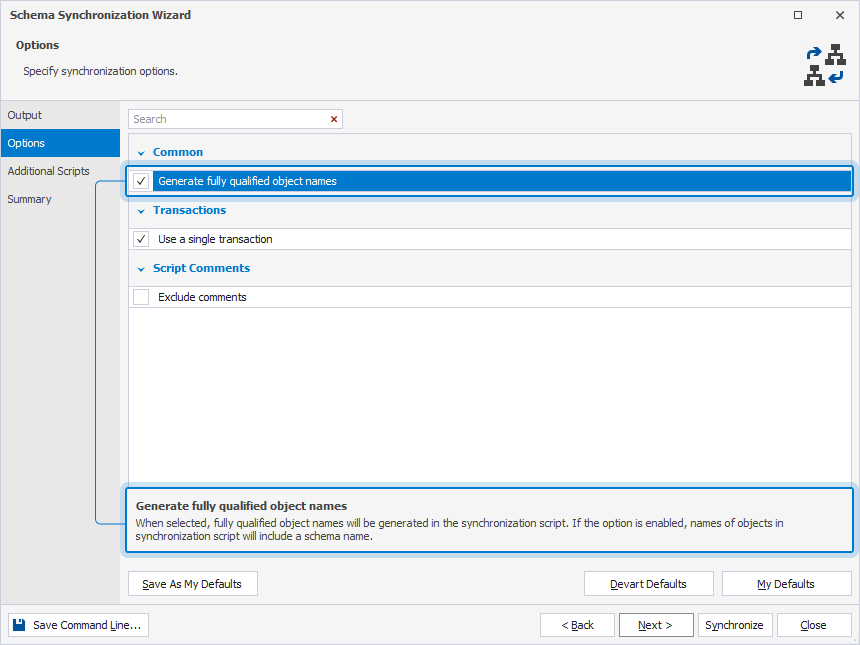
Include or exclude options
To include an option in schema synchronization, select the corresponding checkbox. To exclude it, clear the checkbox.
Search for options
To search for options, type a search query in the search box.
Search behavior:
- Matching text is highlighted in yellow.
- The number of matches appears in the search box.
- The search is case-insensitive. For example, searching for me matches both Me and me.
- If the search query contains multiple words, each word is matched separately, and all matches are highlighted.
- To clear the search results, click
 in the search box.
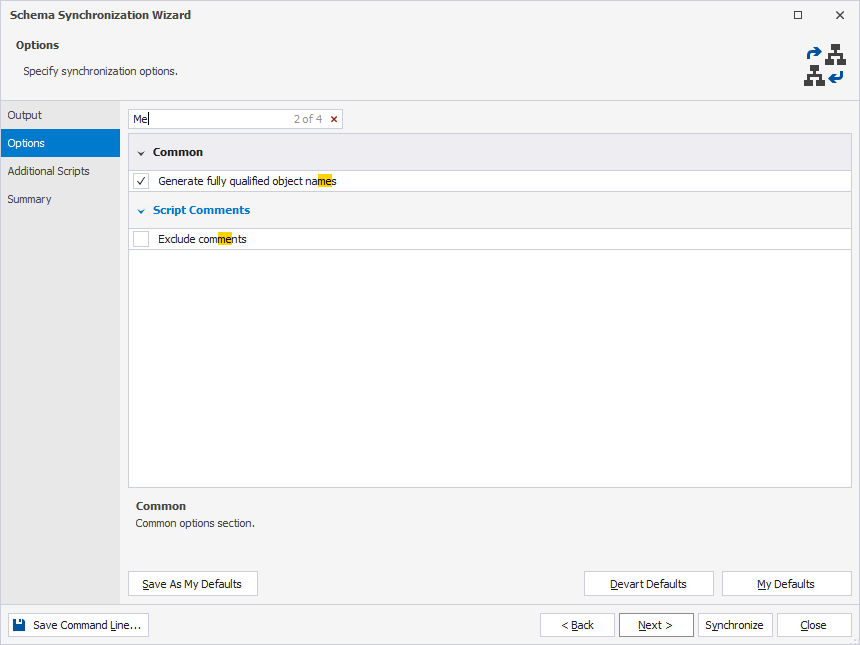
Keyboard shortcuts in the search box
The following table provides keyboard shortcuts you can use in the search box.
| Name | Description |
|---|---|
| Ctrl+A | Selects all. |
| Ctrl+Left Arrow (←) | Moves the caret to the beginning of the word. |
| Ctrl+Right Arrow (→) | Moves the caret to the end of the word. |
| Ctrl+Shift+Left Arrow (←) | Selects text from the current caret position to the beginning of the current word and moves the caret to the beginning of the word. |
| Ctrl+Shift+Right Arrow (→) | Selects text from the current caret position to the end of the current word and moves the caret to the end of the word. |
| Ctrl+Backspace | Deletes the word to the left of the caret. |
Schema synchronization options
Common
The following table describes schema synchronization options in the Common group.
| Name | Description | Default State |
|---|---|---|
| Generate fully qualified object names | Generates fully qualified object names in the synchronization script. When the option is turned on, object names include the schema name. |
On |
Transactions
The following table describes schema synchronization options in the Transactions group.
| Name | Description | Default State |
|---|---|---|
| Use a single transaction | Executes a synchronization script as a single transaction. If an error occurs during execution, all changes to the database are rolled back. | On |
Script Comments
The following table describes schema synchronization options in the Script Comments group.
| Name | Description | Default State |
|---|---|---|
| Exclude comments | Excludes comments from the synchronization script. | Off |
Save synchronization options
You can save the current settings to a .scomp file for later use, for example, to automate or schedule database synchronization tasks.
To save synchronization options:
1. On the Options page, configure the synchronization options.
2. Close the wizard.
3. Save the .scomp file.
Note
If you save the .scomp file before configuring synchronization options, it will include the schema comparison options from the New Schema Comparison wizard and the default synchronization options.