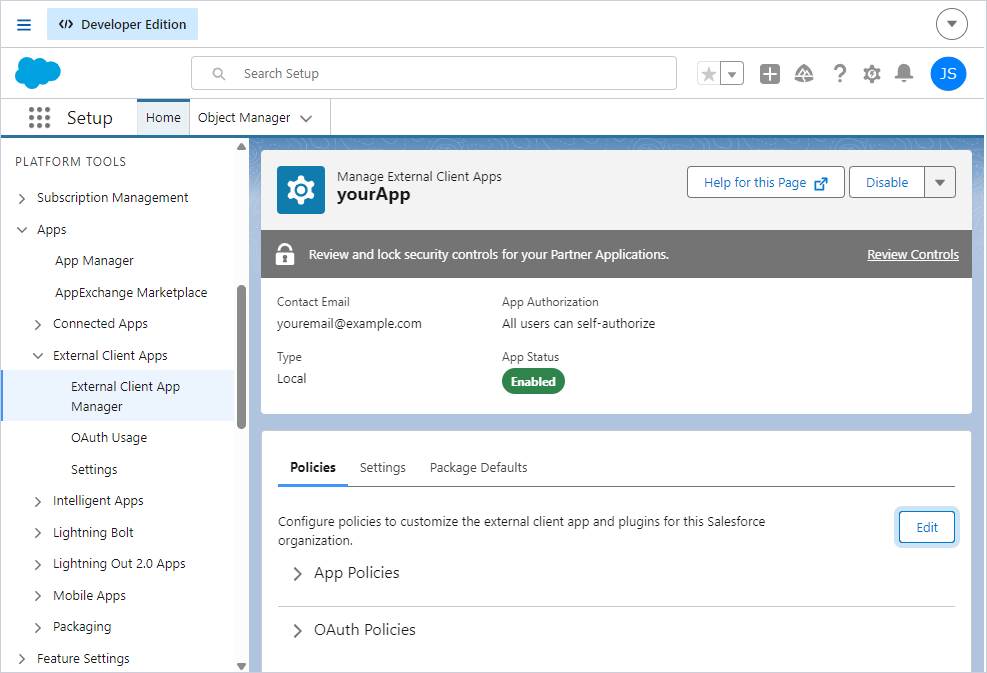
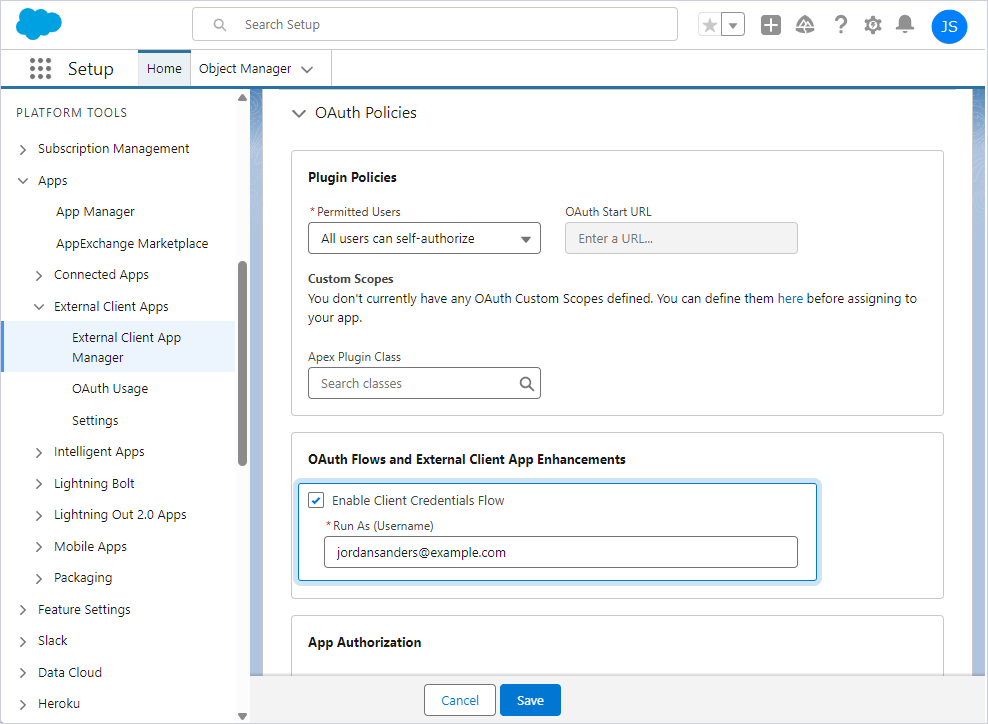
Create an external client app to enable the OAuth 2.0 client credentials flow and allow automated integrations to access Salesforce data without user interaction.
| 1. | Log in to Salesforce, then navigate to Setup. |
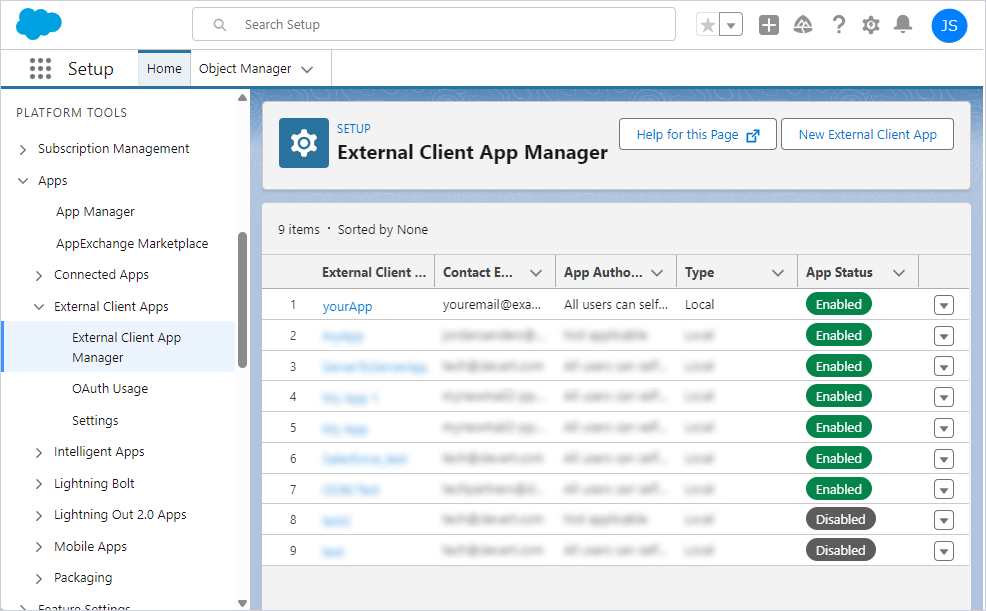
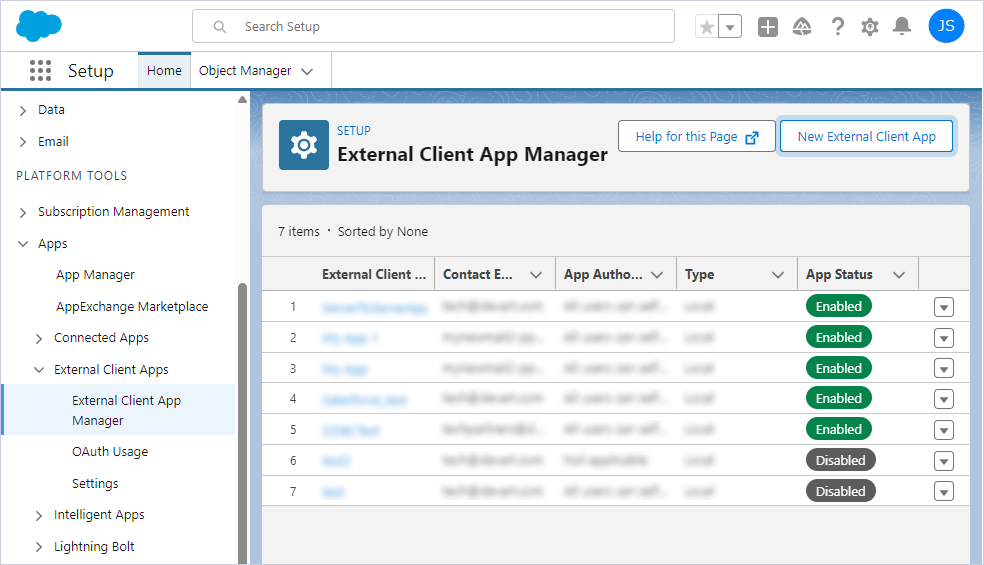
| 2. | Navigate to Apps > External Client Apps > External Client App Manager. |
| 3. | Click New External Client App. |
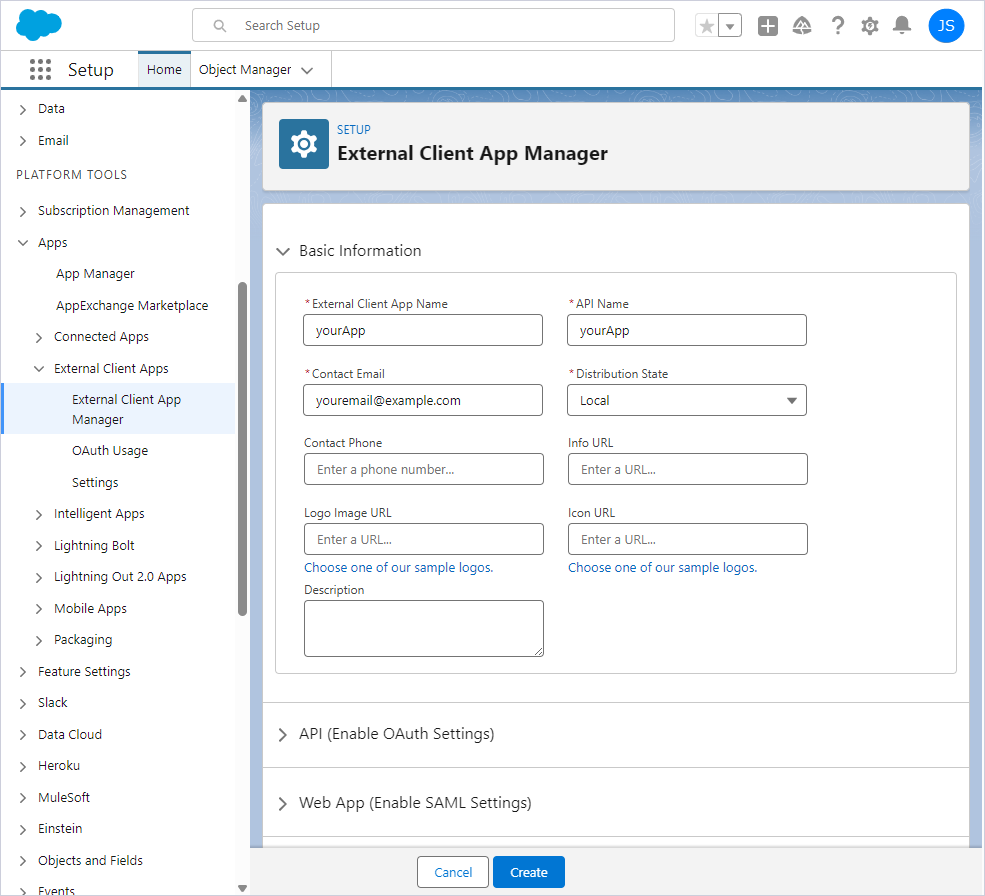
| 4. | Under Basic Information, specify the required details. In Distribution State, select Local. |
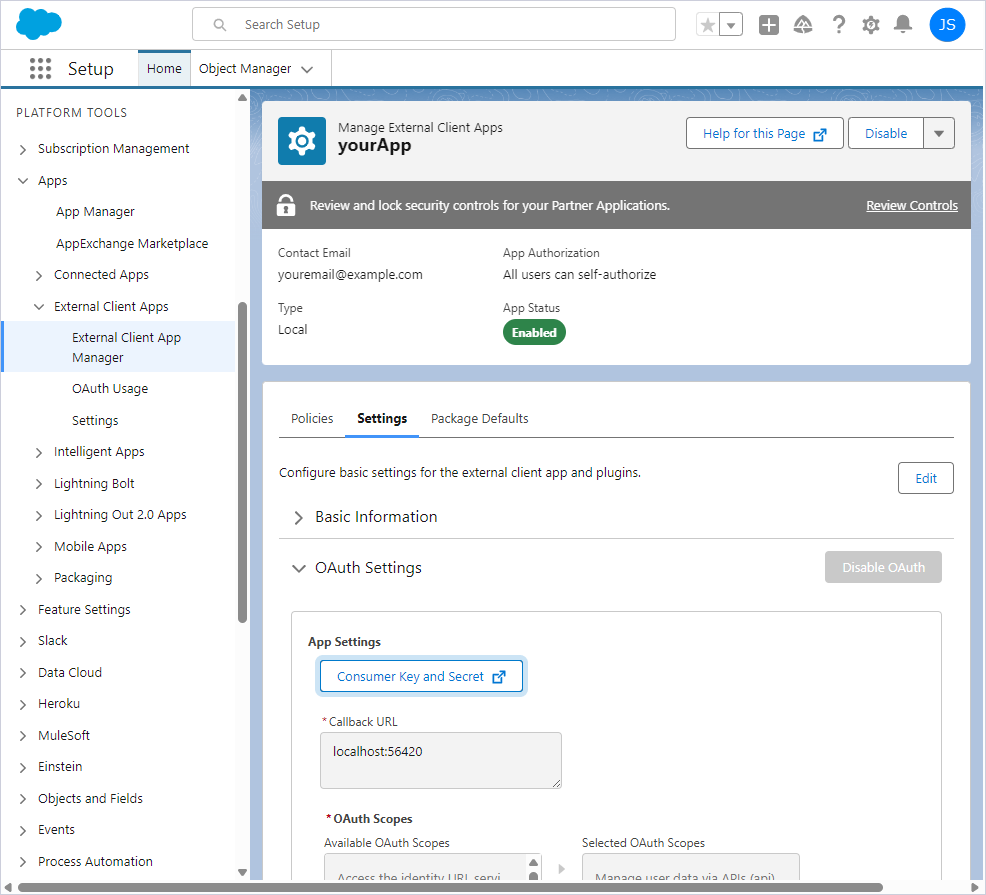
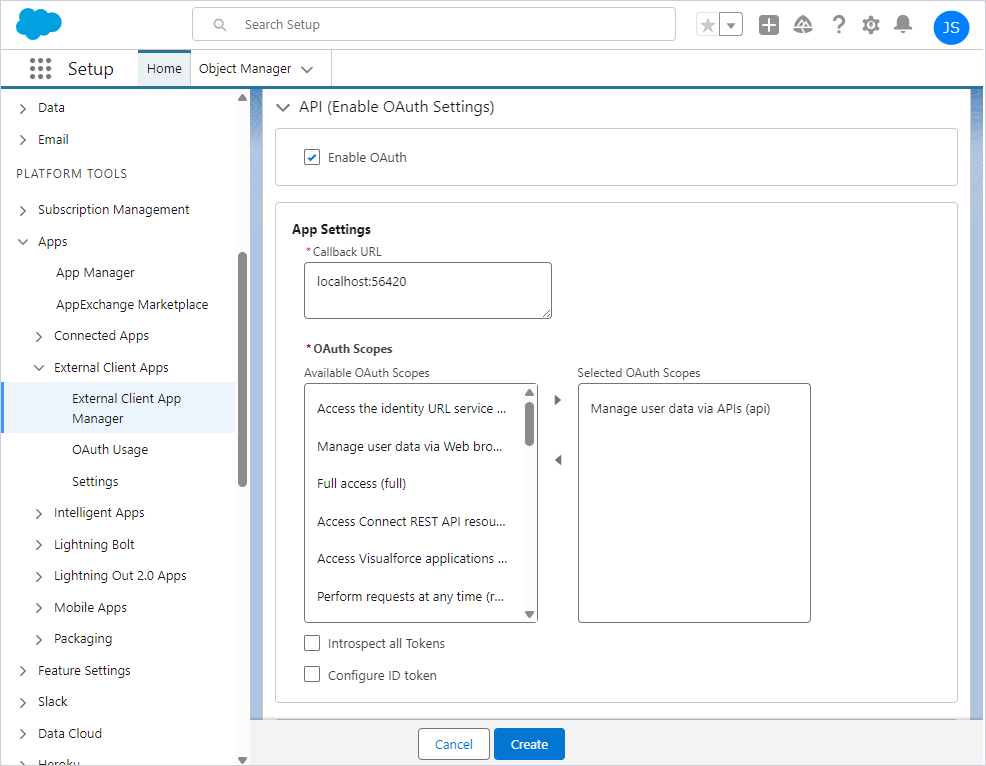
| 5. | Under API (Enable OAuth Settings), select Enable OAuth, then enter a callback URL, for example, http://localhost:56420 or another supported localhost URL. |
| 6. | Under OAuth Scopes, add Manage user data via APIs to Selected OAuth Scopes. |
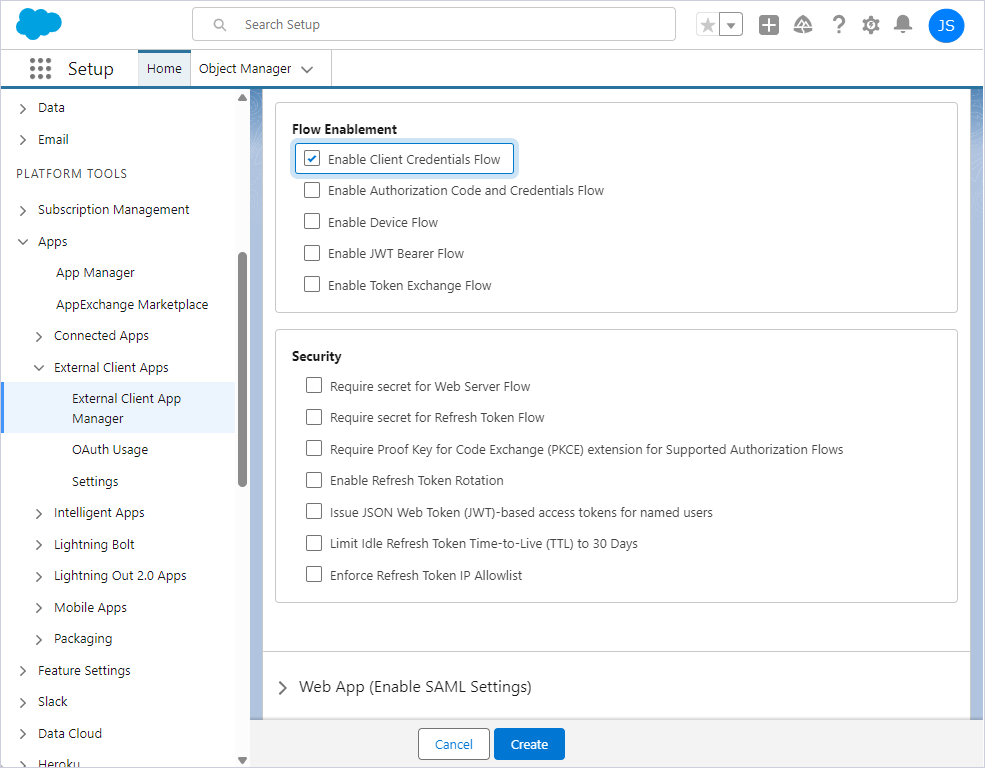
| 7. | Under Flow Enablement, select Enable Client Credentials Flow. |
| 8. | Under Security, clear all checkboxes. |
|
 Create an external client app