
|
Working with Universal Data Link (UDL) Files |

|
|
|
Working with Universal Data Link (UDL) Files |
|
A Universal Data Link (UDL) file stores the connection settings for an OLE DB connection to SQL Server. It lets you save and reuse these settings when connecting to the database.
The following sections describe how to create, configure, and use UDL files.
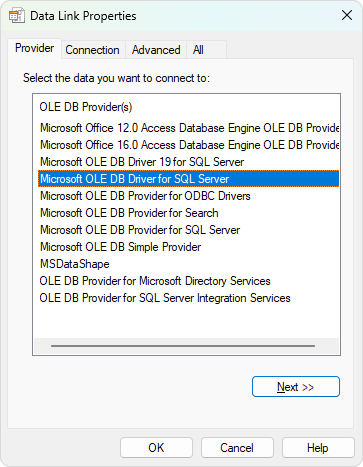
Note: The connection settings vary depending on the selected database provider.
Tip: To specify connection properties, use the Advanced and All tabs. For more information about the available properties, see TMSConnectionOptions Properties.
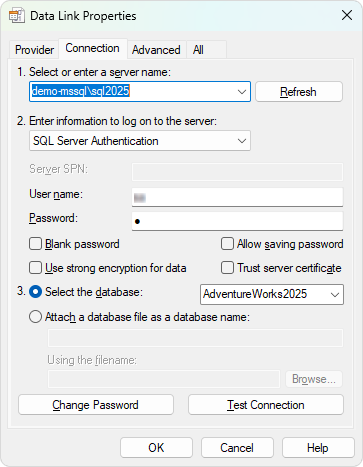
After you configure the UDL file, the connection settings are saved to the file in the following format:
Provider=<database_provider>;Password=<password>;Persist Security Info=False;User ID=<user_name>;Initial Catalog=<database_name>;Data Source=<server_name>;Initial File Name="";Server SPN="";Authentication="";Access Token=""where:
<database_provider> – The database provider for SQL Server.<password> – The password for the database connection.<user_name> – The user name for the database connection.<database_name> – The name of the database to connect to.<server_name> – The name of the server where the database is located.You can load connection settings from the UDL file in one of these ways:
UDLFileName property of the TMSConnection component.The following sections provide practical examples of both approaches.
This code example shows how to load the connection settings at runtime by assigning the UDL file path to the UDLFileName property.
// Triggered when Button1 is clicked
procedure TForm1.Button1Click(Sender: TObject);
begin
  // Specify the path to the UDL file that contains the connection settings.
  MSConnection1.UDLFileName := '<path_to_udl_file>';

  // Open the connection using the settings from the UDL file.
  MSConnection1.Open;

  // Open the table after the connection is established.
  MSTable1.Open;

  // Display a confirmation message.
  ShowMessage('Ok');
end;
where:
<path_to_udl_file> – The path to the UDL file that contains the connection configuration.This code example shows how to reference the UDL file directly in the connection string.
Tip: To specify the UDL file in the connection string, you can use any of the following parameter names: UDLFileName, UDL File Name, UDL FileName, UDLFile, UDL File, UDL.
// Triggered when Button1 is clicked
procedure TForm1.Button1Click(Sender: TObject);
begin
  // Specify the connection string that contains the connection settings.
  MSConnection1.ConnectString := 'User ID=<user_name>;Password=<password>;UDLFile=<path_to_udl_file>;';

  // Open the connection using the settings from the UDL file.
  MSConnection1.Open;

  // Open the table after the connection is established.
  MSTable1.Open;

  // Display a confirmation message.
  ShowMessage('Ok');
end;
where:
<user_name> – The user name for the database connection.<password> – The password for the database connection.<path_to_udl_file> – The path to the UDL file that contains the connection configuration.