Activate with an activation request
You can activate dbForge Query Builder for SQL Server on a computer without internet access by generating an activation request and processing it on another computer with an internet connection.
1. Open dbForge Query Builder for SQL Server.
2. In the Product Activation dialog, select Generate an activation request, then click Continue.
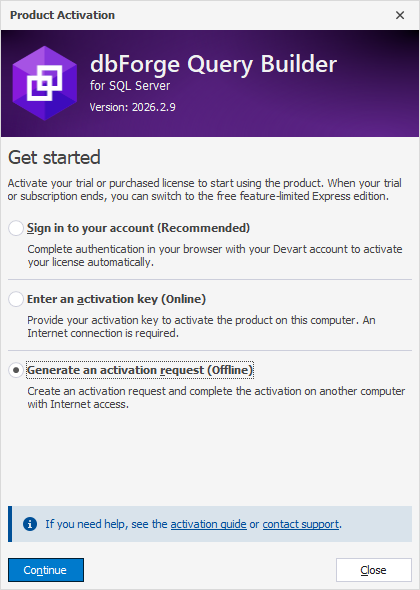
3. Enter your activation key. You can find your activation key in the email you received from Devart or in the Customer Portal.
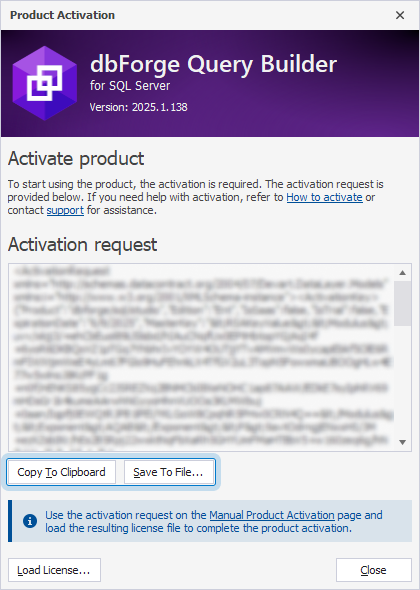
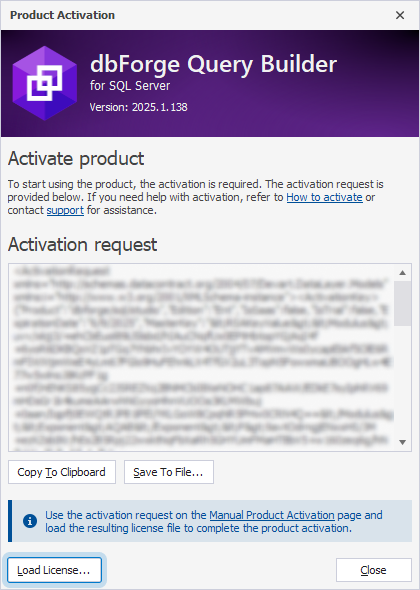
4. Export the activation request:
- Copy To Clipboard – Copies the activation request to the clipboard.
- Save To File – Saves the activation request to a .txt file.
5. On a computer with internet access, open the Manual Product Activation page.
6. Paste the request text into the form, then click Download License.
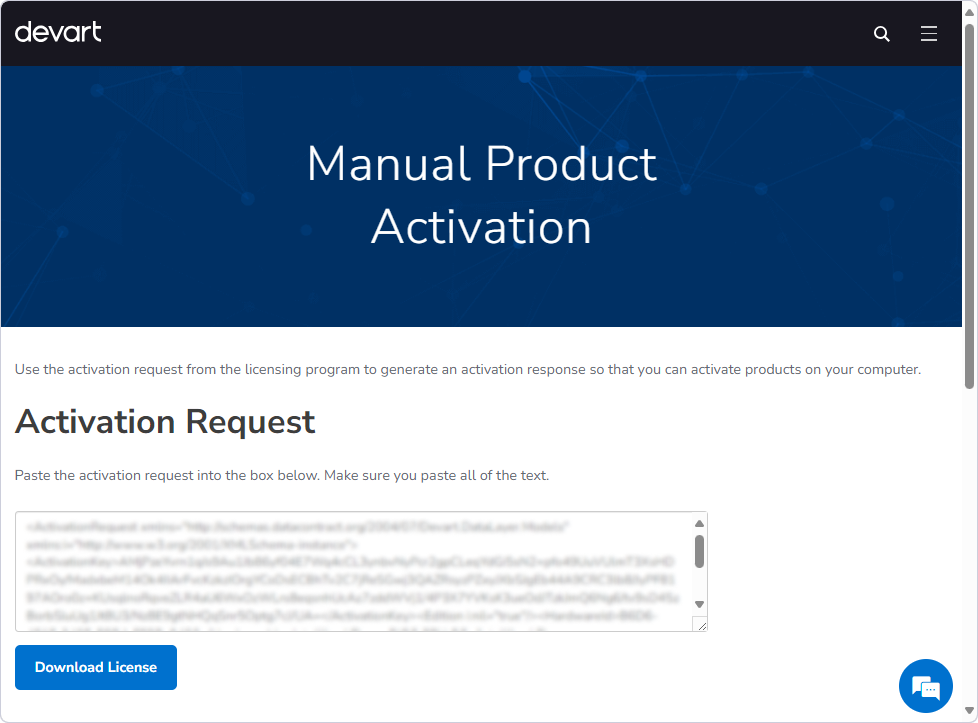
The .lic license file is downloaded.
7. Copy the .lic file to the computer where dbForge Query Builder for SQL Server is installed.
8. On the target computer, in the Product Activation dialog, click Load License.
9. Select the .lic file, then click Open.
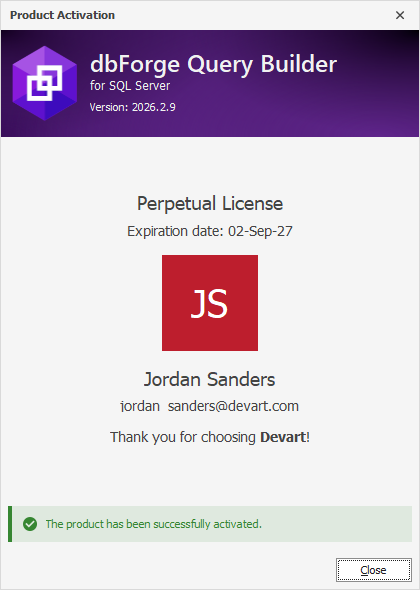
dbForge Query Builder for SQL Server is activated.