Activate with the Devart account
You can activate dbForge Query Builder for SQL Server by signing in to your Devart account. If you don’t have an account, you can create one during activation. A trial license is generated for a new account.
1. Open dbForge Query Builder for SQL Server.
2. In the Product Activation dialog, select Sign in to your account, then click Continue.
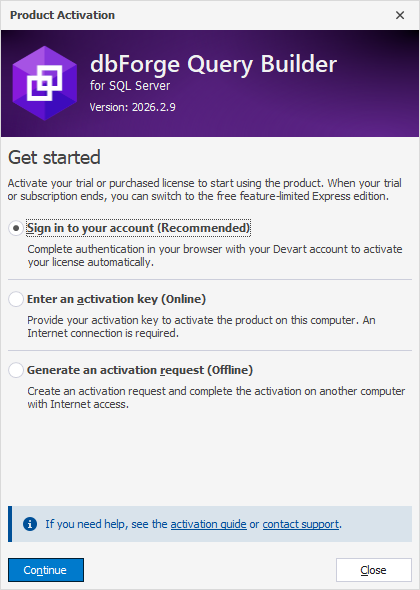
The Devart sign-in page opens in your default browser.
3. Sign in to your Devart account. If you don’t have an account, click Sign Up and follow the instructions to create one.
4. Return to dbForge Query Builder.
dbForge Query Builder for SQL Server activates automatically after you sign in to your Devart account:
-
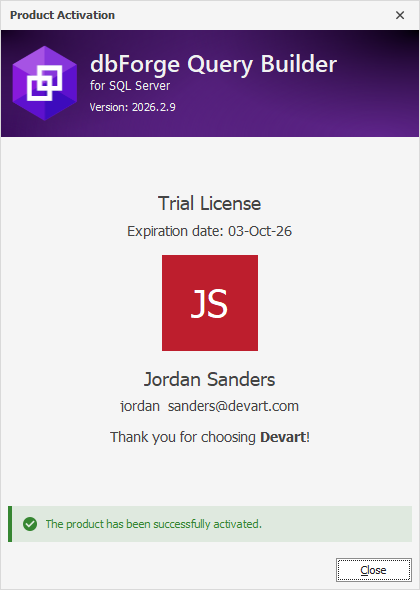
If your account has no licenses, a trial license is generated and used to activate dbForge Query Builder for SQL Server.
-
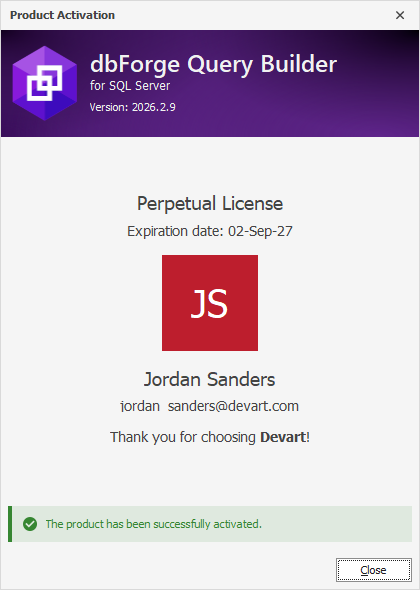
If your account has one active license, either purchased or trial, dbForge Query Builder uses it for activation.
-
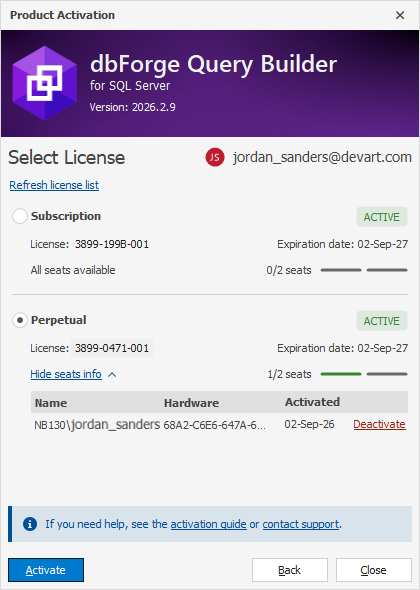
If your account has multiple active licenses, the Select License page opens. Select the license you want to use, then click Activate.
Note
If no seats are available for the license you want to use, you can free up a seat by clicking Deactivate next to an occupied seat. You can then select the license you want to use and click Activate.