
|
Python Connector for Salesforce Use custom OAuth 2.0 authentication - Python Connector for Salesforce |

|
|
|
Python Connector for Salesforce Use custom OAuth 2.0 authentication - Python Connector for Salesforce |
|
OAuth 2.0 (Open Authorization 2.0) is an open standard for access delegation, commonly used to grant third-party applications limited access to a user's resources without exposing their credentials. It allows secure access to a resource on behalf of a user while maintaining data protection and minimizing security risks.
OAuth 2.0 requires a browser for one-time user consent. The user must authorize the application's request to access their data through a browser. Once consent is granted, the application can use the refresh token to maintain access without requiring further browser-based authentication.
Salesforce supports two approaches for configuring OAuth access:
Create a connected app to enable OAuth-based integration and allow external applications to securely access the Salesforce data:
1. Log in to Salesforce, then navigate to Setup.
2. In the Quick Find search box, type App, then select App Manager.
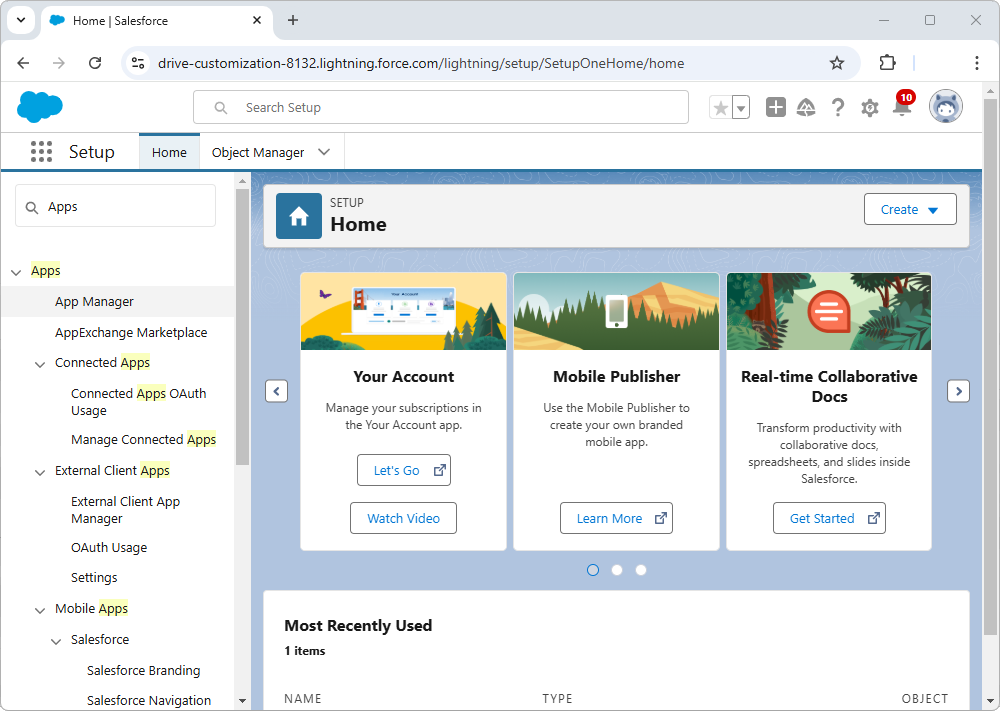
3. Select New Connected App.
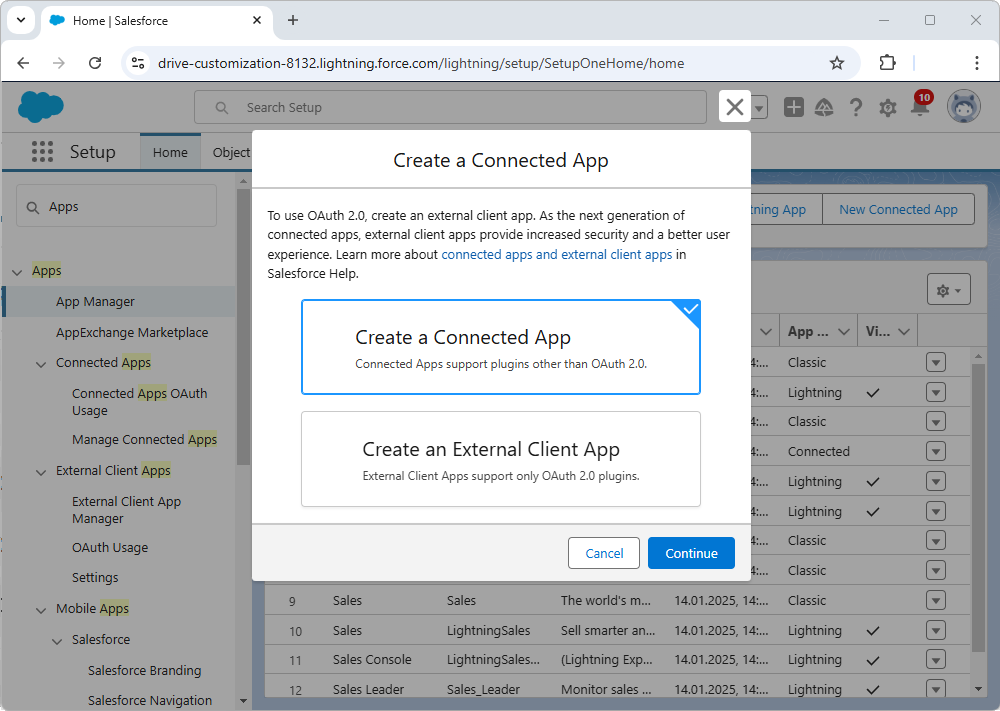
4. In the dialog that appears, select Select Create a Connected App, then click Continue.
5. In the Basic Information section, provide the following details:
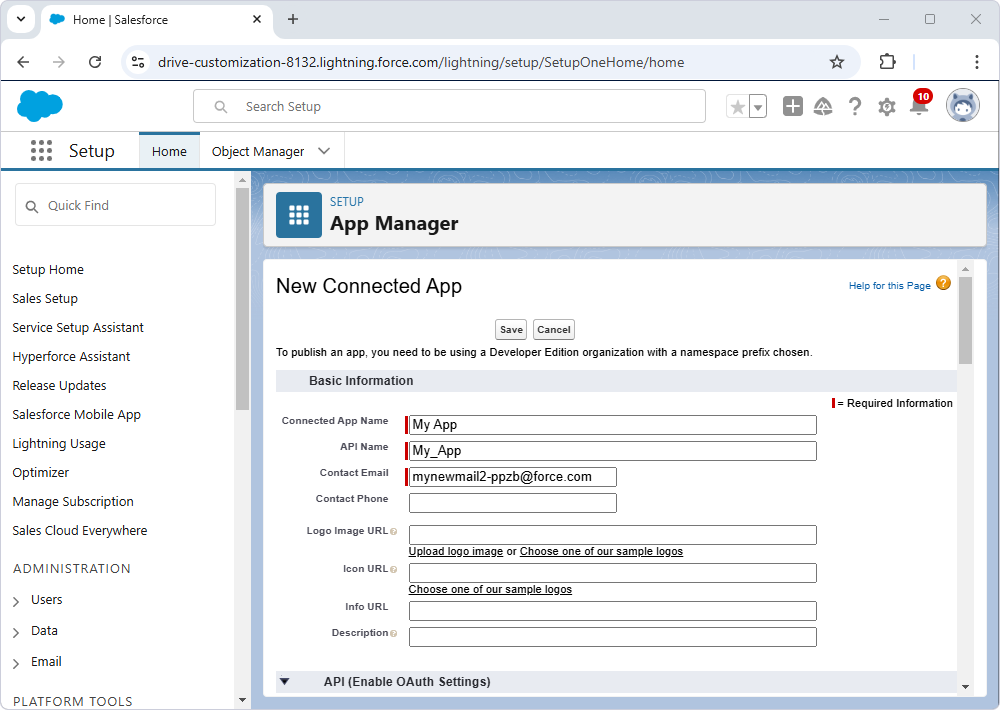
6. Under API (Enable OAuth Settings), select Enable OAuth Settings, then enter http://localhost:56430 as a Callback URL.
Note
You can also add additional ports: 58738, 59142, 61371, 61361, or 62794.
7. Under Selected OAuth Scopes, select the necessary permissions for your application by clicking Add. Commonly used scopes include:
8. Click Save to create the Connected App.
1. Navigate to the App Manager, locate your app, then click View.
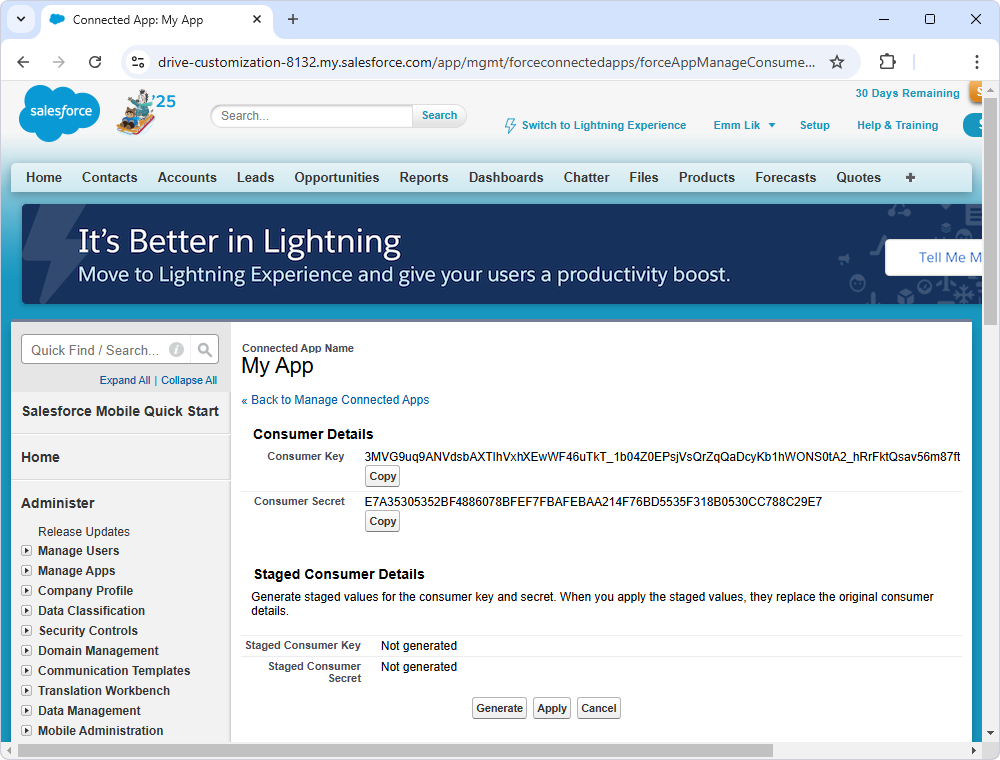
2. Next to Consumer Key and Secret, select Manage Consumer Details.
A page opens displaying your Consumer Key and Consumer Secret.
1. Log in to Salesforce, then navigate to Setup.
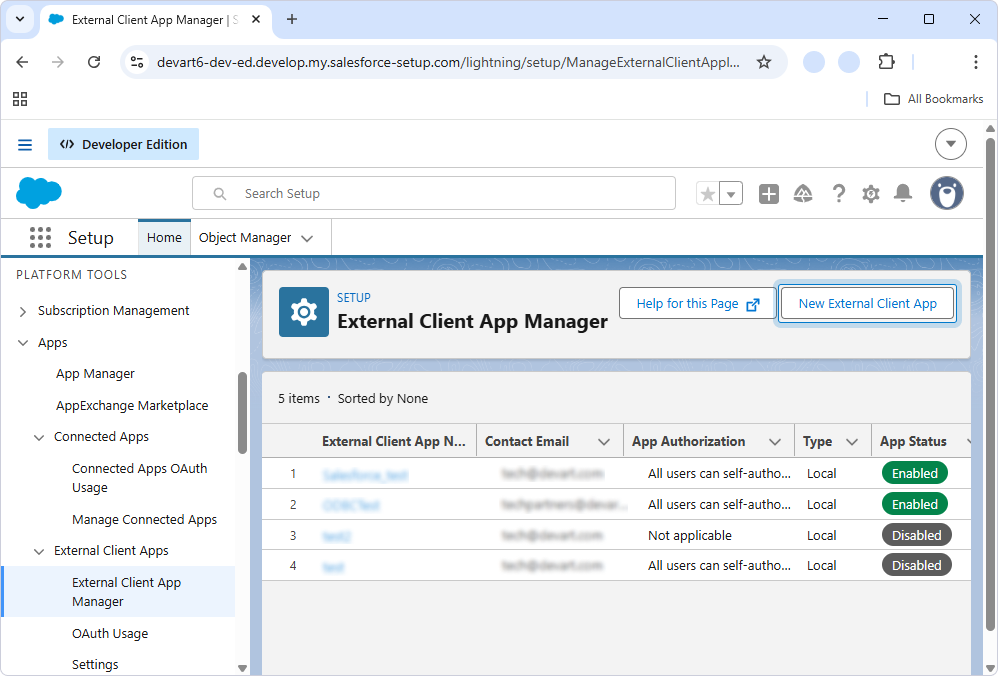
2. Navigate to Apps > External Client Apps > External Client App Manager, then select New External Client App.
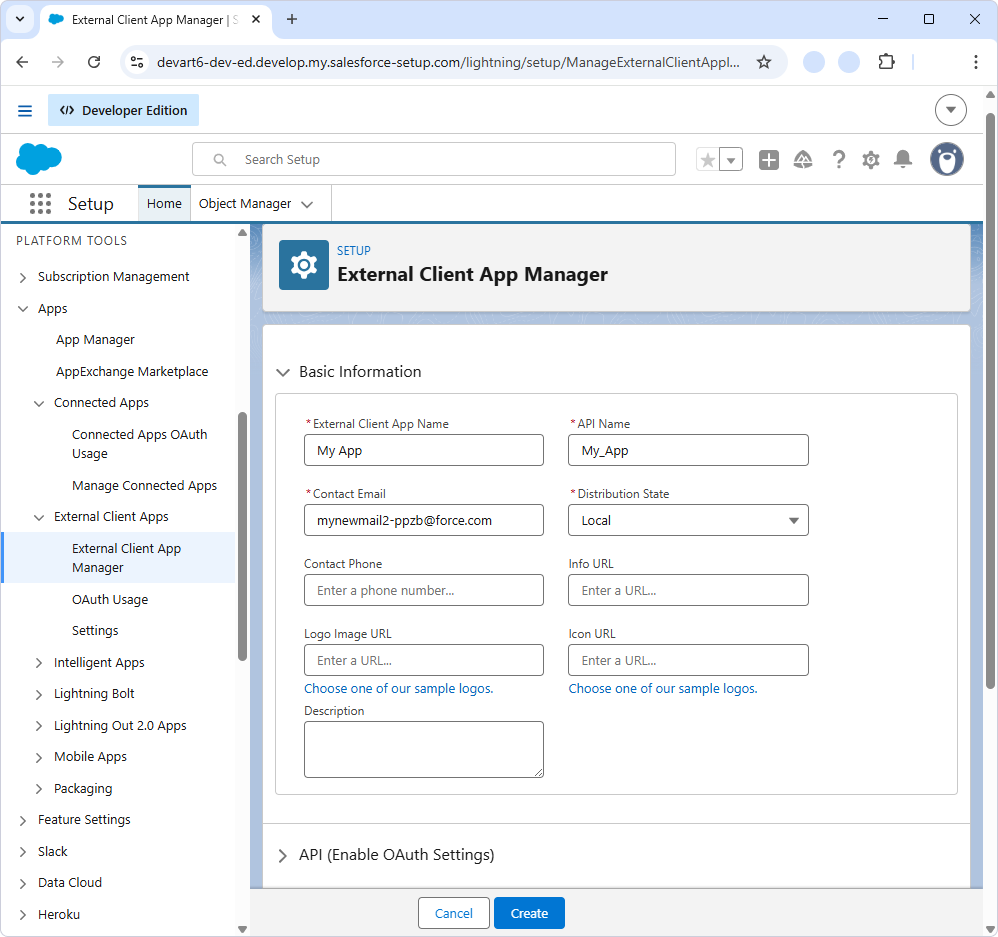
3. On the External Client App Manager page, under Basic Information, specify the required details. In Distribution State, select Local.
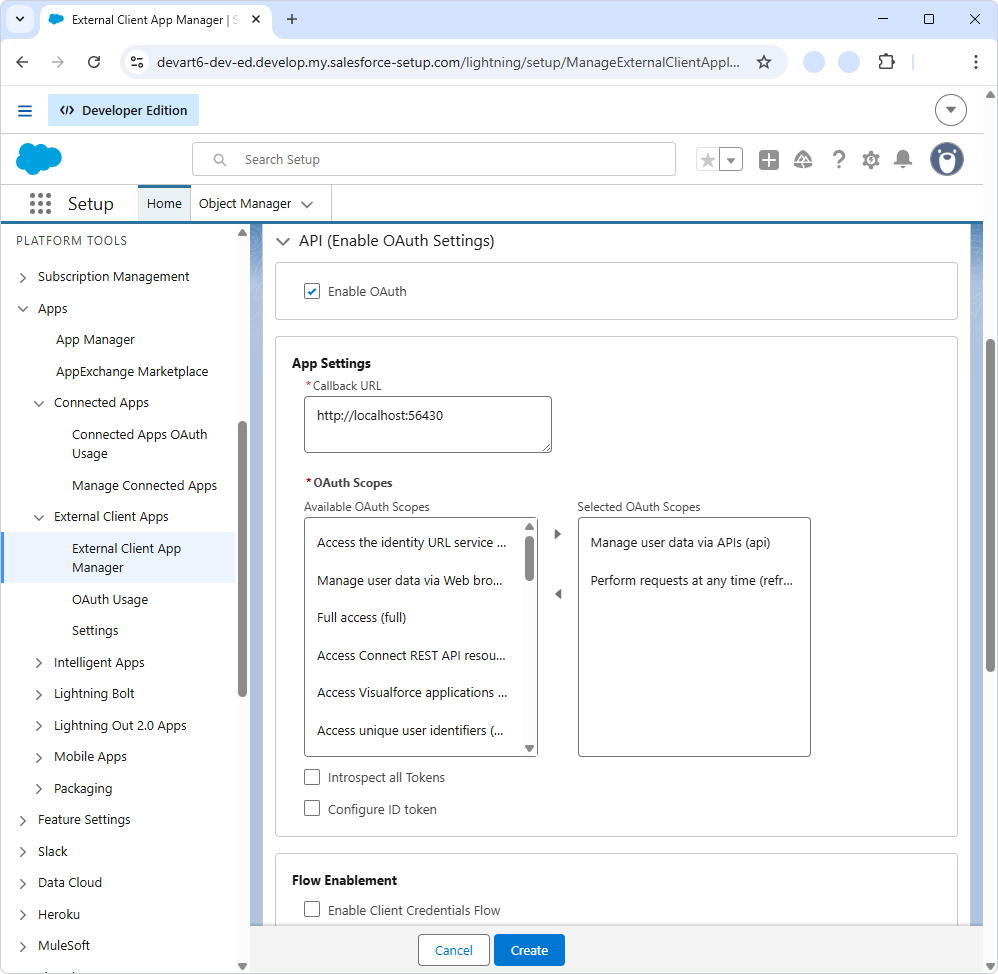
4. Under API (Enable OAuth Settings):
http://localhost:56430
Note
You can also add additional ports: 58738, 59142, 61371, 61361, or 62794.
5. In Flow Enablement, select the option that matches your authentication scenario:
6. In Security:
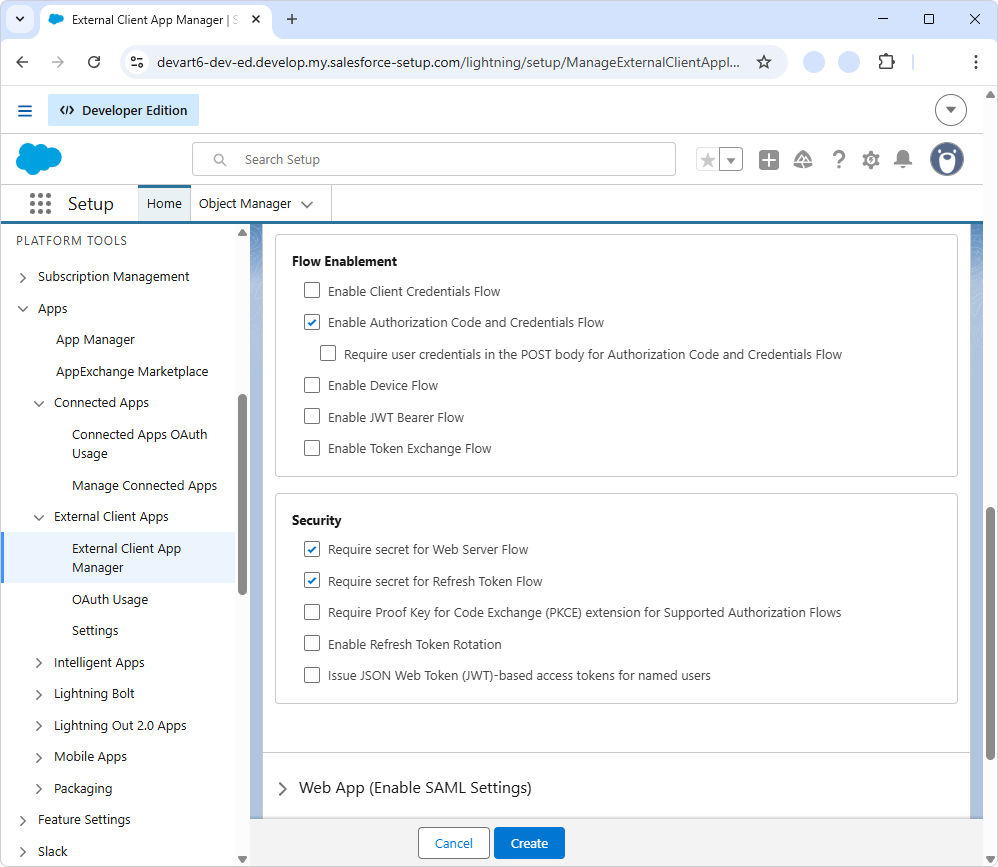
7. Click Create.
In server-to-server authentication, the client application uses the consumer key and consumer secret defined in the external client app to request an access token. You must specify the integration user whose permissions will be used when accessing Salesforce data.
1. Open the created external client app.
2. On the Policies tab, click Edit.
3. In OAuth Policies, select Enable Client Credentials Flow.
4. Specify the user on whose behalf tokens will be issued.
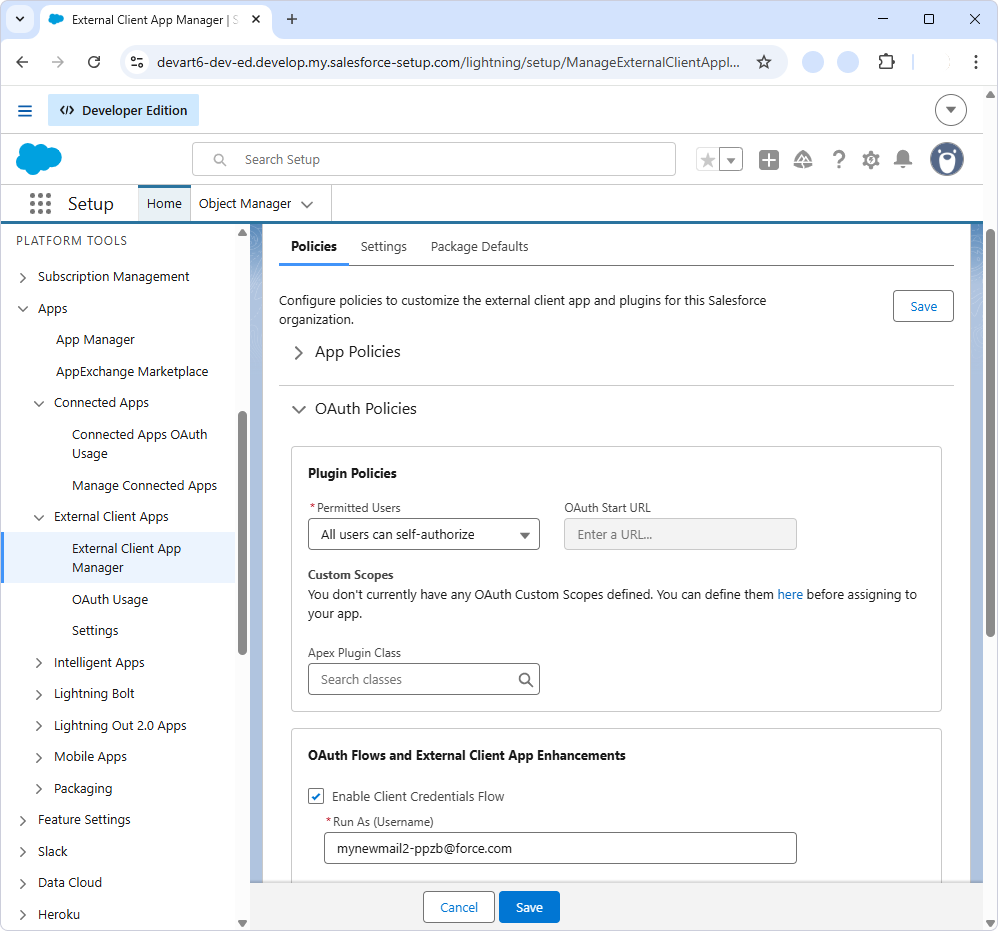
5. Click Save.
1. Navigate to Apps > External Client Apps > External Client App Manager.
2. Locate your app and open it.
3. Select Settings > OAuth Settings > Consumer Key and Secret.
4. Copy and store the consumer details.
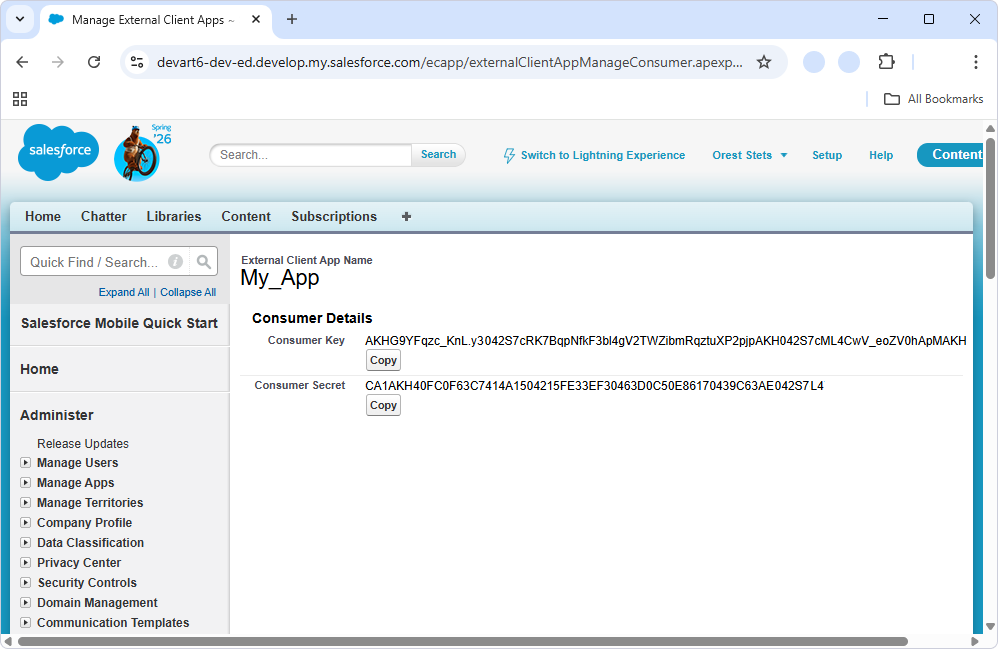
After obtaining the consumer key and consumer secret for your connected app in Salesforce, configure the Python Connector to authenticate using OAuth 2.0.
The following example shows how to sign in and establish a connection to Salesforce:
    dict = salesforce.signin(Host="login.salesforce.com",
    ConsumerKey="your_consumer_key",
    ConsumerSecret="your_consumer_secret"
    )

    connection = salesforce.connect(
    Authentication="OAuth",
    Host="login.salesforce.com",
    RefreshToken=dict["Refresh Token"],
    ConsumerKey="your_consumer_key",
    ConsumerSecret="your_consumer_secret"
    )
Replace the example values with your actual connection values.
For more information about available connection options, see Connection parameters.