Enable or disable usage data collection on Windows
Usage data collection is enabled by default when you install the driver. You can disable it in one of the following ways:
- During installation: In the installation wizard or from the command line.
- After installation: By editing the Windows Registry.
Disable usage data collection in the installation wizard
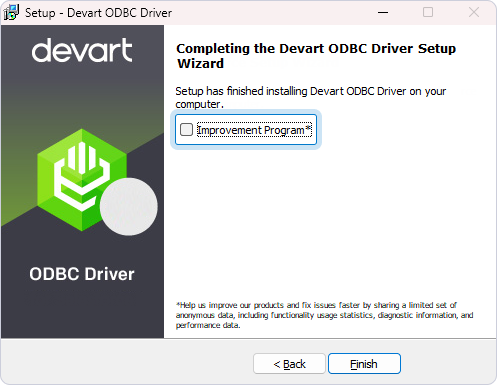
To disable usage data collection in the installation wizard, clear the Improvement Program checkbox on the last page of the wizard. The checkbox is selected by default.
Disable usage data collection from the command line
When you install the driver from the command line, you can disable usage data collection by adding the /NOUSAGESTATISTICS parameter to the command.
Silent and very silent mode
To disable usage data collection during silent or very silent installation with the EXE installer, run one of the following commands:
DevartODBCSQLite.exe /NOUSAGESTATISTICS /SILENT
DevartODBCSQLite.exe /NOUSAGESTATISTICS /VERYSILENT
Quiet mode
To disable usage data collection during quiet installation with the MSI installer, run the following command as an administrator:
msiexec /i DevartODBCSQLite.msi /q NOUSAGESTATISTICS=true
Change usage data collection settings in the Windows Registry
To enable or disable usage data collection for an installed driver, edit the Windows Registry as follows:
1. Open the Registry Editor. To do this, press Win+R, type regedit in the Run dialog, and press Enter.
2. Depending on your driver version, navigate to one of the following keys:
- 64-bit driver:
HKEY_LOCAL_MACHINE\SOFTWARE\ODBC\ODBCINST.INI\Devart ODBC Driver for SQLite - 32-bit driver:
HKEY_LOCAL_MACHINE\SOFTWARE\WOW6432Node\ODBC\ODBCINST.INI\Devart ODBC Driver for SQLite
3. Set the value of the UsageStatistics parameter to False to disable usage data collection, or True to enable usage data collection.