Connect to Heroku Postgres using Devart ODBC Driver for PostgreSQL
Heroku is a cloud-based platform as a service (PaaS) that lets you deploy and scale applications without managing servers. It supports multiple programming languages and helps teams shorten development cycles.
This article describes how to connect to Heroku Postgres by using Devart ODBC Driver for PostgreSQL.
Before you configure the driver, get your database URL (DATABASE_URL) from the Heroku Dashboard. This method is suitable if you’re new to the Heroku platform.
Get the database URL from the Heroku Dashboard
1. Sign in to your Heroku account, then open the Heroku Dashboard.
2. Open the application you want to connect to.
3. Select the Settings tab, then click Reveal Config Vars.
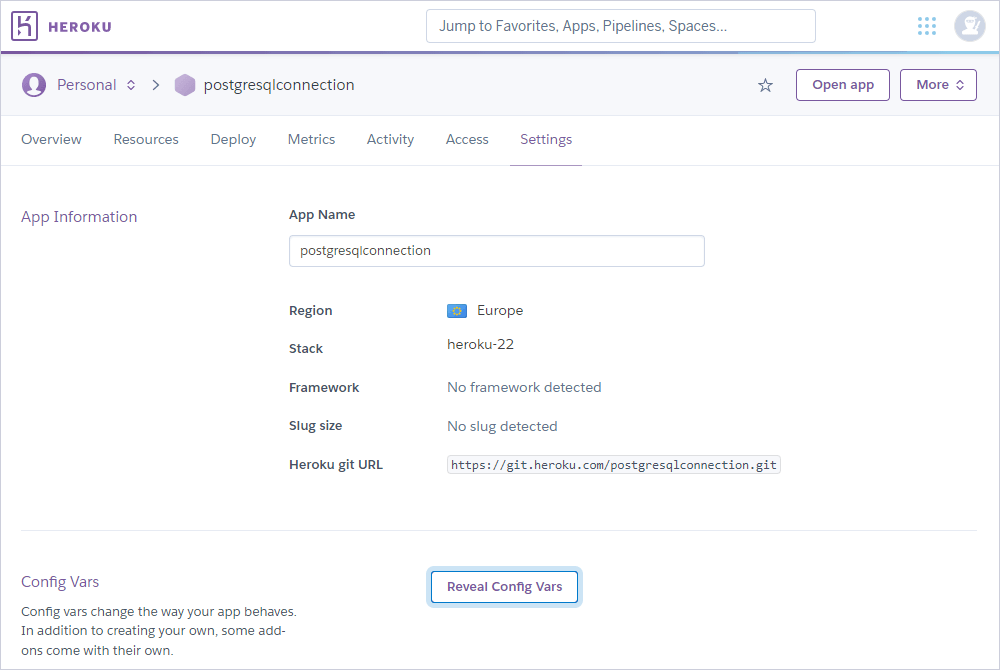
4. In the list of configuration variables, locate DATABASE_URL and copy its value. It has the following format:
postgres://<user_id>:<password>@<server>/<database>
Now you can configure the driver in the ODBC Data Source Administrator.
Configure the driver
1. Open the ODBC Data Source Administrator.
2. Select the User DSN tab, then click Add.
3. Select Devart ODBC Driver for PostgreSQL, then click Finish.
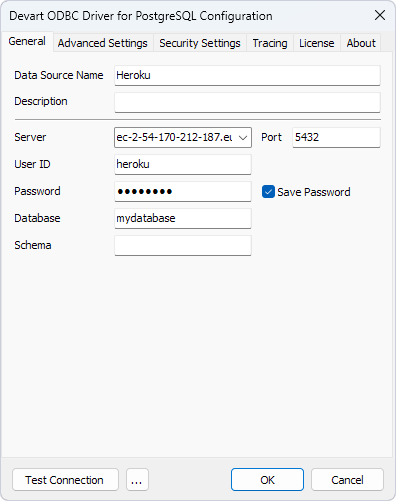
4. Enter a Data Source Name, then specify the Server, User ID, Password, and Database using the values from the DATABASE_URL.
5. Select the Security Settings > SSL Options tab, then select Use SSL.
6. Specify the SSL files to establish a secure connection. For information about obtaining and uploading a certificate, see the Heroku SSL documentation. For information on the SSL options, see SSL connection.
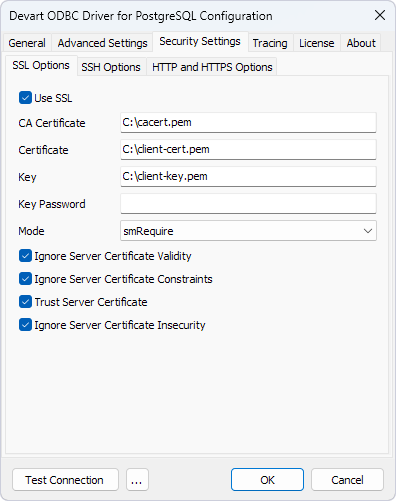
7. Optional: Click Test Connection to verify that the connection details are valid.
8. Click OK to save the DSN settings.