Activate the driver on Windows
If you didn’t activate the driver during installation, you can activate it by following these steps:
Note
You need to activate the driver even for the trial version.
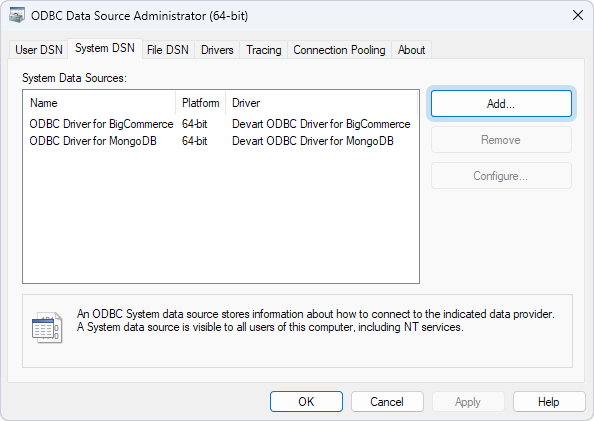
1. To open the ODBC Data Source Administrator, click Start, enter ODBC Data Sources, then select the ODBC Data Sources desktop app among the options.
2. On the System DSN tab, click Add.
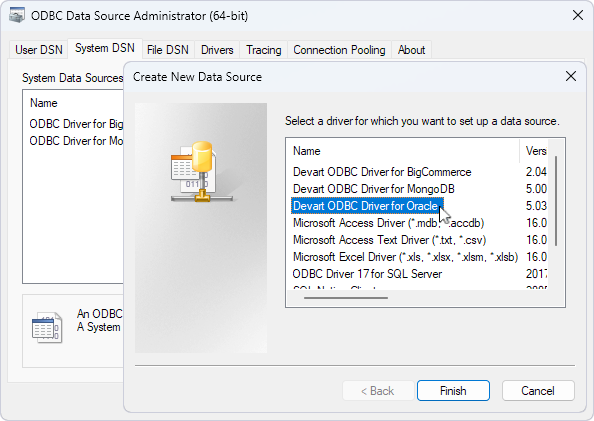
3. In the Create New Data Source dialog, select the driver you want to activate, then click Finish.
4. In the Devart ODBC Driver for Oracle Configuration dialog, navigate to the License tab, then click Input Activation Key.
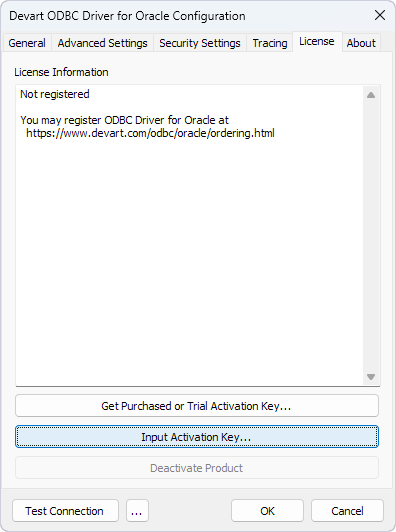
5. Activate the driver using one of the following methods:
-
Enter an activation key: Paste your activation key into the box.
-
Load an activation file: Click Load Key and select the file that contains the activation key.
Tip
You can find your activation key in the registration email or your Customer Portal account. To open the Customer Portal, click Get Purchased or Trial Activation Key.
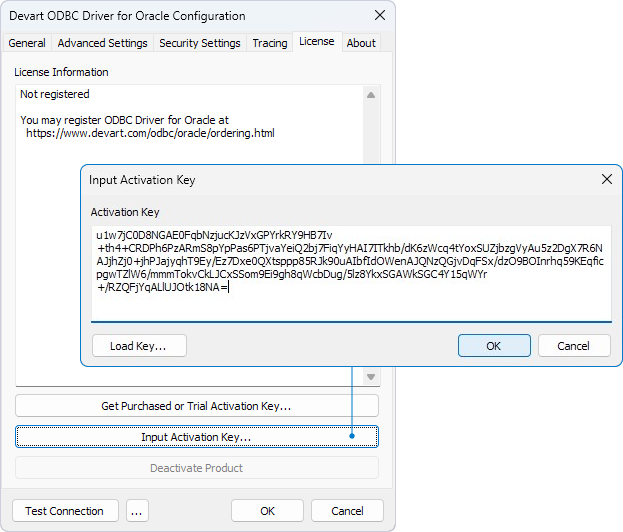
6. Click OK.
Deactivate the driver on Windows
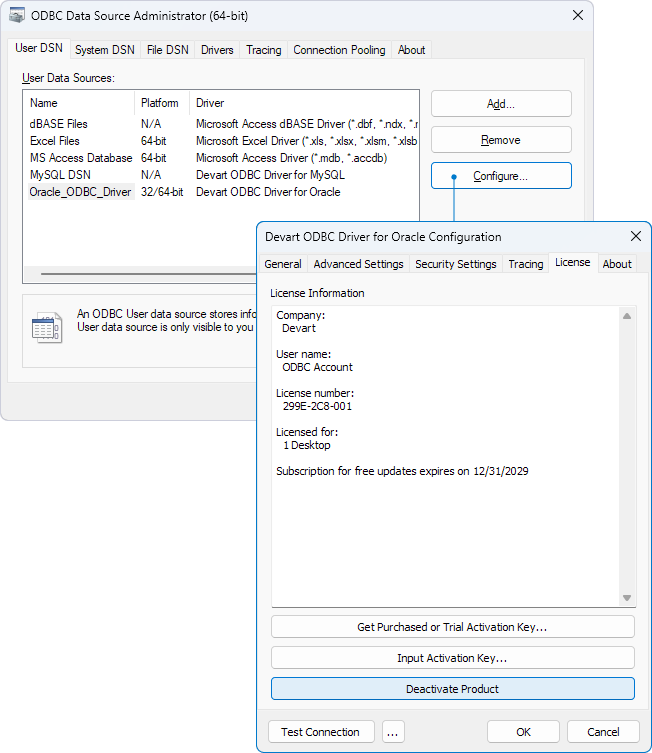
1. Open the ODBC Data Source Administrator.
2. On the User DSN tab, select the driver you want to deactivate, then click Configure.
3. In the Devart ODBC Driver for Oracle Configuration dialog, navigate to the License tab, then click Deactivate Product.