Connect Informatica PowerCenter to Oracle on Windows
You can connect Informatica PowerCenter to Oracle through the ODBC driver on Windows to unify and manage data across these systems.
Prerequisites
- Configure the Informatica services.
- Install the PowerCenter Client tools.
- Create a repository folder in PowerCenter Repository Manager.
- Install Devart ODBC Driver for Oracle. For instructions, see Install the driver on Windows.
- Configure a data source name (DSN). For instructions, see Configure a Windows DSN for Oracle.
Add a data source in Informatica PowerCenter
1. Open PowerCenter Designer.
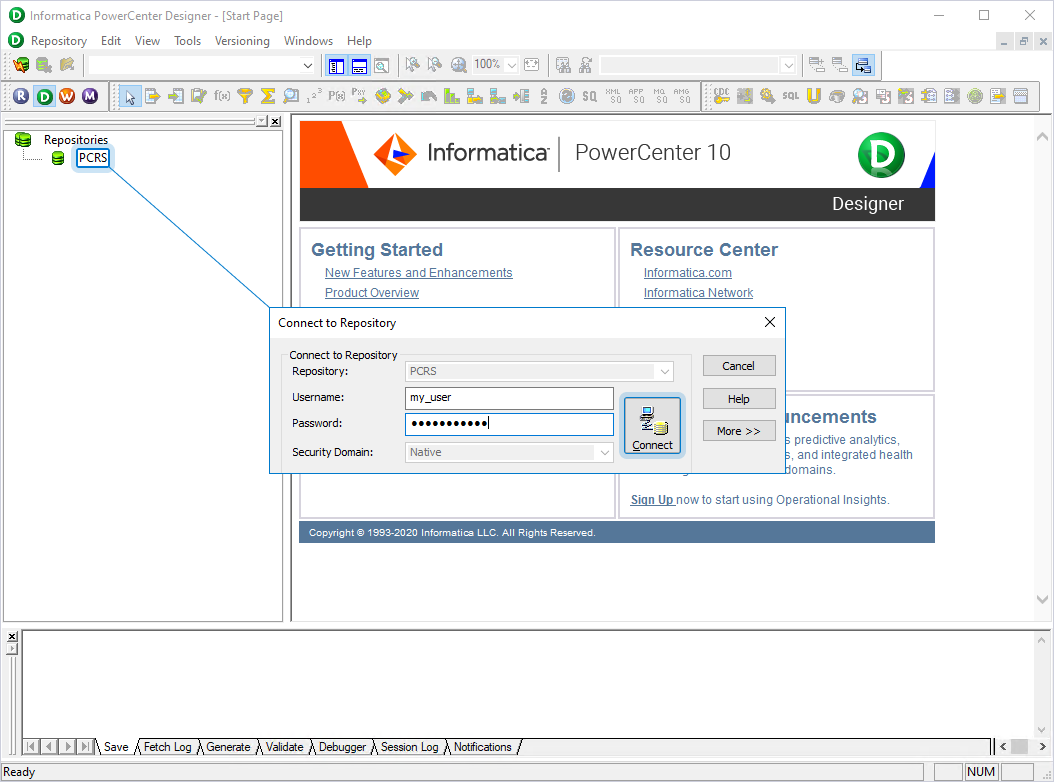
2. Double-click the repository name (in this example, PCRS), enter your Informatica credentials, then click Connect.
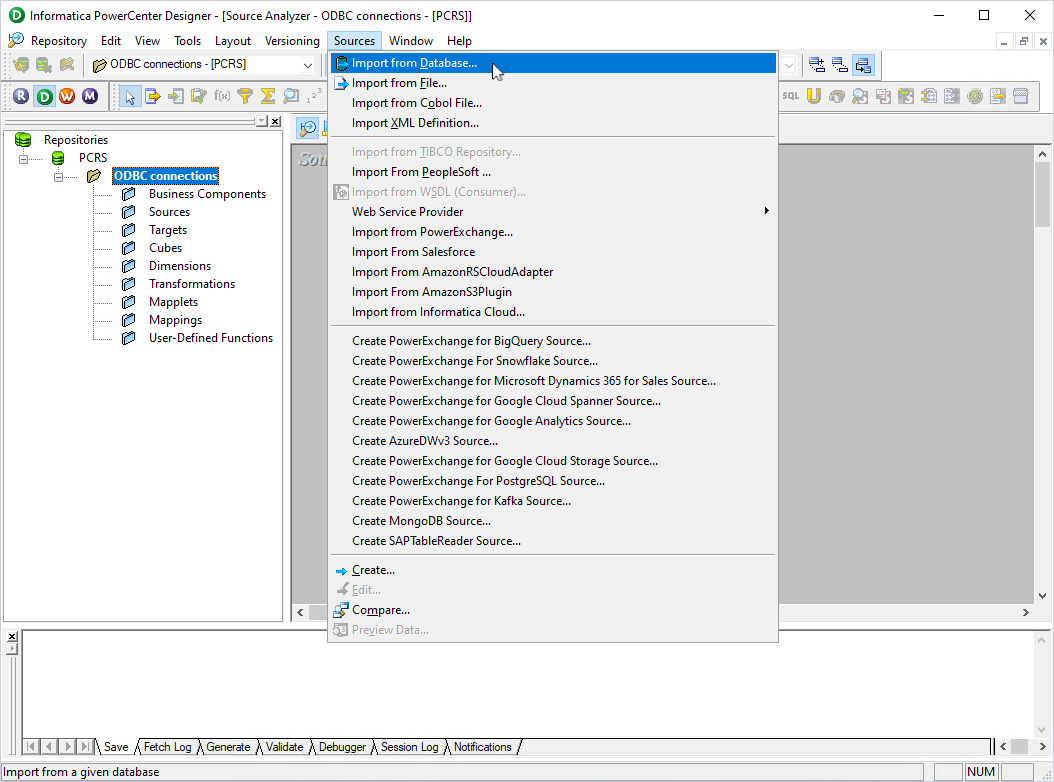
3. Double-click the repository folder (in this example, ODBC connections), then select Sources > Import from Database.
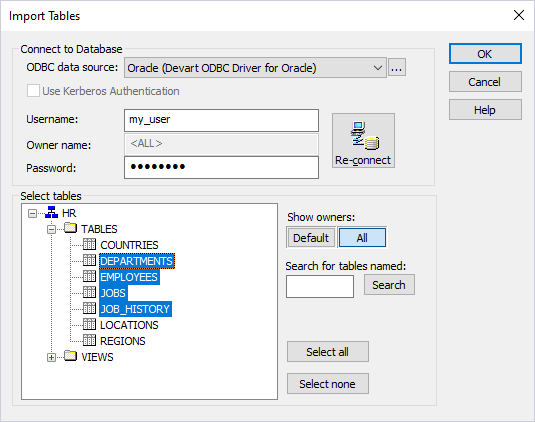
The Import Tables dialog appears.
4. From the ODBC data source menu, select the needed DSN.
5. In the Username and Password fields, enter your Oracle credentials.
6. Under Show owners, select All.
7. Click Connect.
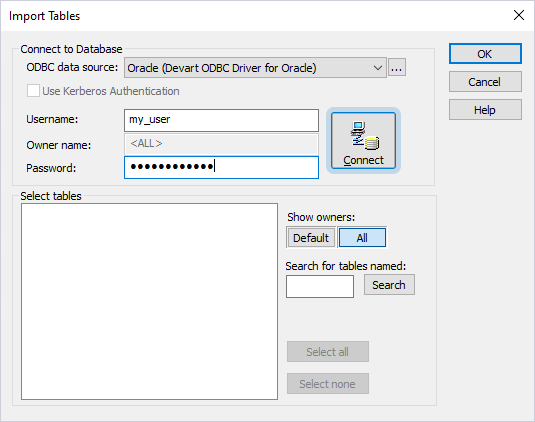
8. In the Select tables section, expand the tree and select the tables you want to import.
9. Click OK.
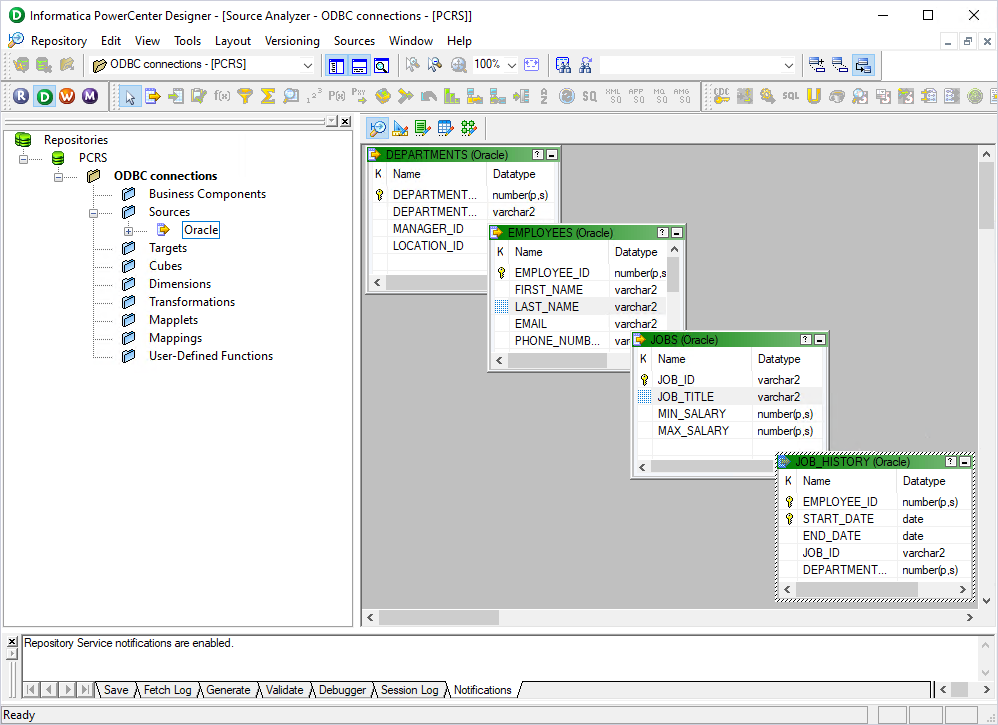
The table schemas appear in the Source Analyzer, and the data source is added to the Sources subfolder of the repository folder. You can now create mappings and work with Oracle data in Informatica PowerCenter.