ODBC Driver for Microsoft Excel Online

Obtaining a Refresh Token - ODBC Driver for Microsoft Excel Online

To start the process of generating a refresh token for the ODBC driver for Microsoft Excel Online, follow the steps below:
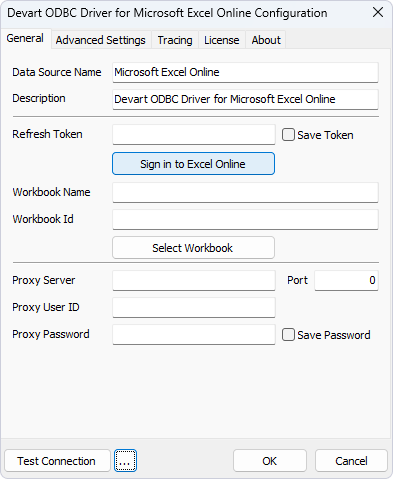
  1. Run the ODBC Administrator utility and make proper settings in the driver's Configuration dialog.
  2. Click Sign in to Excel Online.

    Clicking Sign in to Excel Online button

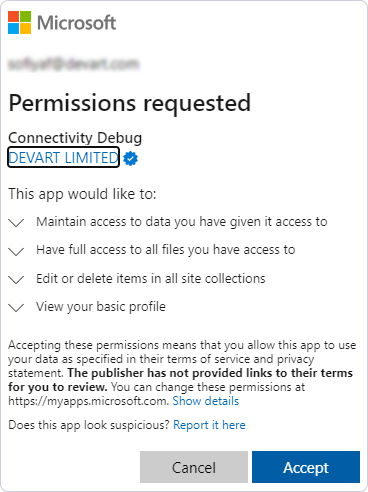
  3. In the window that opens, click Accept to proceed with logging in.

    Giving access to Microsoft account data

  4. If the process is successful, the refresh token will be automatically generated and inserted in the corresponding field of the driver configuration window.
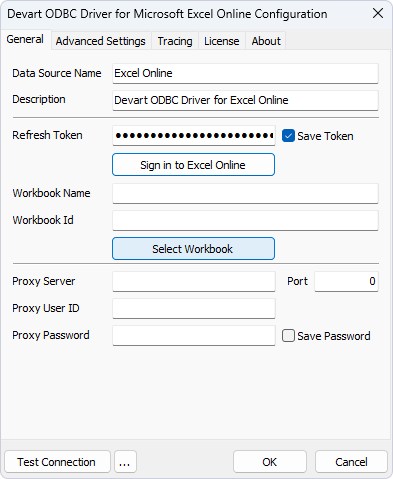
  5. Now, click Select Workbook to choose the document you want to work with.

    Refresh token successfully obtained

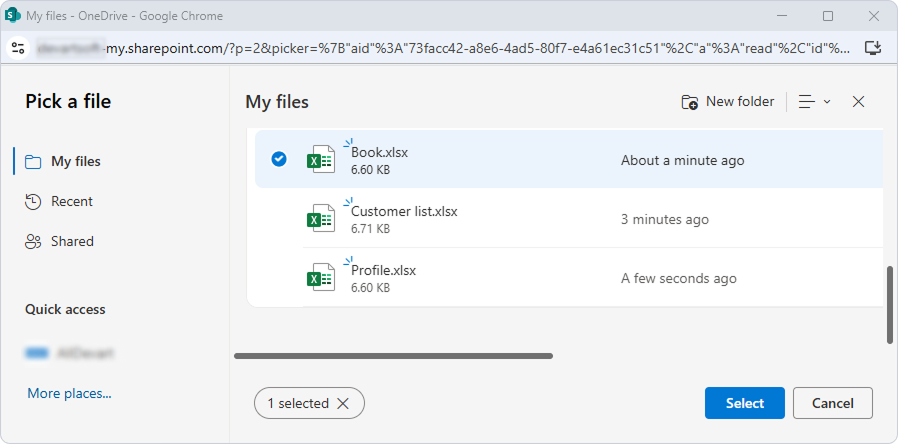
  6. In the Pick a file dialog that opens browse for a required workbook, and click Select to apply the settings.

    Selecting an Excel workbook

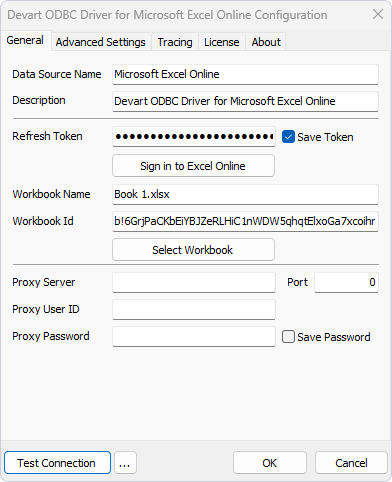
  7. Upon selecting the workbook, you'll receive a workbook ID. Next, click OK to save your configuration settings.

    Receiving a Workbook ID

  8. Finally, you can access your Microsoft Excel Online account data.

See Also

Configuring ODBC Driver for Microsoft Excel Online

© 2015-2025 Devart. All Rights Reserved. Request Support ODBC Forum Provide Feedback