Connect SQL Server Integration Services to Dynamics 365
In this section, you’ll find the detailed guide on how to connect SQL Server Integration Services and Dynamics 365. The solution described in this guide demonstrates how to establish a connection to Dynamics 365 in Visual Studio using the SQL Server Integration Services extension. Additionally, you’ll explore two ways to obtain Dynamics 365 data.
Prerequisites
- Download and install the SQL Server Integration Services Projects 2022 extension.
- Download and install Devart ODBC Driver for Dynamics 365.
- Create a DSN for Windows/macOS/Linux.
Configure the ODBC connection
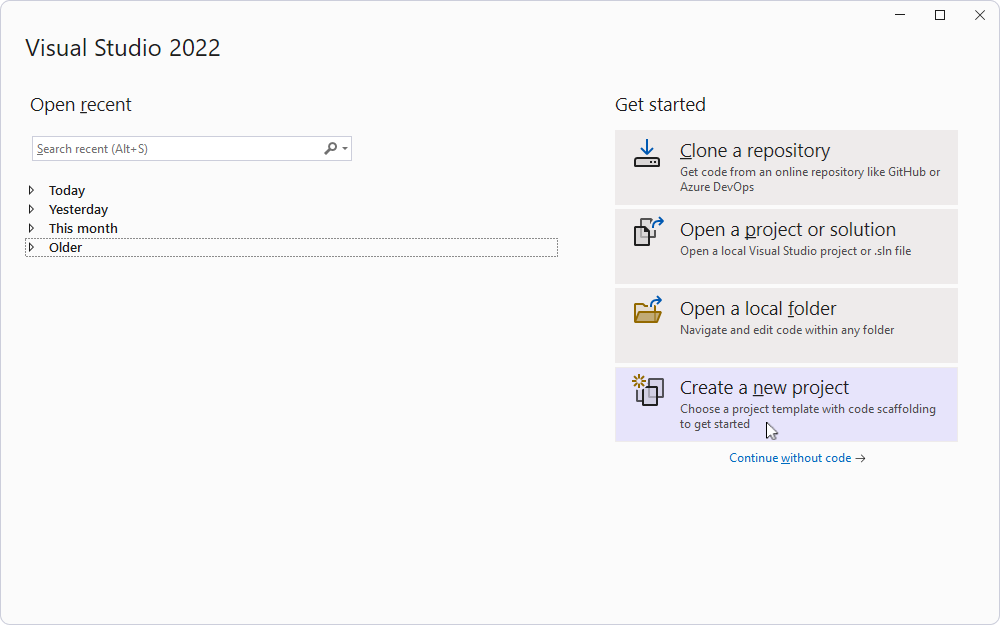
1. To create an Integration Services project, open Visual Studio and click Create a new project.
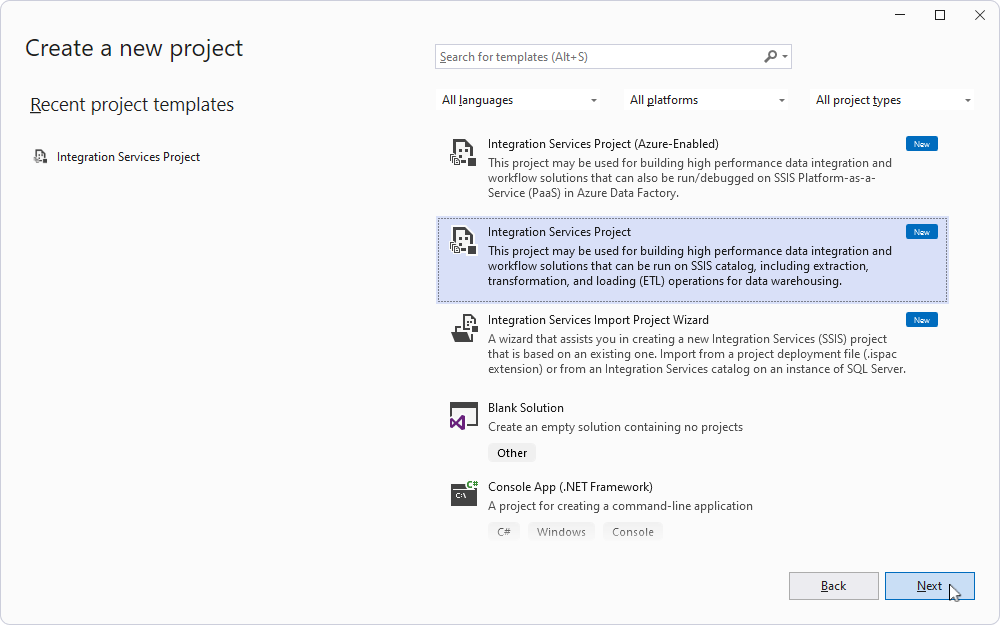
2. Select Integration Services Project, then click Next.
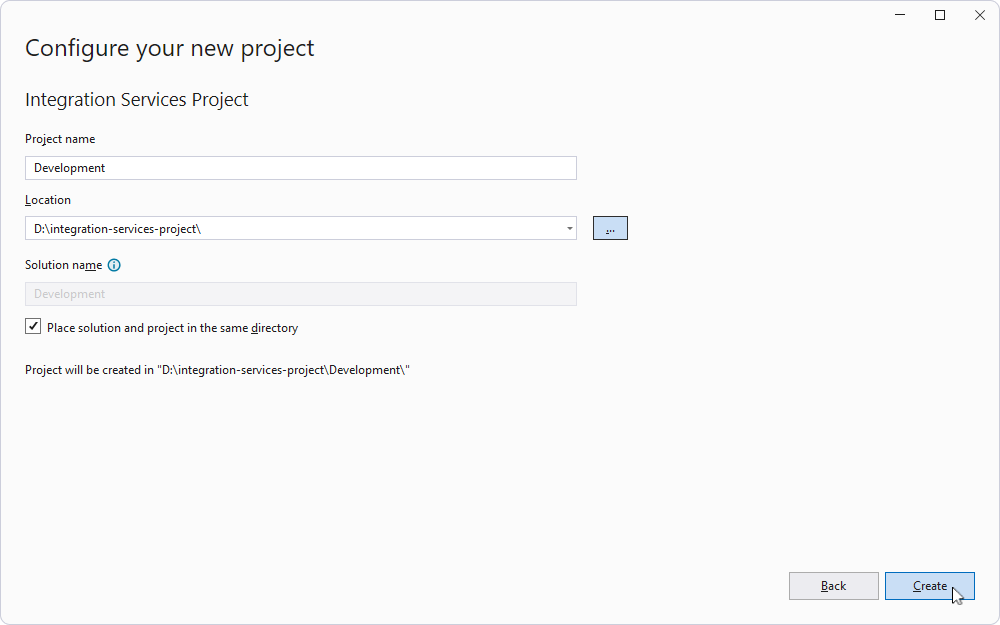
3. In the Project Name field, enter the project name.
4. In the Location field, enter the repository file path.
Optionally, if you want the project and the solution to be stored in different directories, clear Place solution and project in the same directory, enter the desired name into Solution name, and click Create.
5. Click Create.
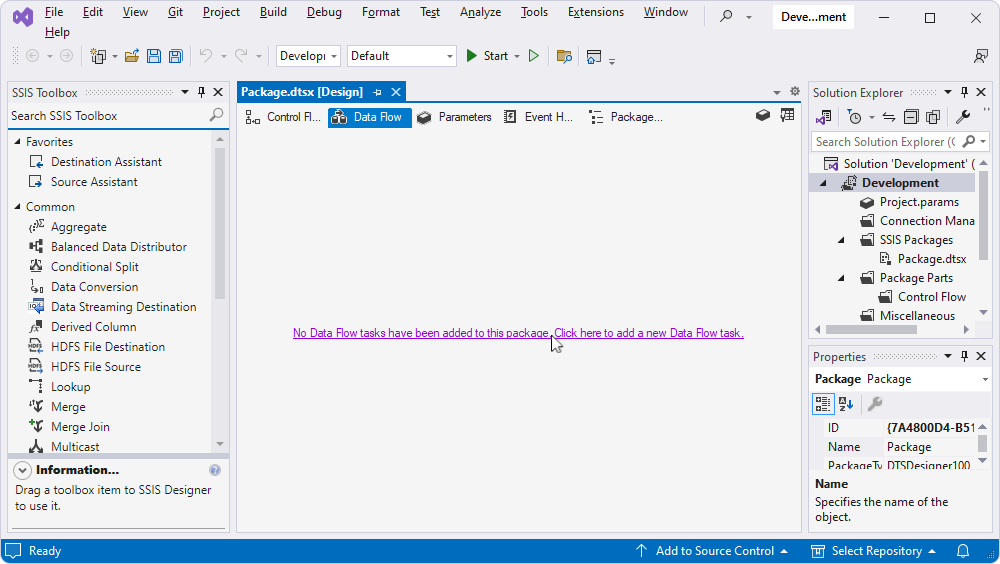
6. Select the Data Flow tab, then click No data flow tasks have been added to this package. Click here to add a new Data Flow task.
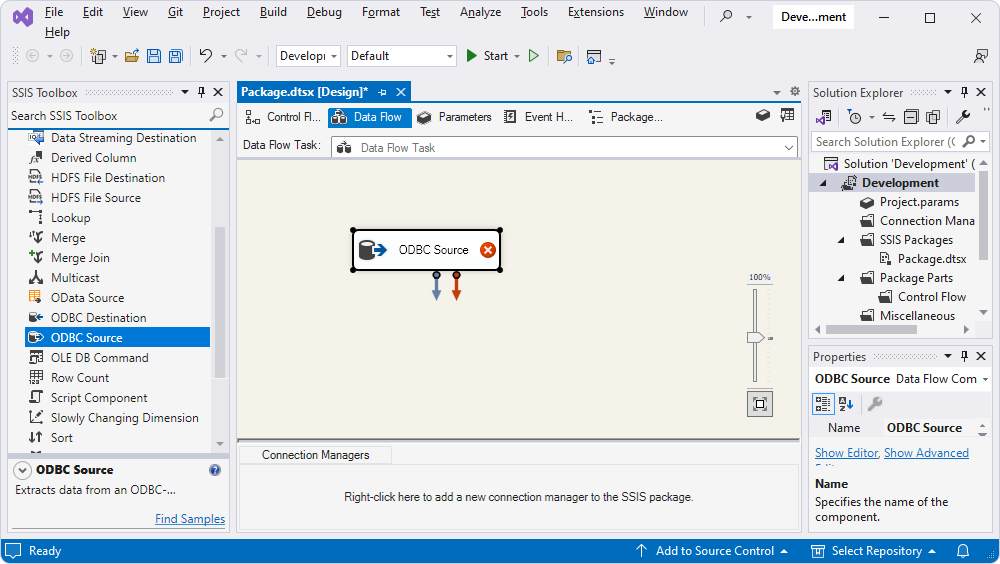
7. To add a source for extracting data from an ODBC-compliant data source, drag the ODBC Source component from the SSIS Toolbox into the design area.
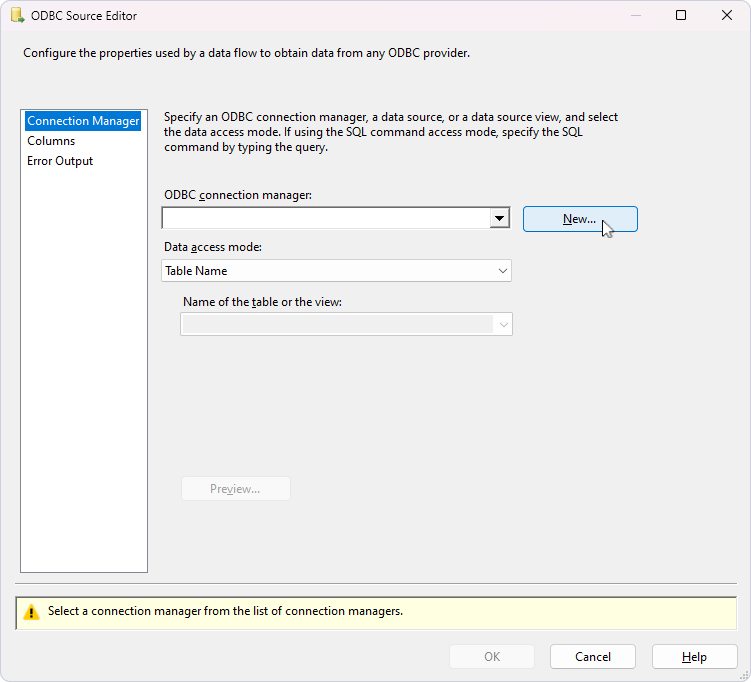
8. Double-click the added source, then click New.
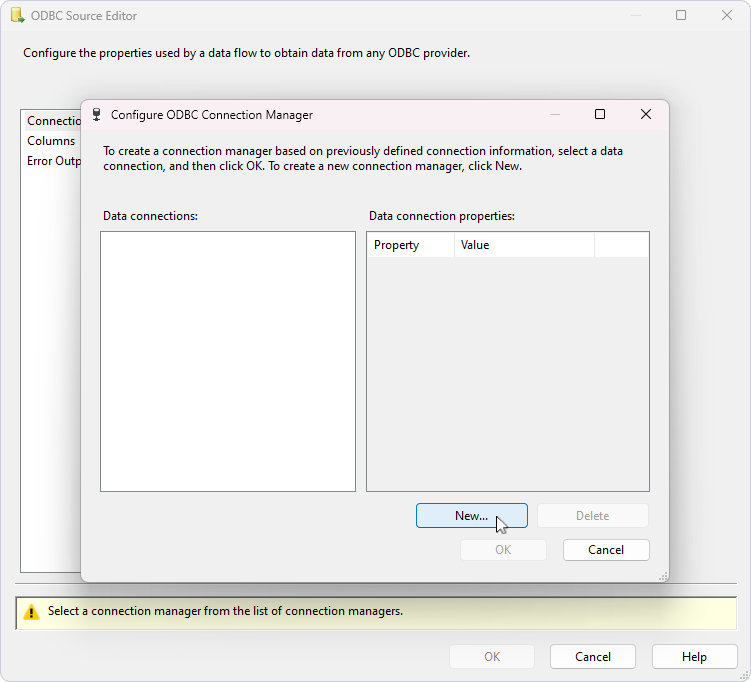
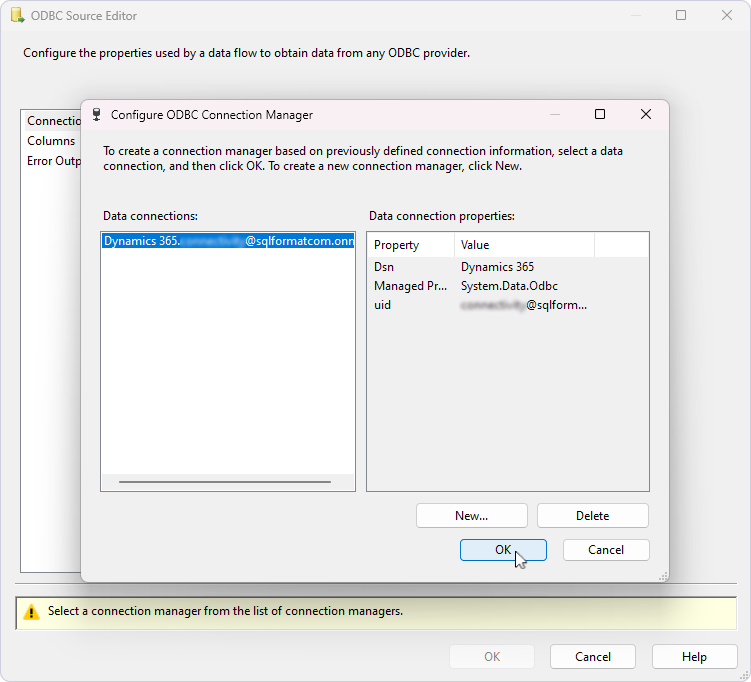
9. In the Configure ODBC Connection Manager dialog that opens, click New.
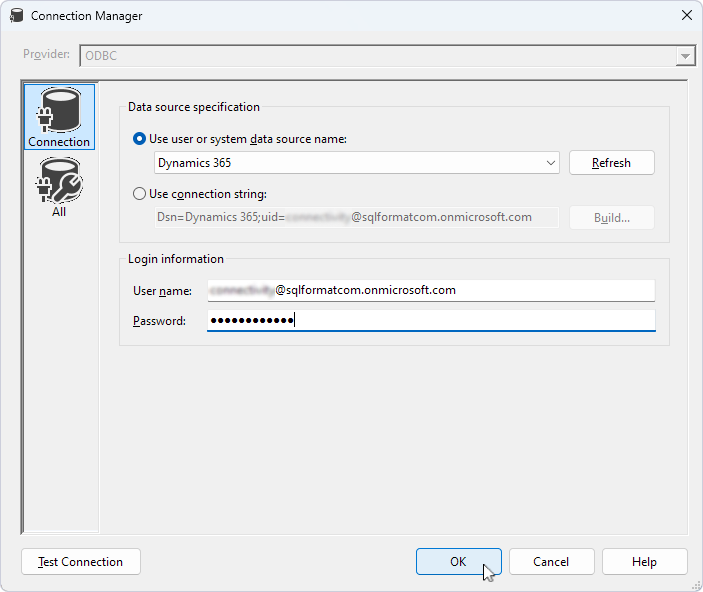
10. Under Use user or system data source name, select your DSN.
11. In the User name and Password fields, enter your Salesforce credentials.
Optional: To verify the connection details, click Test Connection.
12. Click OK.
The data connection is added to the ODBC Connection Manager.
13. Click OK.
View the data
You can retrieve Salesforce data in one of the following ways:
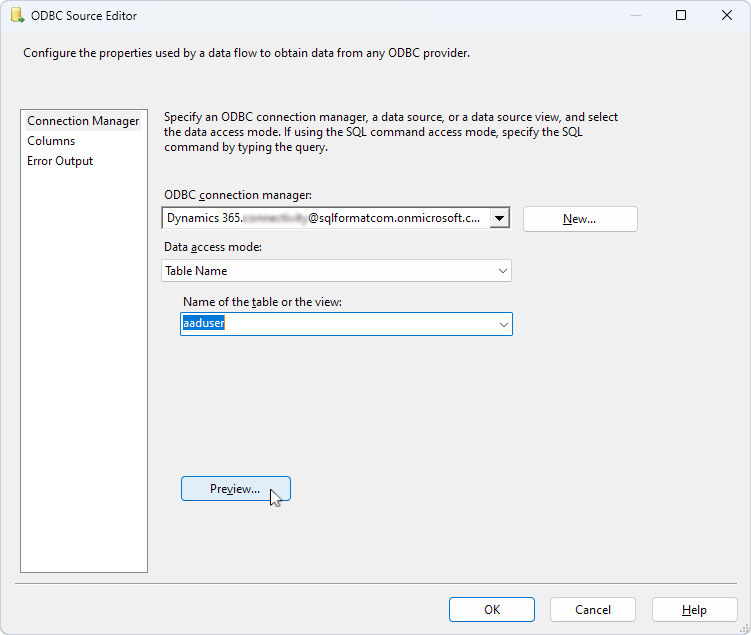
- Select the table name.
1. Select the table from the Name of the table or the view dropdown.
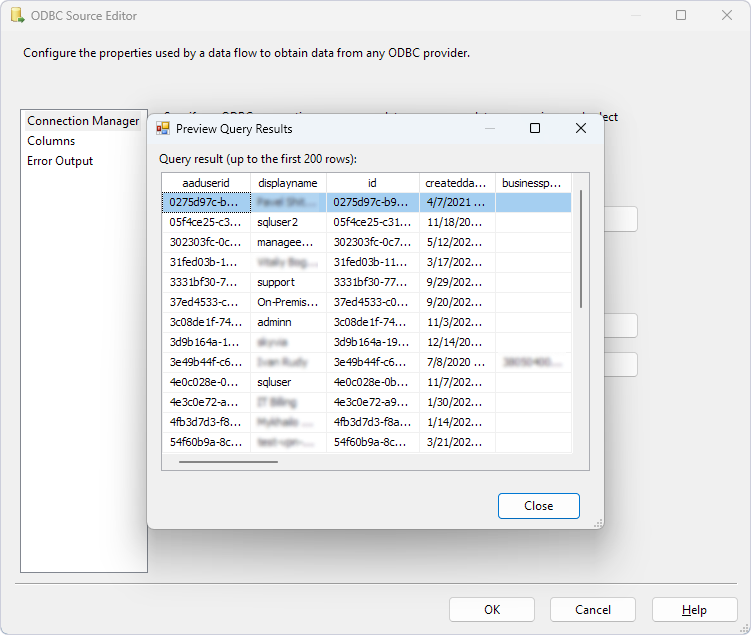
2. Click Preview to view the data.
- Run a SQL query.
1. Under Data Access Mode, select SQL command.
2. In the SQL command text field, enter your SQL query.
3. Click Preview.
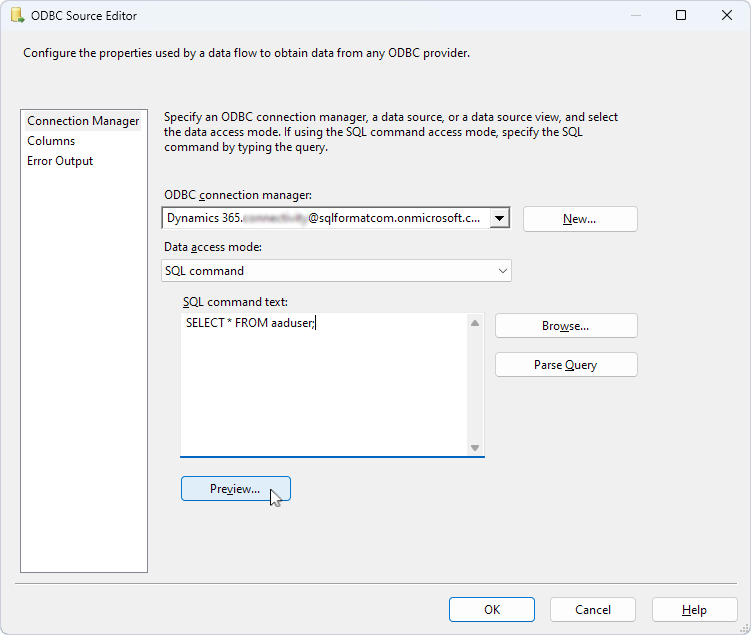
The data is displayed in a table.