Install the driver using the command line
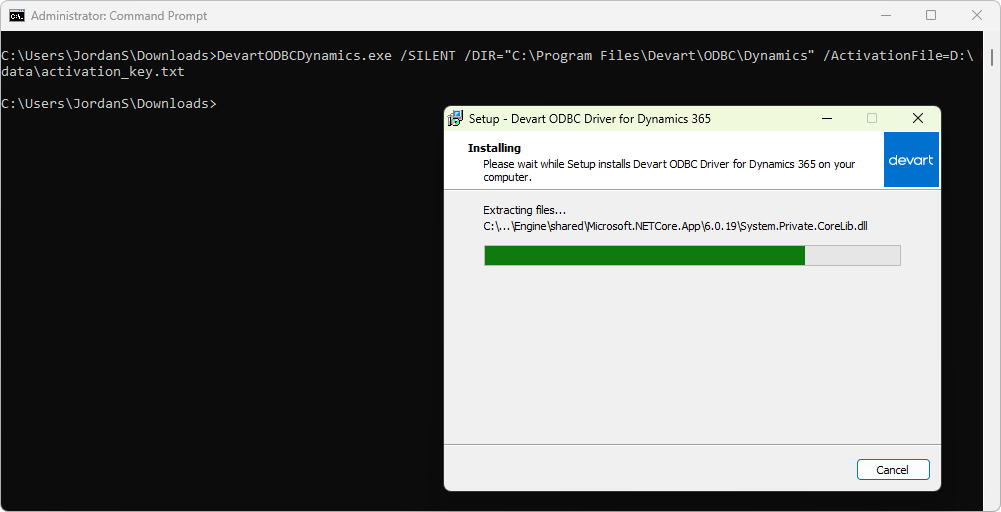
You can install ODBC Driver for Dynamics 365 on Windows via the command line in standard, silent, or very silent mode. The driver can also be installed and activated simultaneously using either an activation key or an activation file.
Note
You need to activate the driver even for the trial version.
Install the driver via the command line without activation
To install ODBC Driver for Dynamics 365 on Windows from the command line:
2. Open Command Prompt as Administrator: Press Windows + R, type cmd, then press Ctrl + Shift + Enter.
3. Navigate to the folder where the installer file is located.
cd C:\Users\YourUsername\Downloads
4. Run the installer with the required command-line arguments:
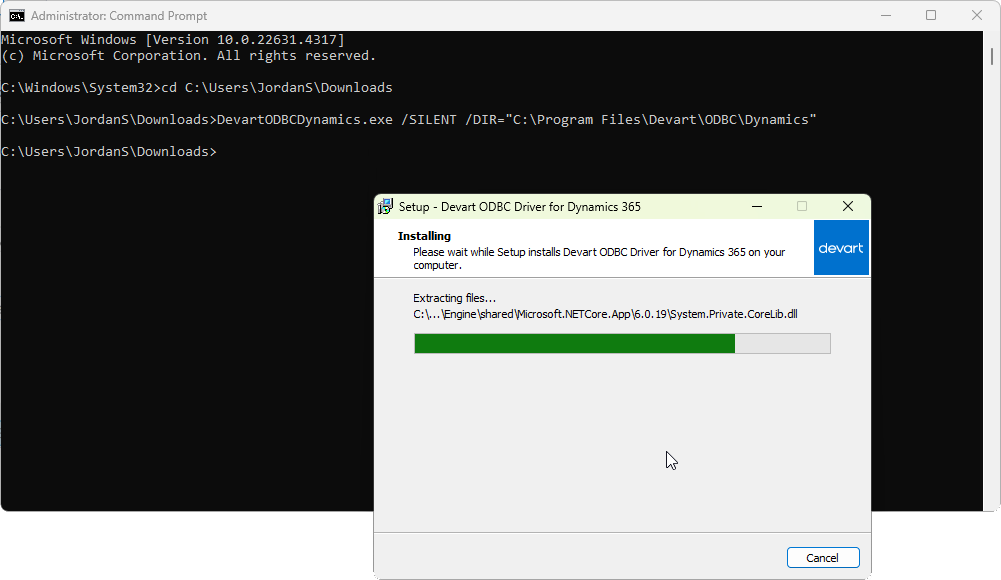
- To install the driver silently (without prompts, but with the installation progress window), use the following command. The
/DIRparameter specifies the installation folder on your computer.
DevartODBCDynamics.exe /SILENT /DIR="C:\Program Files\Devart\ODBC\Dynamics 365"
- To install the driver very silently (completely in the background without prompts and installation progress windows), use this command:
DevartODBCDynamics.exe /VERYSILENT /DIR="C:\Program Files\Devart\ODBC\Dynamics 365"
5. Optional: Verify the installation:
5.1. Open ODBC Data Source Administrator from Control Panel > Administrative Tools > ODBC Data Sources (32-bit or 64-bit).
5.2. Confirm that Devart ODBC Driver for Dynamics 365 is listed under Drivers.
Install and activate the driver in one step
You can install and activate the driver simultaneously from the command line using one of the following methods:
Install and activate the driver using an activation key
1. Open Command Prompt as Administrator.
2. Use the following command lines for silent or very silent installation:
- Silent installation:
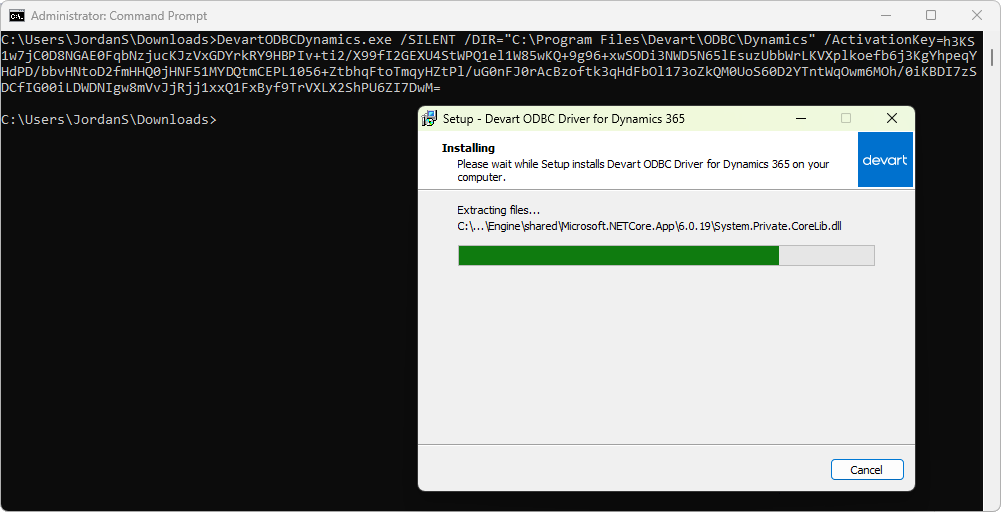
DevartODBCDynamics.exe /SILENT /DIR="C:\Program Files\Devart\ODBC\Dynamics 365" /ActivationKey=<your_activation_key>
- Very silent installation:
DevartODBCDynamics.exe /VERYSILENT /DIR="C:\Program Files\Devart\ODBC\Dynamics 365" /ActivationKey=<your_activation_key>
Note
Replace
<your_activation_key>with your actual activation key.You can find your activation key in the registration email or your Customer Portal account.
Install and activate the driver using a file with an activation key
1. Open Command Prompt as Administrator.
2. Specify the activation key:
- Silent installation:
DevartODBCDynamics.exe /SILENT /DIR="C:\Program Files\Devart\ODBC\Dynamics 365" /ActivationFile=<path_to_your_activation_file>
- Very silent installation:
DevartODBCDynamics.exe /VERYSILENT /DIR="C:\Program Files\Devart\ODBC\Dynamics 365" /ActivationFile=<path_to_your_activation_file>
Note
Replace
<path_to_your_activation_file>with the full path to the file containing the driver activation key.You can find your activation key in the registration email or your Customer Portal account.