Connect DBeaver Enterprise to Zoho CRM through ODBC
DBeaver Enterprise and DBeaver Community let you connect to Zoho CRM via ODBC, enabling SQL-based querying, reporting, and data management.
If you require a simplified connection setup with built-in ODBC support, enhanced security, and performance features, try DBeaver Enterprise.
If you need basic ODBC connectivity to Zoho CRM and are comfortable with manual configuration using a generic ODBC connection, choose DBeaver Community—a free, open-source database management tool. For more information on connecting to Zoho CRM data from DBeaver Community, see Connect DBeaver Community to Zoho CRM through ODBC.
Connect to Zoho CRM
1. Open DBeaver Enterprise.
2. Select Database > New Database Connection.
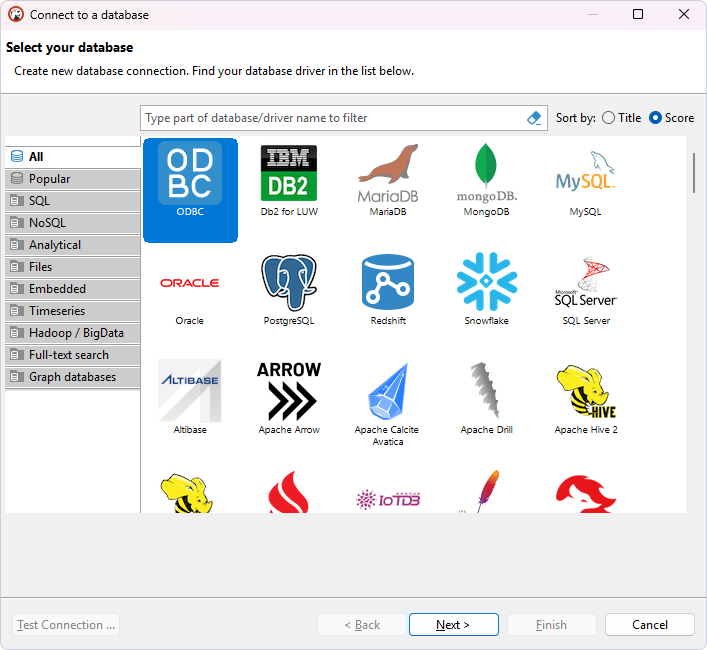
3. Select ODBC, then click Next.
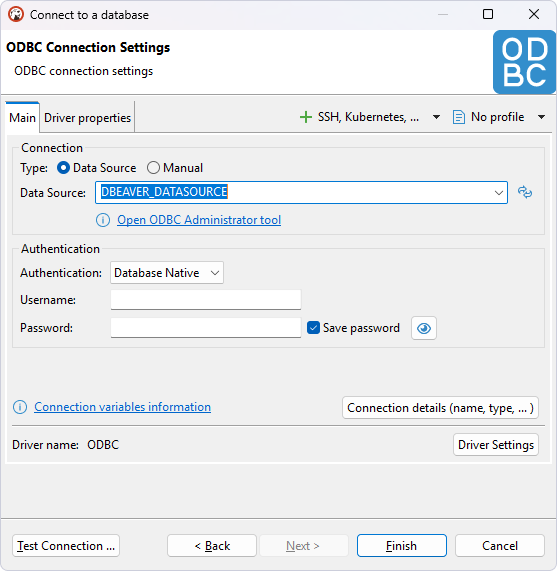
4. In Data Source, enter the name of your DSN.
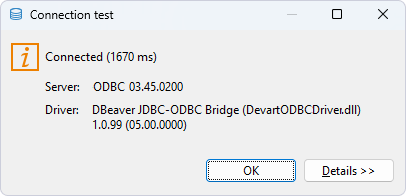
5. Optional: Click Test Connection to verify the connection settings.
6. Click Finish.
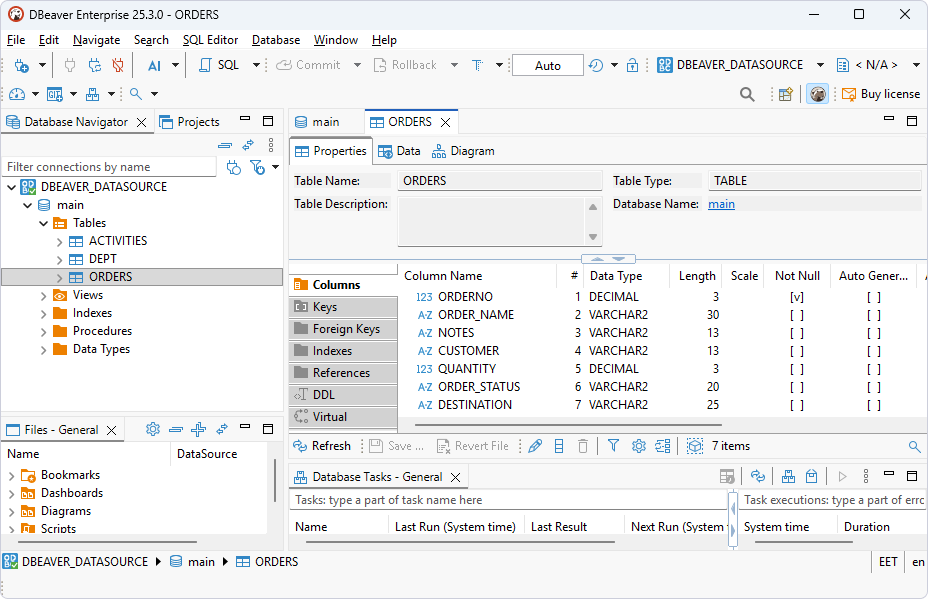
The database appears in the left pane.
7. To view the data stored in a table, expand the database structure and double-click the needed table.
Query Zoho CRM data
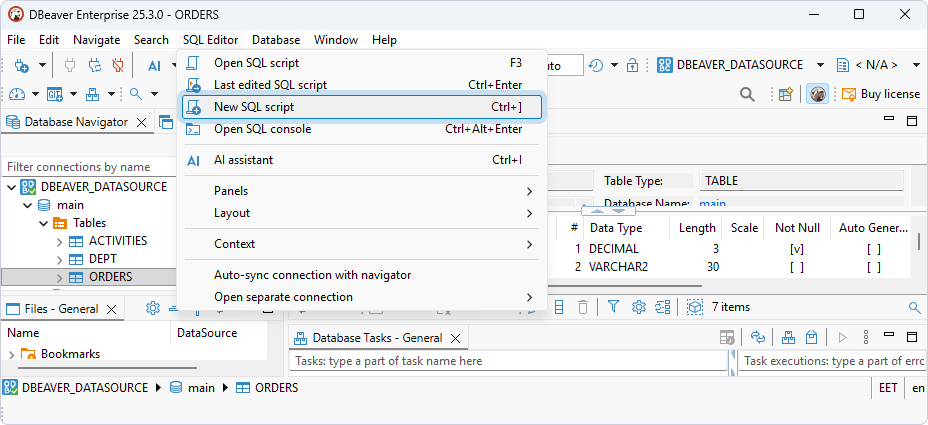
1. Select SQL Editor > New SQL script.
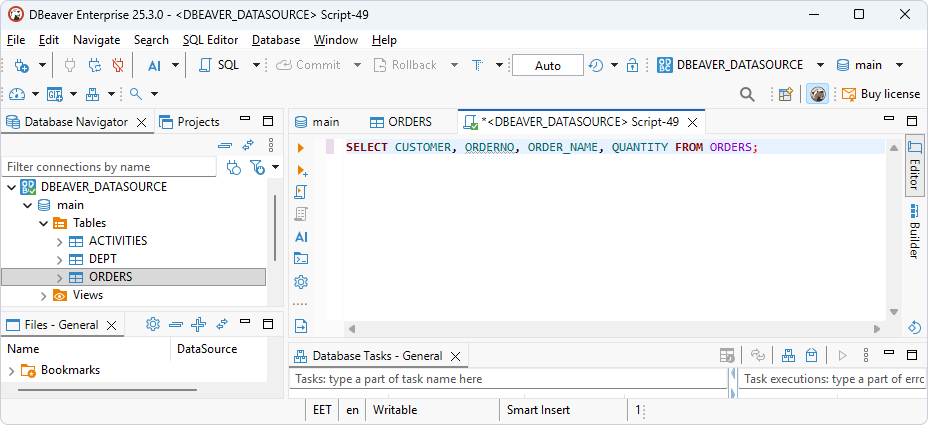
2. Enter your query.
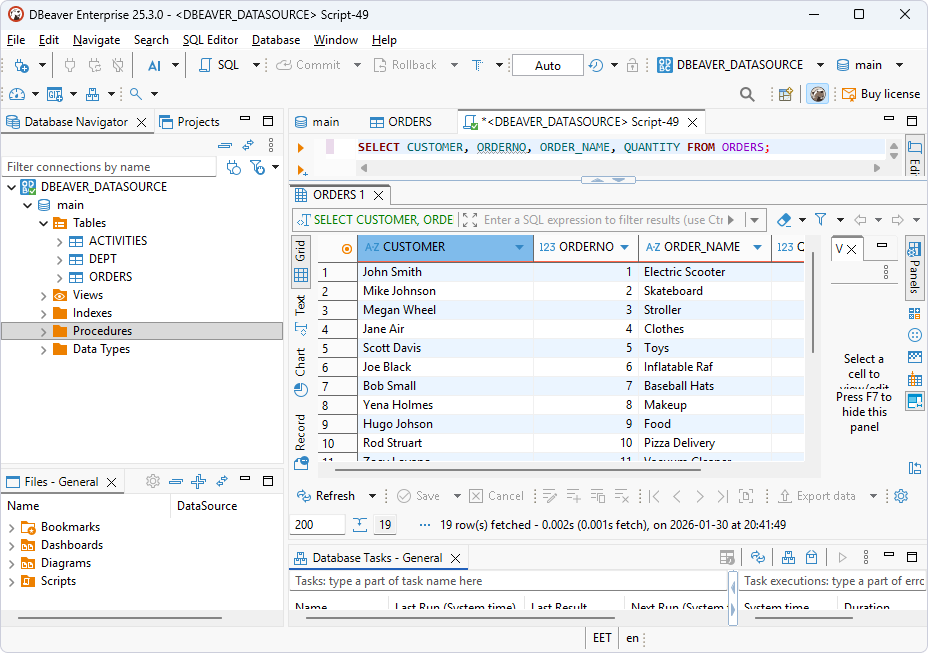
3. Select SQL Editor > Execute SQL query.
The query results are displayed in the main pane.
Note
In addition to the built-in ODBC driver, DBeaver Enterprise supports generic ODBC connections that require manual configuration. To configure such a connection:
Complete the Initial configuration section and steps 1 to 6 in the Connect to Zoho CRM section of Connect DBeaver Community to Zoho CRM through ODBC.
Then continue from step 2 in the Connect to Zoho CRM section of this article.