Import Zoho CRM data into Access through ODBC
You can access Zoho CRM data from Microsoft Access by importing the data into a database or creating a linked table.
When you import Zoho CRM data into Access, it creates a one-time copy of the source data. Changes made to the source data won’t be reflected in Access.
When you link to Zoho CRM data from Access by creating a linked table, Access creates a table that will maintain a link to the source data and changes to data in Access and Zoho CRM immediately applied to the Zoho CRM database and vice versa when data is accessed. For more information on creating a linked table to Zoho CRM, see Create a linked table to Zoho CRM data in Access.
Import Zoho CRM data into Access
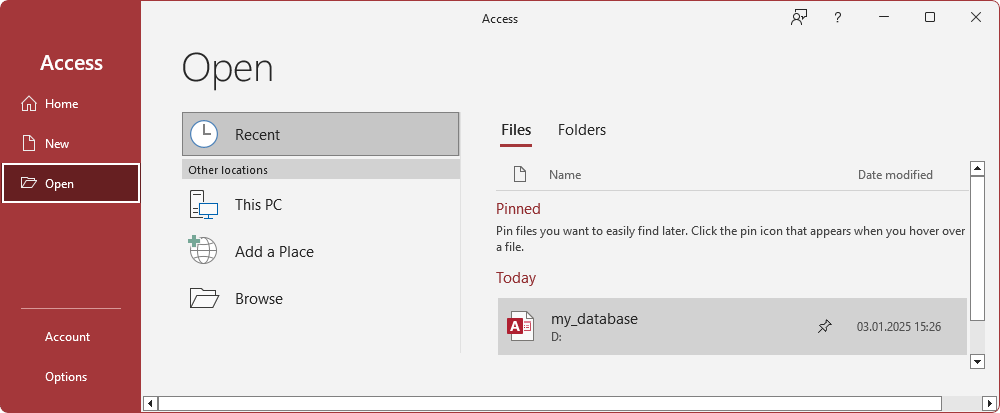
1. Select Open to open an existing database, or select New > Blank database to create a new database.
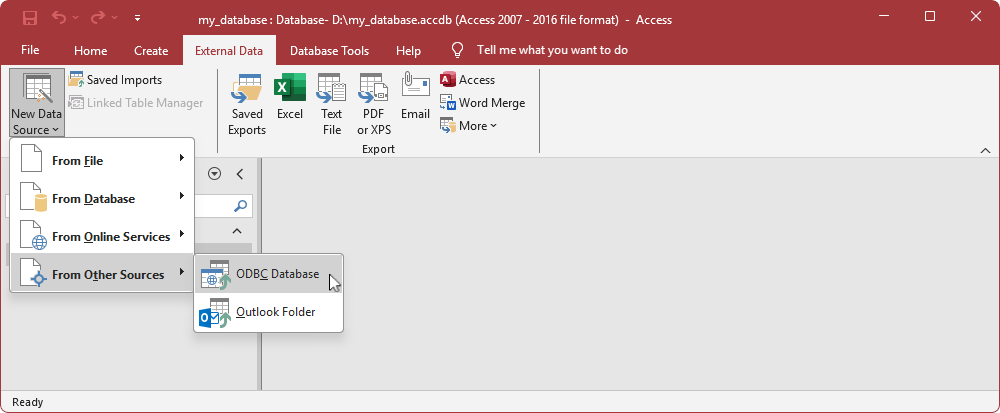
2. Select External Data > New Data Source > From Other Sources > ODBC Database.
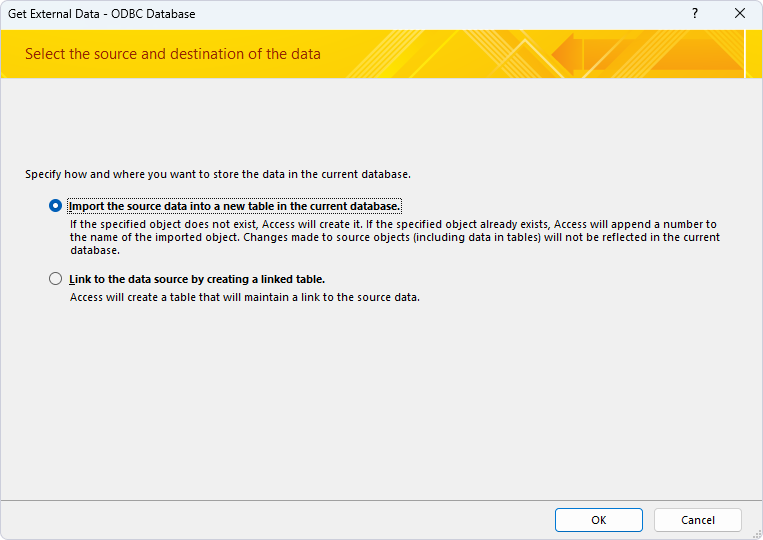
3. Select Import the source data into a new table in the current database, then click OK.
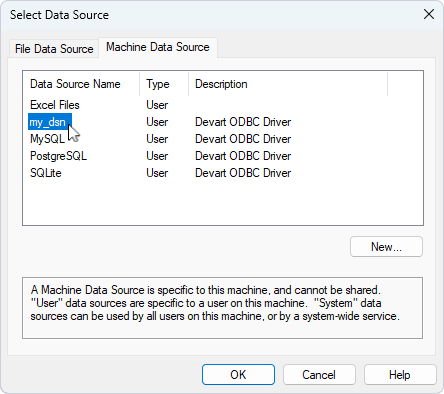
4. Select Machine Data Source, select your DSN, then click OK.
5. Select the table you want to import data from, then click OK.
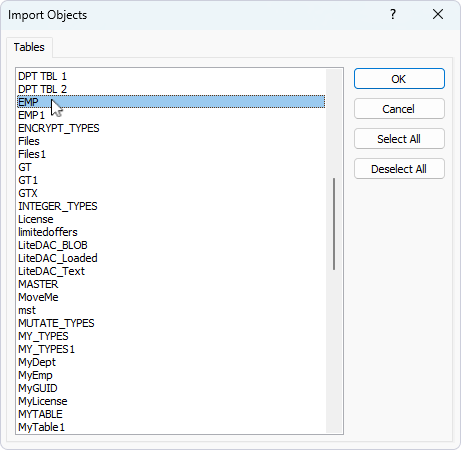
6. Optional: Save the import steps for repetitive tasks. For more information, see Save the import steps.
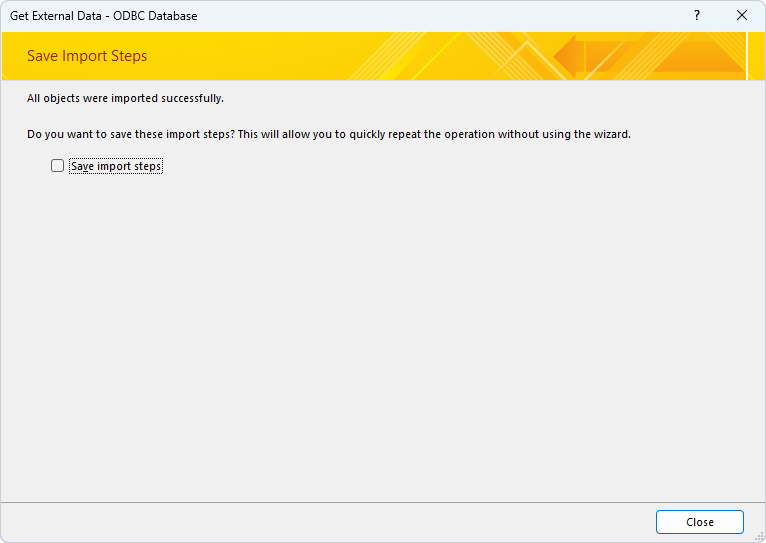
7. Click Close.
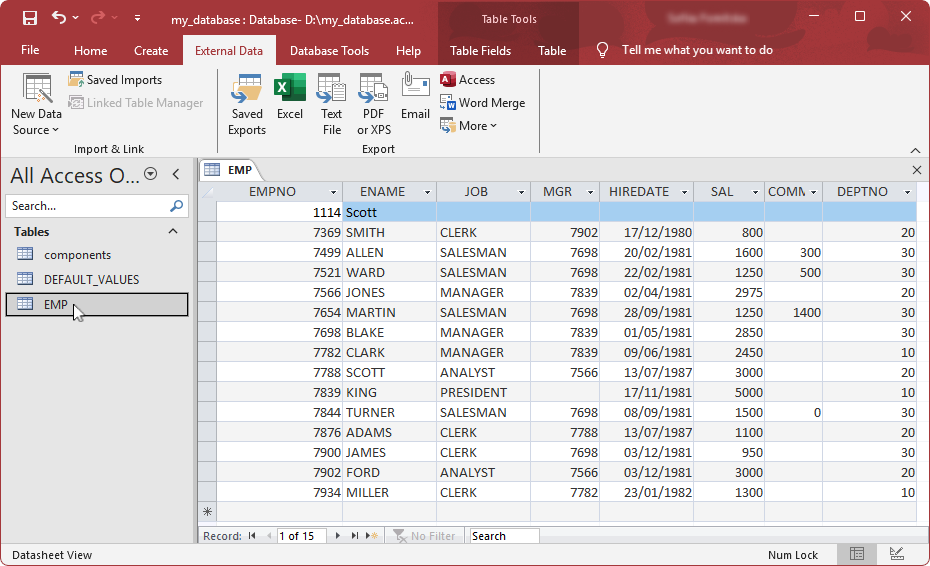
The imported table appears under Tables in the left pane.
8. Double-click the table to view the data.
Save the import steps
1. Select Save import steps.
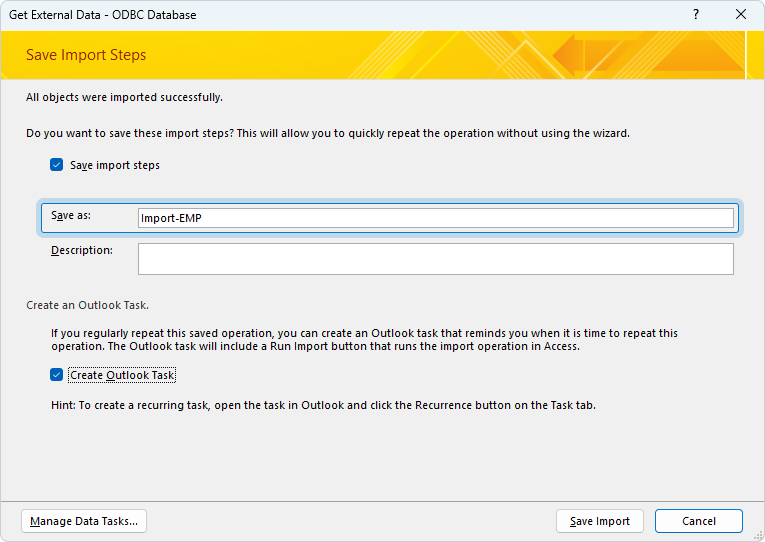
2. In the Save as field, enter the name of the specification.
3. Optional: Select Create Outlook Task to set a task reminder for the data import.
4. Click Save Import.
The imported table appears under Tables on the left pane.
5. Double-click the table to view the data.