Update the driver using Group Policy
You can redeploy a previously deployed driver using Group Policy to update the driver version or license information on all domain computers.
Redeploy the package
1. Add the updated MSI file for ODBC Driver for Zoho CRM to the shared network folder.
2. Create a new MST file with the updated license key in Orca.
Note
If your license is still valid, you can use an existing MST file.
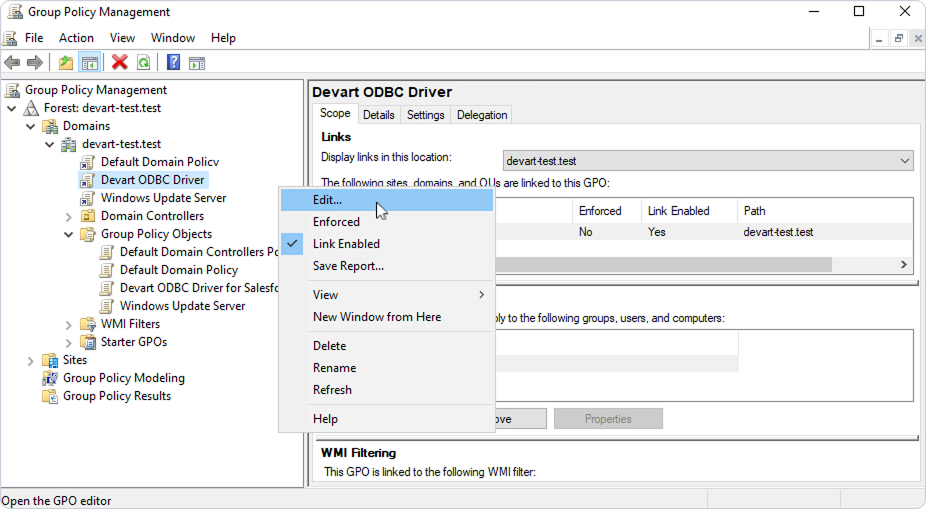
3. Open the Group Policy Management Console, right-click the needed Group Policy Object, then select Edit.
4. In the Group Policy Management Editor, select Computer Configuration > Policies > Software Settings > Software installation. The current deployment package is displayed in the right pane. Right-click Software installation, then select New > Package.
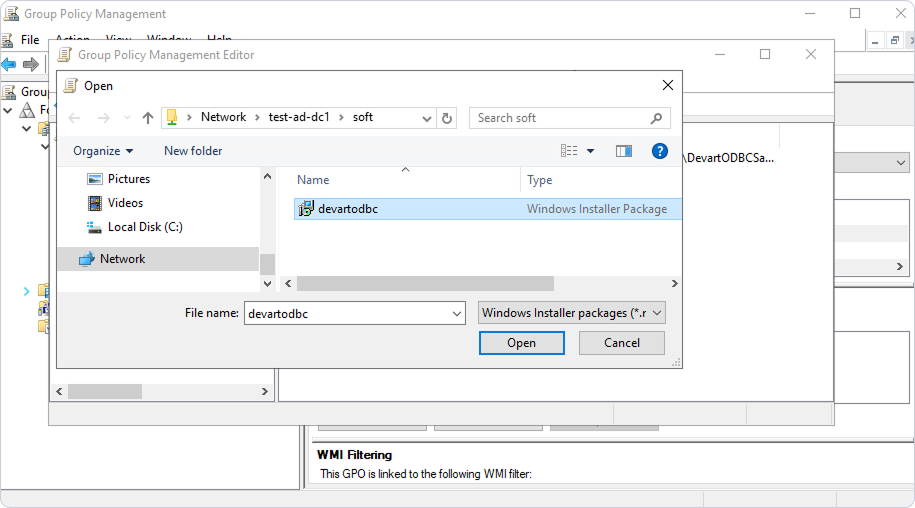
5. In the dialog that opens, navigate to the MSI installation file you want to deploy, then click Open.
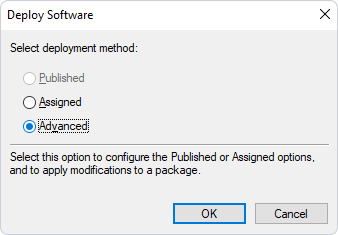
6. In the Deploy Software dialog, select Advanced to specify the software deployment method.
7. In the Devart ODBC Driver for Zoho CRM Properties dialog that opens, navigate to the Upgrades tab, then click Add.
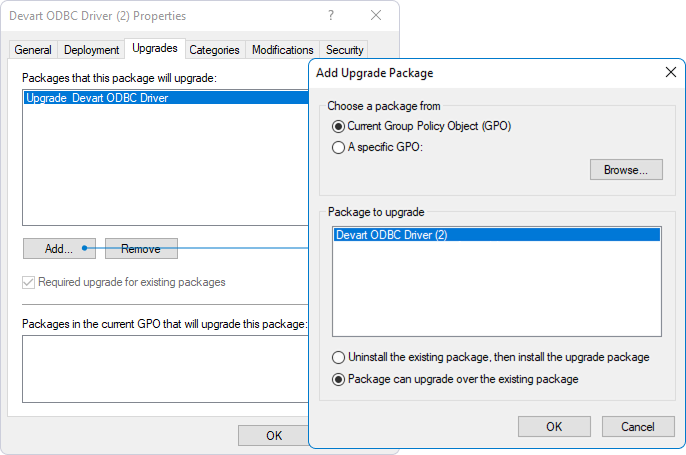
8. In the Add Upgrade Package dialog, select the following options, then click OK.
- Current Group Policy Object (GPO)
- Package can upgrade over the existing package
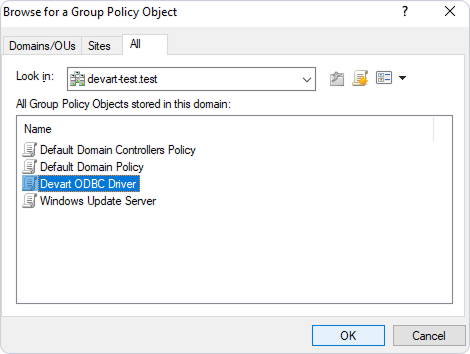
9. In the Browse for a Group Policy Object dialog, select the required GPO object, then click OK.
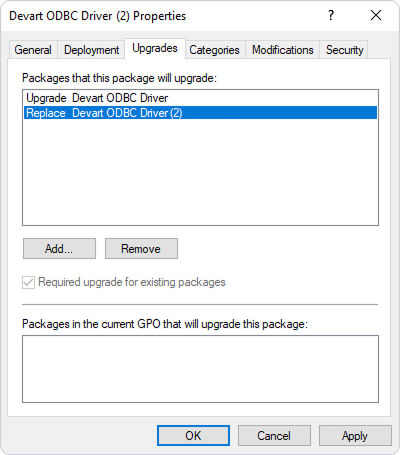
The Upgrades tab in the Devart ODBC Driver for Zoho CRM Properties dialog now lists the new package with the updated version.
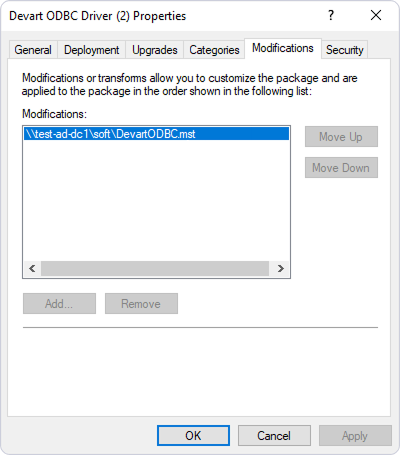
10. In the Devart ODBC Driver for Zoho CRM Properties dialog, select the Modifications tab, then click Add, and browse to the corresponding MST file. Click OK.
If successful, both the old and new versions of the driver package appear in the Group Policy Management Editor.
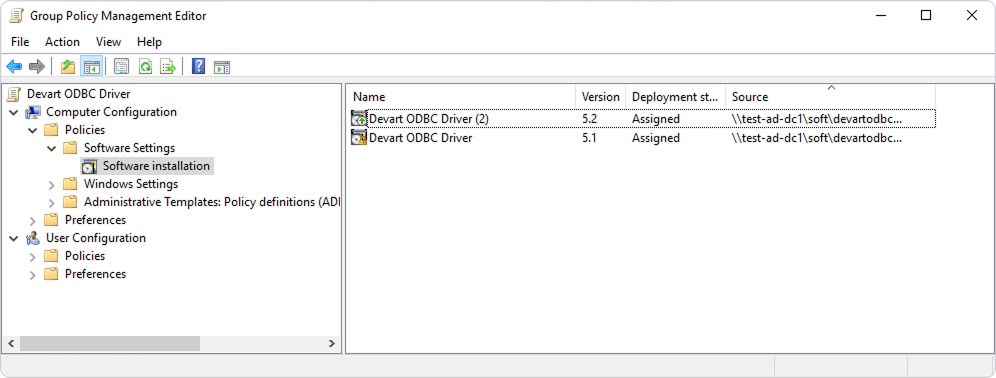
After the GPO configuration on the server is complete, ODBC Driver for Zoho CRM automatically updates to the latest version after a client computer restarts.
Note
To update ODBC Driver for Zoho CRM to a newer version on remote client computers, domain users must restart their computers after logging in.
If the update is successful, both the driver and the license key are automatically updated to the new version on the remote computers.
View the license details
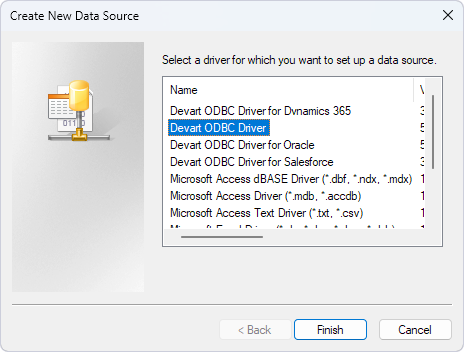
To verify the update, open the ODBC Data Source Administrator on the client machine and select the required ODBC driver.
All information about the driver is available on the About tab.
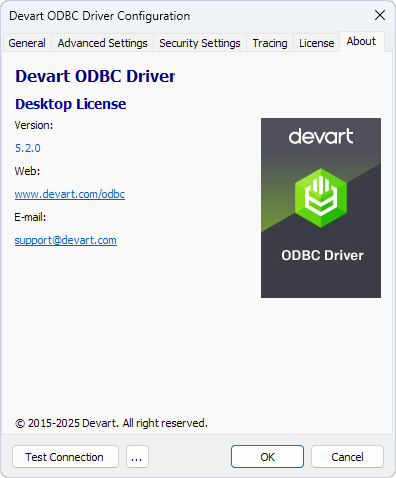
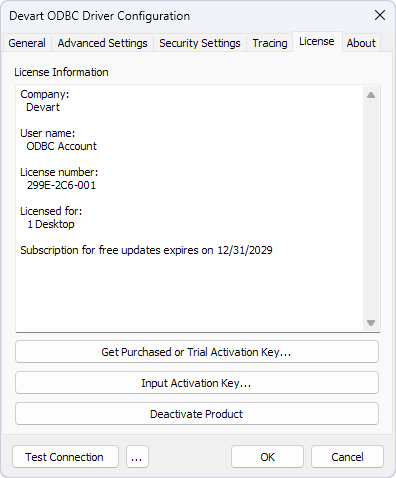
The valid license key activates automatically after the driver is successfully updated and is available on the License tab.