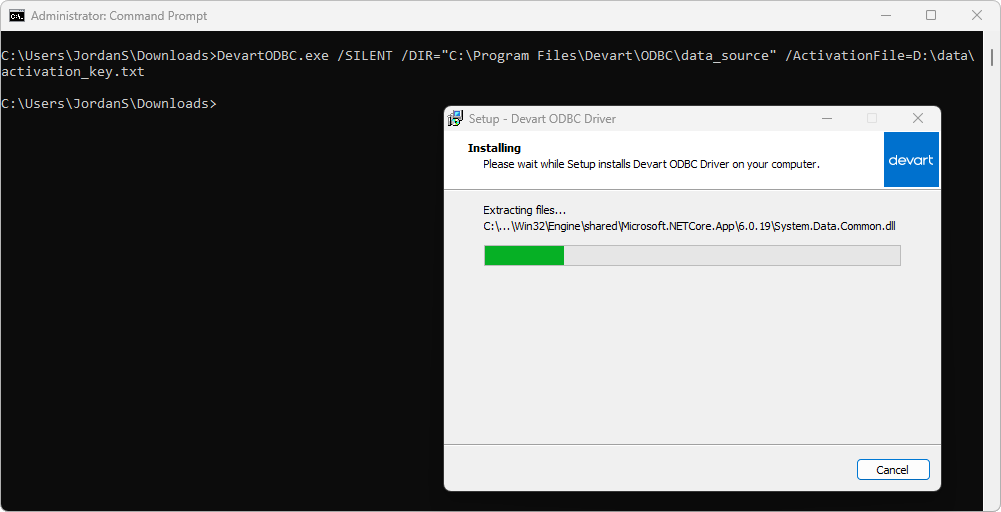
Install the driver from the command line
You can install ODBC Driver for Zoho CRM on Windows via the command line in standard, silent, or very silent mode. The driver can also be installed and activated simultaneously using either an activation key or an activation file.
Note
You need to activate the driver even for the trial version.
Install the driver from the command line without activation
2. Open Command Prompt as an administrator.
3. Navigate to the folder where the installer file is located.
cd C:\Users\<your_username>\Downloads
4. Run the installer with the required command-line arguments.
- For silent mode (without prompts, but with the installation progress window), use the following command:
DevartODBCZoho.exe /SILENT /DIR="C:\Program Files\Devart\ODBC\Zoho CRM"
The /DIR parameter specifies the installation folder on your computer.
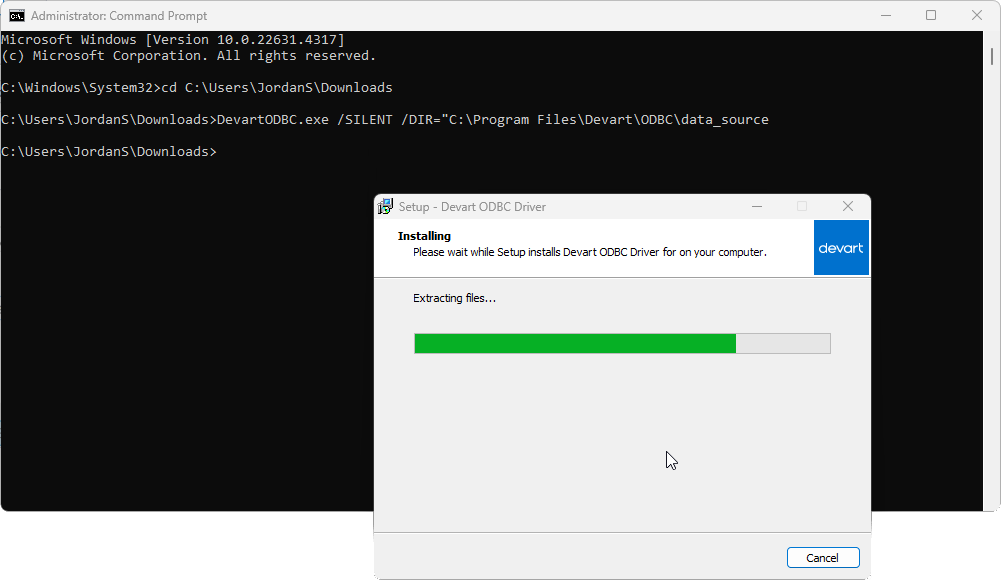
- For very silent mode (completely in the background without prompts and installation progress windows), use the following command:
DevartODBCZoho.exe /VERYSILENT /DIR="C:\Program Files\Devart\ODBC\Zoho CRM"
5. Optional: Verify the installation:
5.1. Open the ODBC Data Source Administrator.
5.2. Navigate to the Drivers tab and verify that Devart ODBC Driver for Zoho CRM appears in the list of installed ODBC drivers.
Install and activate the driver in one step
You can install and activate the driver simultaneously from the command line using one of the following:
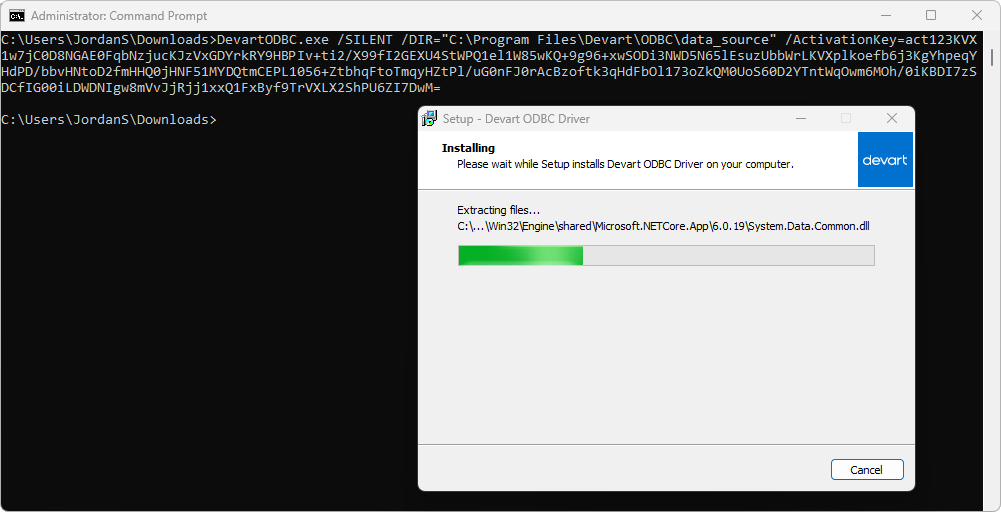
Install and activate the driver using an activation key
1. Open Command Prompt as an administrator.
2. Use the following commands to specify the activation key:
- Silent installation:
DevartODBCZoho.exe /SILENT /DIR="C:\Program Files\Devart\ODBC\Zoho CRM" /ActivationKey=<your_activation_key>
- Very silent installation:
DevartODBCZoho.exe /VERYSILENT /DIR="C:\Program Files\Devart\ODBC\Zoho CRM" /ActivationKey=<your_activation_key>
Note
Replace
<your_activation_key>with your actual activation key.You can find your activation key in the registration email or your Customer Portal account.
Install and activate the driver using a file with an activation key
1. Open Command Prompt as an administrator.
2. Use the following commands to specify the activation file:
- Silent installation:
DevartODBCZoho.exe /SILENT /DIR="C:\Program Files\Devart\ODBC\Zoho CRM" /ActivationFile=<path_to_your_activation_file>
- Very silent installation:
DevartODBCZoho.exe /VERYSILENT /DIR="C:\Program Files\Devart\ODBC\Zoho CRM" /ActivationFile=<path_to_your_activation_file>
Note
Replace
<path_to_your_activation_file>with the full path to the file that contains the driver activation key.You can find your activation key in the registration email or your Customer Portal account.