Connect Tableau Desktop to xBase
Tableau is a data visualization tool that enables users to connect to various data sources, analyze data, and create interactive dashboards and reports. It supports both live connections and imported data for flexible analysis. You can use an ODBC driver to connect and load xBase data into Tableau Desktop.
To load xBase data:
1. Open Tableau Desktop.
2. On the Connect pane, under To a Server, select Other Databases (ODBC).
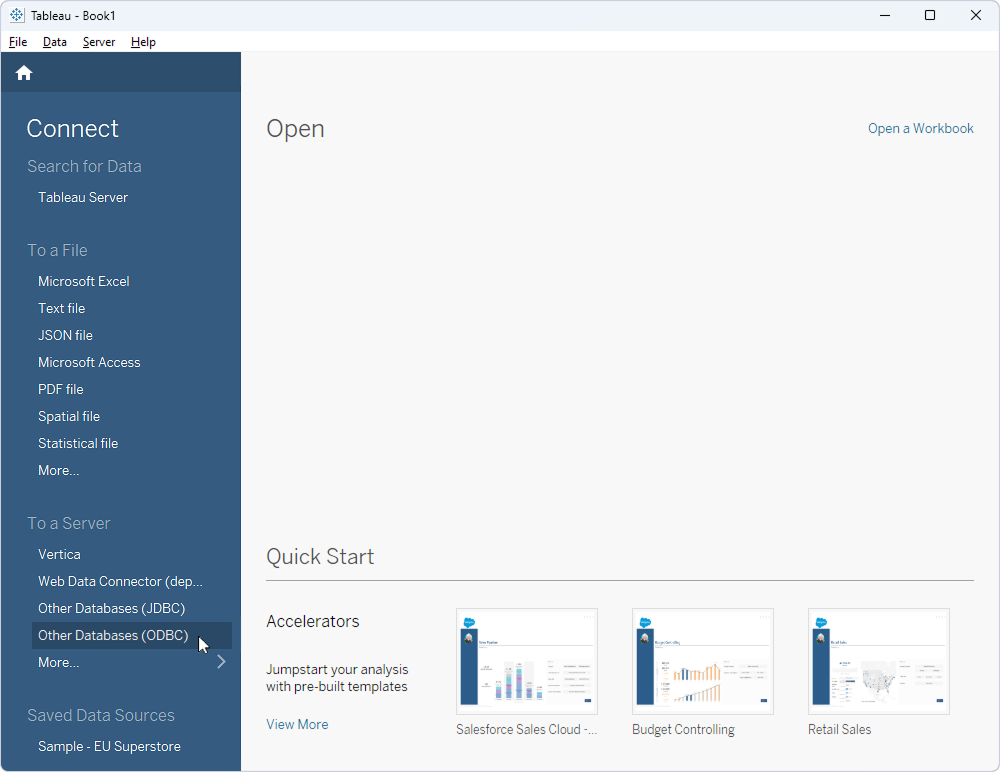
3. Specify your Data Source Name (DSN):
- If you already have a DSN, select it under DSN, then click Connect.
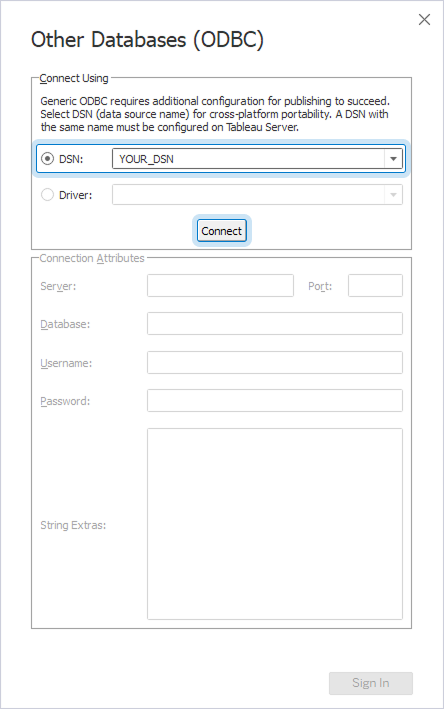
-
If you don’t have an existing DSN:
- Select Driver.
- Under Driver, select Devart ODBC Driver for xBase, then click Connect.
- In the Devart ODBC Driver for xBase Configuration dialog, enter your connection details.
- Click OK.
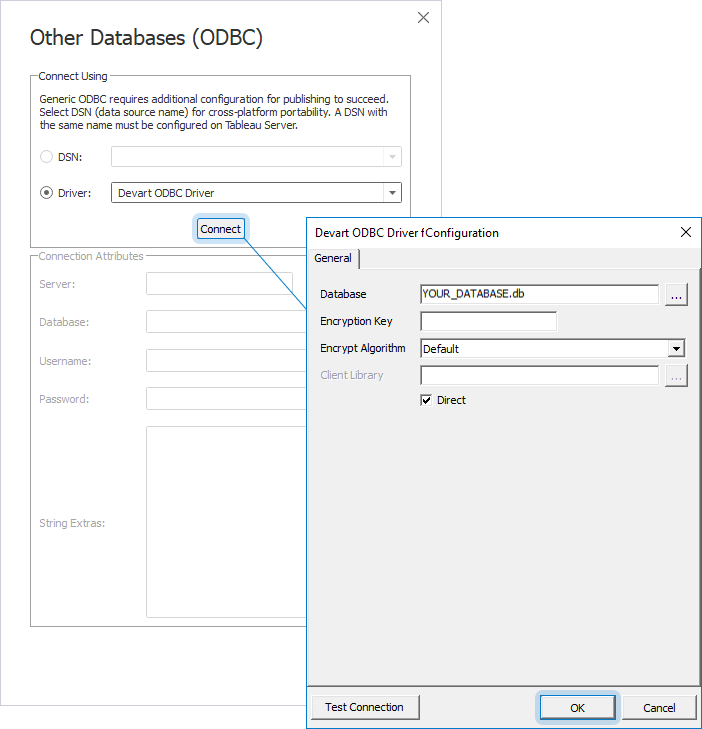
4. After the connection request is processed, click Sign In.
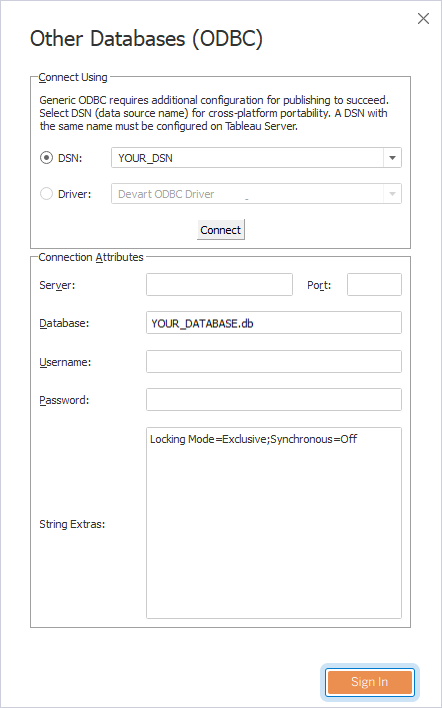
The Data Source page opens.
5. Drag tables from the left pane onto the canvas. Alternatively, double-click New Custom SQL to enter a custom query.
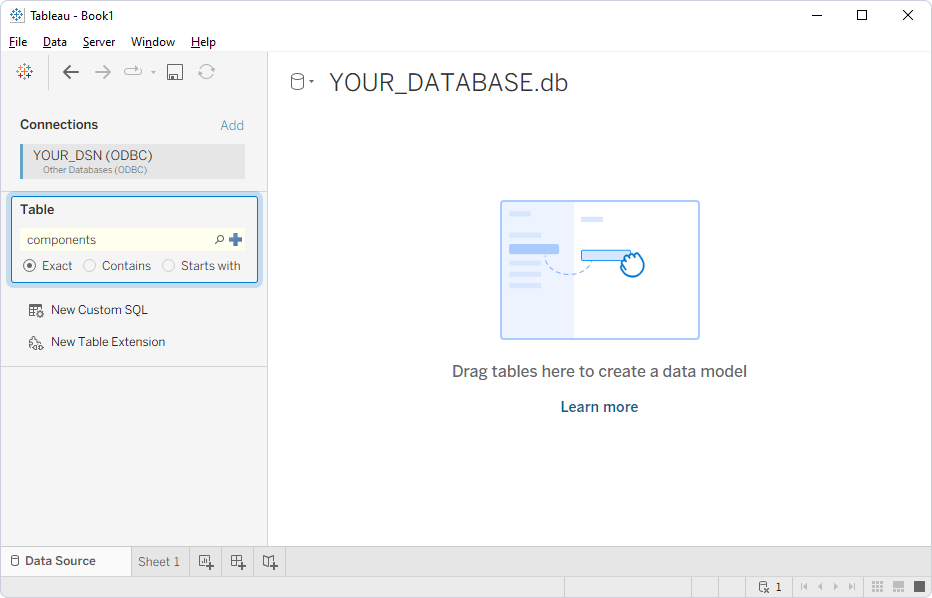
The table information appears on the canvas.

Note
On macOS, the iODBC driver manager doesn’t correctly handle the
SQL_WCHARandSQL_WVARCHARODBC data types. To ensure proper functionality with these data types in Tableau, create a Tableau Datasource Customization (.tdc) file:1. Navigate to
Users/user_name/Documents/My Tableau Repository/Datasources/. Replaceuser_namewith your macOS account name.2. Create a new .tdc file, for example: devart-xbase.tdc.
3. Add the following content to the file:
<?xml version='1.0' encoding='utf-8' ?>
<connection-customization class='genericodbc' enabled='true' version='1.0'>
<vendor name='xBase' />
<driver name='Devart ODBC Driver for xBase' />
   <customizations>
         <customization name='CAP_ODBC_BIND_SUPPRESS_WIDE_CHAR' value='yes' />
   </customizations>
</connection-customization>