Advanced connection options
Devart ODBC Driver for xBase provides advanced connection options, allowing you to customize settings to suit your specific needs.
You can configure these custom settings when creating a new Windows DSN or modifying an existing DSN.
1. Open the ODBC Data Source Administrator.
2. Navigate to the User DSN or System DSN tab, depending on where the DSN for xBase is configured.
3. Select the xBase data source, then click Configure.
4. In the Devart ODBC Driver for xBase Configuration dialog that opens, navigate to the Advanced Settings tab.
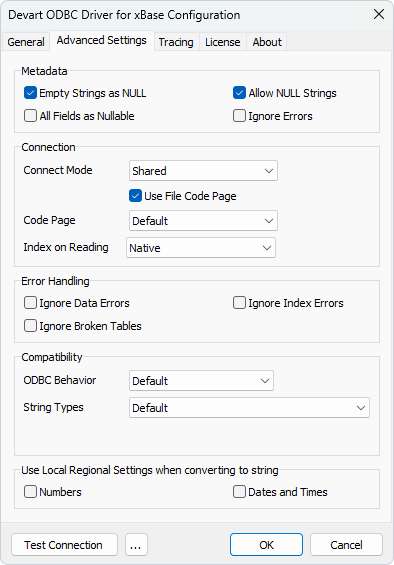
5. Configure the required settings, then click OK to save and apply the changes.
Available options
Metadata section
Empty Strings as NULL – Enable this option to treat empty strings as NULL values when interacting with xBase data.
All Fields as Nullable – Enable this option to open DBF tables that contain NULL values in non-nullable columns.
Allow NULL Strings – Enable this option to permit NULL string values in the dataset.
Ignore Errors – Enable this option to ignore metadata errors when opening a DBF table without raising an exception.
Connection section
Connect Mode – Specify the mode for applications to use when accessing DBF table files:
-
Shared – Allows multiple applications to read and write to the same table concurrently. The active application holds the read/write lock on the table file, but releases the lock once it has finished reading or writing data.
-
Exclusive – Allows only one application to access the table file at a time. The active application holds the read/write lock on the file to prevent other applications from reading or writing to it.
-
Unsafe – Allows multiple applications to read and write to the table file simultaneously. Use this mode with caution: because DBF databases do not support transactions, simultaneous modifications by multiple applications can lead to data corruption.
Use File Code Page – Enables or disables the use of the file encoding when reading or writing textual data from the database. When this checkbox is cleared, the local encoding is used.
Code Page – Select a desirable code page. Default means that the system locale is used.
Index on Reading – Select the mechanism of indexing when fetching table data:
-
Native – Uses the standard DBF index, if one exists.
-
Local – Uses the driver’s internal data indexing mechanism. Internal indexing is more efficient than native indexes, especially when performing complex queries against many tables. In this case, a native index, if available for a specific table, won’t be updated after the table data has been changed (for example, after executing an UPDATE statement). So, it is recommended to use Local indexing only for querying data.
Error Handling section
Ignore Data Errors – Enable this option to ignore corrupted data errors when opening a DBF table, without raising an exception.
Ignore Broken Tables – Enable this option to ignore corrupted tables in the directory, without raising an exception.
Ignore Index Errors – Enable this option to ignore errors in database indexes when opening a DBF table, without raising an exception.
Compatibility section
ODBC Behavior – Select the ODBC behavior:
-
Default – Uses the default behavior of the driver.
-
Ver 2.x – Emulates ODBC 2.x behavior for compatibility with older applications.
-
Ver 3.x – Emulates ODBC 3.x behavior for compatibility with newer standards.
String Types – Select the string type for data exchange:
-
Default – Uses the driver’s default string type.
-
Ansi – Returns all string types as
SQL_CHAR,SQL_VARCHAR, andSQL_LONGVARCHAR. -
Unicode – Returns all string types as
SQL_WVARCHARandSQL_WLONGVARCHAR.
Use Local Regional Settings when converting to a string section
Numbers – Enable this option to format numbers according to the system’s local regional settings.
Dates and Times – Enable this option to format dates and times based on the system’s local regional settings.