Create a linked table to SQLite data in Access
You can access SQLite data from Microsoft Access by creating a linked table or importing the data into a database.
When you link to SQLite data from Access by creating a linked table, Access creates a table that will maintain a link to the source data and changes to data in Access and SQLite will be synchronized through a two-way connection.
When you import SQLite data into Access, it creates a one-time copy of the source data. Changes made to the source data won’t be reflected in Access. For more information on importing SQLite data into Access, see Import SQLite data into Access through ODBC.
Create a linked table
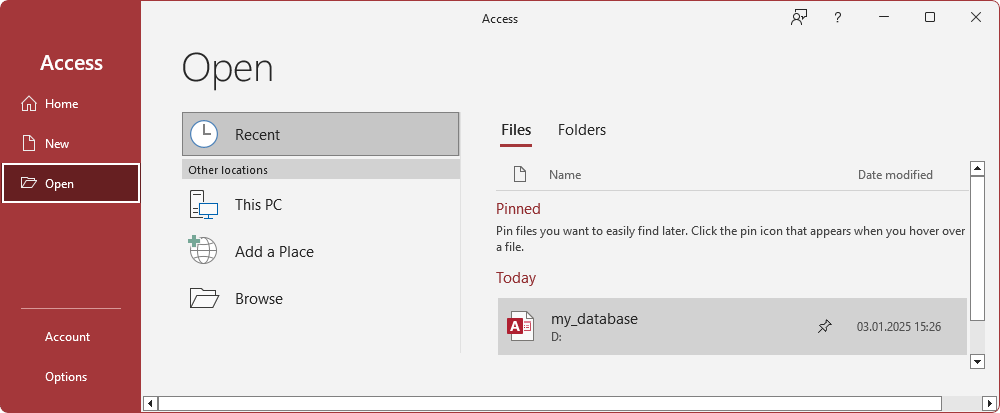
1. Select Open to open an existing database, or select New > Blank database to create a new database.
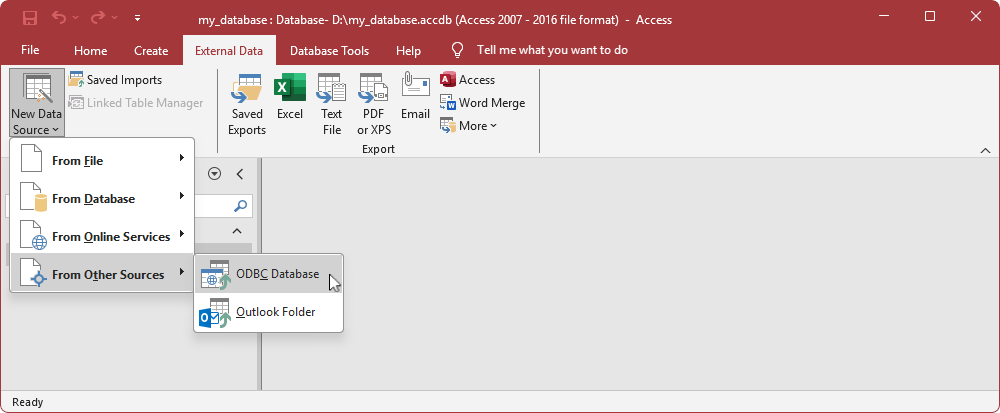
2. Select External Data > New Data Source > From Other Sources > ODBC Database.
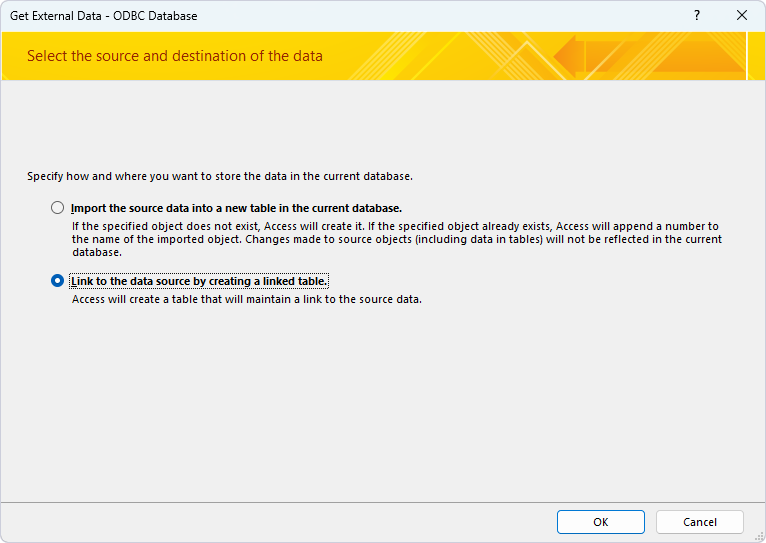
3. Select Link to the data source by creating a linked table, then click OK.
4. Select Machine Data Source, then select your DSN and click OK.

5. Select the table you want to link to, then click OK.

The linked table appears under Tables on the left pane.
6. Double-click it to view the data.
