Install the driver
To install ODBC Driver for SQLite on Windows:
1. Download the installer: Visit the Devart website and download the appropriate ODBC Driver for SQLite version for Windows.
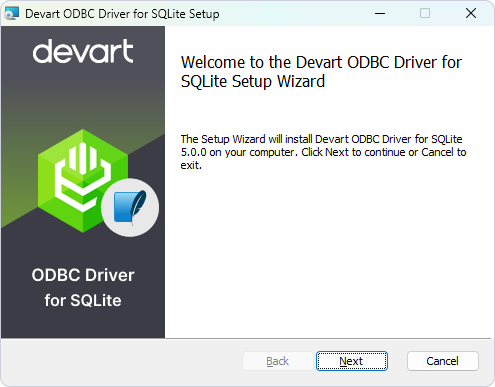
2. Run the installer: Locate the downloaded .exe file and double-click it to launch the installation wizard.
3. Follow the instructions in the installation wizard.
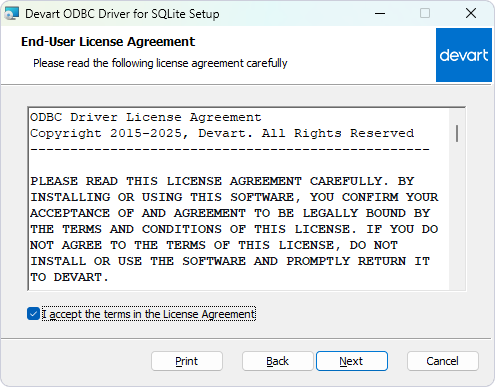
3.1. Read and accept the license agreement. Then click Next.
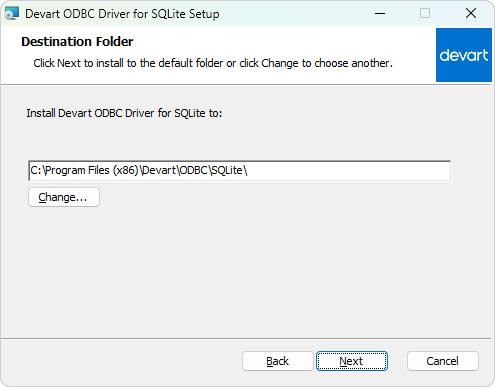
3.2. Choose the installation folder or use the default location. Then click Next.
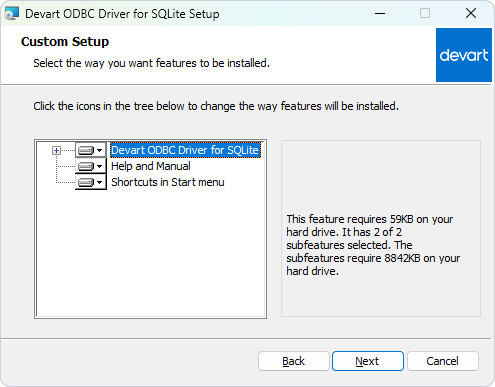
3.3. Select the components you want to install.
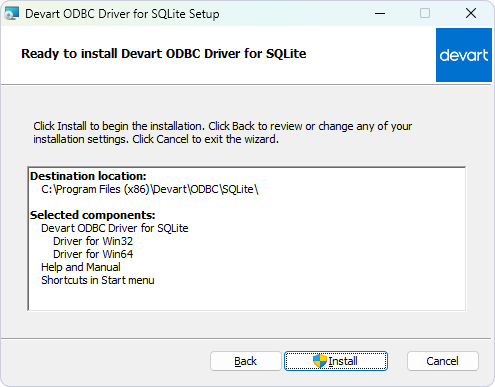
3.4. Complete the installation. Click Install and wait for the process to complete.
4. To activate the driver immediately after installation, select Input Purchased or Trial activation key and enter your key in the provided box, or click Load Activation Key and select the file containing your key.
Note
You need to activate the driver even for the trial version.
Tip
You can find your activation key in the registration email or your Customer Portal account. To open the Customer Portal, click Get Purchased or Trial Activation Key.
If you don’t want to activate the driver right now, select Use existing activation key or activate later.
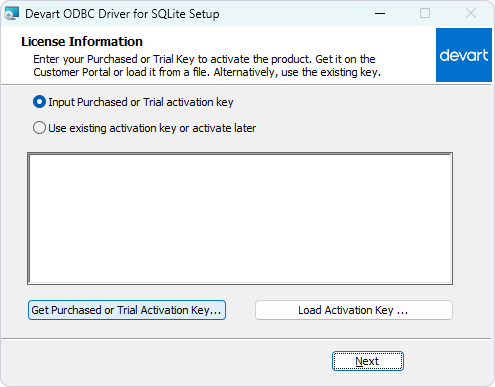
5. Click Next to complete the installation.
6. Click Finish to exit Setup.
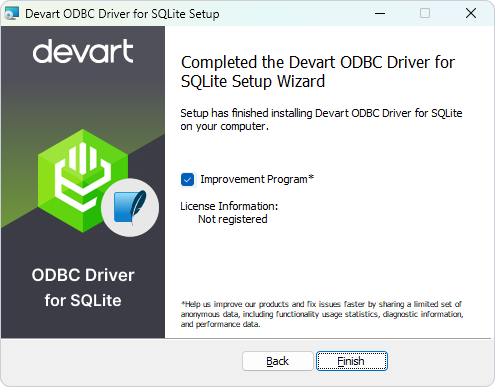
After the installation is completed, you will need to configure the driver.