Connect Excel to Salesforce using Power Pivot
Power Pivot is a built-in component that offers advanced capabilities for data modeling and analysis. It enables you to create complex data models, connect large datasets, and perform advanced calculations with DAX (Data Analysis Expressions).
To import Salesforce data into Excel using Power Pivot:
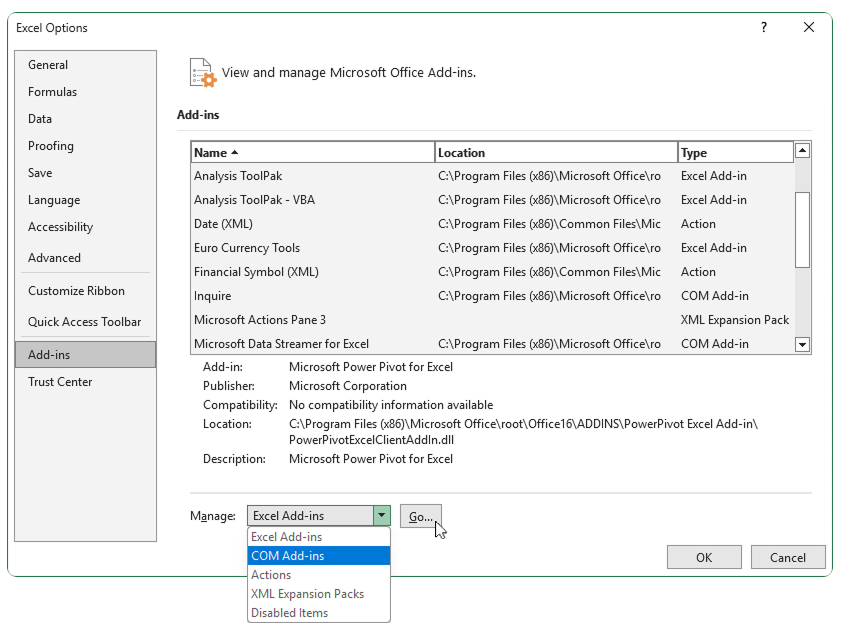
1. Select File > Options.
2. Select Add-ins > Manage > COM Add-ins > Go, then click OK.
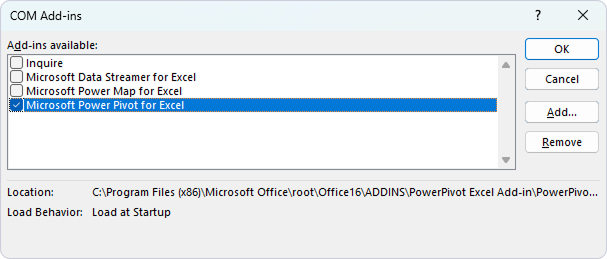
3. Select Microsoft Power Pivot for Excel, then click OK.
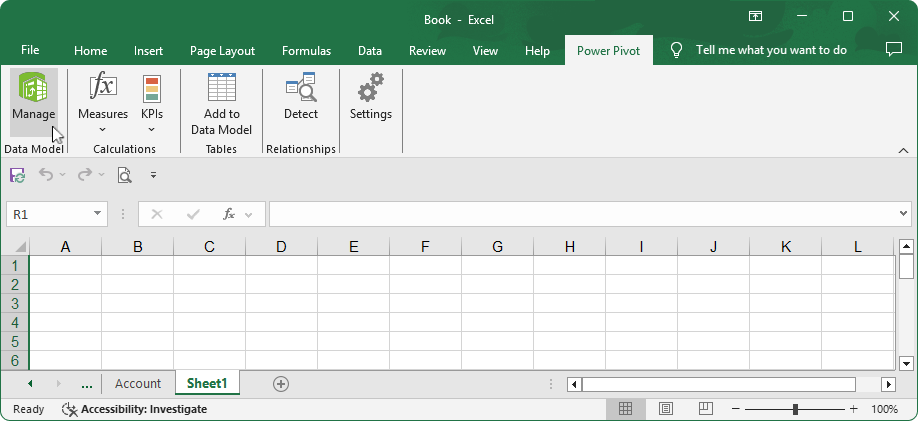
4. Select Power Pivot > Manage.
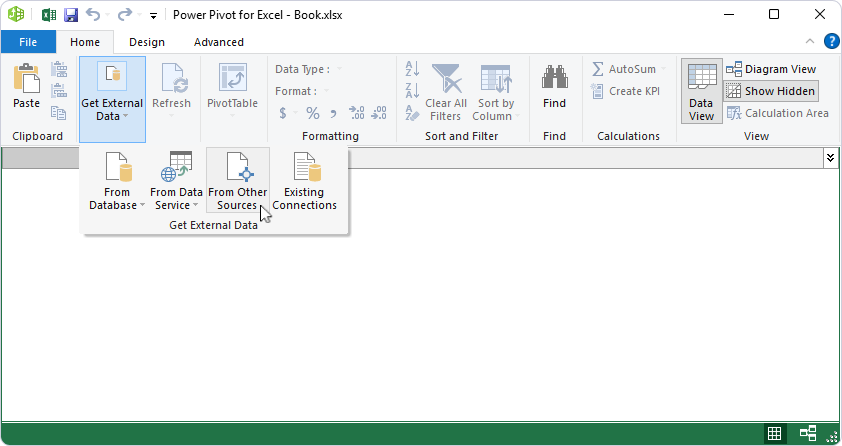
5. Select Get External Data > From Other Sources.
6. Select Others (OLEDB/ODBC), then click Next.
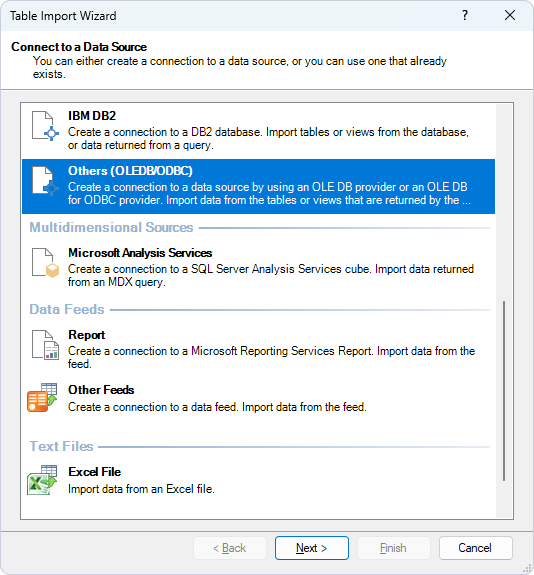
7. Enter a name for a connection, then click Build.
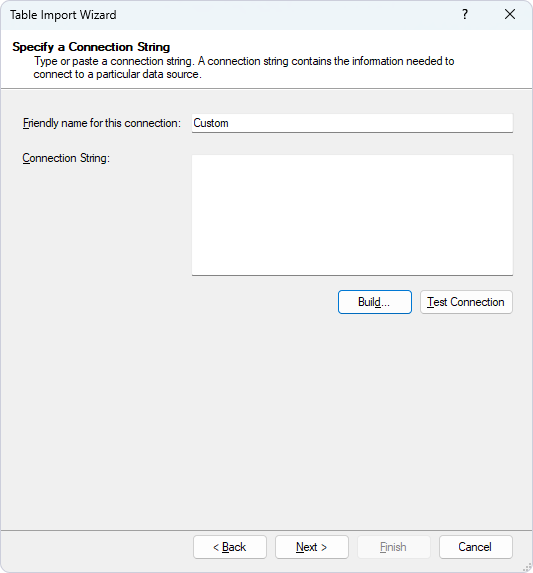
8. Select one of the following options to specify the source of data:
-
Use data source name – Select your DSN.
-
Use connection string – Enter your connection string.
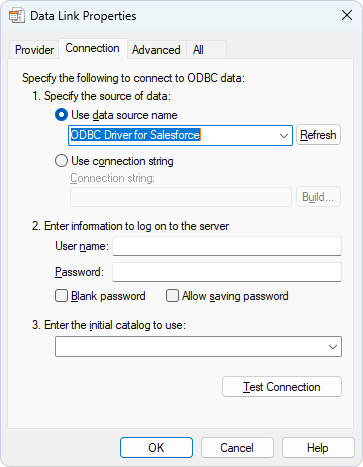
9. Click OK.
The connection string appears in the Connection String field.
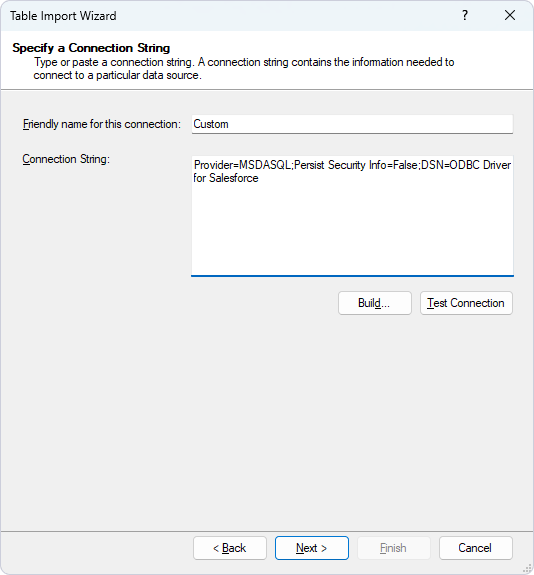
10. Click Next.
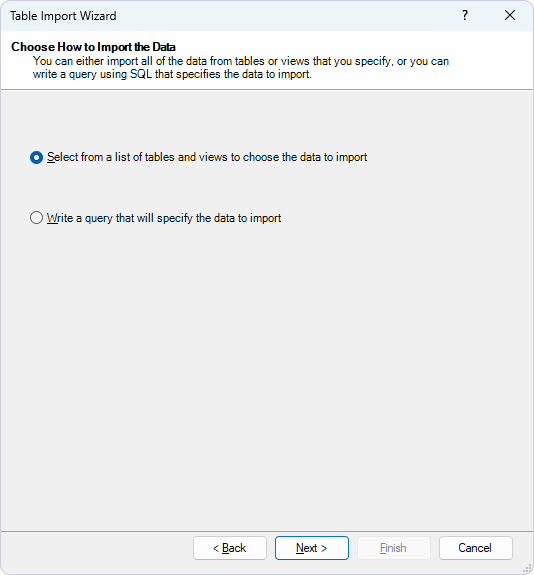
11. Select your preferred method for importing data, then click Next.
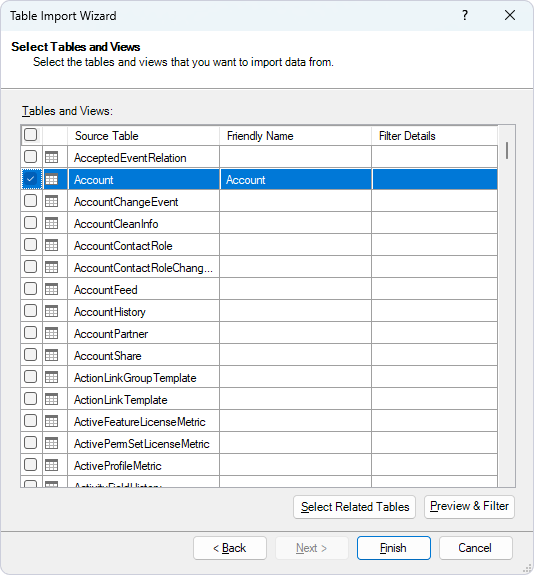
12. Select the tables you want to import, then click Finish.
After data is transferred, a success message appears.
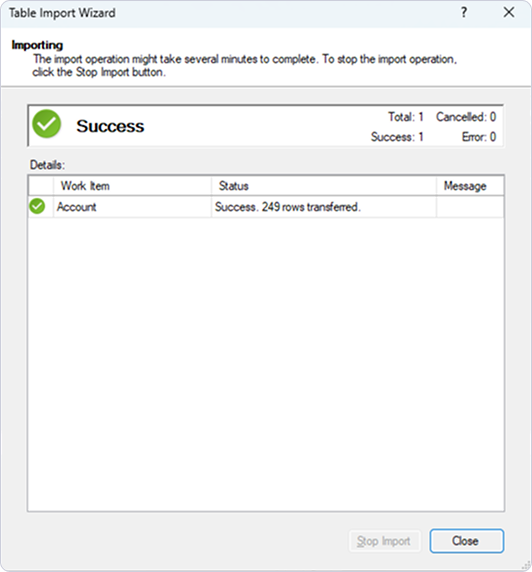
13. Click Close.
The data is displayed in a Power Pivot worksheet.
