Connect Excel to Salesforce using Microsoft Query (Legacy)
You can use Microsoft Query to create more complex queries and retrieve Salesforce data in Excel via the ODBC driver:
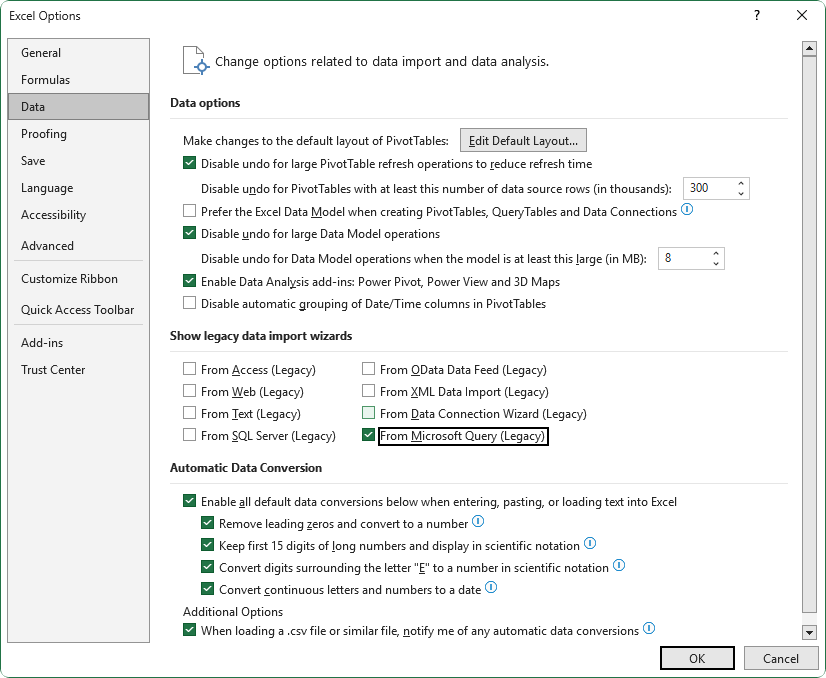
1. Select File > Options.
2. Select Data.
3. Under Show legacy data import wizards, select From Microsoft Query (Legacy).
Note
If you’re using Excel 2016, skip steps 1-3 and start by selecting Data > Get External Data > From Other Sources > From Data Connection Wizard.
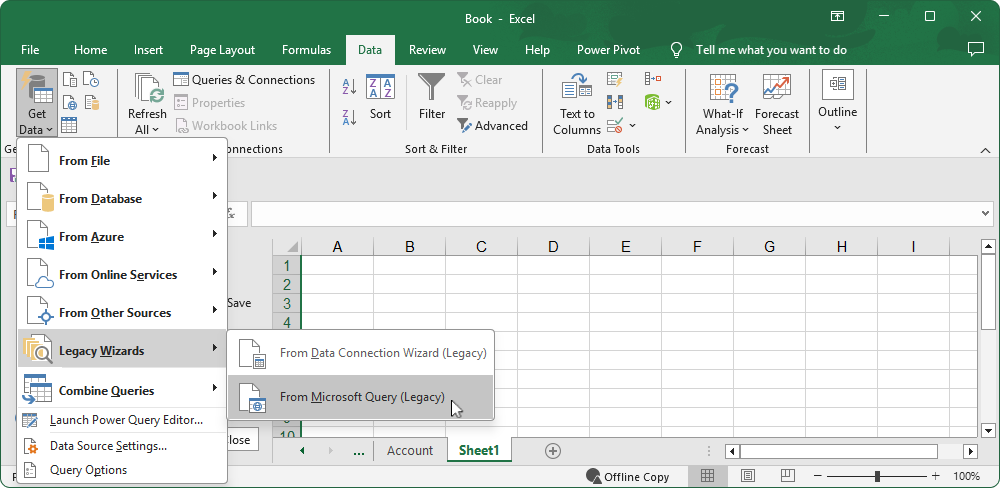
4. Select Data > Get Data > Legacy Wizards > From Microsoft Query (Legacy).
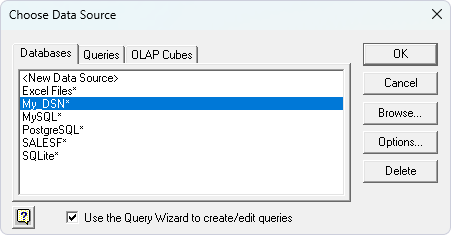
5. Select your DSN, then click OK.
6. Select the tables and columns you want to import:
6.1. Click the table or column name.
6.2. Click the arrow icon.
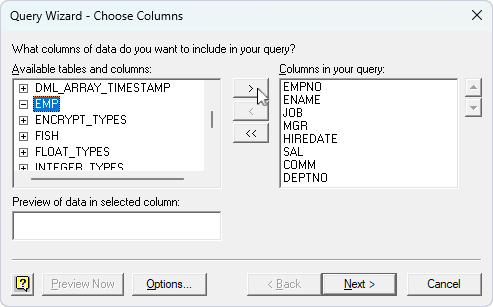
7. Click Next.
You can filter columns and rows by name.
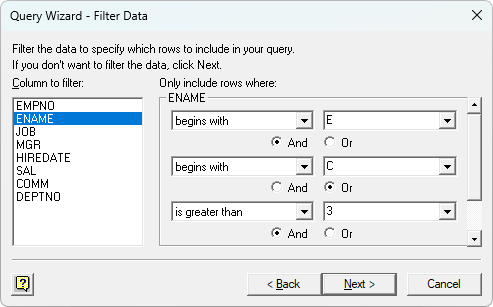
8. Click Next.
9. Specify how you want your data sorted, then click Next.
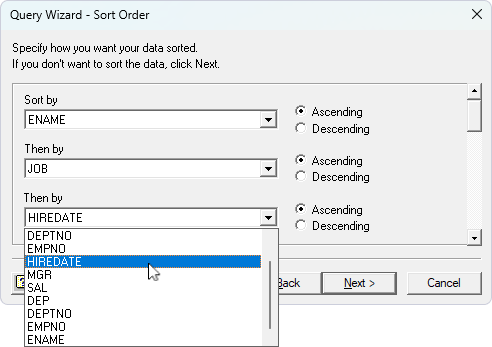
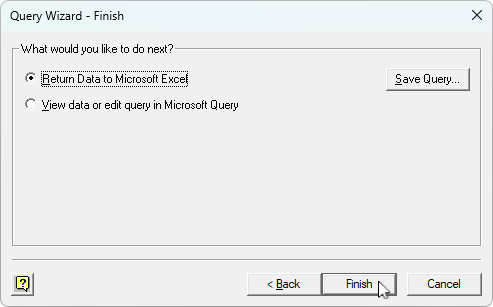
10. Select one of the options:
-
Select Return Data to Microsoft Excel, then click Finish.
-
Select View data or edit query in Microsoft Query, then follow the steps:
1. Click Finish.
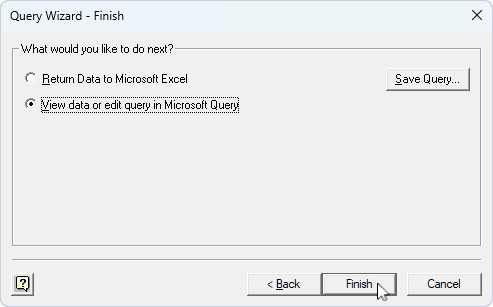
2. Edit your query.
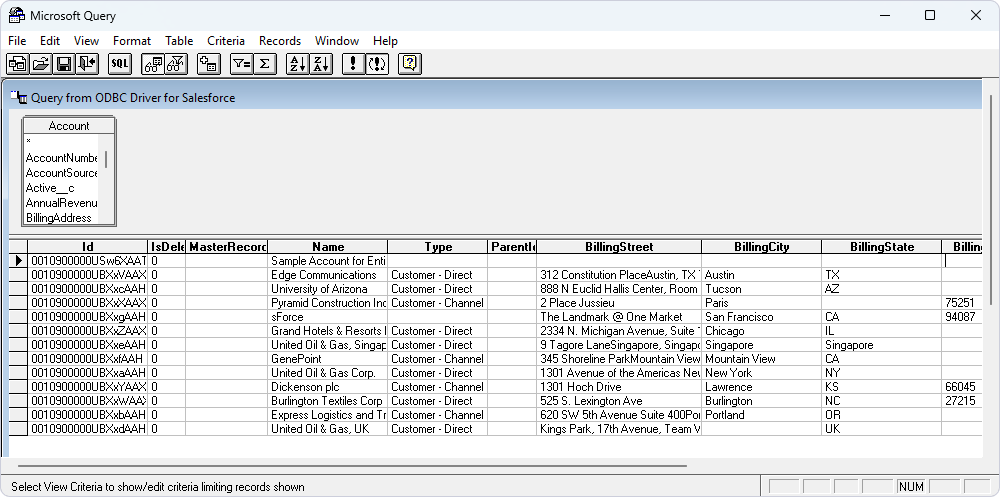
3. Select File > Return Data from Microsoft Excel.
11. Select how you want to view the data and where it should be loaded.
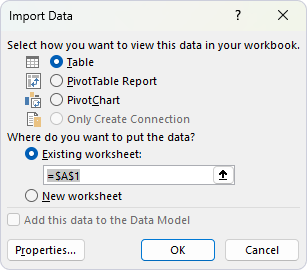
- Table – Imports data into a new worksheet and displays it as a table.
- PivotTable Report – Imports data into a new worksheet and displays it as a pivot table report.
- PivotChart – Imports data into a new worksheet and displays it as a pivot chart.
- Only Create Connection – Creates a connection without importing the data into an Excel worksheet.
- Existing worksheet – Enables loading the imported data into an existing worksheet.
- New worksheet – Enables loading the imported data into a new worksheet.
- Add this data to the Data Model – Enables loading the data into a data model.
12. Click OK.
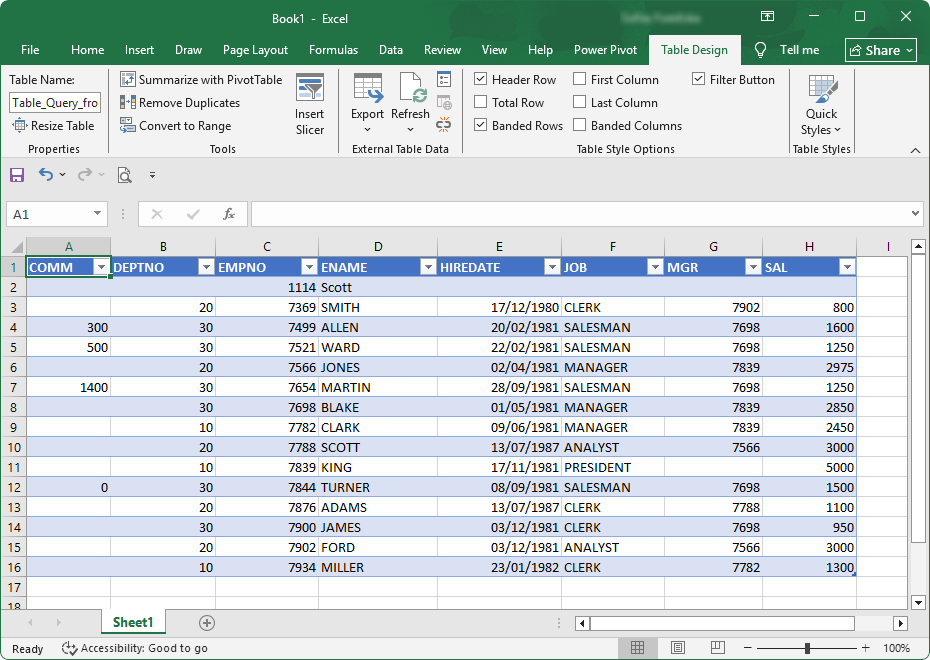
The data is displayed in a worksheet.