Install the driver
This page explains how to install ODBC Driver for Salesforce on macOS, including the prerequisites and step-by-step instructions for completing the installation and activation.
Prerequisites
Devart ODBC Driver for Salesforce requires an ODBC driver manager to work properly. The driver manager must be installed separately.
ODBC Driver for Salesforce is compatible with the iODBC driver manager.
Note
If you’re using a different ODBC driver manager, Devart ODBC Driver for Salesforce can still be installed. However, you will need to manually modify the configuration files of the respective driver manager.
Install the driver on macOS
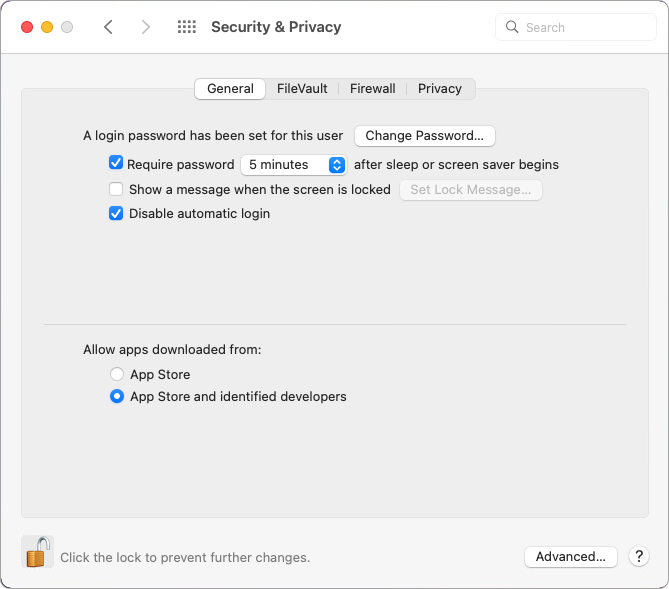
1. Navigate to System Preferences > Security & Privacy.
2. Select App Store and identified developers under Allows apps downloaded from.
Note
If the options in the Allow apps downloaded from section are not available, enable them by clicking the lock icon and entering your administrator password.
3. Download the ODBC Driver for Salesforce PKG file from the Devart website.
4. Double-click the package to run it.
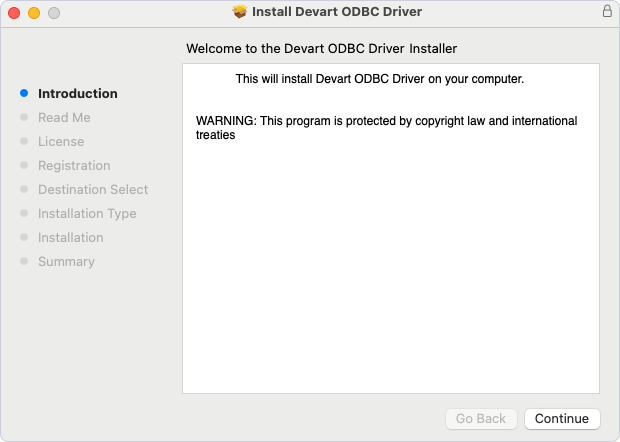
5. Click Continue to proceed with the installation.
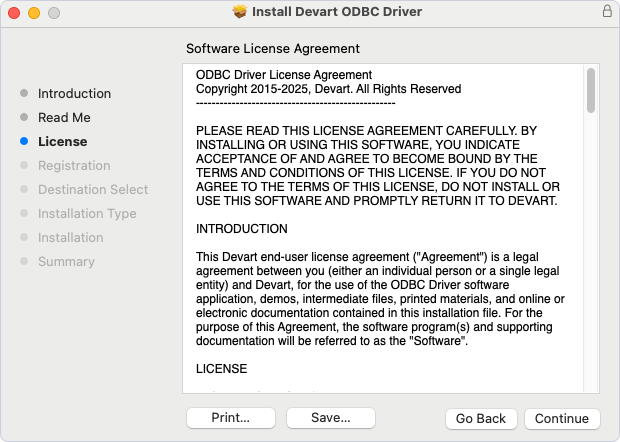
6. Read the license agreement, then click Agree.
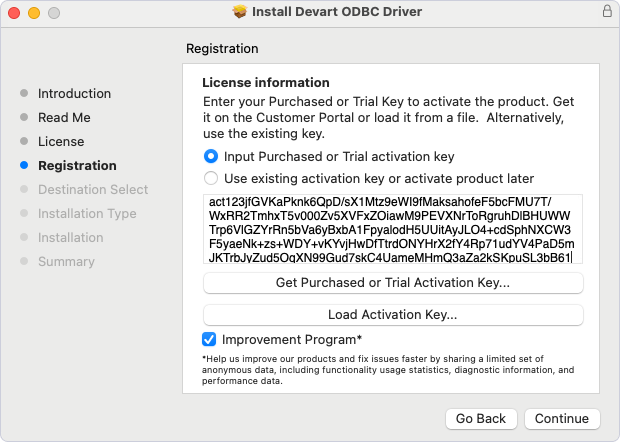
7. On the Registration page of the installation wizard, specify your activation key using one of the following methods:
-
Enter an activation key:
1. Select Input Purchased or Trial activation key.
2. Enter your activation key.
-
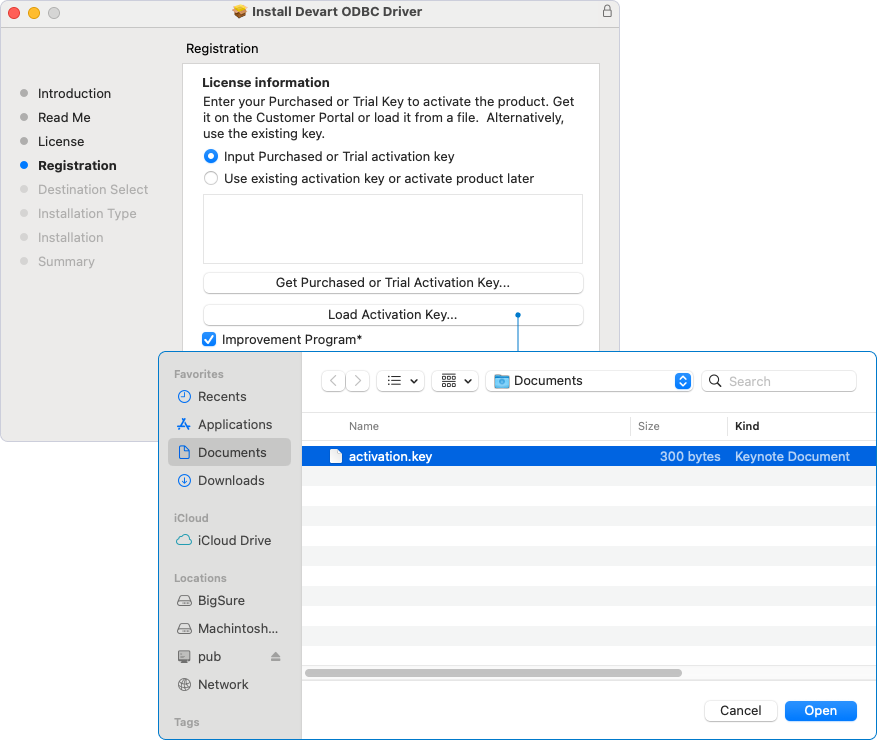
Load an activation key file:
1. Click Load Activation Key.
2. Navigate to the location of the activation file.
3. Click Open.
Note
You need to activate the driver even for the trial version.
Tip
You can find your activation key in the registration email or your Customer Portal account. To open the Customer Portal, click Get Purchased or Trial Activation Key.
If you’re reinstalling the driver or don’t want to activate the driver right now, select Use existing activation key or activate product later.
8. Click Continue.
9. Optional: To change the installation destination, on the Installation Type page, click Change Install Location. On the Destination Select page, select the disk where you want to install ODBC Driver for Salesforce, then click Continue.
10. On the Installation Type page, click Install.
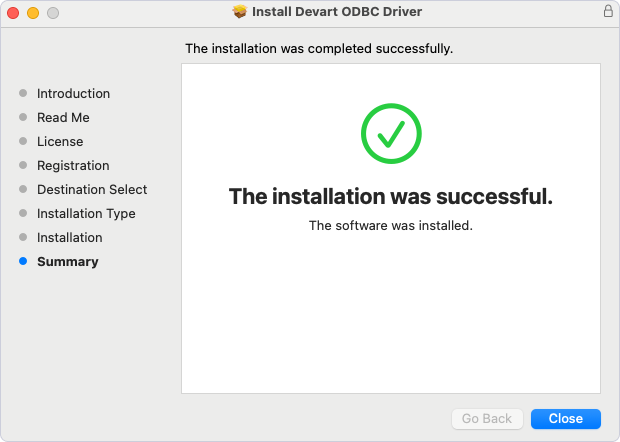
11. After the installation finishes, click Close.