Create a DSN in Devart ODBC Administrator
To configure the connection to Devart ODBC Driver for Salesforce in Devart ODBC Administrator:
1. Open Devart ODBC Administrator.
2. Select the System DSN tab (recommended), then click Add.
3. In the Choose a Driver dialog box, select Devart ODBC Driver for Salesforce, then click OK.
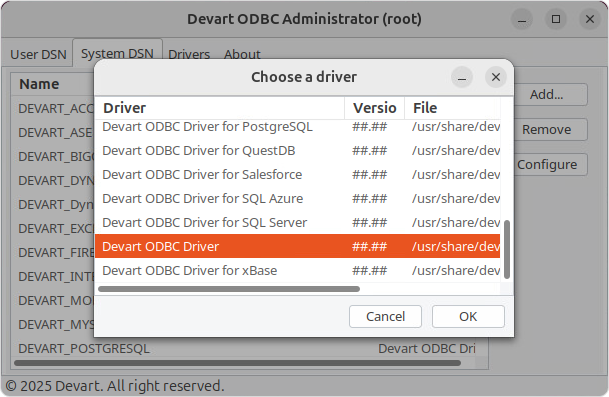
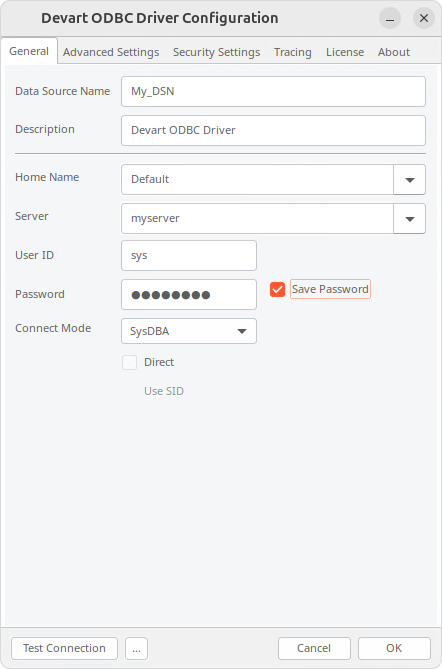
The Devart ODBC Driver for Salesforce Configuration dialog opens.
4. Enter a Data Source Name (DSN) and an optional Description.
5. Enter the required connection parameters.
Note
You can also open the configuration dialog by selecting Configure on the System DSN tab.
6. Optional: Select Test Connection to verify that the connection details are valid. When the successful connection is confirmed, click OK to close the dialog.
7. Click OK to save the DSN settings.