Create a DSN in the iODBC Administrator
1. Navigate to Applications > iODBC, then open the iODBC Administrator64 app.
2. Select the System DSN tab (recommended) to create a DSN accessible to all system users.
3. Click Add to create a new DSN.
4. Select Devart ODBC Driver for MySQL, then click Finish.
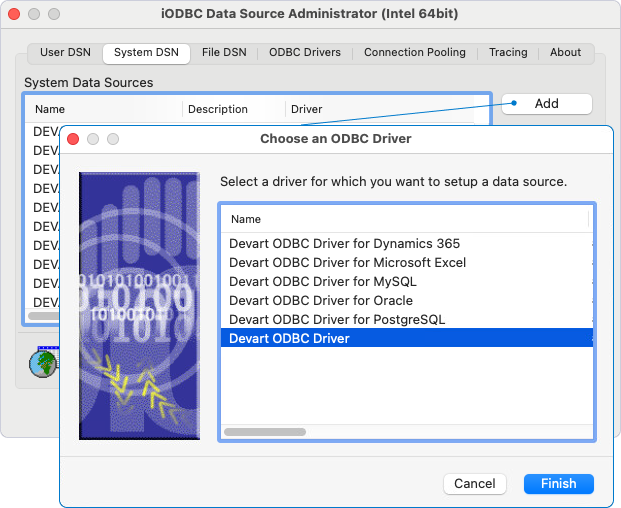
5. In the dialog that appears, enter the DSN details:
- Data Source Name (DSN) – Specify a name for your DSN (for example, MySQL_DSN).
- Comment – Optional: Enter a short description of the DSN.
6. Specify connection string parameters and their values.
6.1. Select the plus (+) icon to create a Keyword/Value pair.
6.2. Double-click the Keyword field and specify the parameter name.
6.3. Double-click the Value field and specify the value for the parameter.
Required parameters:
- Server – The host name or IP address of the server hosting your MySQL database.
- Port – The port number for the connection. The default port is 3306.
- Database – The name of the database.
- User ID – Your MySQL username.
- Password – Your MySQL password.
- Save Password – When set to
True, the driver saves the password in the DSN. When set toFalse, you’ll need to enter your password each time you connect to the database.
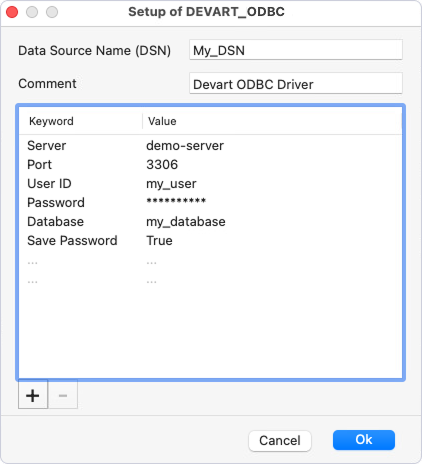
7. Click Ok to save the DSN.
8. Optional: Click Test to verify the configuration.
Note
If the password isn’t saved in the DSN, you’ll be prompted to enter it at runtime when connecting to a data source. If the password is saved in the DSN, leave the User ID and Password fields empty.