Connect SQL Server Management Studio to ASE
You can use a linked server in SQL Server Management Studio (SSMS) to connect to ASE. Linked servers enable you to implement distributed databases and retrieve or modify data in other databases and cloud service providers. This approach facilitates integration with heterogeneous data sources, providing a unified method for accessing and managing disparate data sets from any origin. By creating linked servers for each data source, you can perform distributed queries and transactions directly within SSMS, regardless of where your data resides.
Prerequisites
- The driver and SQL Server must be installed on the same computer.
- A system DSN must be created for your data source. For instructions, see Configure a Windows DSN for ASE.
- The driver, DSN, and SQL Server must be of the same bitness. For example, if you’re using a 64-bit SQL Server, install the 64-bit version of the driver and configure a 64-bit DSN.
Create a linked server
1. In SSMS, connect to your SQL Server instance.
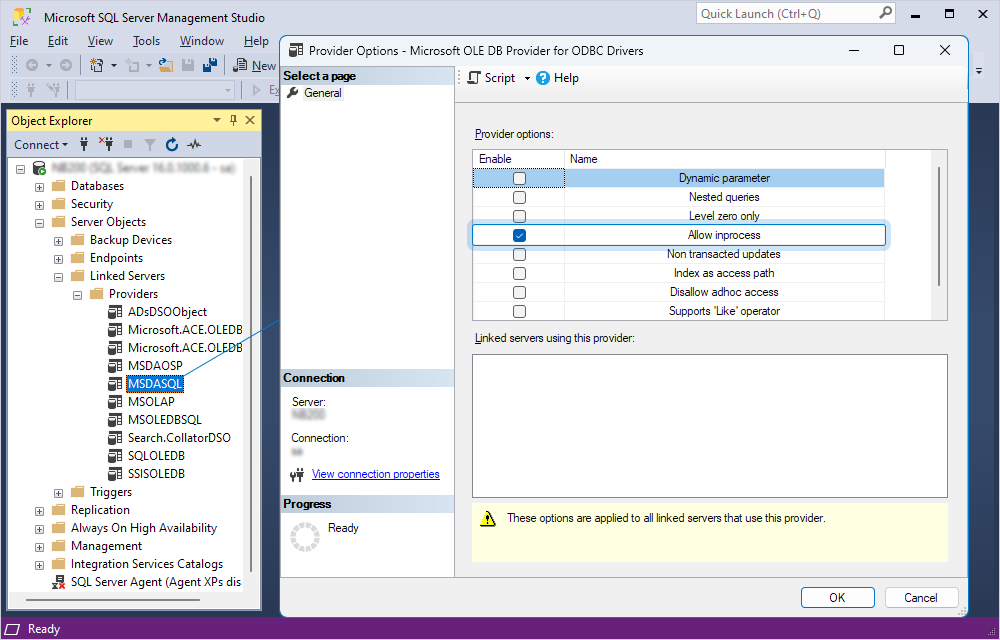
2. In Object Explorer, select Server Objects > Linked Servers > Providers.
3. Double-click MSDASQL, then select Allow inprocess.
4. Click OK.
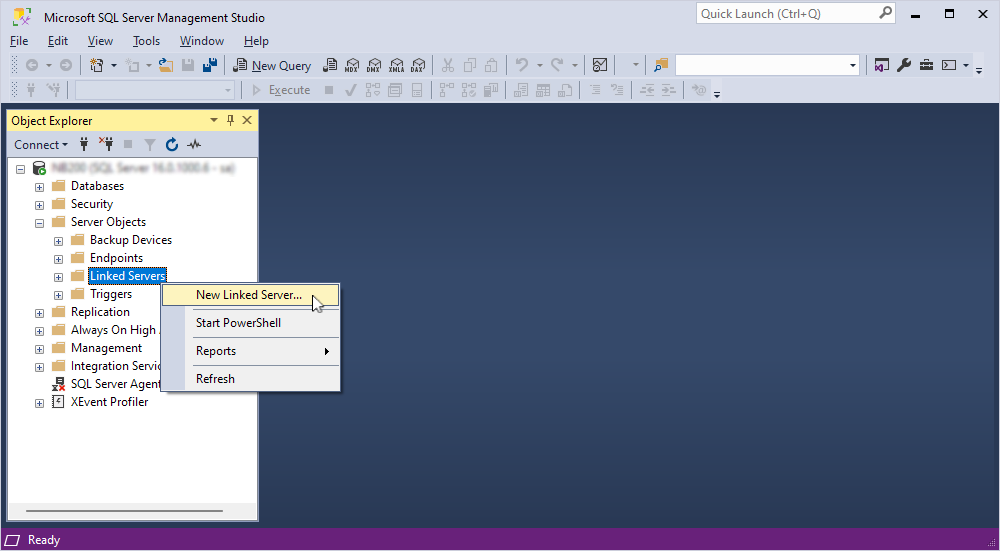
5. Right-click Linked Servers, then select New Linked Server.
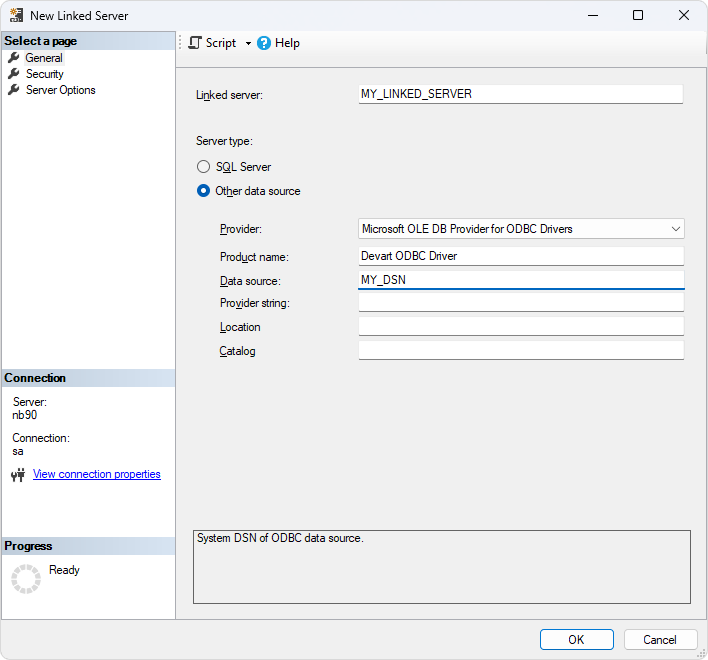
6. In the New Linked Server dialog, fill out the fields with the connection details:
- Linked server – Enter a name for the linked server.
- Server type – Select Other data source.
- Provider – Select Microsoft OLE DB Provider for ODBC Drivers.
- Product Name (optional) – Enter Devart ODBC Driver for ASE to remember what you used to set up the connection.
- Data source – Enter the name of your DSN.
Tip
You can enter the driver connection string in Provider string instead of specifying the Product Name and Data source.
7. Click OK.
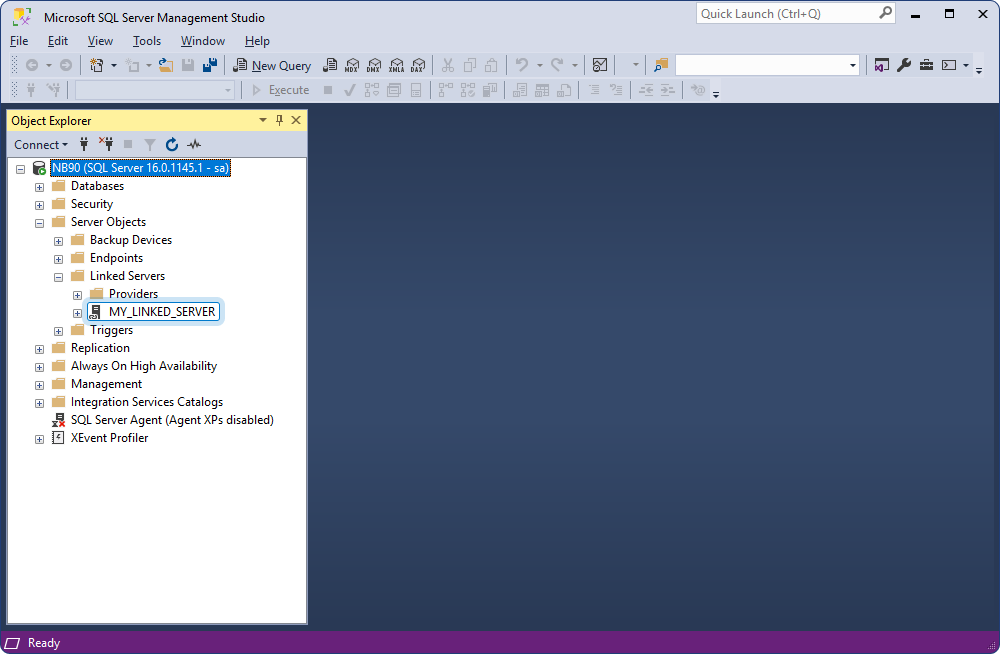
A new linked server appears under Linked Servers.
Retrieve data from ASE
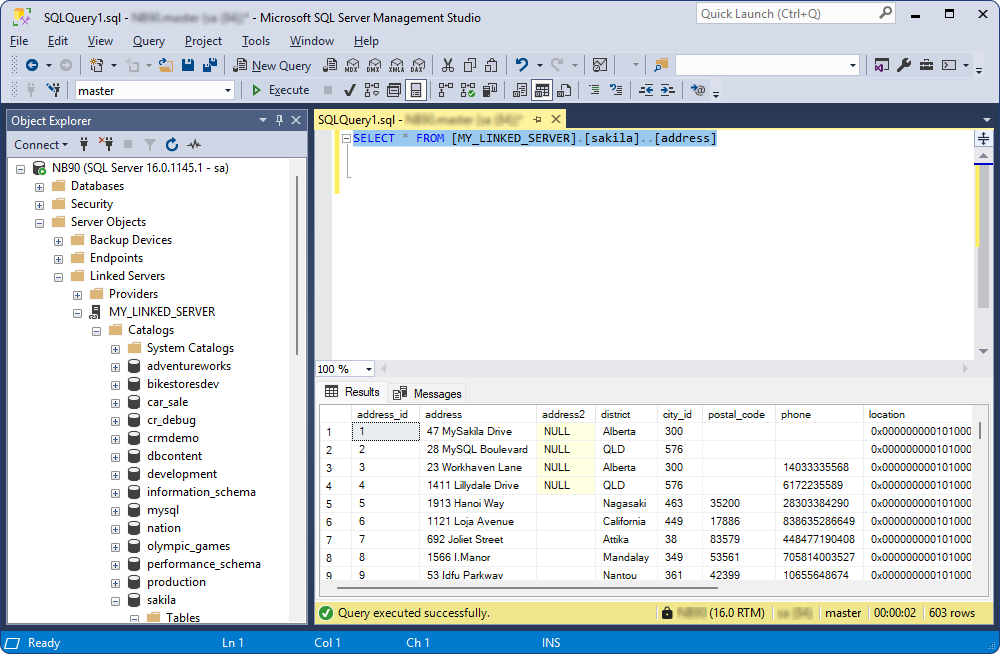
1. On the toolbar, click New Query.
2. Enter a SQL query in the following format:
SELECT * FROM [<linked_server_name>].[<database_name>].[<schema_name>].[<table_name>];
where [<linked_server_name>] and [<table_name>] are required, and [<database_name>] and [<schema_name>] are optional.
3. Click Execute.
The results are displayed under the query text editor.
Troubleshoot SSMS connection to ASE
When you create a linked server in SQL Server Management Studio (SSMS), you may get errors related to security restrictions for the MSDAINITIALIZE DCOM class. To resolve these issues, you must adjust the DCOM security settings for MSDAINITIALIZE. Before doing that, you need to grant ownership and the necessary permissions to the Administrators group.
To grant ownership and permissions to the Administrators group:
1. Go to Start > Run, type regedit, then press Enter.
2. Navigate to the following registry key: HKEY_LOCAL_MACHINE\SOFTWARE\Classes\AppID\{2206CDB0-19C1-11D1-89E0-00C04FD7A829}.
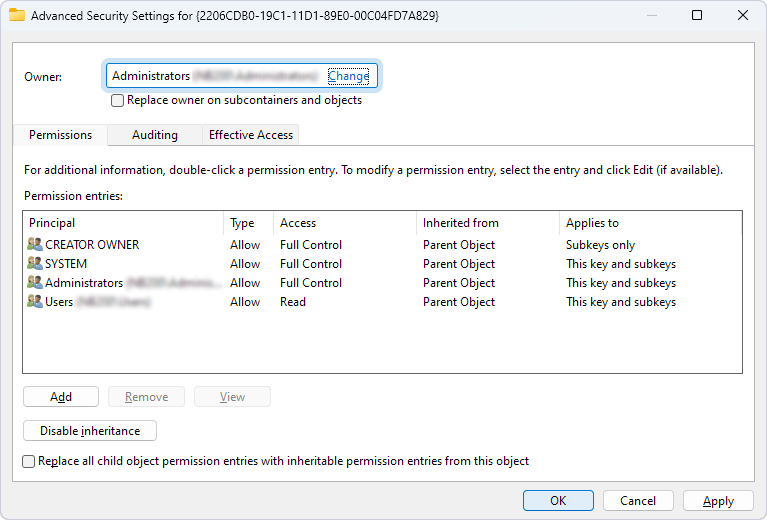
3. Right‑click the key, select Permissions, then click Advanced.
4. Change the owner to Administrators, then click OK.
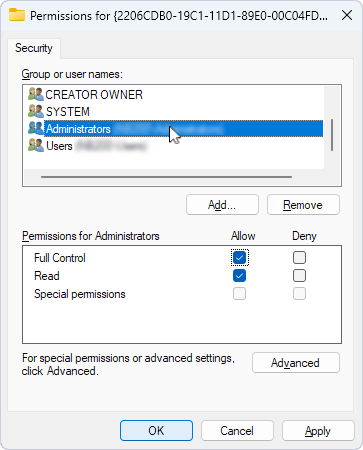
5. Allow Full Control for the Administrators group, then click OK.
To adjust the MSDAINITIALIZE security settings:
1. Go to Start > Run, type dcomcnfg, then press Enter.
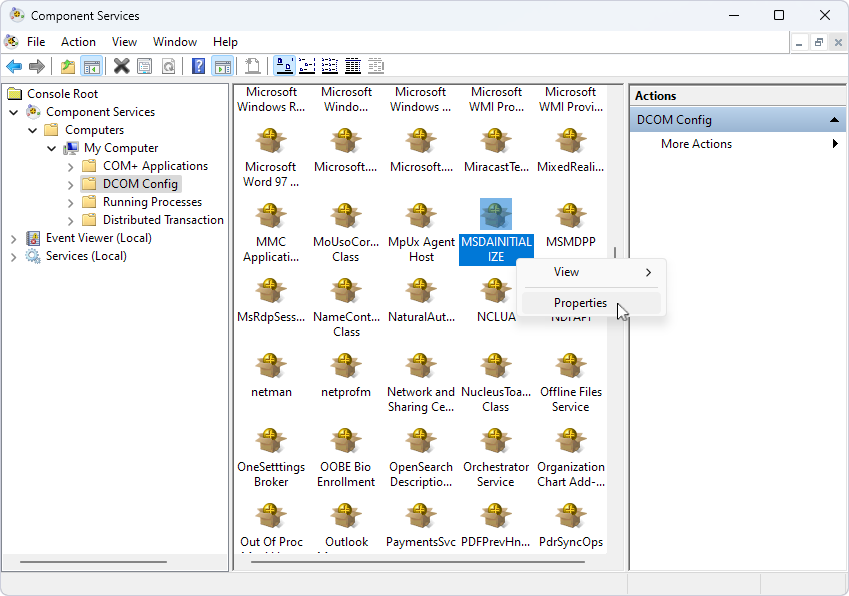
2. Navigate to Component Services > Computers > My Computer > DCOM Config.
3. Locate and right‑click MSDAINITIALIZE, then select Properties.
4. On the Security tab, under Launch and Activation Permissions, select Customize, then click Edit.
5. Add the domain user who needs to access the linked server and allow all available permissions, then click OK.
Note
If you connect to SQL Server by using SQL Server authentication, grant these permissions to the account that runs the SQL Server service.
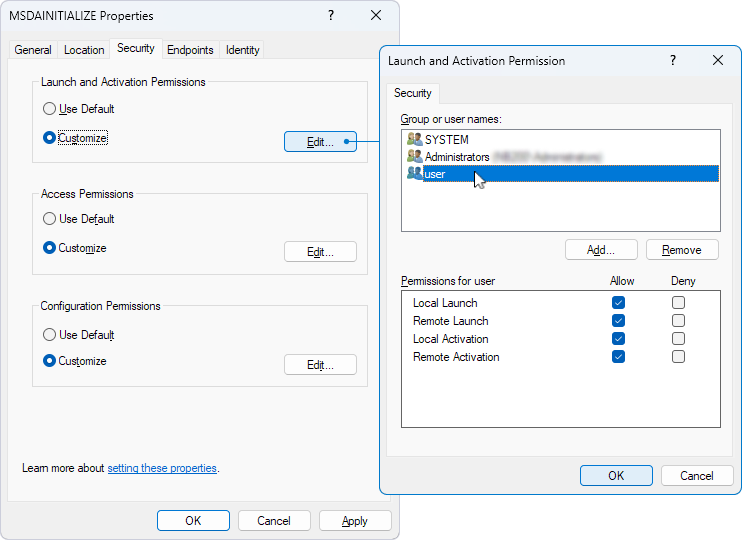
6. Repeat steps 4 and 5 for Access Permissions and Configuration Permissions, then click OK.
For more information, see Error message when you try to create an instance of an OLE DB provider in SQL Server: “Cannot create an instance of OLE DB provider”.