Installation
This article describes how to install Devart MCP Server on Windows using a distribution package or from a Git repository.
Install from the distribution package
The distribution package provides a guided installation and automatically installs the required .NET 8 and Devart ODBC Driver.
1. Download the distribution package: Visit the Devart website and download the appropriate version of the Devart MCP Server.
2. Run the installer: Locate the downloaded .exe file and double-click it to start the installation.
3. Follow the instructions in the Setup wizard.
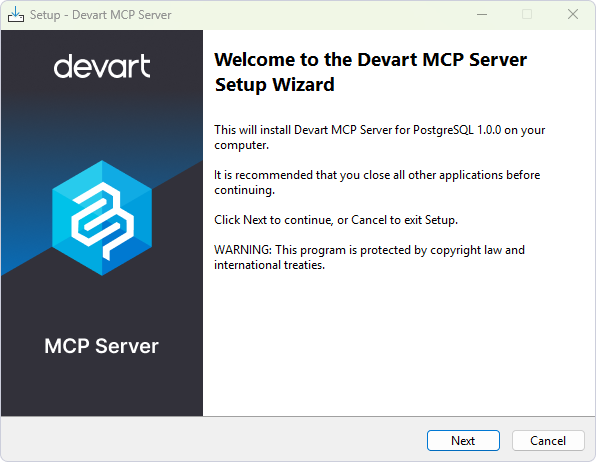
3.1. Read and accept the license agreement. Then click Next.
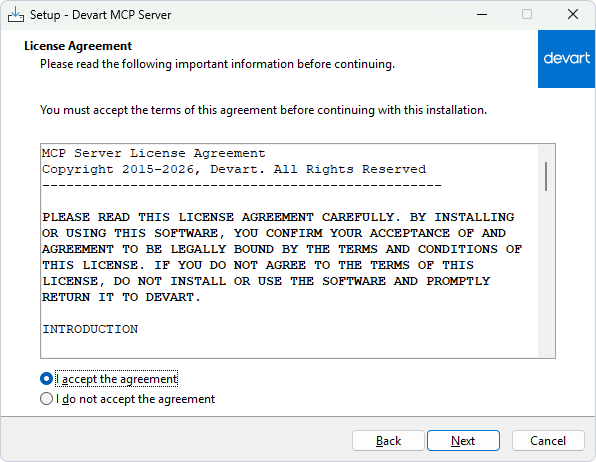
3.2. Choose the installation folder or use the default location. Then click Next.
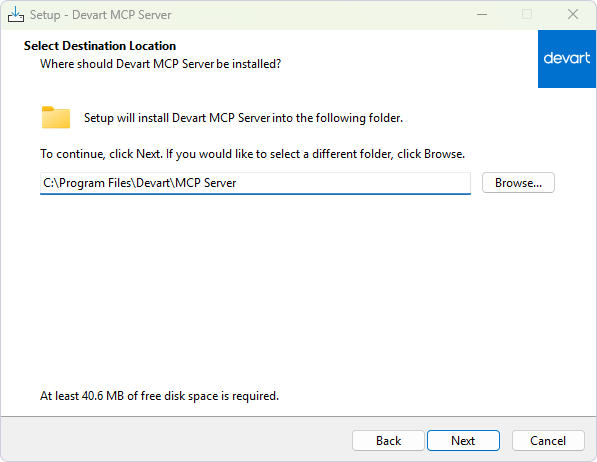
3.3. Click Install and wait for the installation to complete.
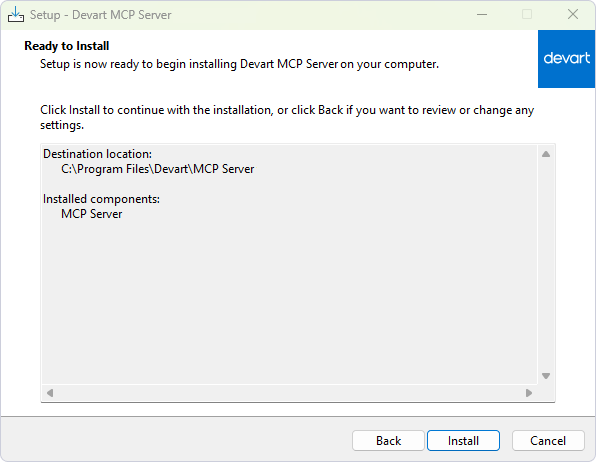
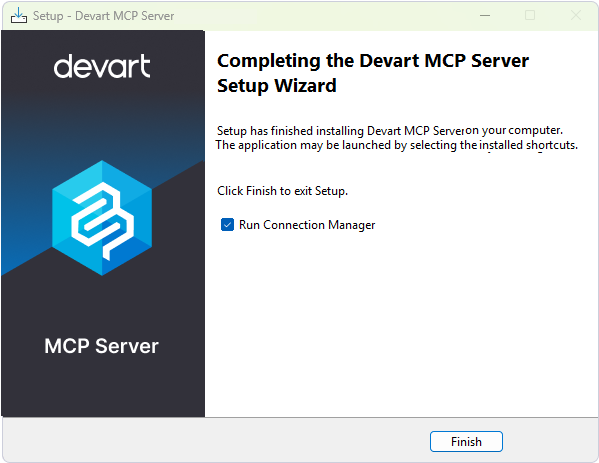
3.4. Click Finish to exit the Setup wizard.
Note
Devart MCP Server is open source and does not require activation.
However, an installed and activated Devart ODBC Driver is required to establish a connection. For more information, see Activate Devart MCP Server.
After installation, configure an ODBC connection (DSN) to your target database or cloud service for use with AI tools.