Integrate with Visual Studio Code
This topic explains how to integrate Devart MCP Server with Visual Studio Code so that you can interact with your data source in the Visual Studio Code app. You can configure the integration by using the MCP Server connection manager or by editing the Visual Studio configuration file.
Note
Before you start, make sure that MCP Server has an active connection to the data source. For instructions, see Connection configuration.
Use the MCP Server connection manager
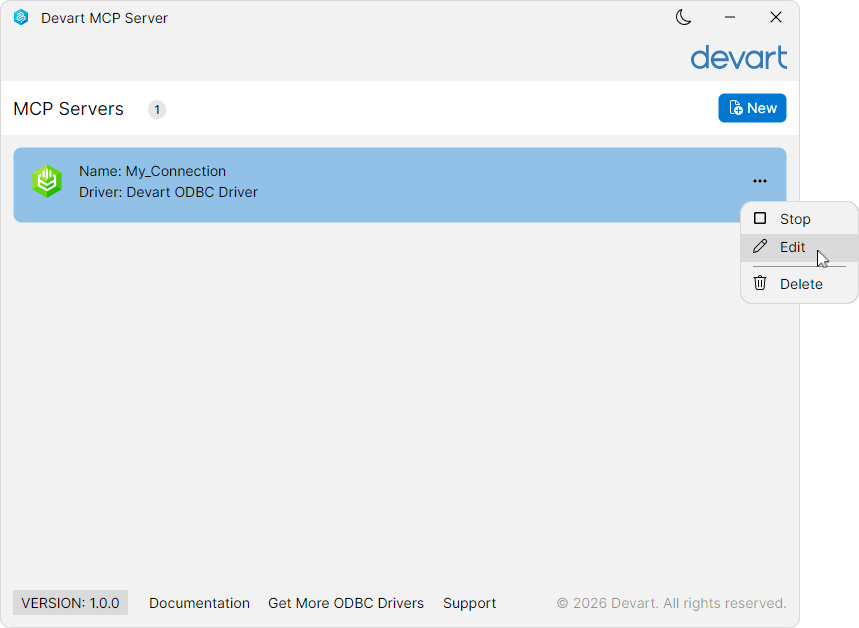
1. In Devart MCP Server, open the connection for editing in one of these ways:
- Double-click the connection.
- Click the ellipsis (…) and select Edit.
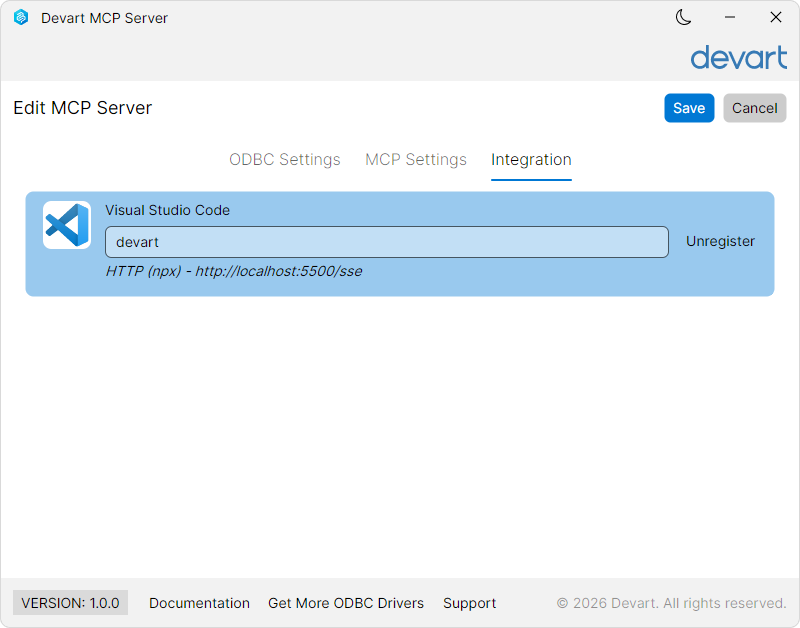
2. On the Integration tab, under Visual Studio Code, click Register.
3. Optional: Modify the connector name that will appear in the Visual Studio Code app.
4. Click Save.
5. Restart Visual Studio Code.
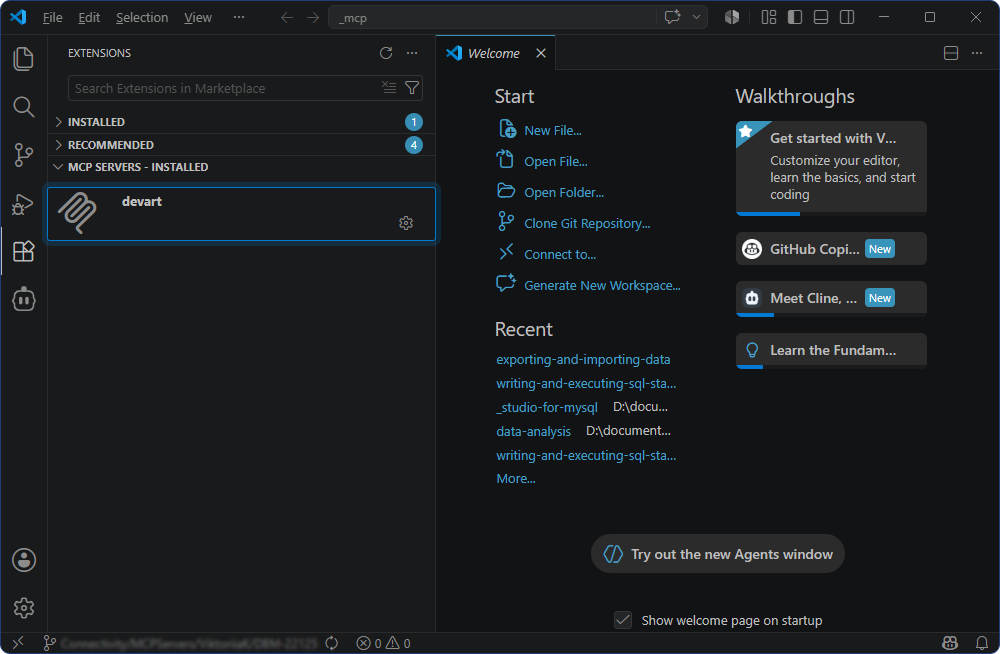
Devart MCP Server is now integrated with Visual Studio Code, and the connector appears in the Visual Studio Code app in Extensions > MCP Servers – Installed.
Note
If you have multiple connections configured in Devart MCP Server, repeat the integration process for every connection. Connector names must be unique.
Use the Visual Studio Code configuration file
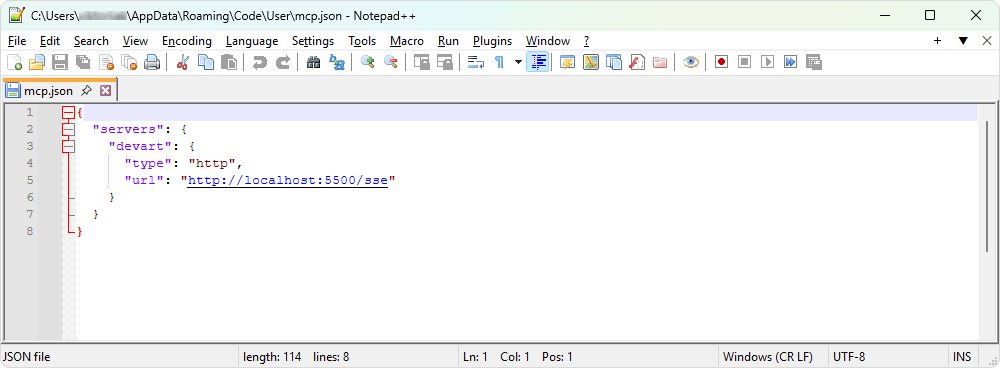
1. Open mcp.json, the Visual Studio Code configuration file.
Tip
If you can’t locate the configuration file, it may not exist yet. To have it created, in Visual Studio Code, navigate to View > Command Palette, then enter the
MCP: Open User Configurationcommand. Themcp.jsonfile opens.
2. Add one of the following objects, depending on the transport protocol used by MCP Server:
-
STDIO
{
  "servers": {
    "devart": {
      "type": "stdio",
      "command": "C:\\Program Files\\Devart\\MCP Server for <data_source_name>\\Devart.AI.McpServer.Odbc.<data_source_name>.exe",
      "args": [
        "run",
        "devart"
      ]
    }
  }
}
where:
-
devartis the connector name that will appear in Visual Studio Code. -
<data_source_name>is the name of the target data source.
-
-
HTTP
{
  "servers": {
    "devart": {
      "type": "http",
      "url": "http://localhost:5500/sse"
    }
  }
}
where:
devartis the connector name that will appear in Visual Studio Code.5500is the port specified in the MCP settings for the connection.
3. Save the file.
4. Restart Visual Studio Code.
Devart MCP Server is now integrated with Visual Studio Code, and devart appears in the Visual Studio Code app in Extensions > MCP Servers – Installed.
Add multiple connections
To use multiple connections in Visual Studio Code, add another connector entry to the servers object in mcp.json.
{
  "servers": {
    "devart_mysql": {
      "type": "http",
      "url": "http://localhost:5500/sse"
    },
    "devart_pg": {
      "type": "http",
      "url": "http://localhost:3306/sse"
    }
  }
}