Integrate with Cursor
This topic explains how to integrate Devart MCP Server with Cursor so that you can interact with your data source in the Cursor app. You can configure the integration by using the MCP Server connection manager or by editing the Cursor configuration file.
Note
Before you start, make sure that MCP Server has an active connection to the data source. For instructions, see Connection configuration.
Use the MCP Server connection manager
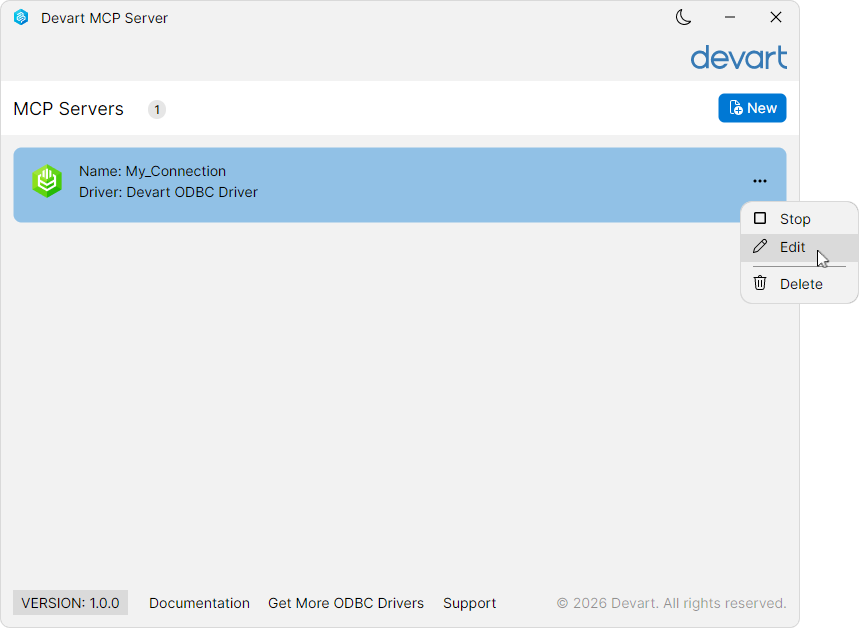
1. In Devart MCP Server, open the connection for editing in one of these ways:
- Double-click the connection.
- Click the ellipsis (…) and select Edit.
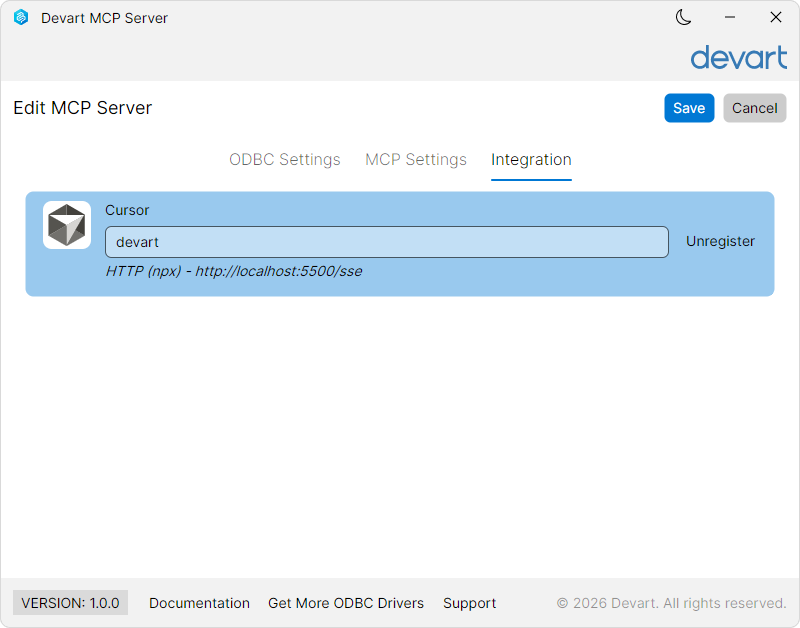
2. On the Integration tab, under Cursor, click Register.
3. Optional: Modify the connector name that will appear in the Cursor app.
4. Click Save.
5. Restart Cursor.
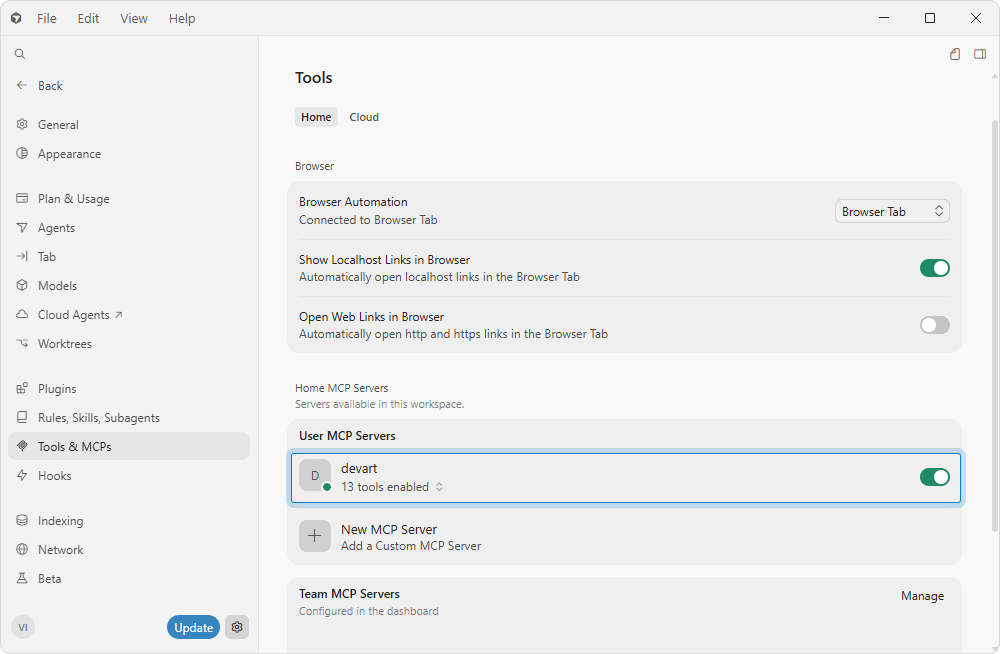
Devart MCP Server is now integrated with Cursor, and the connector appears in the Cursor app in Settings > Tools & MCPs > User MCP Servers.
Note
If you have multiple connections configured in Devart MCP Server, repeat the integration process for every connection. Connector names must be unique.
Use the Cursor configuration file
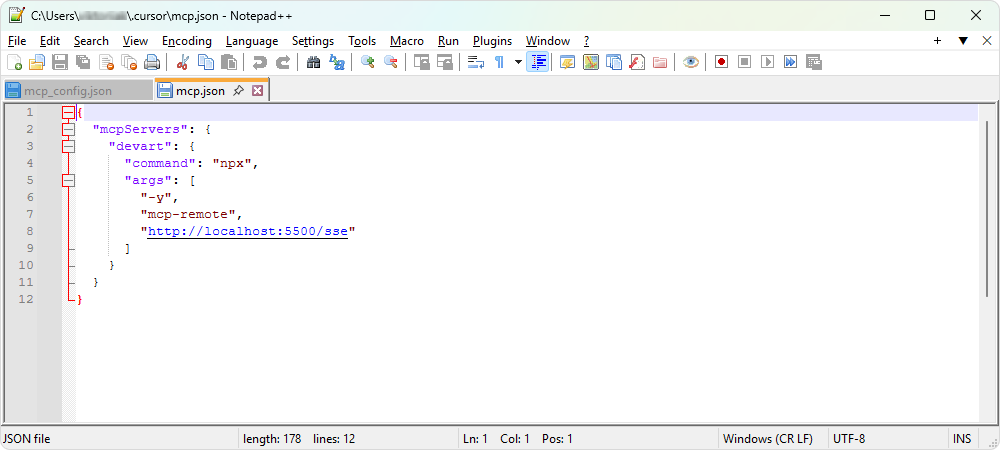
1. Open mcp.json, the Cursor configuration file.
Tip
If you can’t locate the configuration file, it may not exist yet. To have it created, in the Cursor app, navigate to Settings > Tools & MCPs > User MCP Servers, then click Add Custom MCP. The
mcp.jsonfile opens.
2. Add one of the following objects, depending on the transport protocol used by MCP Server:
-
STDIO
{
  "mcpServers": {
    "devart": {
      "command": "C:\\Program Files\\Devart\\MCP Server for <data_source_name>\\Devart.AI.McpServer.Odbc.<data_source_name>.exe",
      "args": [
        "run",
        "devart"
      ]
    }
  }
}
where:
-
devartis the connector name that will appear in Cursor. -
<data_source_name>is the name of the target data source.
-
-
HTTP
{
  "mcpServers": {
    "devart": {
      "command": "npx",
      "args": [
        "-y",
        "mcp-remote",
        "http://localhost:5500/sse"
      ]
    }
  }
}
where:
devartis the connector name that will appear in Cursor.5500is the port specified in the MCP settings for the connection.
3. Save the file.
4. Restart Cursor.
Devart MCP Server is now integrated with Cursor, and devart appears in the Cursor app in Settings > Tools & MCPs > User MCP Servers.
Add multiple connections
To use multiple connections in Cursor, add another connector entry to the mcpServers object in mcp.json.
{
  "mcpServers": {
    "devart_mysql": {
      "command": "npx",
      "args": [
        "-y",
        "mcp-remote",
        "http://localhost:5500/sse"
      ]
    },
    "devart_pg": {
      "command": "npx",
      "args": [
        "-y",
        "mcp-remote",
        "http://localhost:3306/sse"
      ]
    }
  }
}