On this page
Before using LinqConnect, you need to activate the product—whether it's a purchased or trial version—using one of the following methods:
You can find the activation key in the email from Devart (for a purchased license) or on the
Customer Portal.
Activate using NuGet packages
After installing the product via NuGet packages, you can activate LinqConnect directly in Visual Studio or from the command line.
Activate in Visual Studio
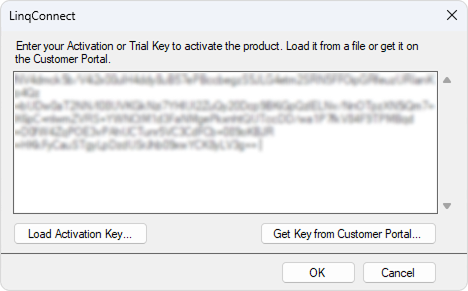
1. In the activation dialog, choose one of the activation methods:
- Enter your activation key.
- Upload the file with your activation key by clicking Load Activation Key.
You can find the activation key in the email from Devart (for a purchased license) or on the Customer Portal. To access the portal, click Get Key from Customer Portal.
2. Click OK.
Activate via the command line
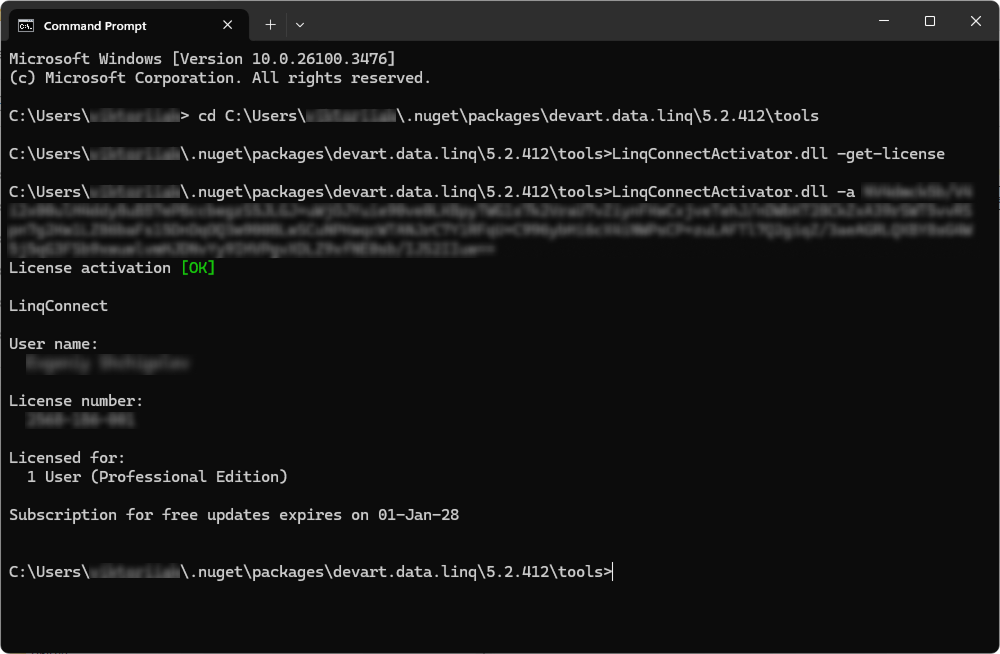
1. Open Command Prompt.
2. Navigate to the folder containing the LinqConnectActivator.dll file. The default path is:
|
|---|
%USERPROFILE%\.nuget\packages\devart.data.linq\version_number\tools
|
where:
%USERPROFILE% – Your profile name.version_number – The version number of the NuGet package.
3. Run the following command to get the license key:
|
|---|
dotnet LinqConnectActivator.dll -get-license
|
This redirects you to the Devart website, where you can sign in to copy your license key.
4. Enter the following command, replacing your_key with your own value.
|
|---|
LinqConnectActivator.dll -a your_key
|
LinqConnect supports license activation on all operating systems, including macOS, Linux, and Windows.
Activate at runtime
1. Sign in to the Customer Portal.
2. Copy the activation key available in your Customer Portal account.
3. Paste it into your connection string while setting up a connection with a database.
|
|---|
string connectionString =

  "Data Source=127.0.0.1;" +

  "UserID=TestUser;" +

  "Password=TestPassword;" +

  "LicenseKey=**********;";
|
This method is not recommended for activating a trial version, as it may affect performance.
Activate via the setup wizard
1. Run the installation wizard and follow the on-screen instructions.
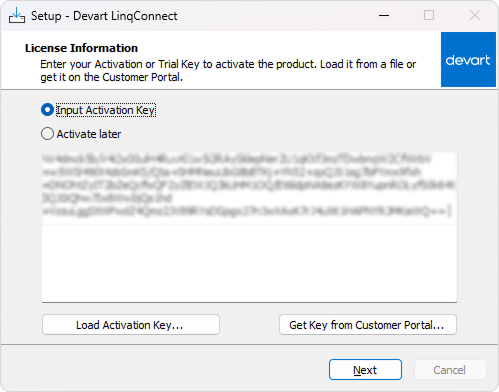
2. In the License Information dialog, activate the product using one of the methods:
- Input Activation Key: Activate the product immediately by entering your license or uploading the file containing the license.
You can find your license key in the registration email or in your
Customer Portal account.
To evaluate the product, sign in to the Customer Portal and obtain your 30-day trial license key.
- Activate later: Skip activation for now. You can activate the product later.
3. Click Next.
Activate in Visual Studio on Windows
1. Open Visual Studio.
2. On the menu bar, select Tools > LinqConnect > Activate or Get License Information.
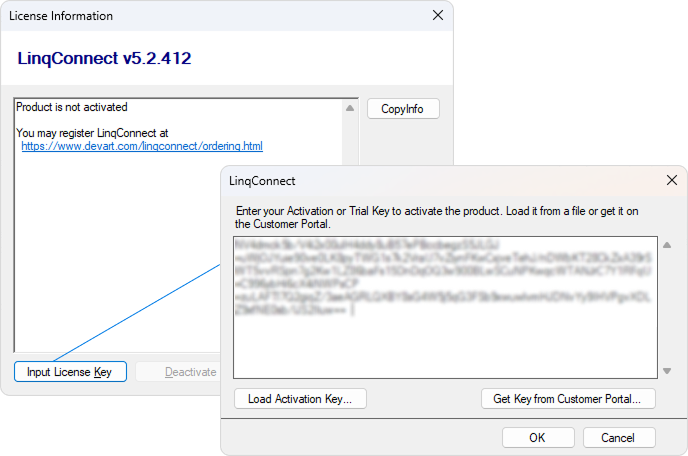
3. In the License Information dialog, click Input License Key.
4. In the product activation dialog, choose one of the activation methods:
- Enter your activation key.
- Upload the file with your activation key by clicking Load Activation Key.
You can find the activation key in the email from Devart (for a purchased license) or on the Customer Portal. To access the portal, click Get Key from Customer Portal.
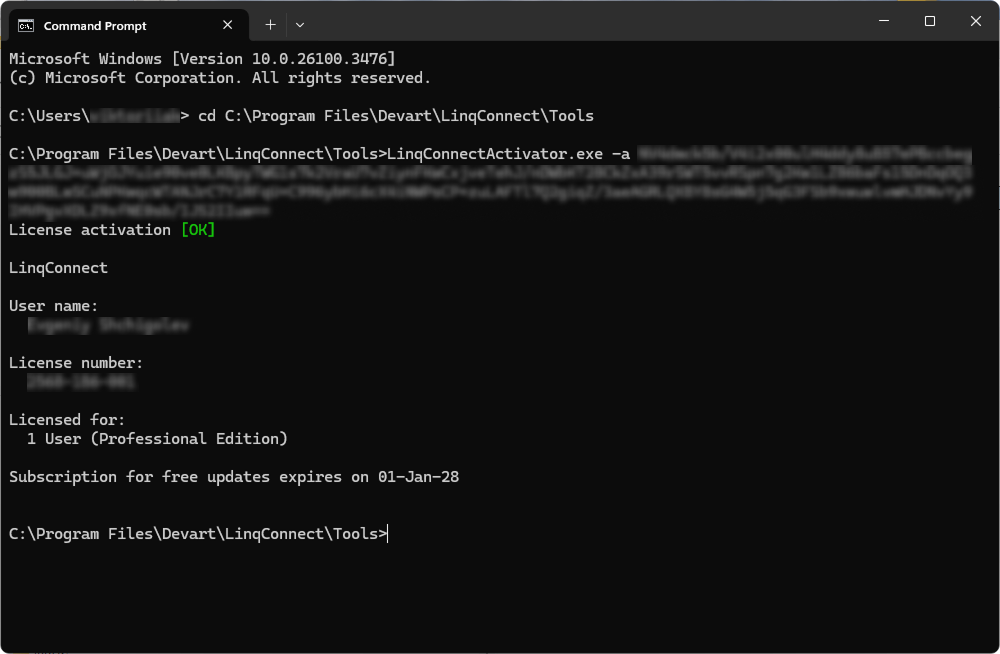
Activate the product via the command line
1. Open Command Prompt.
2. Navigate to the folder where the product executable file is located. The default path is:
|
|---|
C:\Program Files\Devart\LinqConnect\Tools
|
3. Run the following command, replacing your_activation_key with your actual key:
|
|---|
LinqConnectActivator.exe -a your_activation_key
|