OAuth 2.0 (Open Authorization 2.0) is an open standard for access delegation, commonly used to grant third-party applications limited access to a user’s resources without exposing their credentials. It allows secure access to a resource on behalf of a user while maintaining data protection and minimizing security risks. OAuth 2.0 requires a browser for one-time user consent. The user must authorize the application’s request to access their data through a browser. Once consent is granted, the application can use the refresh token to maintain access without requiring further browser-based authentication. Salesforce supports two approaches for configuring OAuth access:
|
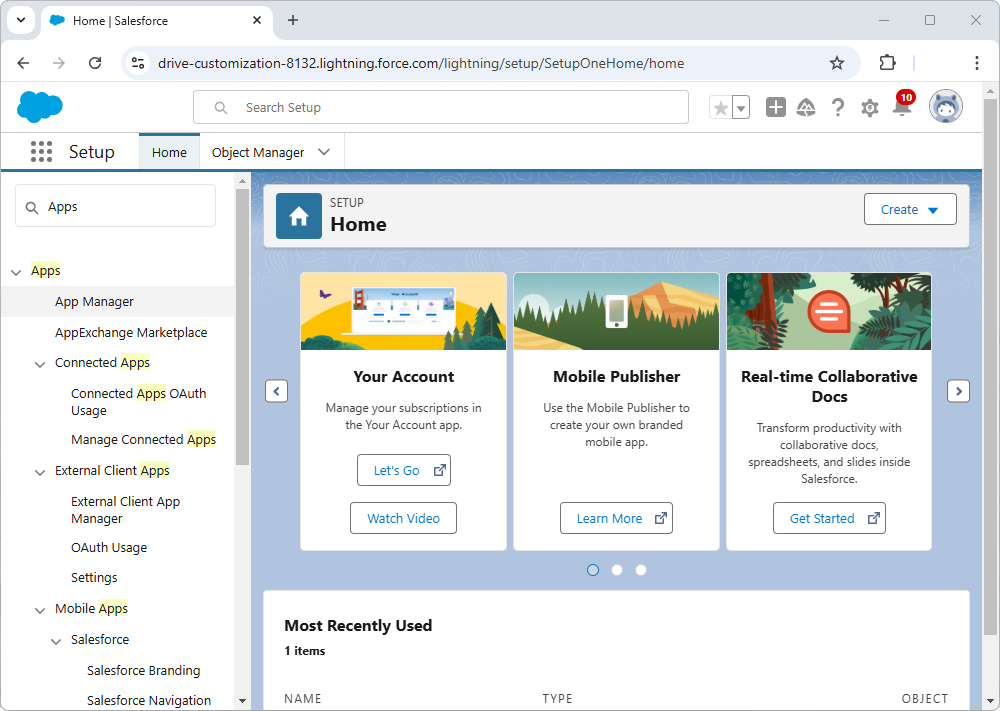
Create a connected app to enable OAuth-based integration and allow external applications to securely access Salesforce data: 1. Log in to Salesforce and navigate to Setup. 2. In the Quick Find search box, type App, then select App Manager.
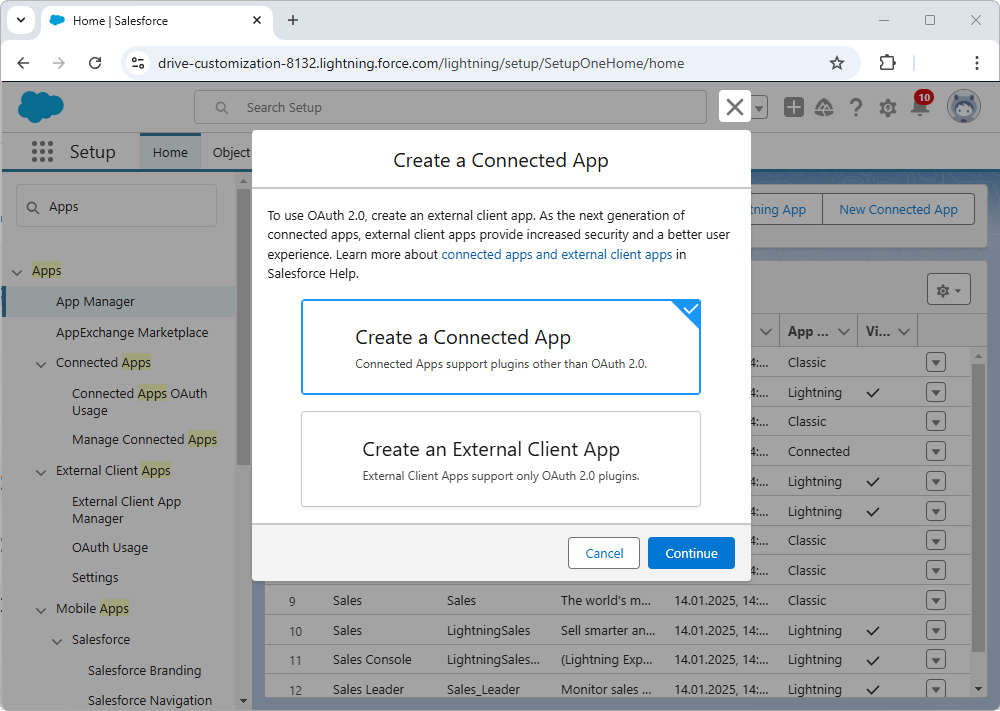
3. Select New Connected App. 4. In the dialog that appears, select Create a Connected App, then select Continue.
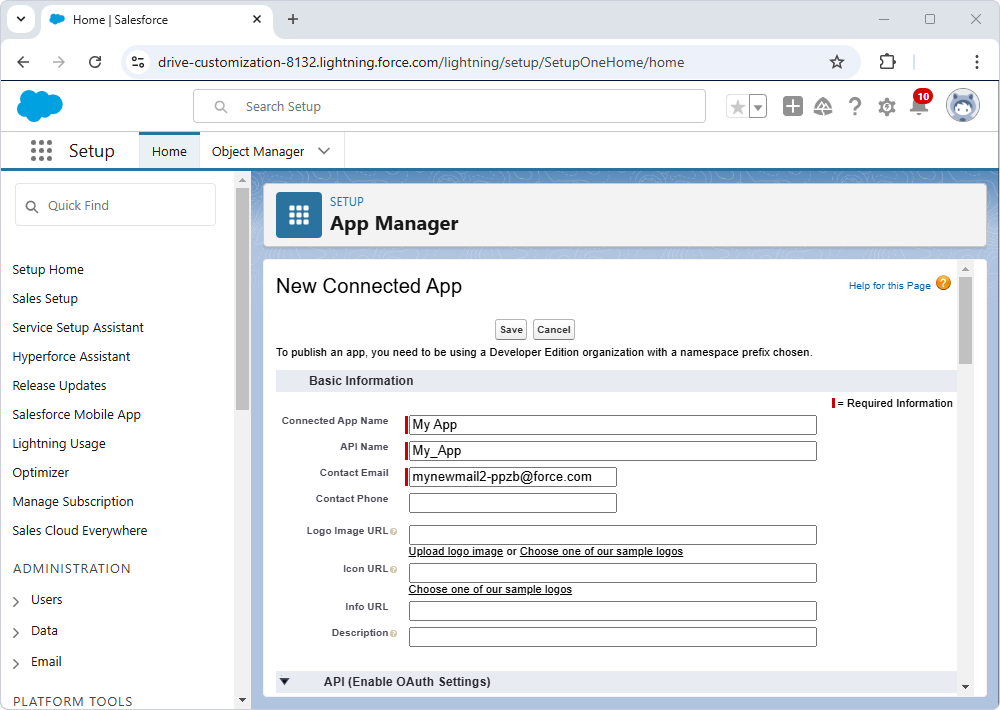
5. In the Basic Information section, provide the following details:
6. Under API (Enable OAuth Settings), select Enable OAuth Settings, then enter a Callback URL - https://oauth.devart.com/callback/57997.
7. Under Selected OAuth Scopes, select the necessary permissions for your application by clicking Add. Commonly used scopes include:
8. Select Save to create the Connected App.
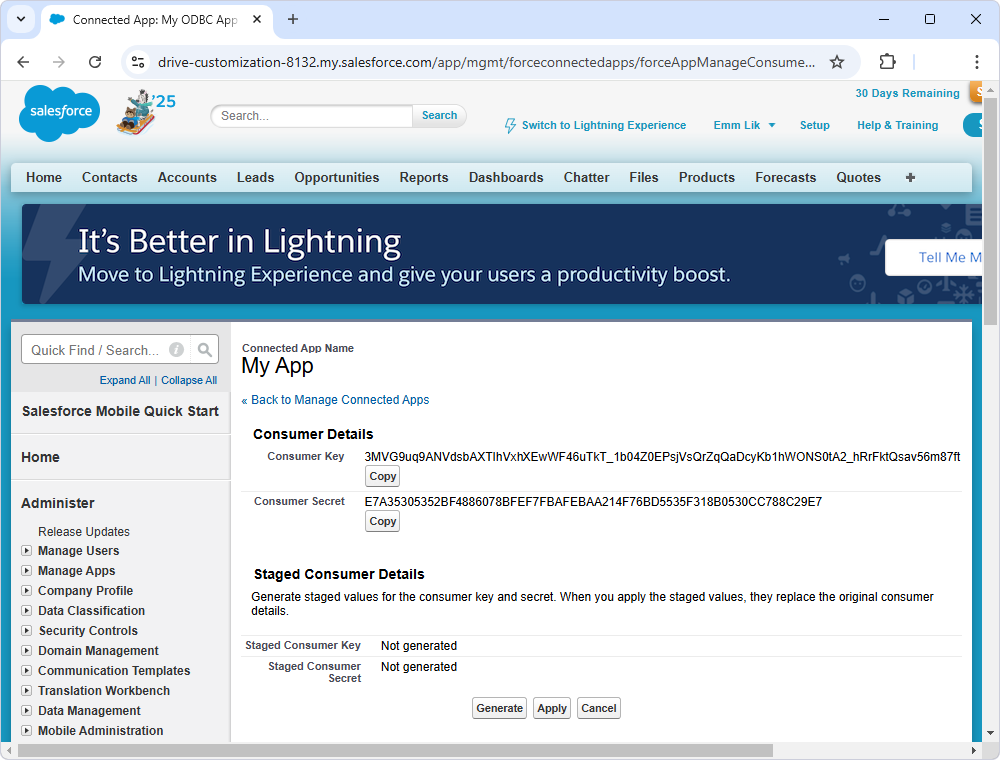
1. Navigate to the App Manager, locate your app, and click View.2. Next to Consumer Key and Secret, select Manage Consumer Details.A page will open displaying your Consumer Key (Client ID) and Consumer Secret (Client Secret).
|

| 1. | Log in to Salesforce, then navigate to Setup. |
| 2. | Navigate to Apps > External Client Apps > External Client App Manager, then select New External Client App. |
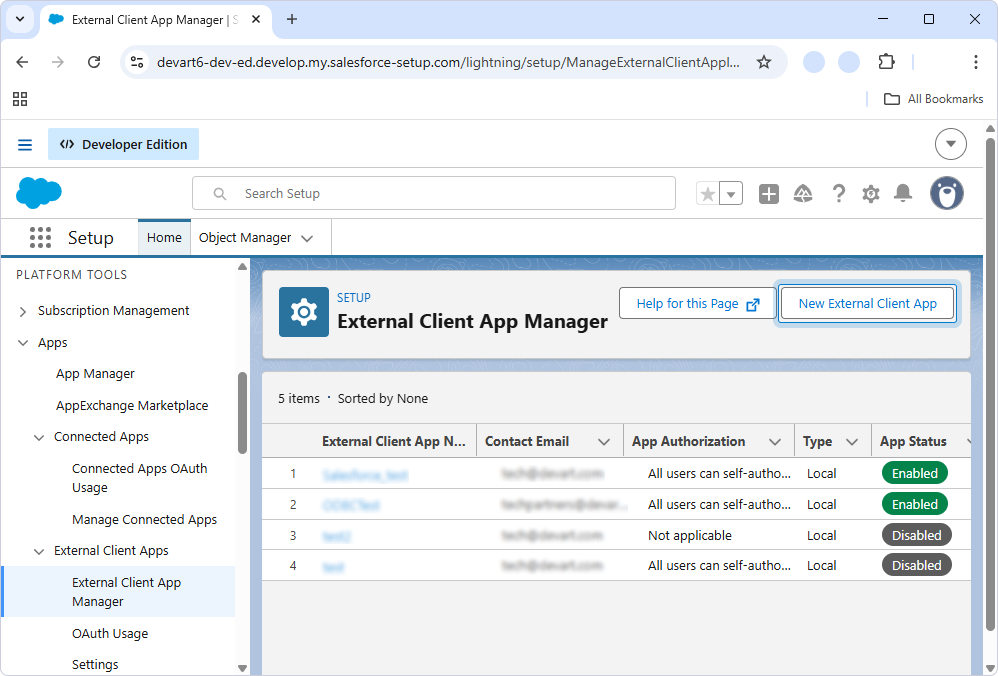
3. Under Basic Information, specify the required details. In Distribution State, select Local.
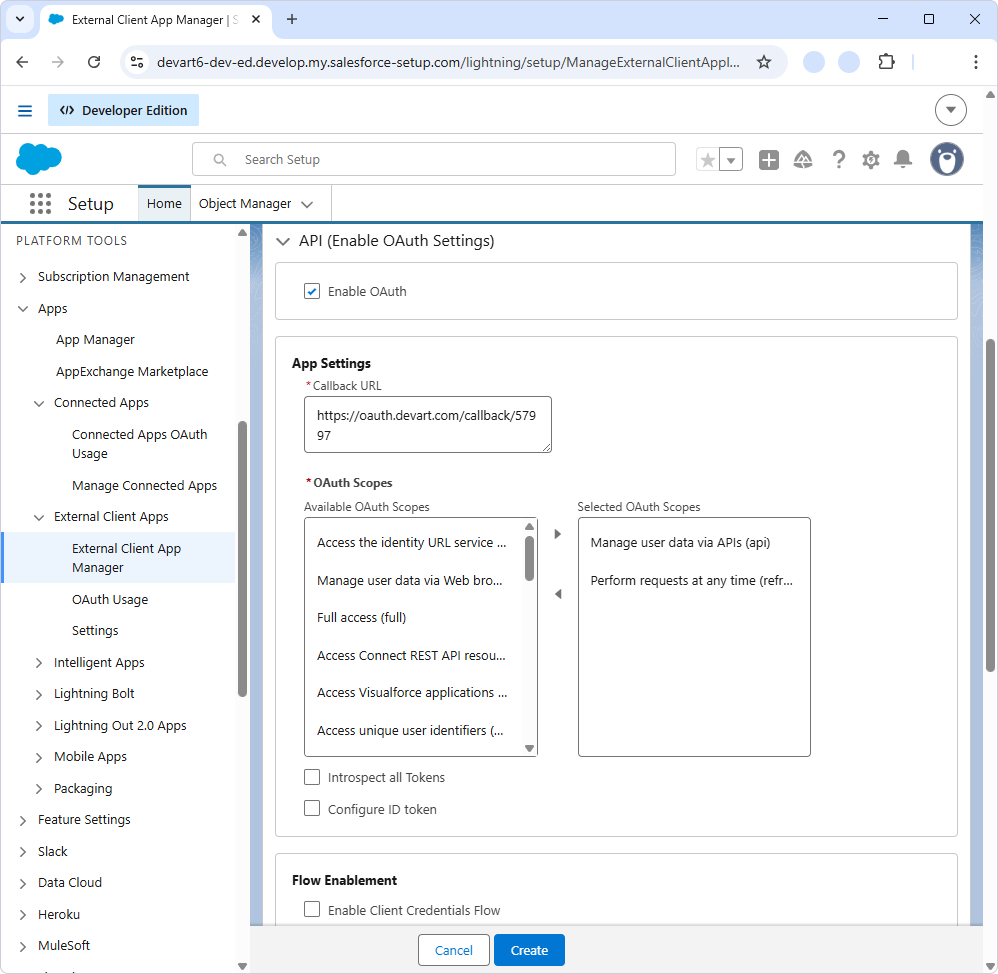
4. Under API (Enable OAuth Settings):
| • | Select Enable OAuth. |
| • | Enter a Callback URL: https://oauth.devart.com/callback/57997. |
|
You can add the following additional ports: 58997 and 59997. |
| • | Add OAuth Scopes: |
- Manage user data via APIs (api).
- Perform requests at any time (refresh_token, offline_access).
5. In Flow Enablement, select the option that matches your authentication scenario:
| • | Enable Authorization Code and Credentials Flow - for user-based authentication. |
| • | Enable Client Credentials Flow - for server-to-server authentication. |
6. In Security:
| • | For user-based authentication: |
- Select Require secret for Web Server Flow.
- Select Require secret for Refresh Token Flow.
| • | For server-to-server authentication: |
- Clear all checkboxes.
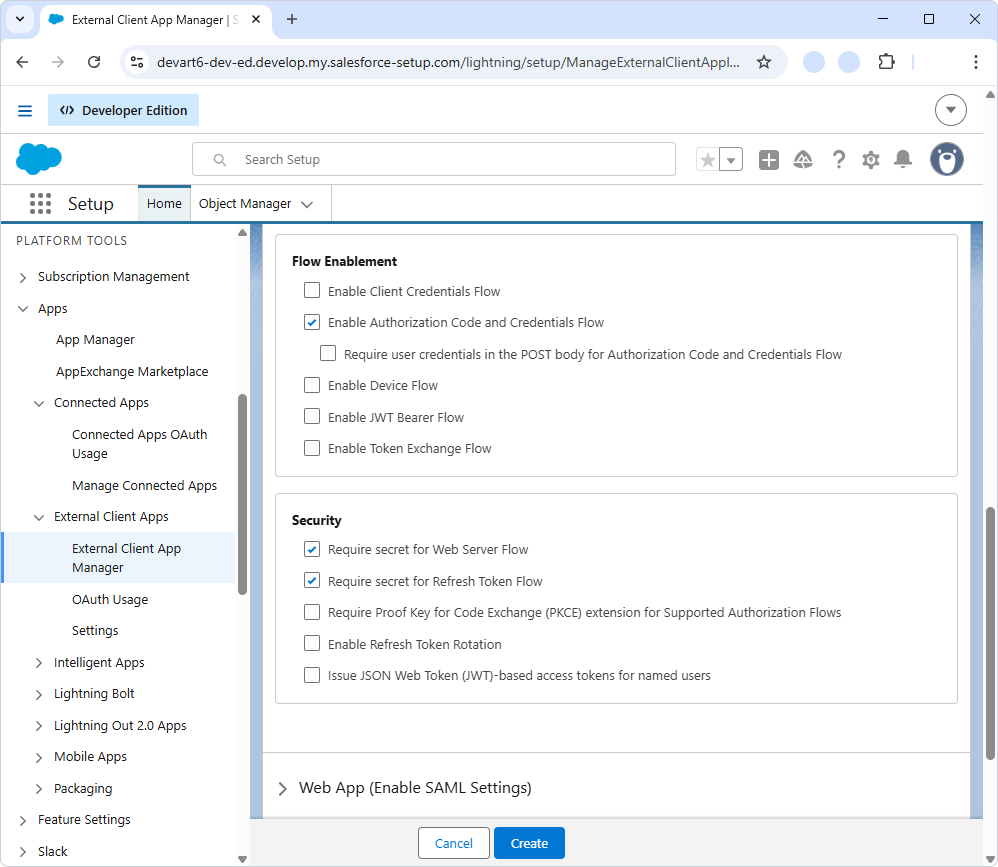
7. Click Create.
 Configure an external client app for the OAuth 2.0 client credentials flow
In server-to-server authentication, the client application uses the consumer key and consumer secret defined in the external client app to request an access token. You must specify the integration user whose permissions will be used when accessing Salesforce data.
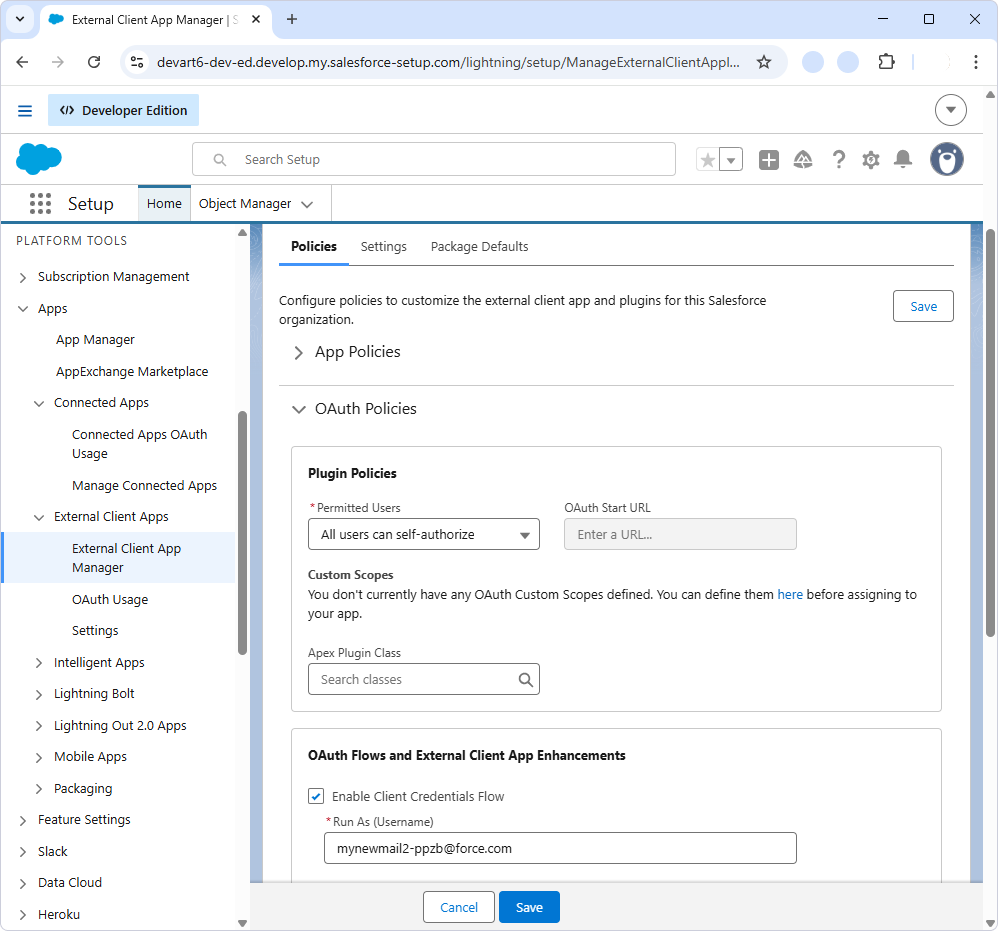
| 1. | Open the created external client app. |
| 2. | On the Policies tab, click Edit. |
| 3. | In OAuth Policies, select Enable Client Credentials Flow. |
| 4. | Specify the user on whose behalf tokens will be issued. |
| 5. | Click Save. |
Obtain OAuth client credentials for external client app connection
| 1. | Navigate to Apps > OAuth Settings > Consumer Key and Secret. |
| 2. | Locate your app and open it. |
| 3. | Select Settings > OAuth Settings > Consumer Key and Secret. |
| 4. | Copy and store the consumer details. |
|