Application environment customization
This topic describes how to customize environment in Entity Developer.
The functionality of environment customization differs in the standalone version of the Entity Developer application and in the Visual Studio add-in.
Environment customization in the standalone version covers the following two areas:
- General – Allows customizing the general behavior of the application.
- Keyboard – Allows customizing keyboard shortcuts used in the application.
The corresponding procedures are described below.
General environment customization
To customize the general behavior of the application, perform the following sequence of actions:
1. From the application’s main menu, select Tools and then select Options.
The Options dialog is displayed:
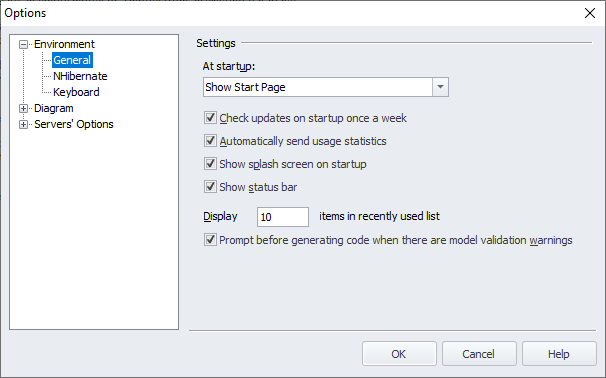
2. From the At startup dropdown list, select the way the application behaves at startup. The following three options are available:
- Show Start Page – Displays the startup page on the application launch.
- Load Last Model – Loads the last project on the application launch.
- Show Empty Environment – Loads the empty environment on the application launch.
3. If you do not want the check for new Entity Developer version to be performed once a week, clear the Check updates on startup once a week checkbox.
4. If you do not want the splash screen to be displayed, clear the Show splash screen on startup checkbox.
5. If you do not want Entity Developer to share your Anonymous usage statistics with us, clear the Automatically send usage statistics checkbox.
6. If you do not want the status bar to be displayed, clear the Show status bar checkbox.
7. To change the number of files displayed in the File > Recent Files menu, enter the required number in Display XX items in recently used list.
Note
The maximum number of files is 24.
8. If you don’t want to see a warning message every time when you generate code and there are warnings in the model, clear the Prompt before generating code when there are model validation warnings checkbox.
9. When all the required changes have been made, click OK.
Note
In case you work with NHibernate models, the Environment node also contains the NHibernate subnode, that allows you to configure the path to NHibernate assemblies.
Note
Environment customization in the Visual Studio add-in allows customizing only the general behavior of the application and provides the following options: Check updates on startup once a week and Refactoring renamed model objects. If you choose to refactor renamed model objects, all the references in code to the property or entity will be renamed in the whole solution. The update is performed when saving the model.
Keyboard shortcut customization
Customizing keyboard shortcut keys involves modifying, removing, and creating new shortcuts. It is also possible to reset shortcuts to their default settings.
To customize keyboard shortcut keys, perform the following sequence of actions:
1. From the application’s main menu, select Tools and then select Options.
The Options dialog is displayed.
2. Under the Environment node in the navigation pane, select Keyboard.
The following page is displayed:
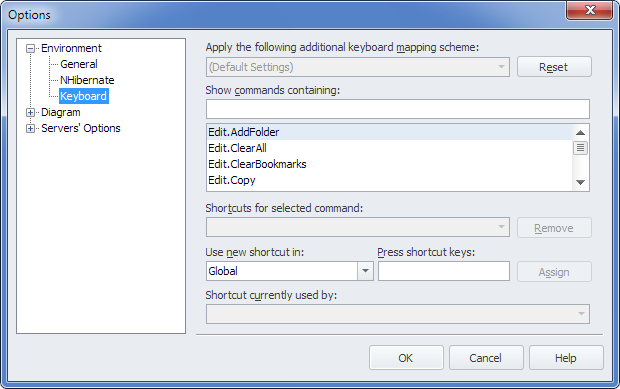
3. Optional: From the Apply the following additional keyboard mapping scheme dropdown list, select an additional keyboard mapping scheme.
4. Using the Show commands containing box and/or the list of the commands under the box, select the command, for which you want to set shortcut keys. If there are shortcuts keys defined for the selected command, they are displayed in the Shortcuts for selected command dropdown list.
5. Optional: To remove the available shortcut keys for the selected command, click Remove.
6. To set new shortcut keys for the selected command, from Use new shortcut in, select the area of the application, where the new shortcut keys are used, and in the Press shortcut keys box enter the new shortcut keys by pressing them in the right sequence on the keyboard. If the entered combination of shortcut keys is already in use, the corresponding information is displayed in the Shortcut currently used by dropdown list.
7. To assign the new shortcut keys, click Assign.
8. Optional: To reset all the shortcuts to their default values, click Reset.
9. Click OK.