Command Text
This dialog box allows you to create a stored procedure from the SQL code.
To call the Command Text Editor dialog box, right-click the Storage Model node in the Model Explorer docking window, in its context menu select the Add sub-menu, then select New Command Text.
General tab
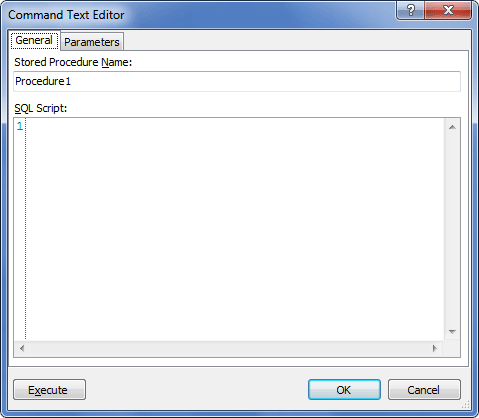
Stored Procedure Name – specify the name for the stored procedure here.
SQL Script – enter the select statement for the stored procedure.
Parameters tab
This tab enables you to add, delete, or modify the existing parameters in the query.
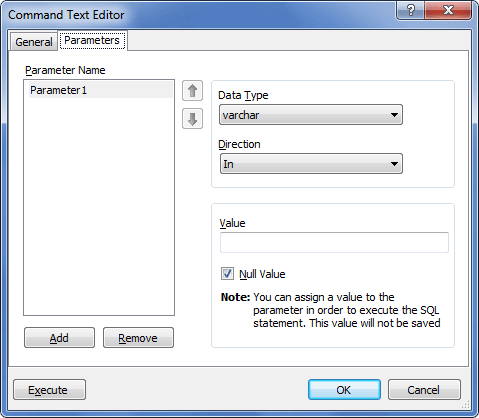
Parameter Name – displays the list of parameters currently used. Click a parameter to select it and fill the fields to the right of the list with values that correspond to the selected parameter. Click it again to rename the parameter.
Add – adds a new parameter to the list.
Remove – removes the selected parameter from the list.
Arrow buttons – move the selected parameter in the list up/down.
The following fields are specific for every parameter. Their content depends on the parameter currently selected.
Data Type – lets you choose what type of data this parameter is. Acceptable values are: bigint, binary, bit, char, date, datetime, datetime2, datetimeoffset, decimal, float, geography, geometry, image, int, money, nchar, ntext, numeric, nvarchar, nvarchar(max), real, rowversion, smalldatetime, smallint, smallmoney, text, time, timestamp, tinyint, uniqueidentifier, varbinary, varbinary(max), varchar, varchar(max), xml.
Direction – indicates whether the parameter is input, output, or bidirectional.
Value – value of the parameter. Note that you do not have to include quotes when setting this field.
Null Value – specifies whether the value of this parameter is NULL (DbNull.Value). Selecting this option clears the Value field.
Execute – this button will run the created stored procedure.