Class Editor
This dialog box allows you to create and edit classes, add or delete their properties.
To call Class Editor, double-click the class on the diagram or in the Model Explorer, or select Edit from the class shortcut menu.
The Class Editor dialog box will be displayed.
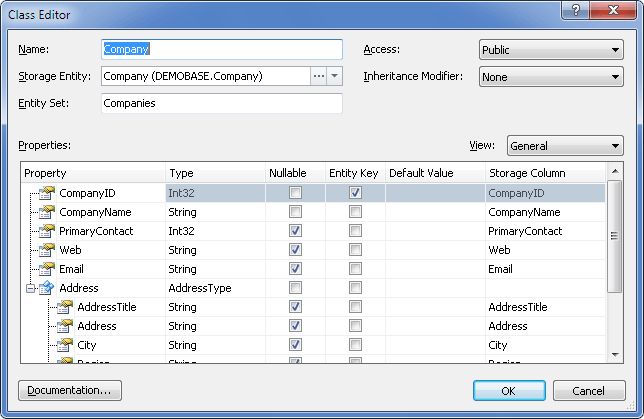
The following options are available:
Name – set the class name here.
Storage Entity – this dropdown list defines the table in the storage model to which the class is mapped; clicking the three-dotted button calls the Storage Entity Editor dialog that in its turn allows you to edit the storage table. Under the Model-First approach with synchronization enabled, the Storage Entity combo-box provides the possibility to edit Storage part objects together with the Conceptual model objects.
Entity Set – specify the entity set, that contains the entity.
Access – set the accessibility level of the Table<T> class in the Entity Container here. Acceptable values are Public and Internal.
Inheritance Modifier – set the inheritance modifier for class here. Acceptable values are None, Abstract and Sealed.
View – selecting a view allows you to view and edit specific parameters for class or type properties inside the Class Editor without opening Property Editor. The following views are available.
- General – allows you to edit main property parameters, such as its type, server data type, corresponding column name, nullability, whether it is a part of Entity Key, whether it is read-only.
- Facets – allows you to edit property column facets, such as max length, unicode and fixed length settings for string data type, or precision and scale for numeric data types.
- Presentation – allows you to edit property display name.
- Validation – allows you to edit property validation settings - whether its value must be set, its format, min and max length for string data types, min and max value for numeric data types.
Properties – displays class properties and their parameters that can be edited right in the grid.
Note, that if automatic mapping synchronization is on, clicking the three-dotted button in a Storage Column cell calls the Storage Column Editor dialog allowing you to edit the table column in the Storage part. If automatic synchronization is off, you can only choose an existing storage column from the dropdown list.
Note also, that parameters of a property having Type equal to a complex type cannot be edited.
Documentation – click to open the Documentation Editor dialog box.