Get credentials for server-to-server authentication
Server-to-server authentication is based on the OAuth 2.0 client credentials flow, which is designed for service-to-service communication without user interaction. Instead of a user signing in through a browser, the application uses a consumer key and consumer secret to request an access token from Salesforce and access data on behalf of a specified user.
This method is suitable for background services, integrations, and automated processes that need stable, non-interactive access to Salesforce data.
Create an external client app
Create an external client app to enable the OAuth 2.0 client credentials flow and allow automated integrations to access Salesforce data without user interaction.
1. Log in to Salesforce, then navigate to Setup.
2. Navigate to Apps > External Client Apps > External Client App Manager.
3. Click New External Client App.
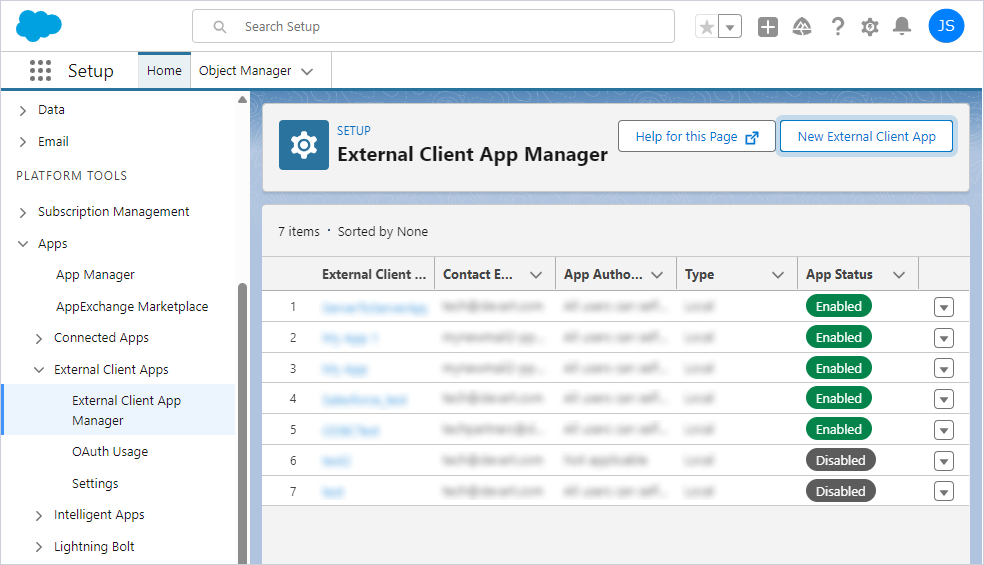
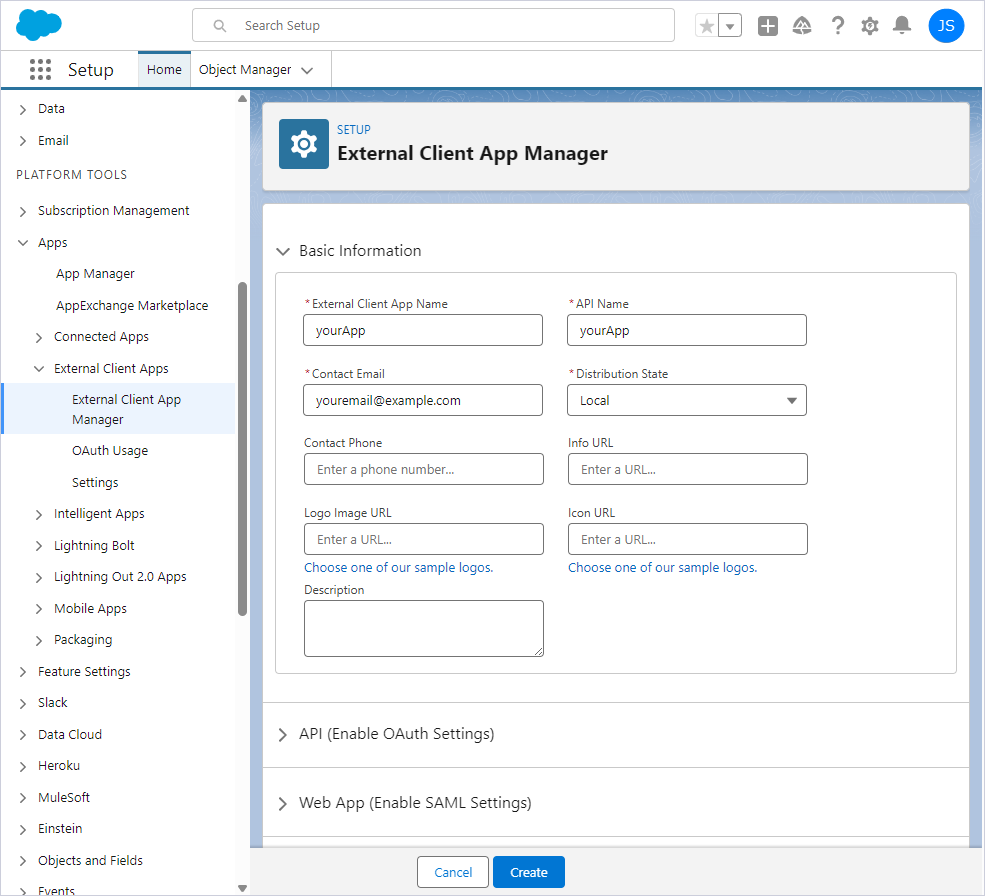
4. Under Basic Information, specify the required details. In Distribution State, select Local.
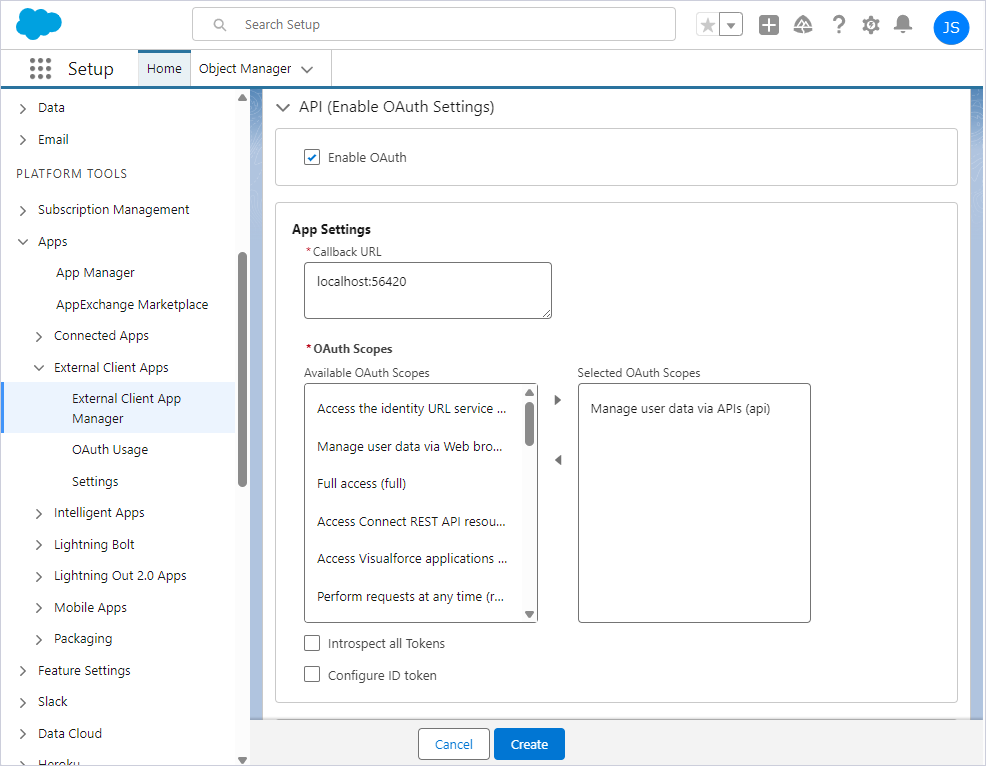
5. Under API (Enable OAuth Settings), select Enable OAuth, then enter a callback URL, for example, http://localhost:56420 or another supported localhost URL.
6. Under OAuth Scopes, add Manage user data via APIs to Selected OAuth Scopes.
7. In Flow Enablement, select Enable Client Credentials Flows.
8. Under Security, clear all checkboxes.
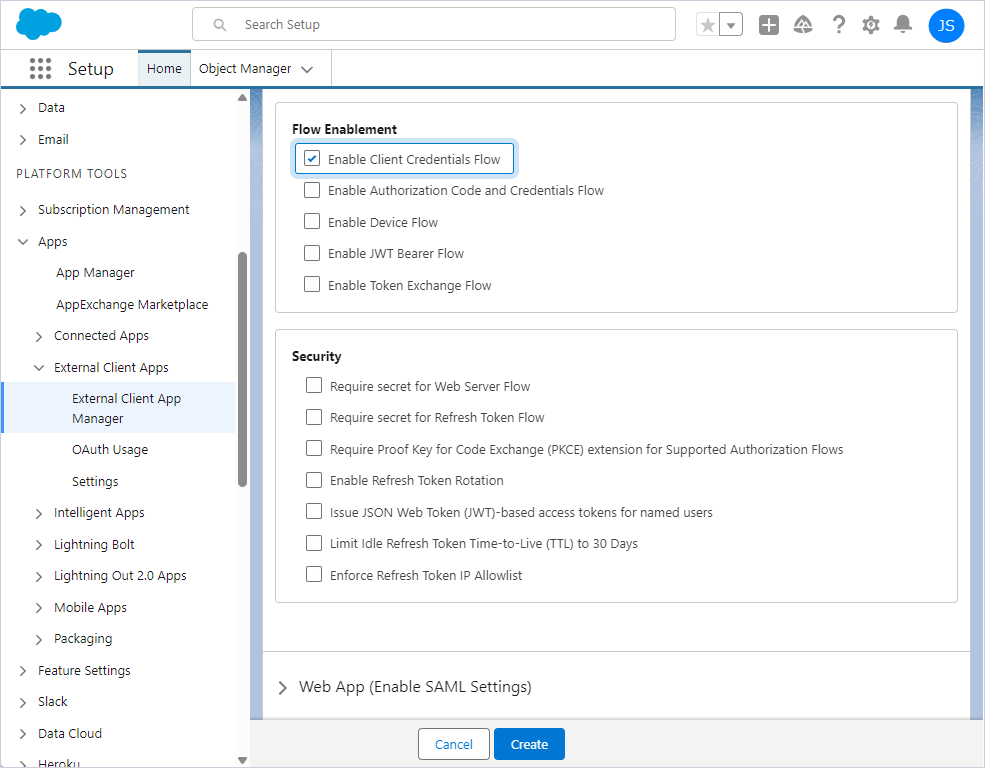
9. Click Create.
Get the consumer key and secret
After you create the external client app, retrieve the consumer key and secret, then configure the OAuth policies to enable the client credentials flow.
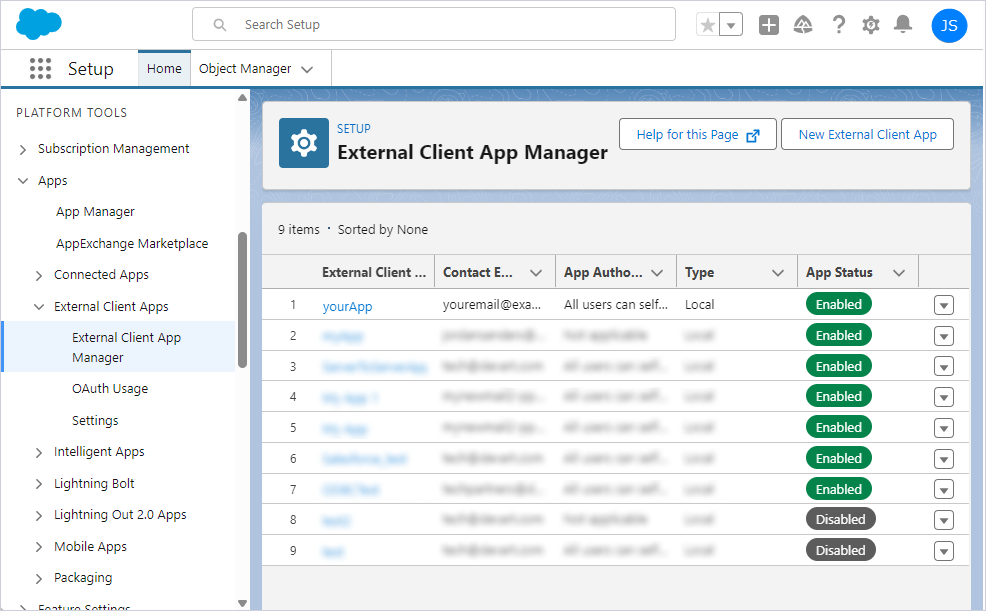
1. Navigate to Apps > External Client Apps > External Client App Manager.
2. Locate your app and open it.
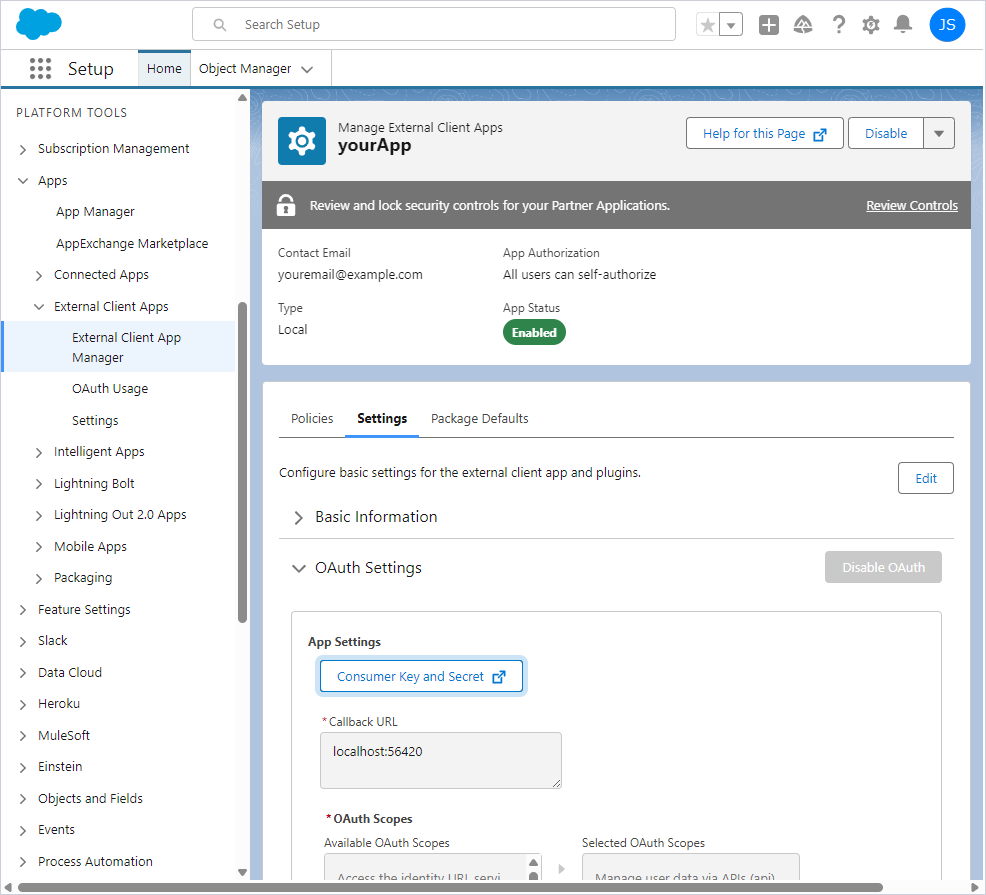
3. Navigate to Settings > OAuth Settings > Consumer Key and Secret.
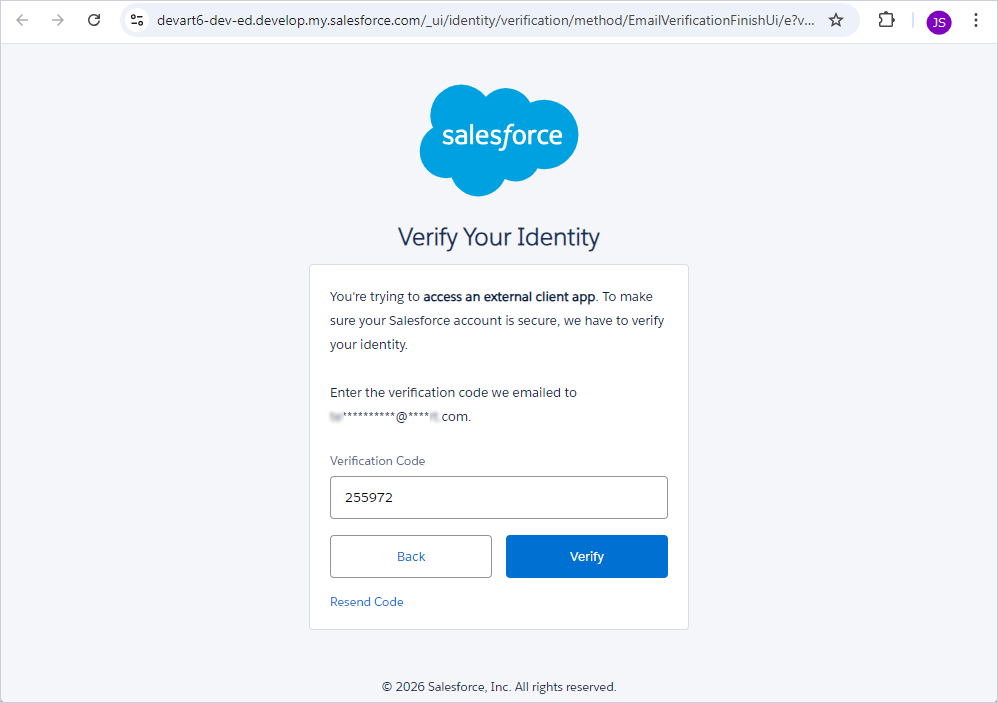
4. On the Verify Your Identity page, enter the verification code sent to your email address, then click Verify.
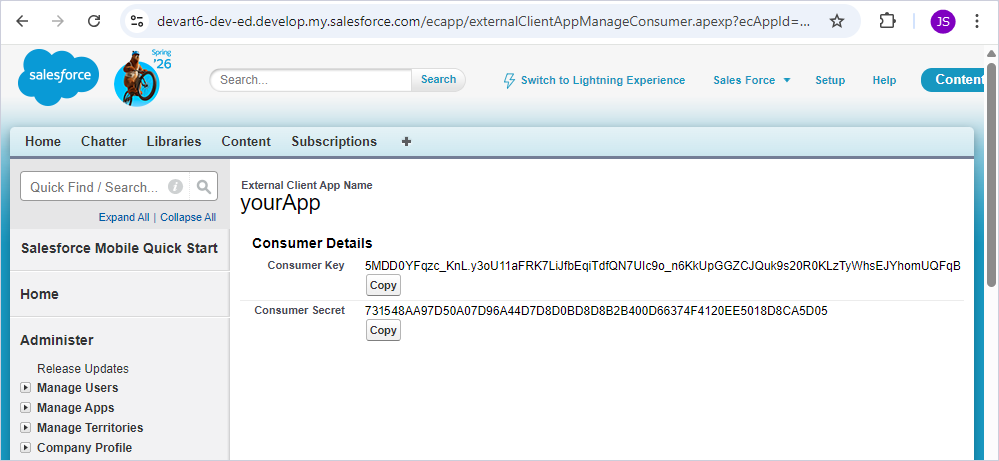
5. Copy the consumer key and secret.
6. Switch to the Policies tab and click Edit.
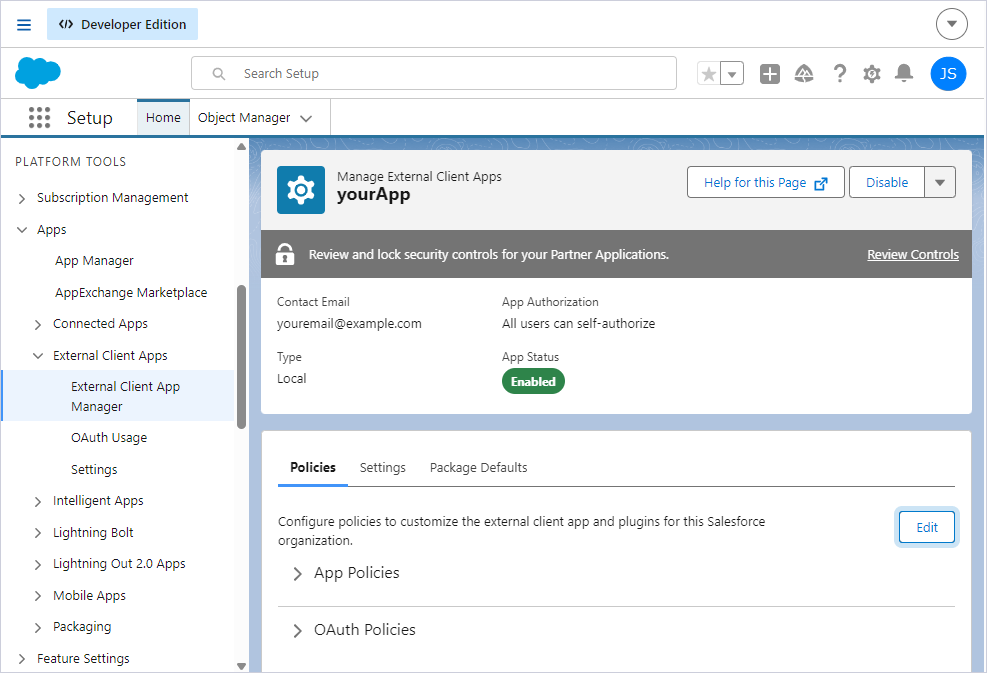
7. Configure OAuth policies:
- In OAuth Policies, select Enable Client Credentials Flow.
- Specify the email of the user on whose behalf the access token will be issued.
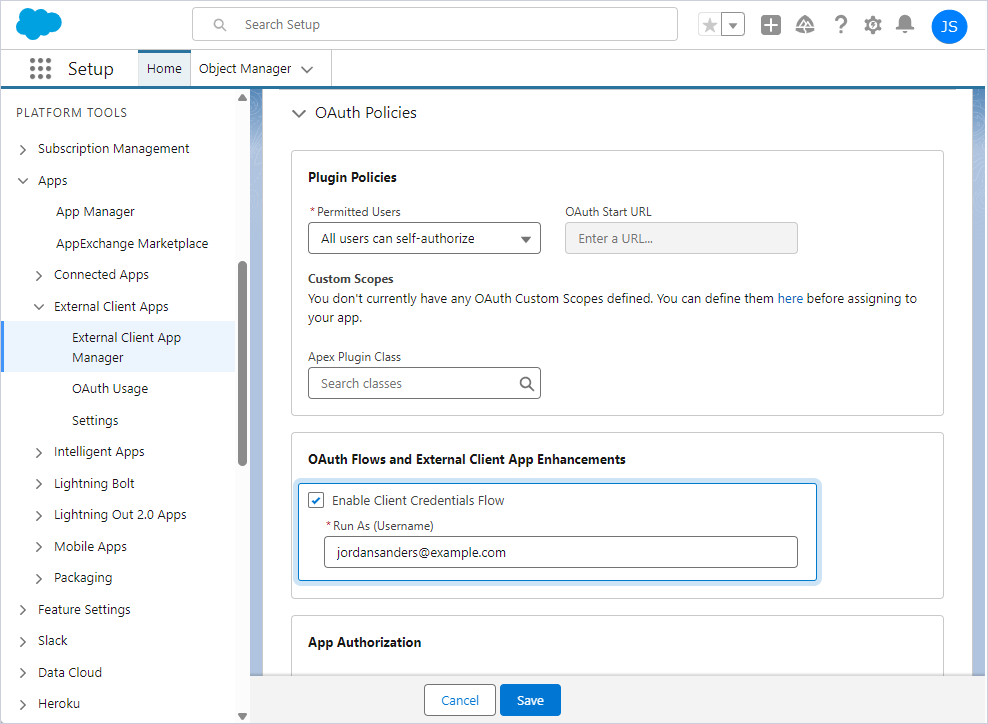
8. Click Save.