Activation


You need to activate Entity Developer—whether it's a purchased or trial version—using one of the following methods:

Via the setup wizard.
In the application.
Via the command line.


CollapsedToggleIcon        Activate via the setup wizard

1.Run the installation wizard and follow the on-screen instructions.
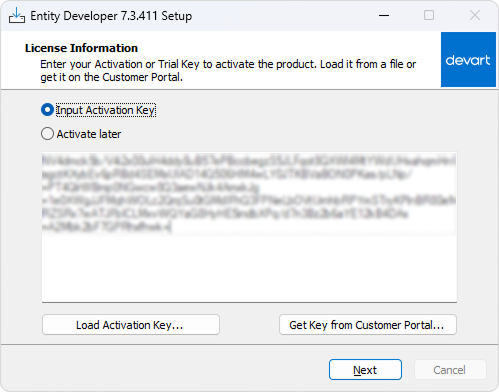
2.In the License Information dialog, activate the product using one of the methods:
Input Activation Key: Activate the product immediately by entering your activation key or uploading the file with the activation key. To upload the file, click Load Activation Key.

note Note

You can find your activation key in the registration email from Devart (for a purchased license) or in your Customer Portal account. To access the portal, click Get Key from Customer Portal.

Activate later: Skip activation for now. You can activate the product later.

entity_developer_license_information

3. Click Next.


CollapsedToggleIcon        Activate in the application

1. Open Entity Developer.

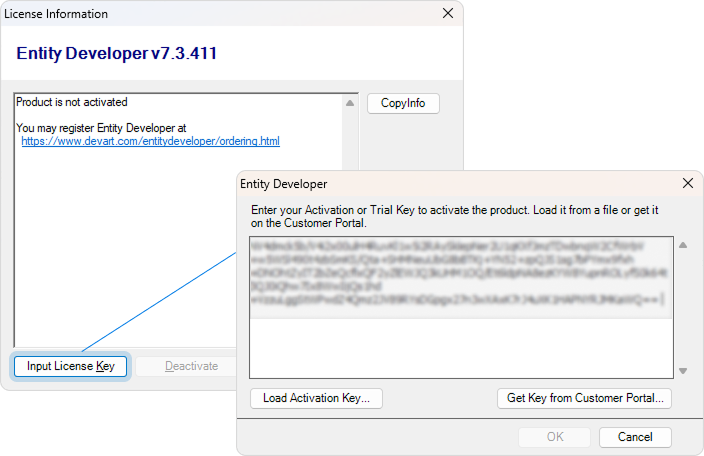
2. In the License Information dialog, click Input License Key.

3. In the product activation dialog, choose one of the activation methods:

Enter your activation key.
Upload the file with your activation key by clicking Load Activation Key.

note Note

You can find your activation key in the registration email from Devart (for a purchased license) or on the Customer Portal. To access the portal, click Get Key from Customer Portal.

entity_developer_activate_in_application

4. Click OK.

CollapsedToggleIcon        Activate the product via the command line

1.  Open Command Prompt.

2. Navigate to the folder where the product executable file is located. The default path is:

C:\Program Files\Devart\EntityDeveloper\Tools

3. Run the following command, replacing <activation_key> with your actual key:

EntityDeveloperActivator.exe -a <activation_key>


entity_developer_command_line_activation


Send feedback on this topic

© 2008 - 2026 Devart. All rights reserved.