dotConnect for Zoho Desk Documentation
Before using dotConnect for Zoho Desk, you need to activate the product—whether it's a purchased or trial version—using one of the following methods:
After installing the product via NuGet packages, you can activate dotConnect for Zoho Desk directly in Visual Studio or from the command line.
1. In the activation dialog, choose one of the activation methods:
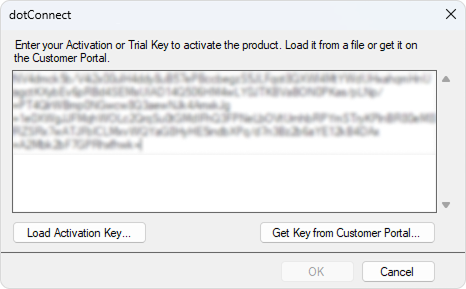
2. Click OK.
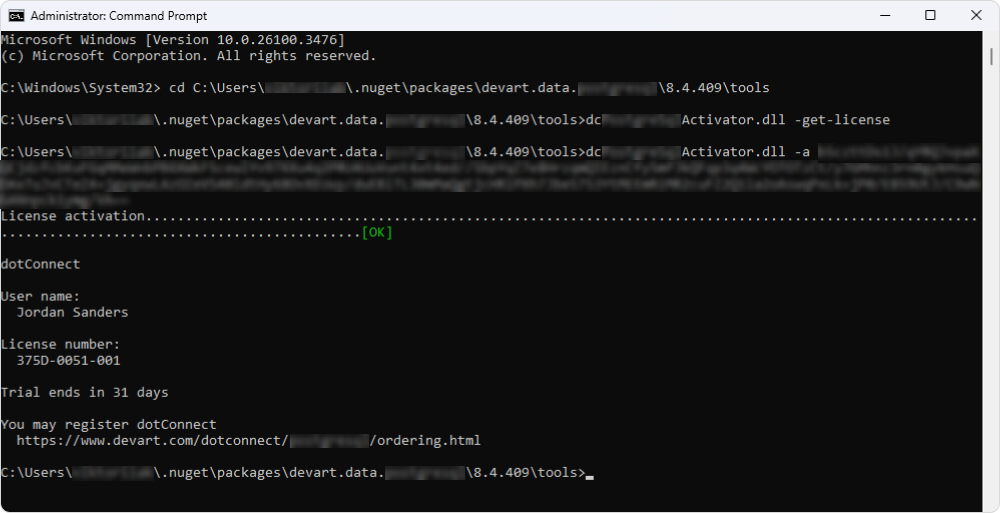
1. Open Command Prompt as an Administrator.
2. Navigate to the folder containing dcZohoDeskActivator.dll. The default path is:
where:
%USERPROFILE% – Your profile name.version_number – The version number of the NuGet package.3. Run the following command to get the license key:
This redirects you to the Devart website, where you can sign in to copy your license key.
4. Enter the following command, replacing your_key with your own value.
Runtime activation supports two methods: directly in the connection string or via a static method.
1. Sign in to the Customer Portal.
2. Copy the activation key available in your Customer Portal account.
3. Apply it using one of the following methods:
|
1. Run the installation wizard and follow the on-screen instructions.
2. In the License Information dialog, activate the product using one of the methods:
3. Click Next.
1. Open Visual Studio.
2. On the menu bar, select Tools > ZohoDesk > Activate or Get License Information.
3. In the License Information dialog, click Input License Key.
4. In the product activation dialog, choose one of the activation methods:
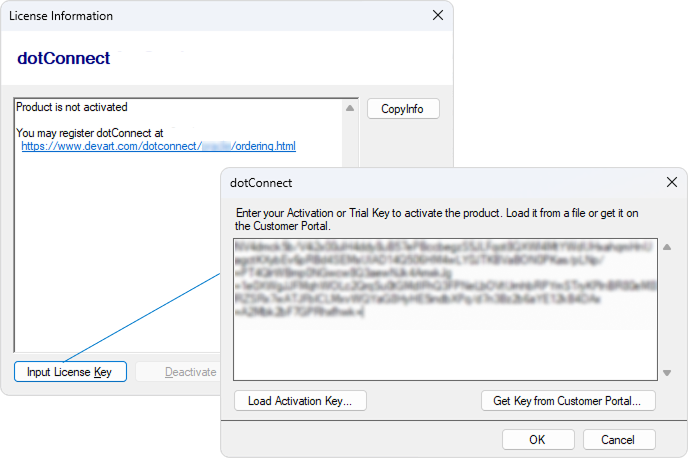
5. Click OK.
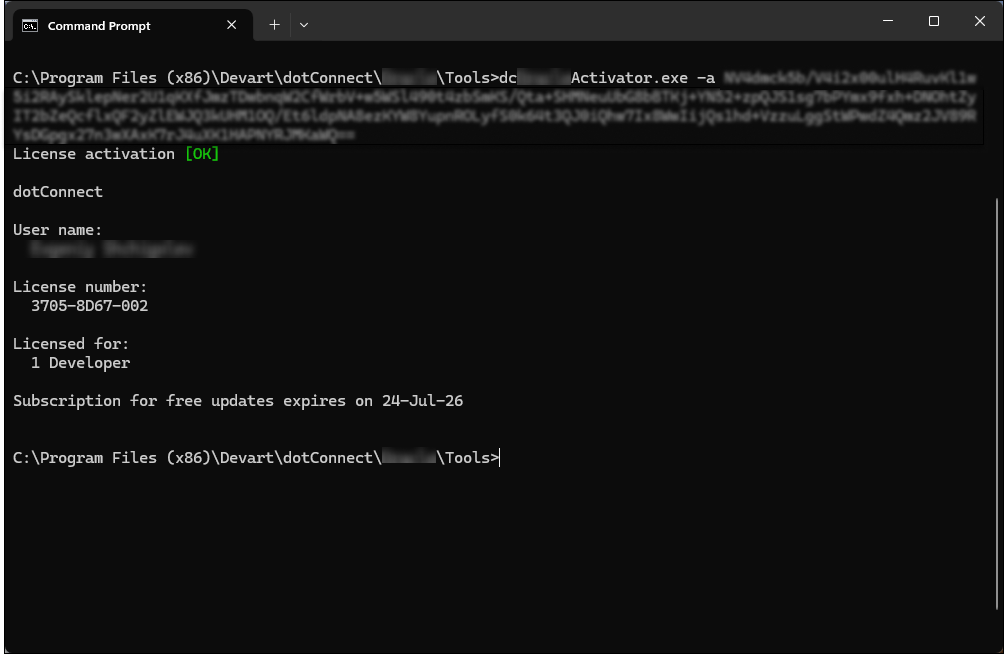
1. Open Command Prompt.
2. Navigate to the folder where the product executable file is located. The default path is:
3. Run the following command, replacing activation_key with your actual key: