dotConnect for SQLite Documentation
This section provides detailed instructions for installing dotConnect for SQLite. It covers the standard installation via the setup wizard, NuGet package installation, and command-line installation, including silent and very silent modes.
You can install dotConnect for SQLite using NuGet using either the Package Manager Console or the NuGet Package Manager.
1. Open Microsoft Visual Studio and select the project where you want to install the package.
2. On the menu bar, select Tools > NuGet Package Manager > Package Manager Console.
3. In the Package Manager Console, execute the following command:
License Key connection string parameter, even for a trial version. To start a free 30-day trial, obtain your trial activation key. To use a purchased license, find your activation key in the email from Devart or on the Customer Portal. For more information, see Activation.
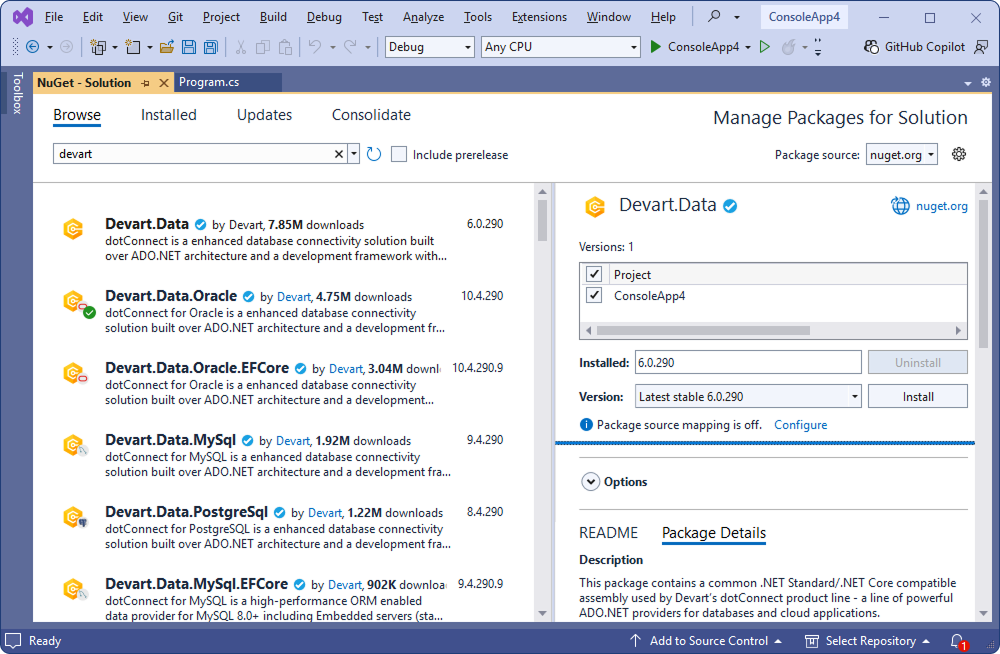
1. Open Microsoft Visual Studio and select the project where you want to install the Devart.Data.SQLite package.
2. On the menu bar, select Tools > NuGet Package Manager > Manage NuGet Packages for Solutions.
3. On the Browse tab, choose the package and select your project. Then click Install.
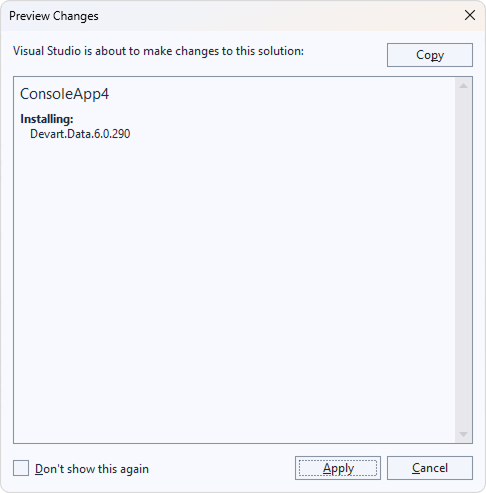
4. In the Preview Changes dialog, review the modifications that will be applied to your project after the package installation. Click Apply.
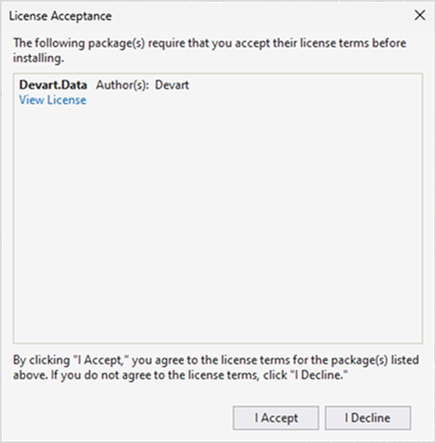
5. Read and accept the license agreement.
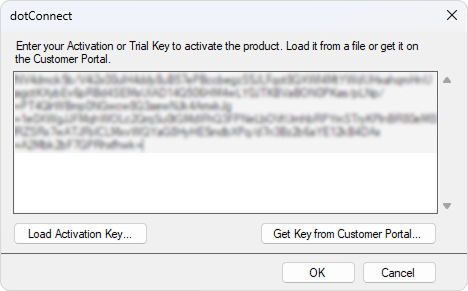
6. Enter your activation key or upload the file containing your activation key, then click OK.
1. Visit the Devart website and download dotConnect for SQLite.
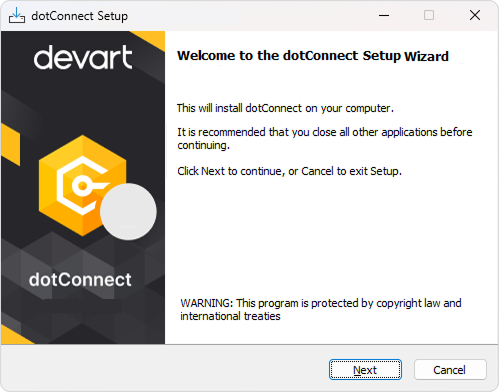
2. Locate the downloaded .exe file and double-click it to launch the installation wizard.
3. Follow the on-screen instructions in the installation wizard.
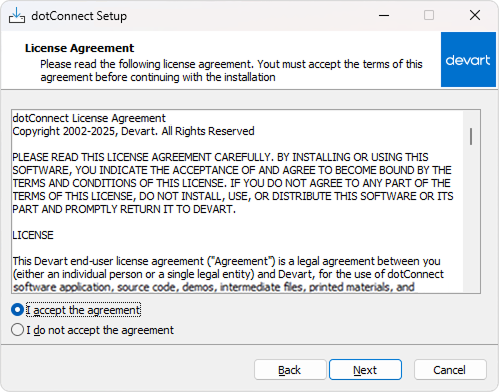
3.1. Read and accept the license agreement. Then click Next.
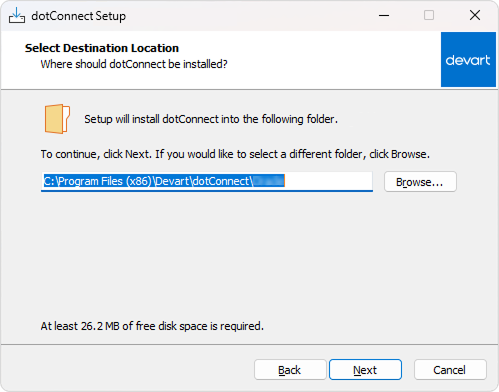
3.2. Choose the installation folder or use the default location (C:\Program Files (x86)\Devart\dotConnect\SQLite). Then click Next.
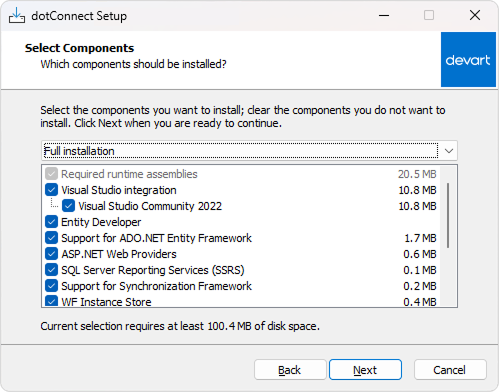
3.3. Select the components you want to install. Then click Next.
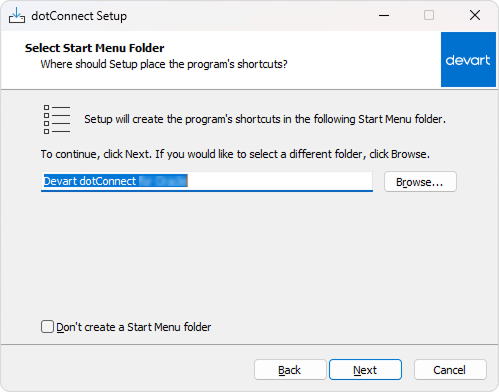
3.4. Select the Start Menu folder to save the provider's shortcuts. If you prefer not to create a Start Menu folder, select the Don't create a Start Menu folder checkbox. Then click Next.
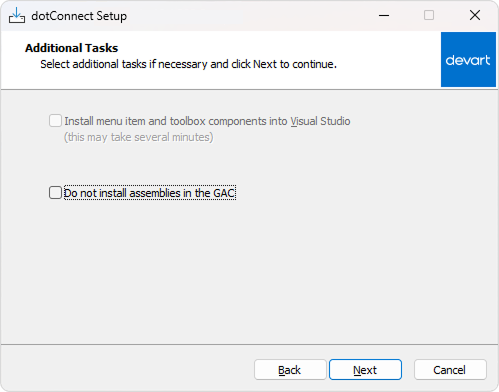
3.5. Optional: Select additional tasks.
Click Next to continue.
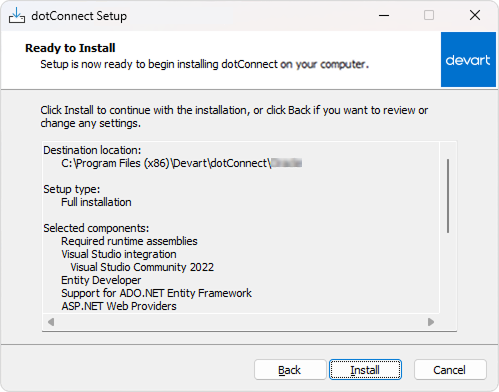
3.6. Complete the installation. Click Install and wait for the process to complete.
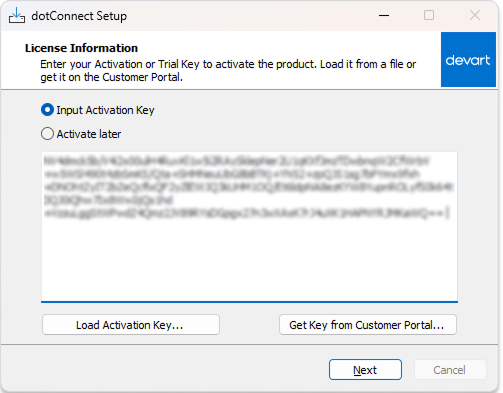
3.7. Select an activation mode.
Click Next to proceed.
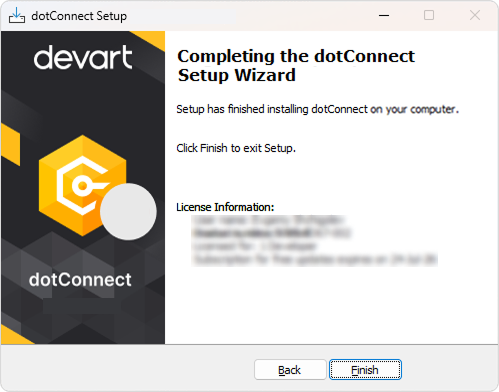
3.8. Click Finish to exit Setup.
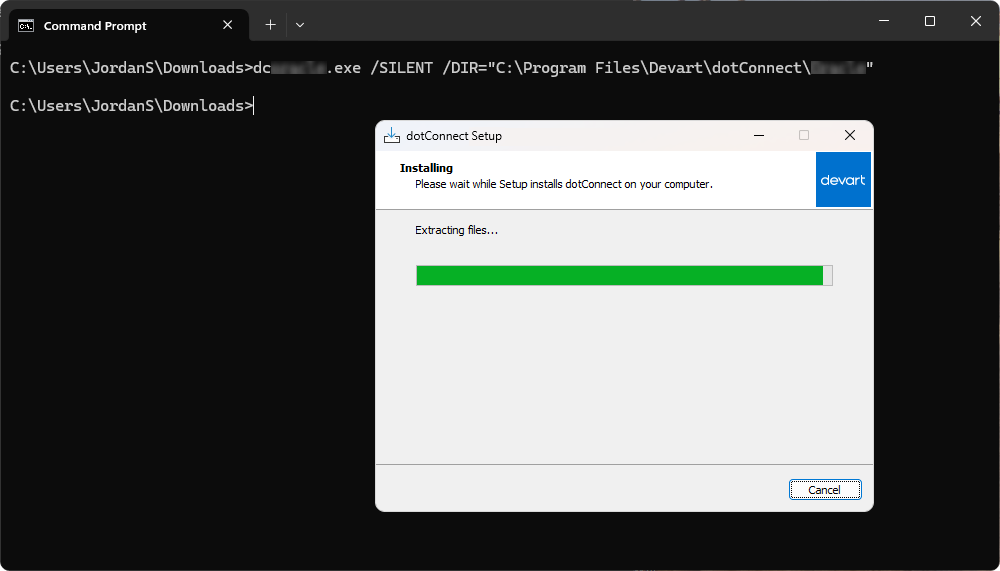
dotConnect for SQLite supports the following command-line installation modes: silent and very silent.
To install the provider from the command line using the preferred mode:
2. Open Command Prompt as an Administrator.
3. Navigate to the folder where the installer is located. The default path is:
4. Run the installer with the required command-line arguments:
/DIR parameter specifies the installation folder on your computer.