
dotConnect for MongoDB Documentation
dotConnect for MongoDB provides design-time integration with Visual Studio 2017, 2019, 2022, and 2026 through Data Designer Extensibility (DDEX). This integration lets you manage MongoDB connections in Server Explorer and use Visual Studio's built-in data design tools, including DataSet Designer, Data Source Configuration Wizard, TableAdapter Configuration Wizard, and data preview features. You can also configure the SqlDataSource control in ASP.NET applications.
This article explains the available integration features and how to use them.
Server Explorer is a Visual Studio window for managing server connections and exploring database objects. With dotConnect for MongoDB, you can create connections to MongoDB servers and browse their databases.
Server Explorer displays collections from the database specified in the connection as tables. Expand a collection to view its columns. To view the collection data, right-click the collection and select Show Table Data.
Connections created in Server Explorer are also available to other Visual Studio data design tools.
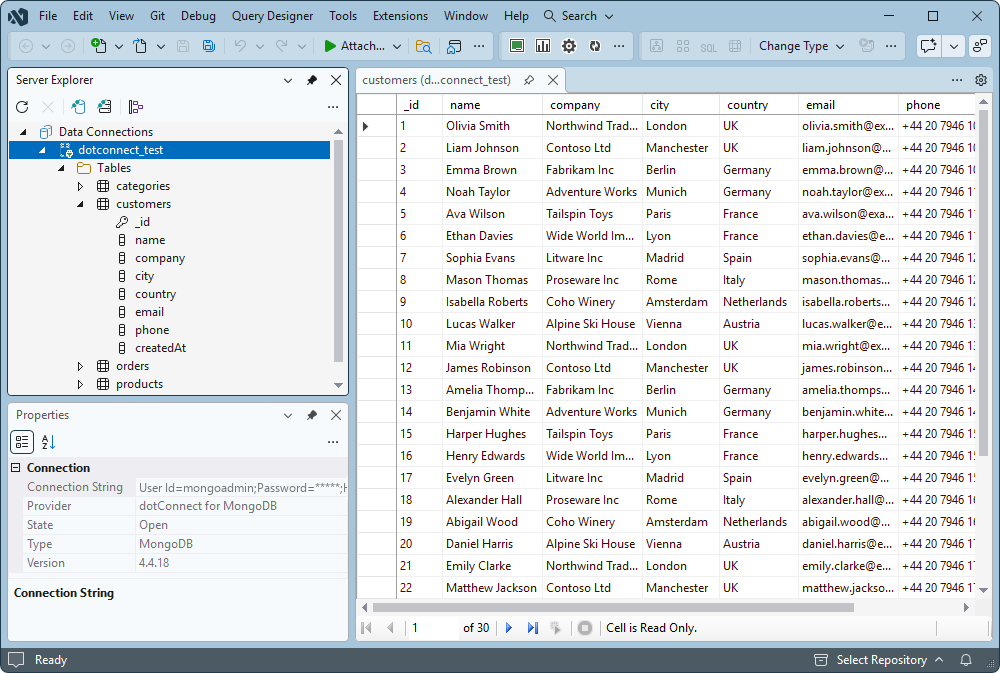
To open Server Explorer, select View > Server Explorer.
The Add/Modify Connection dialog lets you create new MongoDB connections and modify existing ones.
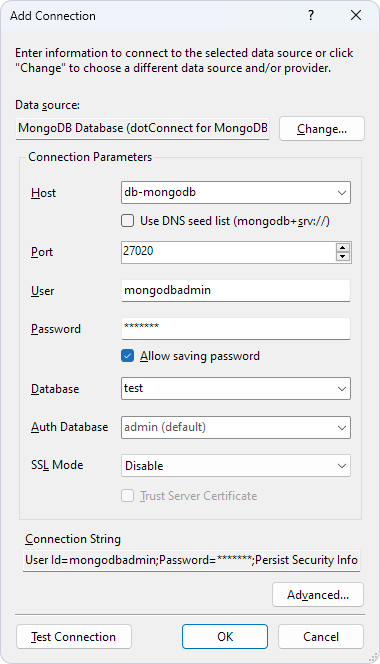
You can open the dialog in one of the following ways:
The following table describes the connection settings available in the dialog.
| Setting | Description |
|---|---|
| Host | Specifies the host name or IP address of the MongoDB server. When Use DNS seed list is selected, specify the host name associated with the DNS SRV record. |
| Use DNS seed list | Enables connections using DNS seed lists (mongodb+srv://), such as those provided by MongoDB Atlas. |
| Port | Specifies the port on which the MongoDB server listens. The default is 27017. |
| User | Specifies the user name used to authenticate with the MongoDB server. |
| Password | Specifies the password for the user. |
| Allow saving password | Saves the password along with the other connection parameters for future connections. |
| Database | Specifies the database to connect to. Its collections are displayed as tables. |
| Auth Database | Specifies the database in which the user account is defined. |
| SSL Mode | Specifies the TLS/SSL connection mode: Disable or Require. |
| Trust Server Certificate | Accepts the server certificate without validating its certificate chain or host name. Available when SSL Mode is set to Require. |
| Connection String | Displays the resulting connection string based on the specified settings. |
After you specify the connection settings, click Test Connection to verify the connection, then click OK.
The Advanced Properties dialog provides access to all dotConnect for MongoDB connection properties, including advanced settings that are not available in the Add/Modify Connection dialog. Use this dialog to configure additional connection parameters when necessary. To open the dialog, click Advanced in the Add/Modify Connection dialog.
Data Source Configuration Wizard lets you create and configure data sources for your application. Data sources can be based on databases, web services, or objects and can be bound to controls that display data on forms.
For Windows Forms applications, the wizard can generate a DataSet and add it to your project. The generated DataSet appears in the Data Sources window, where you can drag its elements onto forms to create data-bound controls. You can further customize the DataSet using DataSet Designer and TableAdapter Configuration Wizard.
You can open Data Source Configuration Wizard in one of the following ways:
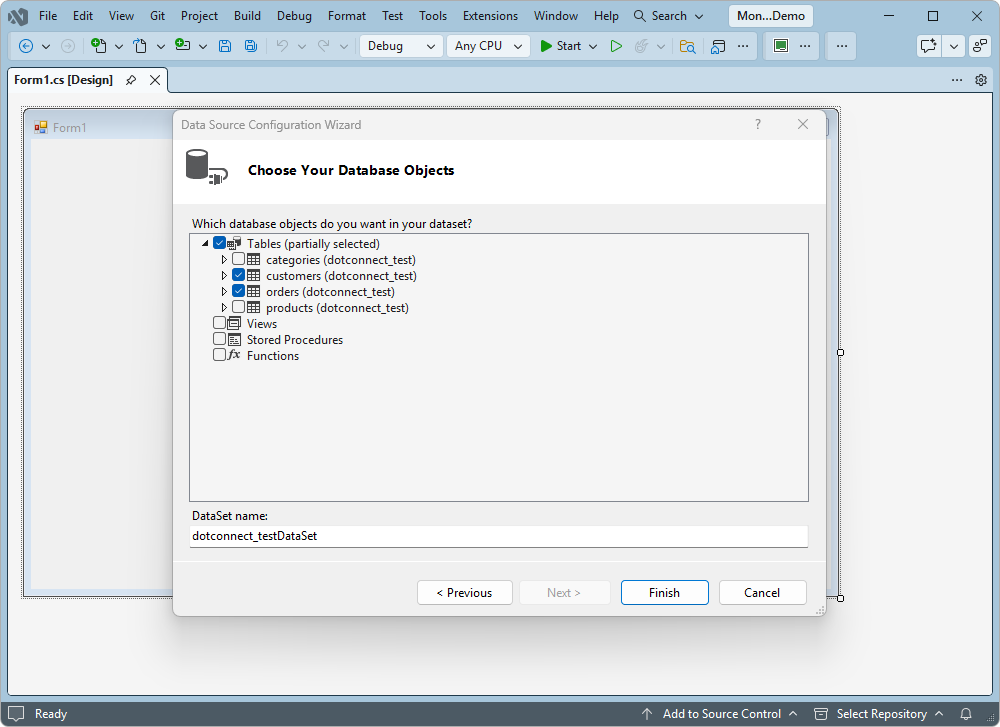
To create a data source:
After completing the wizard, you can view and modify the generated DataSet in Solution Explorer.
TableAdapter Configuration Wizard lets you create and configure TableAdapters based on SQL statements.
A TableAdapter connects to a database, executes queries, and populates a DataTable with the returned data. It can fill an existing DataTable or create and return a new one.
To open TableAdapter Configuration Wizard, open the DataSet in DataSet Designer, right-click the TableAdapter, and select Configure.
You can use the wizard to define queries and configure how data is retrieved from MongoDB collections.
Parameterized queries let you retrieve data that matches specific conditions without hardcoding values into SQL statements.
For example, to retrieve customers from a particular city, add a WHERE clause with a parameter to your query.
The :city parameter lets you specify the city when executing the query.
To create a parameterized TableAdapter query, open the DataSet in DataSet Designer, right-click the TableAdapter, and select
Add Query. In the wizard, enter a SELECT statement with a parameter in the WHERE clause.
Web SQL Data Source Wizard lets you configure data sources for ASP.NET web controls. It provides functionality similar to Data Source Configuration Wizard.
To configure a data source for an ASP.NET web control: